Best project management tool for google workspace - Discover the best project management tool for Google Workspace. Compare top options with deep Gmail

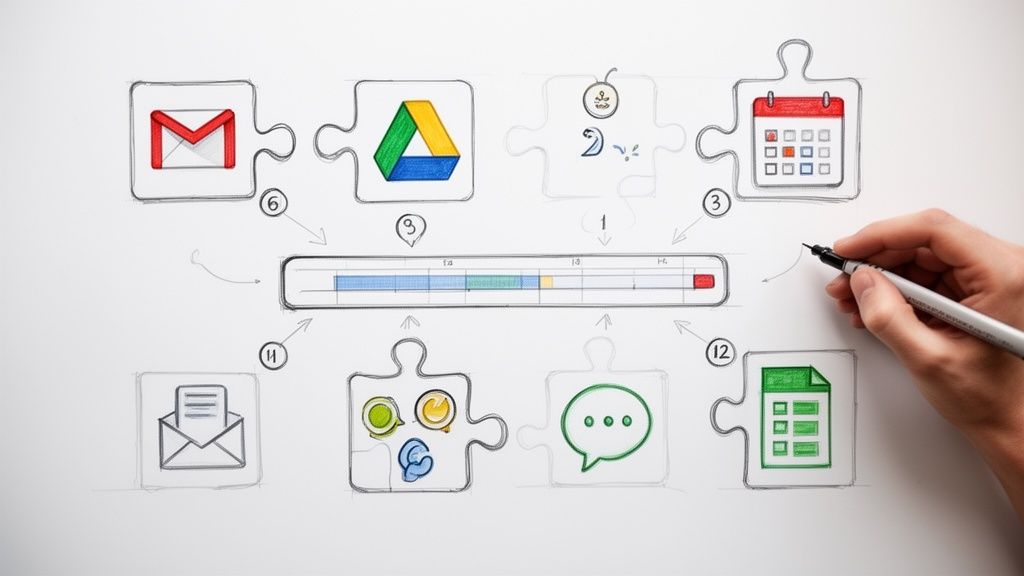
Your team already works inside Gmail, Drive, and Calendar, so adding a project tool that lives somewhere else usually creates more friction than clarity. The key question is which best project management tool for Google Workspace keeps work visible without forcing people to leave the inbox every ten minutes. Google's own guidance still points users toward combining apps such as Tasks and Sheets, and Workspace Marketplace extensions fill the gap for teams that need Kanban boards, timelines, time tracking, and shared task flows, which is why the strongest tools are the ones that fit the way Google users already work, not the ones with the longest feature list. For a practical starting point on automation around this workflow, the Dooza guide to PM automation is a useful companion read.
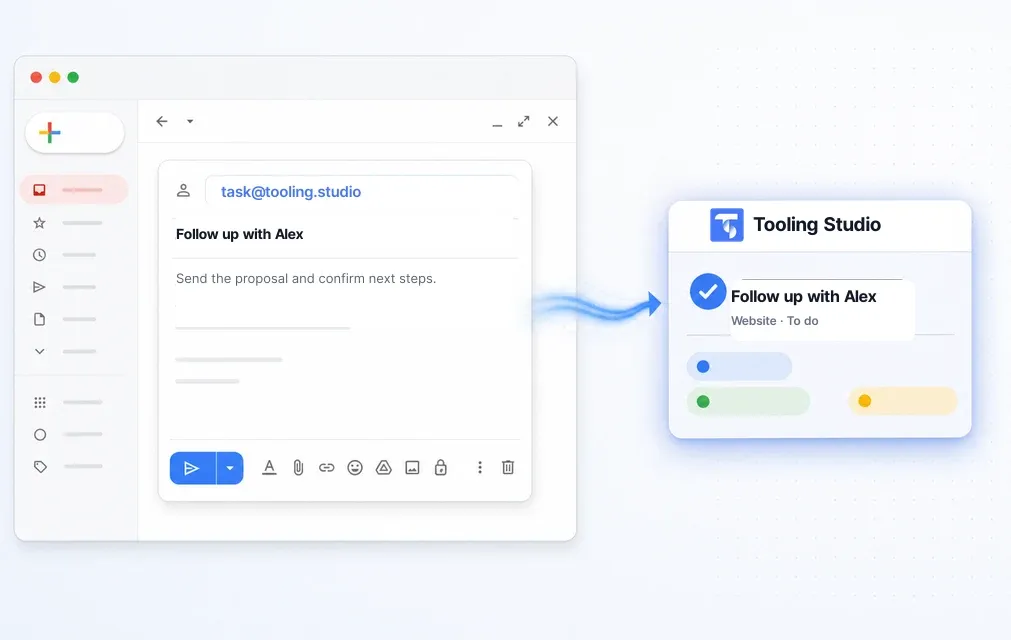
Tooling Studio is the most Gmail-native option in this group, and that matters if your work starts in the inbox. Kanban Tasks places a visual board inside Gmail and Google Tasks, so you can turn emails into tasks, drag work across columns, and keep the board visible without building a second operating system around it. That design choice fits the core Google Workspace reality described in independent guidance, where the main goal is to reduce context switching across Gmail, Drive, and Calendar rather than add another heavy PM layer. The Tooling Studio guide to Gmail project coordination shows how that approach works in practice.

The strongest advantage here is adoption. People already know Gmail, Google sign-in, and Google Tasks, so the learning curve stays low, and boards feel like part of the workspace rather than a separate destination. Tooling Studio also extends that same idea into a Sales CRM built on Google Contacts, which helps sales teams keep leads, notes, attachments, and pipeline context close to email and calendar activity. It's a good fit for freelancers, small teams, and admins who want to standardize on Workspace without introducing a bulky work OS.
Practical rule: if your team updates work from email threads, use the tool that lets them convert those threads into tasks with the fewest clicks.
A few trade-offs are worth being clear about. The CRM is still in beta, so teams with complex sales processes may outgrow it for now. The smoothest experience also depends on Google Chrome and a Google account, and some enterprise admins will need to allow the extension for managed users.
Best for: inbox-driven project management, lightweight team boards, and sales workflows that stay inside Google Workspace.
Website: Tooling Studio
Asana is the safe choice when a team wants broad Workspace coverage and a mature project platform. Its Gmail add-on lets users turn emails into Asana tasks, Google Drive files can be attached directly to tasks, and Google Calendar syncing helps due dates stay visible where people plan their week. That makes it a solid fit for teams that need more structure than Google Tasks without going all the way into a heavier enterprise system.

Asana is strong for organizations that want reporting depth, admin controls, and enough flexibility to handle cross-functional work. The Google integration set is broad enough that teams can keep their day in Gmail, Drive, and Calendar while still moving tasks through a more formal workflow. That usually helps when projects involve multiple stakeholders and people need clearer ownership than a shared spreadsheet can provide.
The trade-off is complexity. Asana scales well, but teams can spend more time deciding how to structure projects, sections, and rules than they do in simpler tools. If your group prefers a lightweight board that mirrors the inbox, Asana may feel more like a system to maintain than a place to work.
When teams already have discipline around process, Asana fits. When they need the tool to create the discipline, the setup can feel heavier than expected.
For teams that want a broader PM platform and have the patience to configure it properly, Asana remains one of the most dependable Google Workspace options.
Best for: SMBs and larger teams that want established Workspace integrations and deeper reporting.
Website: Asana
Internal note for teams comparing lighter options: free project management for Gmail teams
Trello is still one of the easiest tools to adopt if your team thinks in boards. The Gmail add-on converts emails into cards, and the Google Drive Power-Up makes it simple to attach and preview Drive files directly on those cards. For many Google Workspace teams, that is enough. The workflow stays visual, the setup stays simple, and people can understand the board within minutes.

Trello works because it doesn't ask for much. It gives smaller teams a clean Kanban flow, then lets them add power as needed through automations and marketplace add-ons. That makes it appealing for teams that want to move fast without training everyone on a complex operating model.
The limitation shows up when work gets cross-functional or long-running. Trello can handle those cases, but only if the team is willing to layer on extra add-ons and maintain the workflow carefully. It's excellent for visible task flow, less convincing when a program needs deeper reporting or portfolio-level oversight.
The Tooling Studio Trello alternatives discussion is useful if your team likes Trello's shape but needs tighter Gmail-native behavior.
Best for: small teams, simple board workflows, and fast onboarding inside Google Workspace.
Website: Trello
ClickUp tries to be the broadest option on the list, and for some Workspace teams that is exactly the point. It offers two-way Google Calendar sync, a Gmail workflow for creating and updating tasks from email, and Drive links and previews inside tasks and docs. If you want one platform for docs, goals, dashboards, and project tracking while keeping Google services in the loop, ClickUp has enough depth to make that possible.

ClickUp's advantage is consolidation. Teams that are juggling docs, planning, task views, and timelines can pull a lot into one environment without abandoning Google Calendar or Gmail. That broadness makes it attractive for operations-heavy groups that want fewer tools overall.
The cost of that flexibility is configuration. ClickUp can do a lot, but someone usually has to define the structure, naming, views, and permissions or the workspace starts to sprawl. For mature teams with process ownership, that's manageable. For smaller groups that want a clean inbox-to-task flow, it can feel like more platform than they need.
The agile tool reviews for teams resource is a helpful lens if you're comparing ClickUp against more focused agile setups.
Best for: teams that want broad feature coverage and are willing to administer the workspace carefully.
Website: ClickUp
monday.com works well for Google-centric teams that want a highly customizable work OS. Its Gmail recipes can turn messages into items and automate follow-ups, Google Drive handles file attachment and organization, and Google Calendar keeps dates aligned with timelines and schedules. That combination is practical when the workflow matters more than the template.

The platform is strongest when a team needs to model different kinds of work in different ways. You can shape boards around sales, operations, marketing, or client delivery, then use automation to keep those boards updated with less manual effort. For Workspace teams that need more than a simple board, that flexibility is useful.
The downside is that plan selection matters. monday.com can become expensive in practice when seat counts grow or when teams add the kind of workflow extensions that make the platform useful. It's a strong product, but buyers should be clear about the end state before they commit.
For organizations that want customizable process management around Gmail, Drive, and Calendar, monday.com gives you a lot of room to build.
Best for: teams that want highly configurable boards and automation around Google apps.
Website: monday.com
Smartsheet is the most spreadsheet-like option here, which makes it feel familiar to teams that already organize work in grids. The Gmail add-on can turn emails into rows or tasks, and the platform connects with Google Drive, Docs, Sheets, Calendar, and SSO options. If your organization likes structured data and needs project views such as Gantt and card layouts, Smartsheet gives you that without forcing a visual-first team into a pure Kanban model.

Smartsheet is often the right answer for larger organizations that need governance, formal reporting, and a format that feels close to familiar spreadsheets. It supports more controlled project management than lighter board tools, and that helps when process consistency matters across departments.
The trade-off is weight. If your team only needs quick task movement from Gmail into a board, Smartsheet can feel like more software than the job requires. It works best when the organization already thinks in sheets and wants project management layered on top of that habit.
Best for: enterprise and operations teams that want grid-based project tracking with stronger governance.
Website: Smartsheet
Wrike is built for structured work across teams, and it shows in its Google Workspace fit. The Gmail add-on creates and updates tasks from inbox messages, Drive integration keeps files attached to the right work, and templates and request forms help standardize intake. That makes it especially useful for teams that manage reviews, approvals, and coordinated handoffs.

Wrike's real strength is control. It handles cross-department coordination well, and the reporting layer gives managers a clearer view of where work stands across groups. For organizations with multiple stakeholders and defined approval paths, that structure is valuable.
The limitation is that Wrike asks buyers to pay attention to plan choices and add-ons. The platform can meet a lot of needs, but teams should define those needs early or the total setup becomes more complicated than expected. It's a serious tool, which means it rewards serious process discipline.
Practical rule: choose Wrike when the workflow needs intake, review, and reporting more than it needs a simple board.
Best for: cross-functional teams, structured intake, and reporting-heavy project environments.
Website: Wrike
Jira Software is still the most familiar choice for technical teams that live in structured issue tracking. It connects to Gmail through the official Jira Cloud for Gmail app, and additional Google Workspace connections are available through the Workspace Marketplace. For product and engineering teams already standardizing on Google Workspace, Jira brings issue types, workflows, and automation into a system they likely already know.
Jira's depth is the point. It handles complex workflows, technical handoffs, and larger program structures better than most simple task tools. Teams that need issue tracking, automation, and enterprise provisioning will usually find the shape of Jira familiar and dependable.
The trade-off is configuration. Jira can feel heavy for teams that only want board-level project management, and the setup overhead can slow down non-technical users. If your team's work doesn't really start with tickets and dependencies, Jira may be more process than you need.
The Tooling Studio agile methodology guide is helpful if your team is deciding between a lighter Kanban flow and a stricter Scrum-oriented system.
Best for: software teams, product teams, and complex issue-based workflows in Google Workspace.
Website: Jira Software
Teamwork makes the most sense when the work is client-facing. It includes time tracking, billing, a client portal, and a documented Google Drive integration for attaching and managing files from Drive inside projects and tasks. Agencies and service teams often like that combination because it keeps delivery, time, and client communication closer together.

Teamwork is built around project delivery for clients, not just internal task tracking. Milestones, workload tools, and templates support service teams that need to balance execution with visibility, and Drive attachment support keeps files in the right place.
Its main limitation is that Gmail and Calendar automation leans more on integrations than on a native inbox layer. That's fine if your team already has a process around project delivery. It's less ideal if the inbox is where most work begins and ends.
Best for: agencies, consultants, and client services teams using Google Workspace.
Website: Teamwork
Airtable is the most flexible option on the list for teams that want project management and data modeling in the same place. It syncs with Google Calendar, can push calendar views into Google Calendar through an iCal feed, and links files from Google Drive into records. That makes it especially useful when project tracking overlaps with CRM or operations data.

Airtable works well when you need a custom structure instead of a fixed project template. Teams can build lightweight PM and ops systems around it, which is valuable when work doesn't fit neatly into a standard board. It's also a useful bridge for teams that want to combine task tracking with CRM-style records.
The limitation is calendar behavior. The sync has meaningful constraints, and teams often end up relying on one-way behavior or custom automation to make it practical. That means Airtable is powerful, but it's not the cleanest choice if your priority is simple Gmail-to-task flow inside Google Workspace.
Best for: teams that need flexible schemas and hybrid PM, CRM, or ops setups.
Website: Airtable
| Product | Core features | UX & Rating | Value & Pricing | Target audience | Unique selling points |
|---|---|---|---|---|---|
| Tooling Studio 🏆 | Gmail‑first Kanban, Google Tasks sync, Sales CRM (beta), real‑time boards | Lightweight, near‑native UX ★★★★☆ (4.4/5, 57) | Free personal; Team $5/user/mo or $50/user/yr 💰; 30‑day refund | 👥 PMs, SMBs, sales teams, freelancers, Workspace admins | ✨ In‑inbox Kanban & CRM, low friction, AI agent integrations |
| Asana | Work management, Gmail add‑on, Drive & Calendar sync | Mature, enterprise‑grade ★★★★ | Freemium → tiered plans; admin tools 💰 | 👥 SMBs → Enterprises, cross‑functional teams | ✨ Robust reporting, SSO/admin controls |
| Trello (Atlassian) | Visual Kanban boards, Gmail add‑on, Drive Power‑Up | Very simple, fast adoption ★★★★ | Freemium; paid Power‑Ups/teams 💰 | 👥 Small teams, lightweight projects, freelancers | ✨ Extremely low learning curve, rich Power‑Ups |
| ClickUp | Tasks, Docs, Goals, two‑way Calendar sync, Chrome extension | Feature‑rich; highly configurable ★★★★ | Freemium → paid tiers; competitive 💰 | 👥 Teams wanting consolidation; product/ops | ✨ Consolidates Docs, dashboards, goals in one |
| monday.com | Customizable boards, Gmail & Drive integrations, automations | Highly customizable ★★★★ | Paid tiers; costs increase with seats/add‑ons 💰 | 👥 Ops teams, project & process owners | ✨ Powerful automations & marketplace |
| Smartsheet | Sheet/Gantt/card views, Gmail add‑on, Drive sync | Spreadsheet UX with governance ★★★★ | Paid plans; enterprise focus 💰 | 👥 PMOs, enterprise project teams | ✨ Familiar grid UX + strong admin controls |
| Wrike | Project/portfolio, Gmail add‑on, Drive integration, templates | Robust cross‑team workflows ★★★★ | Tiered plans; add‑ons affect cost 💰 | 👥 Multi‑team orgs, marketing & ops | ✨ Request forms, proofing, detailed reporting |
| Jira Software (Atlassian) | Issue tracking, Gmail app, Marketplace, SSO/provisioning | Powerful for engineering; complex ★★★★ | Paid per user; enterprise licensing 💰 | 👥 Engineering & product teams | ✨ Advanced workflows, dev‑centric automations |
| Teamwork | Client projects, time tracking, Drive attachments, billing | Client‑work friendly ★★★ | Paid plans; services focus 💰 | 👥 Agencies, service providers, billable teams | ✨ Time tracking + client portal for agency work |
| Airtable | Relational records, calendar/timeline, Drive linking | Flexible schema & views ★★★ | Freemium; paid tiers for advanced blocks 💰 | 👥 Ops, PMs needing custom data models | ✨ No‑code relational tables + flexible views |
Selecting the right tool starts with the way your team already works. Individuals and freelancers usually do best with lightweight, inbox-native systems that keep task handling close to Gmail and Google Tasks. Small teams need shared visibility without a steep learning curve, so a simple board with strong Workspace integration usually beats a heavyweight platform that takes weeks to settle in. Sales workflows need a tool that stays close to email and contacts, while enterprise admins should care most about SSO, permissions, and whether the extension can be approved cleanly for managed accounts.
Use a short evaluation checklist before you commit. Test the Gmail add-on in a real thread, verify how the tool handles Drive files, and confirm that Calendar sync behaves the way your team expects. If the product claims to support your workflow but still pushes people into extra tabs, extra logins, or manual copying, it's probably the wrong fit for a Google-first environment.
Migration matters as much as selection. Start with one pilot project, clean up your existing data before importing anything, and pick one core workflow to teach first. Teams adopt faster when the first use case is obvious and repeatable, not when they're handed every feature at once.
Google's own project management guidance still frames the ecosystem around Gmail, Drive, Calendar, Tasks, and third-party extensions, which is why the strongest choice is usually the one that feels closest to that daily flow. If your team wants the deepest inbox-native approach, Tooling Studio is built for exactly that kind of work. If you want to see how it handles boards, tasks, and sales workflows inside Google Workspace, visit Tooling Studio and evaluate it against the way your team runs projects.