


Less context copying
Ask for help the way you would ask a capable teammate. MCP gives the AI the context it needs to search, read, create, update, move, and organize the right records.
AI is useful until it needs the real task board, the right contact, or the latest deal stage. Tooling Studio MCP connects your AI app to your Tasks and CRM, so it can find the right record and help create, update, move, tag, comment, assign, or link the work for you.
MCP stays off until you choose to enable it. An external AI app cannot connect to your Tooling Studio workspace until you turn MCP access on.

What it looks like in practice
Ask your AI app to handle the work around Tasks and CRM, then review what changed.
"What tasks are due today?"
"Move everything from Backlog to Doing that mentions onboarding."
"Find Olivia Bennett in CRM and add a note."
 claude.ai/chat/tooling-studio-mcp-demo
Launch follow-up workspace
Demo preview. Claude is shown as an example MCP-compatible AI app.
Why connect MCP
Without MCP, you paste task names, contact details, meeting notes, and deal context into an AI app, then copy the answer back into Tooling Studio yourself. With MCP, your AI app can inspect the workspace it is allowed to see, find the right place, and help carry out the update directly.
Ask for help the way you would ask a capable teammate. MCP gives the AI the context it needs to search, read, create, update, move, and organize the right records.
MCP does not grant extra admin powers. The AI app can only reach the teams, boards, lists, tasks, contacts, organizations, and deals the signed-in user already has permission to access.
Tooling Studio MCP gives each workspace a URL. In most AI apps, that means users choose the remote connector or remote server flow, not a local command-line install.
Tooling Studio MCP connects the places where work already lives: boards, lists, tasks, contacts, organizations, deals, notes, tags, and comments. The AI can inspect the structure first, ask a follow-up question when something is ambiguous, and then take the action you asked for.
That turns everyday admin work into a conversation. Teams can keep project and CRM data current without copying notes into one place, asking AI in another, and then cleaning up Tooling Studio afterward.
Ask your AI assistant to read a meeting note, create the right tasks, set owners, add due dates, and place the work on the correct board.
"Read the launch meeting notes and create tasks for each owner in the Product board."
Find contacts, update organizations, add notes, move deals through the pipeline, and create follow-up work without manually opening every record.
"Find Olivia Bennett, add the call note, move the deal to Qualified, and create a follow-up task for Friday."
Tasks and CRM
MCP is the connection layer. The product pages explain the two places agents can help: customer relationships in Sales CRM and execution work in Kanban Tasks.
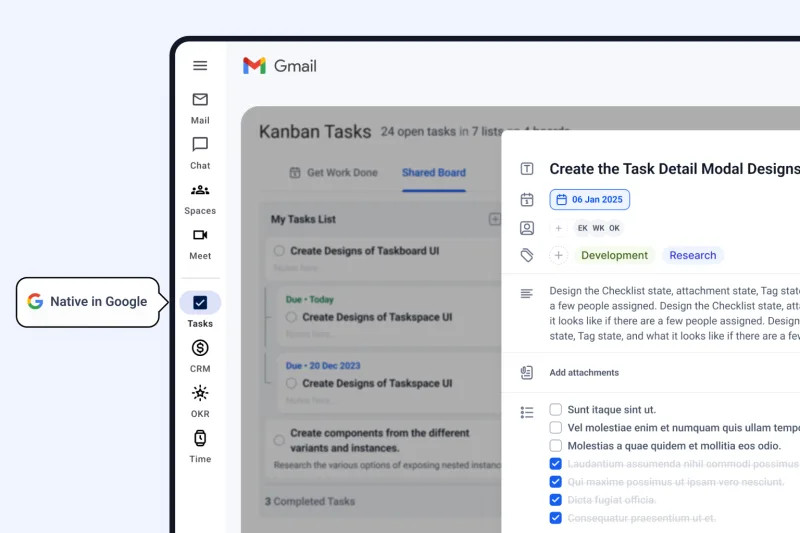
Give agents a real execution layer: boards, lists, tasks, owners, due dates, comments, checklists, tags, and CRM links.
See how Kanban Tasks gives agents project work they can actually inspect and update.
Read the project management guideCompare Tooling Studio, Asana, ClickUp, Jira, Linear, Notion, Airtable, monday.com, Wrike, and Trello for agent-ready project work.
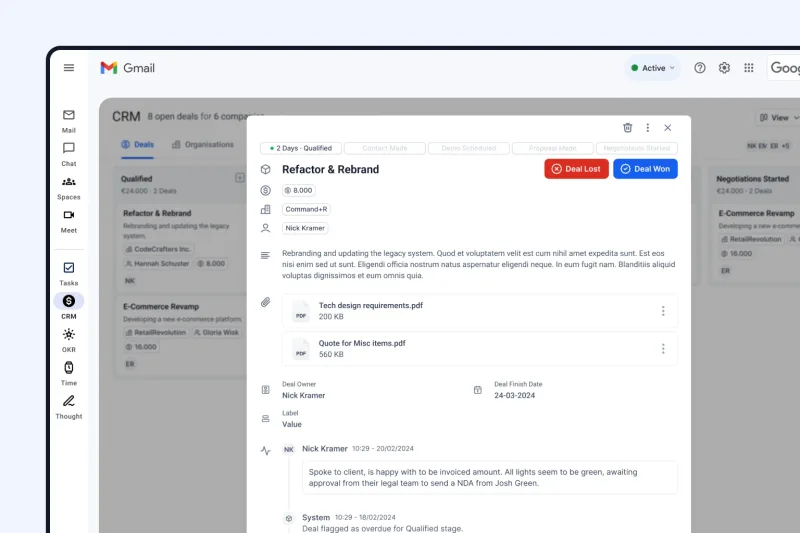
Read the project tool comparisonGive agents structured relationship context: contacts, organizations, deals, pipelines, notes, tags, owners, and linked follow-up tasks.
See how Sales CRM gives agents customer records and pipeline work they can help keep current.
Read the CRM guideCompare Tooling Studio, HubSpot, Attio, Salesforce Agentforce, Breakcold, Airtable, monday CRM, Pipedrive, Zoho CRM, and Close.
Read the CRM comparison
Customer story
Axana connects Sales CRM, Kanban Tasks, Gmail, Calendar, Drive, and Claude so relationship data and follow-up work start each day cleaner.
Read the Axana story
Tasks
Example prompts
"What tasks are due today?"
"Show me everything in the Product board that is due this week."
"Create a task called Prepare launch checklist in Backlog."
"Move Prepare launch checklist to Doing."
CRM
Example prompts
"Find Olivia Bennett in CRM."
"Create a new contact for Olivia Bennett with olivia.bennett [at] example.com."
"Add Olivia Bennett to the Prospects list."
"Move Olivia Bennett from Prospects to Qualified."
Tooling Studio MCP gives the AI a structured way to understand your workspace before it acts. That matters: most useful automations require the AI to identify the right team, board, list, contact, organization, or deal first.

The AI usually starts by looking at the teams, boards, lists, pipelines, and records you can access so it can understand where your request belongs.
It finds the most likely task, contact, organization, deal, board, or list based on the names and details in your request, even if you do not remember the exact wording.
Once it finds the match, it can read, create, update, move, assign, tag, comment, or organize the record depending on what you asked it to do.
Setup guide
To connect an external AI app, open Account settings, go to AI, turn on MCP access, copy the MCP URL, add it to the AI app, review the sign-in flow, and start with a small request first.
Open Settings -> Account -> AI, then turn on MCP access. This account switch is what allows external AI apps to connect to Tooling Studio.
MCP access
Allow external MCP clients to connect to your Tooling Studio workspace.
Connect with this MCP URL
Copyhttps://backend.tooling.studio/api/v0/rest/mcp
Connected MCP apps
RefreshClaude
Connected MCP apps can be disconnected from this same settings screen.
In the same AI settings area, Tooling Studio shows your MCP URL. Copy it exactly. This is the URL you will paste into the AI app when it asks for a connector or MCP server.
https://backend.tooling.studio/api/v0/rest/mcp Look for the AI app's MCP, connector, or remote server setup flow. Paste in your Tooling Studio MCP URL there. If the app offers both local and remote setup, choose the remote option.
Your AI app should open a sign-in and approval flow. Use the same Google account you already use with Tooling Studio, then confirm the app details before approving the connection.
Begin with something easy like checking due tasks, finding a contact, or listing a pipeline. Once you trust the setup, move on to edits and updates.
Official setup guides
Provider support changes quickly. Check the latest official docs before you connect. Tooling Studio MCP is a remote URL-based setup, so prefer guides that explain remote connectors or remote MCP servers.
OpenAI documents Developer mode and MCP app support in its official developer docs. This is the right starting point if your team is connecting Tooling Studio through ChatGPT, but exact availability depends on plan and workspace setup.
Read the ChatGPT developer mode guideAnthropic documents custom connectors using remote MCP for Claude and Claude Desktop. This is the clearest guide if you want a connector-style setup flow.
Read the Claude remote MCP guideCursor documents MCP for both remote and local setups. Use the remote server path when you are pasting in your Tooling Studio MCP URL.
Read the Cursor MCP guideIf you want the big-picture explanation of hosts, clients, servers, tools, resources, and prompts, start with the official MCP architecture overview.
Read the MCP architecture overviewWhat MCP can and cannot do
MCP can save a lot of clicks, but it is still a connection between an AI app and your workspace. It helps most when users stay specific and review important actions carefully.
Setup, permissions, provider support, internal AI, and disconnecting later.
Open Tooling Studio, go to Settings -> Account -> AI, enable MCP access, and copy your MCP URL into the AI app you want to use with your work.
MCP connections only work after you turn access on. You can disconnect apps or turn MCP off again at any time.