Google Workspace already handles a big part of work. Gmail runs requests and approvals. Calendar runs time. Drive runs files. Docs runs planning. Meet runs conversations.
What it does not give most small teams is a clean way to see work move.
That is where project management in Google Workspace usually breaks down. One person knows what has to happen, but the rest of the team cannot see status, ownership, or the next step without digging through email threads, comments, and spreadsheets. Work still gets done, but it gets done with more friction than it should.
The fix is not always a giant work operating system. For a lot of founders, agencies, operations teams, and service businesses, the better answer is much simpler: keep the communication and file layer in Google Workspace, then add a lightweight, shared workflow layer for execution.
That means boards, lists, tasks, owners, due dates, comments, and search. It means being able to turn incoming work into visible work without bouncing between five different tabs. And it means using a tool that feels at home inside Gmail instead of dragging the whole team into something bloated.
In this guide
- what project management in Google Workspace actually means
- where native Google tools work well and where they fall short
- the simplest structure that works for small teams
- how Gmail, Calendar, Docs, and Drive fit into the workflow
- when a lightweight Kanban setup is enough, and when it is not
What “project management in Google Workspace” actually means
Project management in Google Workspace does not mean forcing Workspace to become a full project management suite.
It means keeping Google Workspace as the place where communication, meetings, files, and identity already live, then adding a workflow layer that makes execution visible.
For most small teams, that workflow layer only needs to do a few things really well:
- show the current state of work
- make ownership obvious
- make deadlines visible
- keep discussion attached to the work itself
- let people capture work while they are already in Gmail
That is why a lightweight board-based model works so well inside Google Workspace. It does not try to replace Gmail, Calendar, Docs, or Drive. It gives those tools a shared execution layer.
A healthy Google Workspace project stack usually looks like this:
- Gmail for incoming requests, decisions, and feedback
- Docs and Drive for specs, briefs, and files
- Calendar for deadlines and time-based visibility
- A shared board for the actual movement of work
That last piece is the gap most teams feel.
Where native Google Workspace works well and where it breaks down
Google Workspace is strong at communication and context.
It is weaker at shared execution.
Where it works well
Google Workspace is already excellent for the parts of work that happen around the work:
- Gmail is a natural intake channel.
- Calendar is great for scheduling and date visibility.
- Docs and Drive are strong for plans, content, and source files.
- Chat and Meet are useful for fast alignment.
If your team is already deep in Google Workspace, the right move is usually to build on top of that reality instead of fighting it.
Where it breaks down
The cracks show up as soon as work becomes shared.
Here is the usual pattern:
- an email arrives
- someone says they will handle it
- another person assumes it is already in progress
- a spreadsheet gets updated once
- a doc contains the plan, but not the live status
- nobody can tell what is due without asking around
The core problems are consistent:
- email is private, but projects are shared
- docs explain work, but they do not move work
- sheets can list status, but they become manual reports
- Google Tasks is fine for personal reminders, not great for collaborative execution
- there is no real-time shared board showing what is actually happening
So when people search for Google Workspace project management, what they usually need is not another file tool. They need a clearer execution layer.
The simplest project structure that actually works
Small teams usually overcomplicate project management too early.
They create too many statuses, too many templates, too many views, and too many rules. Then the system becomes harder to maintain than the work itself.
The simplest structure that works is usually:
- Board = project, client, department, or workflow
- List = stage of work
- Task = unit of action
- Owner = the one person responsible for moving it
- Due date = when it actually needs attention or completion
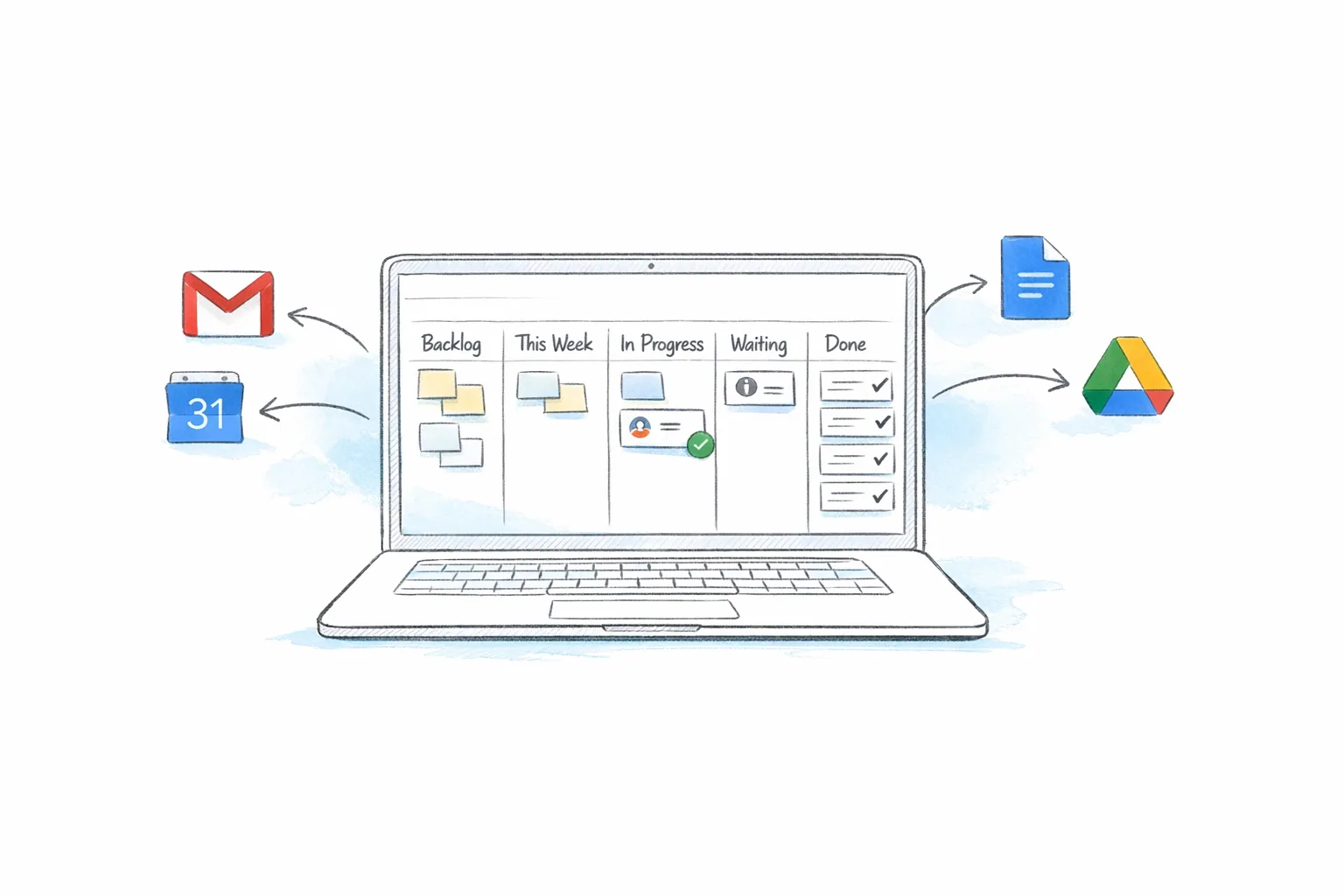
A strong default board for many teams is:
- Backlog
- This Week
- In Progress
- Waiting
- Done
That is enough structure for most small teams.
Inside each task, the basics matter more than fancy features:
- clear title
- short description
- one owner
- due date when it is real
- comments for discussion
- checklist when the task has multiple steps
- attachments or linked docs for context
This is where a lightweight Kanban tool makes sense. It keeps the mental model simple enough that normal people will actually use it, while still giving teams the visibility they do not get from inboxes and spreadsheets.
Tooling Studio’s Kanban Tasks follows that exact pattern inside Google Workspace: boards, lists, tasks, assignees, due dates, comments, checklists, attachments, and real-time collaboration, without pretending to be a giant enterprise PM platform.
How Gmail, Calendar, Docs, and Drive fit together
A good Google Workspace workflow is not one tool doing everything.
It is a clear division of jobs.
Gmail is the intake layer
A lot of work starts as an email:
- a client request
- an approval
- a support escalation
- a follow-up
- a loose promise that now needs execution
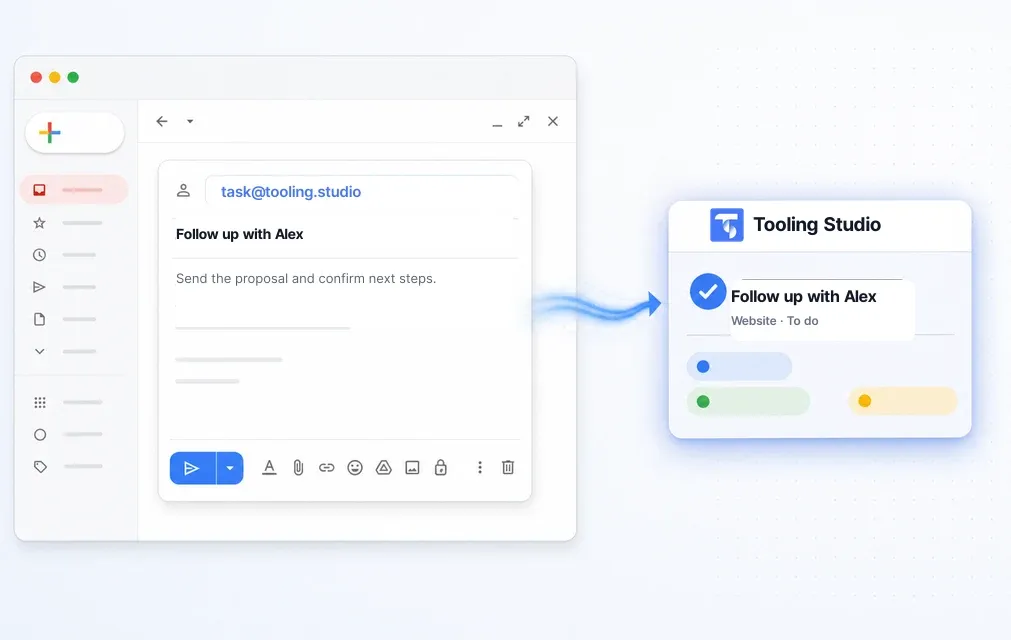
That is why project management inside Gmail matters. If the work starts in the inbox, your team should be able to convert it into a task while the context is still fresh.
With Kanban Tasks, emails can be turned into tasks directly from Gmail. The task keeps the email subject and a link back to the message, so the work becomes visible on the board instead of dying in someone’s inbox.
The board is the execution layer
Once work becomes a task, the board should become the source of truth for execution.
Not the inbox.
Not the doc.
Not a weekly status spreadsheet.
The board shows what is queued, what is moving, what is blocked, and what is done.
Docs and Drive are the context layer
Docs, Sheets, Slides, and Drive files still matter. They just should not carry the whole burden of project visibility.
A good task points to the relevant brief, file, or doc. That keeps documentation in Google while making action visible in the board.
Calendar is the time layer
A due date should not disappear into a board. It should also be visible in time.
That is why Calendar matters in a Google Workspace project setup. Tooling Studio’s current direction includes Google Calendar sync, so due-dated personal tasks and tasks assigned to you can show up on your Google Calendar. Used well, that keeps deadlines visible without turning your calendar into a giant backlog.
How to keep project work visible without another heavy platform
The real win is not “having boards.”
The real win is reducing the amount of hidden work.
A lightweight Google Workspace project setup should make a few things obvious at a glance:
- what the team is working on now
- who owns each next step
- what is due today or this week
- where discussion happened
- what changed recently
That is why the details around the board matter.
A useful project tool inside Google Workspace should give you:
- real-time updates, so boards do not feel stale
- shared boards, so team work is actually visible
- comments and mentions, so discussion lives with the task
- search, so people can jump to the right task instead of hunting for it
- focus views, so each person can quickly see the work that matters to them
Kanban Tasks adds a few especially useful built-in views for this:
- Get Work Done for due-date-driven work across boards
- Assigned for tasks assigned to you
- Mentioned for tasks where you were mentioned
Those views are more important than they sound. They reduce tab switching and cut down the “where was that task again?” problem that kills momentum in small teams.
How shared boards move teams from private work to team execution
This is the line most teams cross too late.
A private task list is better than nothing. It helps one person stay organized.
But the moment a task affects someone else, it should not live as private memory.
Shared boards change that.
They make work visible at the team level. That changes behavior in useful ways:
- people stop forwarding emails just to keep others informed
- teammates can see status without asking
- handoffs become clearer
- assignments become explicit
- missed work becomes easier to spot before it becomes a problem
This is also why real-time collaboration matters. When a board updates immediately for everyone, it feels like shared work instead of separate people looking at stale snapshots.
If your team already lives in Gmail, that visibility matters even more. It means execution stays close to the environment people already use all day.
How to manage deadlines with due dates and Calendar visibility
Most teams are bad at due dates for one of two reasons.
They either add too few, so deadlines are invisible.
Or they add too many, so everything feels urgent and nothing really means anything.
A good Google Workspace project setup treats due dates as a signal, not decoration.
A few simple rules help:
- only add a due date when it represents a real expectation
- give each time-sensitive task one visible owner
- use due dates to drive follow-up, not just reporting
- review due work daily, not only in weekly meetings
This is where a cross-board due-date view is useful. Tooling Studio’s Get Work Done board exists to surface work due today, this week, and beyond without forcing users to open every board one by one.
Calendar sync is useful too, but it should stay in the right role.
Your calendar is not your full task manager.
It is the place where time-sensitive work becomes harder to miss.
That balance matters. If every task clogs the calendar, the calendar becomes useless. If no tasks show up there, deadlines are too easy to ignore.
Common mistakes when teams try to run projects with only Google tools
Small teams usually do not fail because they have the wrong ambition.
They fail because their system hides work.
These are the most common mistakes:
1. Using the inbox as the project tracker
Inboxes are good at showing new messages. They are bad at showing shared execution. A starred email is not a team workflow.
2. Using Docs and Sheets as live status boards
Docs are great for plans. Sheets are fine for structured data. Neither is ideal as the main live workflow for day-to-day project movement.
3. Letting tasks exist without an owner
If multiple people are “kind of responsible,” nobody is really responsible.
4. Making every task urgent
If everything has a due date, due dates stop helping. Keep them meaningful.
5. Overbuilding the workflow
A simple five-list board that gets used is better than a twelve-stage masterpiece nobody keeps updated.
6. Separating the work system too far from where work starts
If tasks have to be copied into a tool in another tab later, they often never make it there.
That is why a Google-native workflow matters. The closer the execution layer is to Gmail and Google Workspace, the more likely the team is to keep it current.
When a lightweight Kanban system is enough, and when it is not
This is where teams should be honest.
A lightweight Google Workspace project setup is a strong fit when you want:
- structure without enterprise complexity
- shared visibility without a giant rollout
- a familiar UI close to Gmail
- simple onboarding for normal business users
- affordable collaboration for a small team
It is especially strong for:
- founders and operators
- agencies
- service businesses
- internal ops teams
- client-facing teams
- sales teams doing follow-up in Gmail
It is not the best fit when you need:
- deep portfolio planning across many departments
- advanced enterprise reporting
- developer issue tracking
- complex automations across dozens of tools
- heavyweight workflow governance
That is the honest tradeoff.
Tooling Studio should not pretend to be Jira, Salesforce, or some all-in-one work OS. The value is different. It is lighter, more embedded in Google Workspace, easier to understand, and faster to adopt.
FAQ
Can you do project management in Google Workspace without a separate project management tool?
You can get surprisingly far with Gmail, Calendar, Docs, and Sheets, but most teams hit a wall once work becomes shared. At that point you usually need a shared workflow layer, not more docs.
Is Google Tasks enough for project management?
Google Tasks is useful for personal reminders. It is not a strong solution for real-time, shared project execution across a team.
What is the best structure for small-team project management in Google Workspace?
For most teams, a simple board-based setup is enough: board, list, task, owner, due date. Keep the stages simple and the ownership explicit.
Can I manage projects directly inside Gmail?
Yes. Gmail is a strong intake layer for work. A Gmail-native tool like Kanban Tasks makes that much more practical because emails can become tasks inside the Google Workspace environment instead of being copied into another system later.
Do I need a Chrome extension to use this kind of workflow?
The embedded Gmail experience is strongest in Chrome on desktop, especially for Gmail-native workflows. Tooling Studio also has standalone access, which is useful when you want to work outside the inbox.
When should a team move to a heavier project management platform?
Move up when you genuinely need complex portfolio planning, advanced reporting, deep automations, or engineering-style issue tracking. Do not move up just because bigger tools exist.
Related reading
- Google Workspace Task Management
- Kanban for Gmail
- Kanban Tasks
- Kanban Tasks: How to Use It
- Google Workspace project management
- Google Workspace project management tools
- Project management in Google apps
- Project management workflow
- How to manage multiple projects
- How to track project progress
Try a lighter Google Workspace project management setup
If your team already lives in Gmail, Calendar, and Drive, you probably do not need another bloated platform. You need a shared execution layer that feels native to the tools you already use.
See Kanban Tasks or start with the Kanban Tasks how-to guide.
Personal use is free. Team collaboration is $5 per user per month per product.
Next step
Keep this workflow close to Gmail instead of pushing it into another stack
Tooling Studio is built for teams that already work in Google Workspace and want a lighter execution layer without another bloated platform rollout.