Blog Mastering Google Wor...
profile of the author - Jaimy Carter
Jaimy Carter 01/29/2026 • Last Updated

Mastering Google Workspace Project Management Tools

Discover the best Google Workspace project management tools. Learn to combine native apps and extensions to streamline workflows and boost team efficiency.

Mastering Google Workspace Project Management Tools

Sound familiar? You’re juggling separate apps for emails, spreadsheets, and tasks, and the constant switching is killing your team's momentum. Project details get scattered, and tracking everything feels like a full-time job.

But what if you could create a powerful, centralized hub for all your projects without ever leaving your inbox? By combining the native Google Workspace project management tools you already use with a few smart extensions, you can do just that.

Building Your Project Hub Inside Google Workspace

A central 'Project Hub' folder connects documents like Google Docs, a spreadsheet, email, and team members.

Most teams cobble together a system using Docs for briefs, Sheets for timelines, and Gmail for communication. It works, but it's far from ideal. This approach creates information silos where crucial details get lost in the shuffle. It's like trying to bake a cake with your ingredients scattered across different rooms—it’s messy, frustrating, and wildly inefficient.

The goal is to bring everything into one central "kitchen."

This guide will show you a more integrated approach, turning the Google environment you know and love into a streamlined project powerhouse. Instead of shelling out for expensive standalone software, you can build a system that keeps your team aligned and centralizes all your communication.

This is especially important when you consider just how many businesses live inside Google's ecosystem.

With an incredible 84.95% market share, Google Workspace is the undisputed leader in productivity software. That massive figure is why over 6 million business customers rely on it every day. You can dig deeper into these Google Workspace statistics and trends to see the full picture.

Sticking with Google for project management offers some huge wins:

  • Reduced Costs: You can stop paying for separate, costly project management platforms.
  • Minimal Learning Curve: Your team is already comfortable with Google's apps, which means adoption is quick and painless.
  • Centralized Information: Every file, task, and conversation related to a project lives in one connected ecosystem.

By smartly combining native features with the right extensions, you can build a system that’s both powerful and refreshingly simple.

Using Native Google Apps for Foundational Project management

Before you even think about shopping for a new project management tool, it’s worth taking a closer look at the software you already own. Many teams don't realize that Google Workspace comes with a surprisingly powerful set of built-in features that can serve as a solid foundation for managing projects.

Think of it like a starter toolkit. It might not have all the specialized power tools, but it has everything you need to build the basic structure of your project. The best part? This approach costs nothing extra and uses the software your team is already comfortable with, which makes getting everyone on board a whole lot easier.

Structuring Your First Project

Let's say you're launching a new marketing campaign. Instead of jumping straight to a complex, dedicated platform, you can orchestrate the entire project using a combination of Google's core apps. This creates a workflow that feels connected and natural.

The real magic here is in the simplicity and integration. By linking the apps your team already knows and loves, you create a single source of truth for your project without making anyone learn a new system or constantly flip between different software.

This setup is perfect for straightforward projects where clear communication and centralized documents are the main priorities. For instance, you could whip up a master project tracker in Google Sheets to manage high-level timelines, assign key deliverables, and keep an eye on the budget—all in one shareable file.

From there, each line item in your tracker can link out to more detailed documents. A creative brief or content draft can live in a Google Doc, allowing for real-time collaborative editing and feedback with the comments feature. This interconnected system ensures that every piece of the project is just a click away. You can learn more about this process by exploring different ways to manage projects within Google apps.

Finally, you can assign individual action items using Google Tasks, which plugs directly into Gmail and Calendar. This keeps personal to-do lists visible and tied to specific deadlines, rounding out your foundational project management system.

To help you visualize how this works, here's a quick breakdown of how each Google Workspace app can be repurposed for project management.

Native Google Workspace Tools and Their Project Management Roles

This table breaks down how core Google Workspace applications can be repurposed for specific project management functions, helping teams maximize their existing toolkit.

Google Workspace App Primary Project Management Use Case Best For
Google Sheets Creating master project trackers, timelines, and budget dashboards. High-level planning, resource allocation, and tracking key metrics.
Google Docs Developing project briefs, meeting notes, and collaborative content. Centralizing detailed information and gathering real-time feedback.
Google Slides Building project kickoff presentations and stakeholder updates. Communicating project goals and progress reports in a visual format.
Google Forms Collecting project requirements, feedback, or intake requests. Standardizing information gathering from team members or clients.
Google Calendar Scheduling project milestones, deadlines, and team meetings. Visualizing key dates and ensuring everyone is aligned on the timeline.
Google Tasks Assigning and tracking individual action items and personal to-dos. Managing granular, day-to-day responsibilities for team members.
Google Drive Organizing all project files and documents in a central repository. Creating a single source of truth for all project-related assets.
Google Chat Facilitating real-time team communication and quick discussions. Quick check-ins, resolving minor issues, and fostering team collaboration.

By seeing how these familiar tools can be woven together, it becomes clear that you can build a surprisingly effective project management system without adding any new software to your stack. It's a practical and cost-effective way to get organized and get moving.

Recognizing When Your Native Tools Fall Short

Using native apps like Google Sheets and Docs is a brilliant starting point for managing projects, but many teams eventually hit a complexity ceiling. Think of it like building a house with a basic toolbox—you can frame the walls and hang a door, but for the intricate electrical or plumbing work, you need specialized power tools.

This DIY approach works great for simple projects. As your needs grow, however, you'll start to notice some significant gaps. These pain points are clear signals that you've outgrown the foundational setup and need more robust google workspace project management tools.

The most common limitation? The lack of visual workflow management. Spreadsheets just can't replicate the intuitive, drag-and-drop feel of a Kanban board, making it tough to see a project's real-time progress at a single glance.

The Missing Pieces in Your Puzzle

Another major challenge is tracking task dependencies. When one task has to be finished before the next one can even begin, a simple checklist in Google Tasks or a row in Sheets just doesn't cut it. This is how you end up with bottlenecks and missed deadlines.

Finally, the native tools lack granular task management features. You can't easily add comments, attach files, or apply tags directly to a single task on a list. Instead, communication gets fragmented across different Docs and endless email threads.

These limitations don't mean the native tools are flawed; they simply weren't designed to be a comprehensive project management solution. Recognizing this is the first step toward finding a tool that fills these gaps without forcing you to leave the Google environment you know and love.

This flow chart shows how a simple project often gets managed using only native tools like a tracker, briefs, and tasks.

Flowchart showing Google Workspace integrating with Tracker, Briefs, and Tasks for project management workflow.

While this workflow looks clean enough for basic needs, it highlights how disconnected each element is. This creates the very friction that specialized tools are designed to eliminate.

Unlocking Visual Workflows With Chrome Extensions

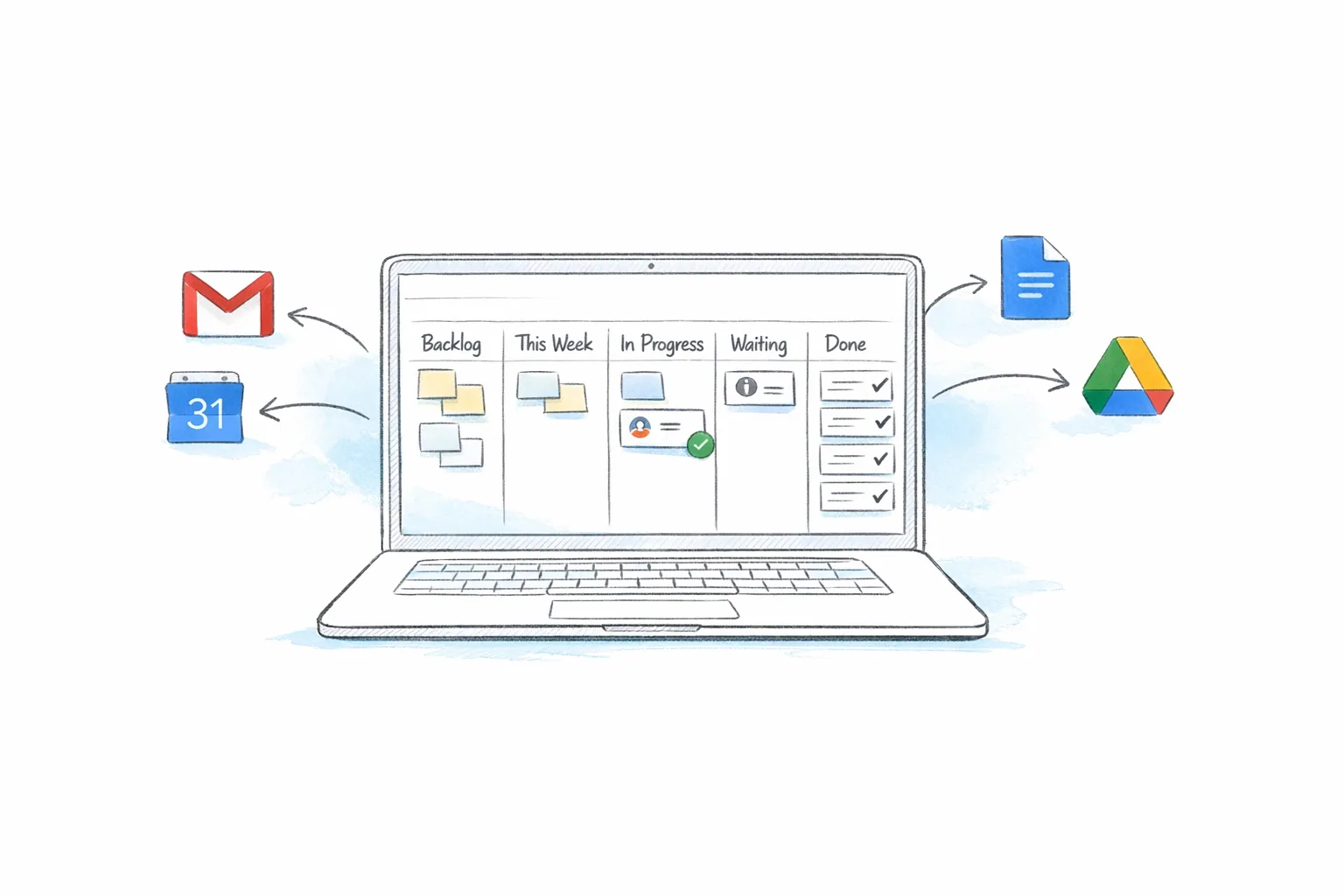
A hand-drawn sketch of a Gmail-themed Kanban board showing tasks, users, and workflow stages.

Sooner or later, your projects might start feeling a little too big for Google Workspace's built-in tools. When that happens, the solution isn't to pack up and move to a whole new platform. Instead, you can level up your existing setup with lightweight Chrome extensions.

Think of them as specialized attachments for a power tool you already own and love. They snap right into your Google environment, filling in the gaps we’ve talked about without forcing your team to learn a completely new system from scratch. The trick is to find an extension that enhances your current workflow, not one that fights against it.

A perfect example of this is an extension like 'Kanban Tasks' by Tooling Studio. It takes the simple, list-based Google Tasks and transforms it into a dynamic, visual Kanban board that lives right inside Gmail. This is more than just a small tweak; it completely changes how you see and interact with your work.

Visualize Your Entire Workflow

With a Kanban board, every task has a place. You can see the entire project lifecycle at a glance, from "To Do" to "In Progress" and "Done." That kind of visual clarity is a genuine game-changer, and the benefits are immediate.

  • Drag-and-Drop Simplicity: Moving tasks between stages is as easy as clicking and dragging. It’s an intuitive and satisfying way to track progress.
  • Real-Time Collaboration: Share boards with your team so everyone sees updates the moment they happen. No more wondering who’s working on what.
  • Centralized Management: You can manage complex projects from start to finish without ever leaving your inbox or juggling a dozen different tabs.

The biggest win here is the massive reduction in context-switching. By embedding powerful google workspace project management tools directly into the apps your team uses all day, you remove friction and make it incredibly easy for everyone to adopt the new system.

This integrated approach is catching on. The market for Google Workspace project management software was valued at $0.86 billion and is expected to hit $2.25 billion by 2031. That growth points to a major shift toward tools that live where the actual work gets done. You can read more about this market's impressive expansion to see where things are headed.

Ultimately, extensions give you the power to build a system that fits your team's needs like a glove. If you're curious about what else is out there, check out our guide on other powerful Chrome extensions for productivity to see how you can further customize your digital workspace.

How to Choose the Right Project Management Tool

With a flood of extensions on the market, picking the right one can feel like a chore in itself. The secret to choosing the best google workspace project management tools isn’t finding the one with the longest feature list. It's about finding the one that actually solves your team's day-to-day problems without adding a bunch of complexity you don't need.

Think of it like choosing a kitchen knife. A professional chef and a home cook both chop vegetables, but they need different tools for the job. Your goal is to find the perfect fit for your team’s unique "cooking" style.

Key Criteria for Your Evaluation

Before you even think about committing to a tool, you need a solid checklist. Look past the flashy marketing and zero in on what really matters for getting work done every single day. A tool that looks powerful but is a pain to use will just end up collecting digital dust.

Here's what to look for:

  • Seamless Integration: Does the tool feel like it belongs in Google Workspace, or is it a clunky, out-of-place add-on? The best extensions live right inside apps like Gmail, so you're not constantly switching tabs.
  • Ease of Use: How fast can your team get up and running? A clean, intuitive interface with features like drag-and-drop support makes a world of difference and gets people on board much quicker.
  • Collaboration Features: Can you share project boards, assign tasks, and chat with your team in real time? If a tool doesn't make collaboration easier, it's missing the point.
  • Data Security: Does the company have a clear, transparent privacy policy? Do they use secure sign-in methods, like Google’s own authentication? Never, ever compromise on protecting your team's data.

The ultimate test for any tool is simple: does it reduce friction or create it? A great extension should make your workflow smoother, keep communication in one place, and turn project tracking into an effortless background process—not another task on your to-do list.

By sticking to these core criteria, you can cut through the noise and find a tool that genuinely makes your team more productive. To see these principles in action, check out our in-depth look at various project management tools for Google apps to find the perfect match for your workflow.

Got Questions? We've Got Answers.

Jumping into Google Workspace project management tools can bring up a few questions. We've tackled some of the most common ones to help you move forward with confidence.

Can Google Workspace Really Replace Tools Like Asana or Jira?

For a lot of small and medium-sized businesses, the answer is a resounding yes. When you pair Google's native apps with a smart extension like a Kanban board, you're building a powerhouse system right inside an environment your team already lives in. This move slashes software costs and gets rid of that painful learning curve that comes with forcing everyone onto a brand-new platform.

Sure, highly complex software development might still need the heavy-duty features of a tool like Jira. But for the vast majority of marketing, operations, and creative projects, a well-tuned Google Workspace setup is simply more efficient and budget-friendly. The magic is in the integration—it stops the endless app-switching that kills productivity.

The biggest win here is familiarity. Because the tools are baked directly into a place like Gmail, getting your team to actually use them is incredibly easy. The focus immediately shifts from learning new software to just getting work done.

Are Third-Party Chrome Extensions Secure?

That's a great question, and a critical one. Reputable developers put security at the top of their list. When you're picking an extension, just keep an eye out for a few key things to make sure your data stays safe.

  • Secure Authentication: The extension should use Google's own secure sign-in (OAuth). This is a big deal because it means you never hand over your actual password to the developer.
  • Transparent Privacy Policy: A trustworthy company will have a clear, easy-to-find privacy policy that tells you exactly how they handle your data. No secrets.
  • Minimal Permissions: The tool should only ask for the permissions it absolutely needs to do its job, and nothing more.

Always check user reviews and make sure you're installing directly from the official Chrome Web Store, which runs its own security scans. This way, you can boost your team’s productivity without ever compromising on security.

What's the Best Way to Get My Team On Board?

The key is to start small and aim for a quick win. Your team is already in Gmail all day long, so you're halfway there. Introduce a single, shared Kanban board for a simple, low-stakes project to show off the benefits without making anyone feel overwhelmed.

Show them how clear everything becomes when they can see all the tasks laid out visually. Let them experience that little bit of satisfaction that comes from dragging a task card over to the "Done" column. Frame it as the solution to their biggest headaches, like digging through endless email chains or wondering who's supposed to do what.

Once they see for themselves how much time and frustration this new workflow saves, they’ll be the ones asking to use it for bigger and more important projects.


Ready to turn your Gmail into a powerhouse project hub? Tooling Studio builds lightweight extensions that bring visual Kanban boards and seamless task management right into your inbox. Stop the tab-switching chaos and start getting things done. Discover how Tooling Studio can simplify your projects today.

Kanban Tasks
Shared Kanban Boards with your Team
Start using Kanban Tasks for free. No credit card required. Just sign up with your Google Account and start managing your tasks in a Kanban Board directly in your Google Workspace.