Task management in Google Workspace sounds easy until the work stops being personal.
The moment two or more people need to see what is due, who owns it, what is blocked, and what changed, private task lists stop being enough. Stars in Gmail help for a day. Personal reminders help for one person. Shared spreadsheets help until nobody trusts them anymore.
That is why teams end up with the worst of both worlds: work still starts in Gmail, but nobody has a reliable shared view of what is actually happening.
The good news is that you do not need a giant task platform to fix that.
For most founders, agencies, service businesses, and operations teams, the right answer is much simpler: keep the work close to Gmail and Google Workspace, then add a lightweight shared task layer with boards, owners, due dates, comments, and a few focused views.
That is what this guide covers.
In this guide
- what teams usually mean by task management in Google Workspace
- the difference between personal tasks and shared task management
- a simple operating model that small teams will actually keep updated
- how Gmail capture, assignees, due dates, and Calendar visibility fit together
- the most common failure modes of shared Google task setups
What teams usually mean by “task management in Google Workspace”
When people look for Google Workspace task management, they usually are not asking for a prettier reminder app.
They are asking for a way to do five things without leaving the Google environment they already use:
- capture work quickly
- make ownership obvious
- keep deadlines visible
- discuss work in context
- find the right task fast later
That is a different problem from personal productivity.
A personal reminder system only has to help one person remember what to do next.
A shared task system has to create trust across a team.
That trust comes from visibility. People need to see the same state of work at the same time. That is why lightweight board-based task management tends to work well inside Google Workspace. It is visual, simple, and close to where the work already starts.
The difference between personal tasks and shared task management
This is the line that gets blurred all the time.
Personal tasks
Personal tasks are private. They help one person manage their own commitments.
That means the system only needs to answer questions like:
- what do I need to do today?
- what is due this week?
- what did I promise someone?
Google Tasks can be fine here. So can paper. So can any simple to-do app.
Shared task management
Shared task management is different.
The moment a task affects other people, you need the system to answer harder questions:
- who owns this?
- what stage is it in?
- what is blocking it?
- where is the discussion?
- what else is due around it?
- who needs to see it now?
That is where native Google tools start to show limits.
Gmail is a strong intake layer, but email lives with the person who received it. Docs carry plans, but not live execution. Sheets can list tasks, but they do not feel alive. Google Tasks is not built around shared, real-time team workflows.
So the jump from personal tasks to team tasks is not a small upgrade. It is a different operating model.
Why shared visibility matters more than just task capture
A lot of teams think their problem is capture.
It usually is not.
They already have a dozen places to capture work:
- chat
- notes
- docs
- meeting agendas
- spreadsheets
The real problem is that captured work stays hidden.
That is why shared visibility matters more than capture alone. Once work is visible, a team can actually do something with it:
- assign it
- prioritize it
- move it
- comment on it
- search for it
- review it together
A task system inside Google Workspace should make hidden work harder to hide.
That means moving from “I wrote it down somewhere” to “the team can see it, and the owner can act on it.”
A simple operating model that small teams will actually use
You do not need a huge task framework.
You need a model people will keep current.
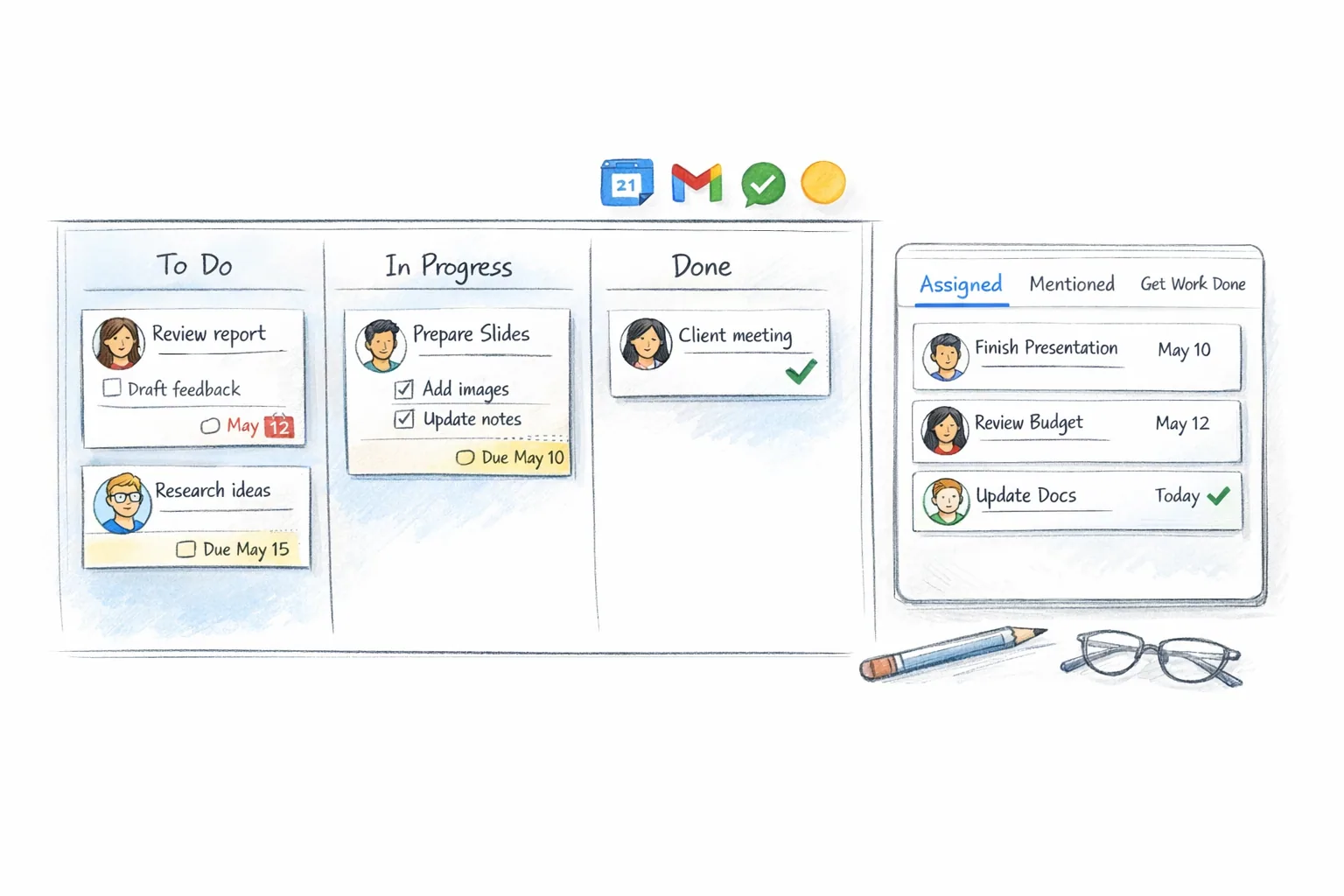
For most small teams, a good default board looks like this:
- Inbox
- Next Up
- In Progress
- Waiting
- Done
That gives you a clear flow:
- new work lands in Inbox
- chosen priorities move to Next Up
- active work moves to In Progress
- dependencies go to Waiting
- completed work lands in Done
That is enough for a lot of teams.
Inside each task, the structure should stay simple:
- title
- owner
- due date when it matters
- short description
- comments
- checklist if the task has multiple steps
- attachments or linked docs if context is needed
This is where Kanban Tasks fits well. It gives Google Workspace users shared boards, task details, assignees, comments, checklists, attachments, and real-time collaboration without pulling them into a bloated all-in-one system.
How due dates, assignees, and comments stop work from disappearing
A task without an owner is basically a suggestion.
A task without a due date can still be useful, but time-sensitive work should not rely on memory.
And a task without discussion in the right place usually turns into another email thread.
That is why three fields matter more than almost anything else:
Assignee
One person should be responsible for moving the task. Other people can help, but ownership should be obvious.
Due date
Use due dates when the work has a real deadline or follow-up date. Do not add them just to make the board look serious.
Comments
Comments keep clarification and follow-up attached to the task instead of scattering it across inboxes and chats.
Once you add comments, checklists, attachments, and an activity log, the task becomes much more than a sticky note. It becomes a useful working object.
How Get Work Done, Assigned, and Mentioned reduce tab switching
This is one of the most underrated parts of a good Google Workspace task setup.
Boards are useful, but people also need faster personal views into the work.
That is where focused built-in views help.
Tooling Studio’s Kanban Tasks includes:
- Get Work Done, a due-date-driven board across tasks
- Assigned, for tasks assigned to you
- Mentioned, for tasks where someone called you into the conversation
These views matter because people do not think in board hierarchy all day.
They think:
- what needs my attention now?
- what is due soon?
- where did someone mention me?
- what am I responsible for across all boards?
If the product answers those questions fast, users do not need to click around ten places to figure out their day.
When to create tasks from Gmail and when to create them directly on the board
Not every task should start the same way.
Use Gmail capture when the work starts as an email
This is the right move when the task comes from:
- a customer request
- a prospect reply
- an internal ask
- an approval email
- a message that contains a real commitment or next step
Kanban Tasks supports email-to-task workflows inside Gmail. When an email becomes a task, the task stores the email subject and a link back to the original message. That keeps the context attached to the work instead of buried in the inbox.
There is an important privacy detail here too: the linked email is only usable by the owner of that email. The original message does not suddenly become open to the whole team.
Create tasks directly on the board when the work is already operational
Some work never arrives as an email. It comes from planning, meetings, recurring ops, or internal checklists.
That work should be created directly in the board, with the owner, due date, description, and checklist set right away.
The practical rule is simple:
- if the work starts in the inbox, capture it there
- if the work starts as planned execution, create it directly on the board
How Calendar visibility helps without turning your calendar into the task manager
A board shows status.
A calendar shows timing.
You usually need both.
The mistake is assuming one should replace the other.
A good Google Workspace task setup uses Calendar for time-sensitive visibility, not for storing the entire task backlog.
That is why due-date sync matters. Tooling Studio’s current product direction includes Google Calendar sync so due-dated personal tasks and tasks assigned to you can appear on your Google Calendar.
Used well, that helps in a few specific ways:
- today’s deadlines are harder to miss
- your workload becomes visible in time
- task commitments sit closer to meetings and calls
- due work shows up without hunting across boards
Used badly, calendar sync becomes noise.
The fix is simple: only sync tasks that actually deserve a date.
Common failure modes of shared Google task setups
This is where most teams get it wrong.
1. Keeping the real work in private lists
If the team cannot see it, the team cannot trust it.
2. Treating email folders as workflow stages
Folders tell you where a message lives. They do not tell the team who owns the next step.
3. Using a spreadsheet as the main task system
Sheets are fine for reference. They are rarely the best living workflow for daily task movement.
4. Letting tasks exist without owners
Shared work needs explicit responsibility.
5. Overloading the board with too many statuses
A simple board kept current beats a complicated board nobody uses.
6. Turning every task into a deadline
Too many due dates make due dates meaningless.
7. Hiding conversation outside the task
If the latest context is buried in email or chat, the board stops being trustworthy.
What a good Google Workspace task stack looks like
For a lot of small teams, the stack is not complicated.
It looks like this:
- Gmail for intake
- a shared board for visible execution
- comments and mentions for discussion
- assigned and due-date views for personal focus
- Google Calendar for time-sensitive visibility
- Docs and Drive for supporting context
That is why Tooling Studio’s task model works. It stays inside the Google Workspace mental model instead of asking users to adopt an entirely different work operating system.
If your team already lives in Gmail, the best task setup is usually the one that adds the least friction while still giving real shared visibility.
FAQ
Can you share Google Tasks with a team?
Google Tasks is not the strongest option for shared, real-time team workflows. It works better for personal reminders than collaborative task management.
What is the difference between task management and project management?
Task management is about the execution units: what needs doing, who owns it, and when it is due. Project management adds the bigger layer around it: multiple workstreams, planning, timelines, and broader coordination.
Should every email become a task?
No. Turn emails into tasks when the message creates real work, follow-up, or ownership. Do not create tasks for simple FYIs.
Can I manage tasks directly inside Gmail?
Yes. That is one of the strongest workflows for Google Workspace-heavy teams. Kanban Tasks is built around that idea.
Do due-dated tasks sync with Google Calendar?
In Tooling Studio’s current model, due-dated tasks on personal boards and tasks assigned to you can show on your Google Calendar.
Do I need a huge task platform for a small team?
Usually no. Most small teams need more visibility and better ownership, not enterprise complexity.
Related reading
- Google Workspace Project Management
- Kanban for Gmail
- Kanban Tasks
- Kanban Tasks: How to Use It
- Google Workspace task management
- Shared task list in Google
- Google shared task list
- Can you share Google Tasks?
- How to organize work tasks
- How to delegate tasks effectively
Try a better shared task workflow inside Google Workspace
If your team works in Gmail all day, task management should not live in a completely separate universe.
See Kanban Tasks to explore the product, or start with the Kanban Tasks how-to guide if you want the practical setup first.
Personal use is free. Team collaboration is $5 per user per month per product.
Next step
Keep this workflow close to Gmail instead of pushing it into another stack
Tooling Studio is built for teams that already work in Google Workspace and want a lighter execution layer without another bloated platform rollout.