
Google Workspace Task Management: Get More Done in Gmail
Discover google workspace task management with practical workflows and a visual Kanban setup inside Gmail to boost efficiency.
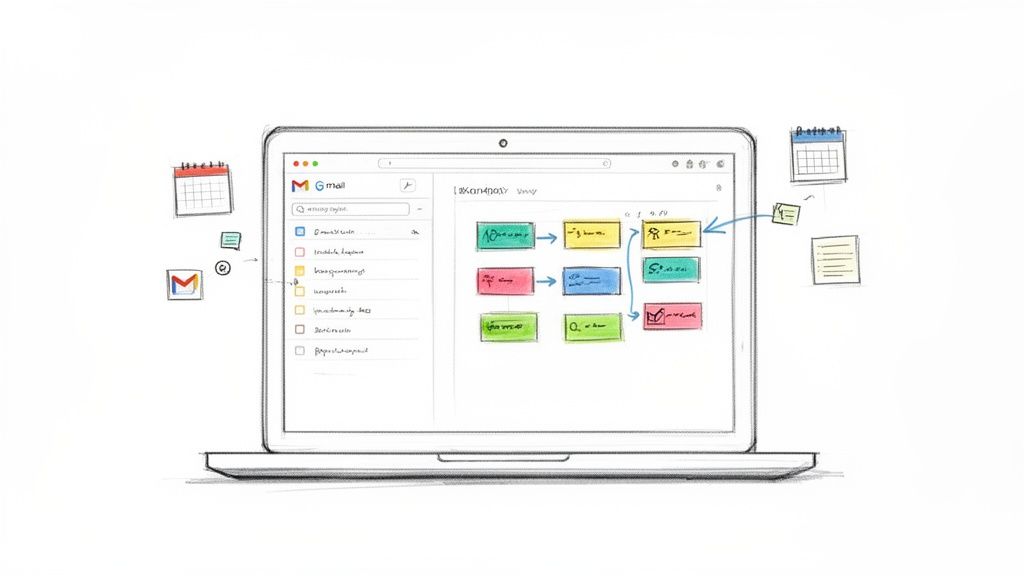
If you want to get a real grip on your tasks, you need a system that lives where your work already does: inside Google Workspace. Instead of juggling a bunch of separate apps, Google’s own tools like Tasks, Keep, and Calendar give you an integrated way to organize everything right from your inbox or schedule.
The Hidden Power of Native Google Workspace Task Management
Let's be honest, managing tasks can feel like a losing battle. You’ve got flagged emails, sticky notes, random reminders, and a to-do list that's probably in a completely different app. All that chaos creates mental friction, forcing you to constantly switch gears just to figure out what's next. It’s a quiet productivity killer.
Think of it like trying to cook in a disorganized kitchen. You spend more time hunting for ingredients and utensils than you do actually making the meal. That's the reality for a lot of us, our tasks are scattered across notebooks, spreadsheets, and endless email chains.
Now, imagine a clean, organized kitchen where everything is exactly where you need it. That's what you get when you master Google Workspace task management. By using the tools already at your fingertips, you can create a single source of truth for all your work.
Google's Core Task Management Tools
The whole system is built on three core apps that are designed to work together seamlessly. Understanding how they connect is the first step to taming the chaos.
To give you a quick lay of the land, here’s a simple breakdown of the main players in Google's native task management toolkit.
Google Workspace Native Task Tools at a Glance
| Tool | Primary Function | Best For |
|---|---|---|
| Google Tasks | Simple, no-frills to-do list | Creating tasks directly from emails and scheduling them. |
| Google Keep | Digital sticky notes & idea board | Capturing quick thoughts, brainstorming, and saving info. |
| Google Calendar | Time and schedule management | Visualizing deadlines and blocking out time for specific tasks. |
Each tool has its specialty, but their real power comes from how they work together to create a unified system without ever needing to leave your primary workspace.
How They All Fit Together
This isn't just about having three separate tools; it's about using them as one cohesive system.
Google Tasks is your workhorse. It’s built right into the sidebar of Gmail and Calendar, so turning an email into a to-do item is just a click away. Simple and effective.
Google Keep is your digital scratchpad. It's perfect for brainstorming, jotting down quick ideas, or clipping bits of information before they become official tasks.
Google Calendar is where it all comes together. When you give a task a due date in Google Tasks, it pops up right on your calendar. This gives you a crystal-clear view of your deadlines alongside your meetings.
This interconnectivity is what makes the whole thing work. You're not jumping between tabs or trying to remember where you wrote something down. It keeps you focused. In fact, businesses that fully embrace this kind of unified approach have reported a 35% increase in overall productivity. A huge part of that comes from a 40% reduction in email clutter, which frees up a surprising amount of time for work that actually matters.
Mastering these native tools lets you build an incredibly solid organizational system without adding a single third-party app. To learn more about setting this up, check out our deep-dive guide on mastering efficient task management in Google Workspace. It’s the perfect foundation for a more organized and productive workflow.
Building Your Foundational Task Management Workflow
Theory is one thing, but actually putting a system in place that you can rely on day in and day out? That’s where the real magic happens. Let’s walk through how to build a solid workflow for Google Workspace task management using only the tools you already have. The whole point is to go from a jumble of random information to a structured, actionable plan without ever having to leave the Google ecosystem.
This is all about creating a predictable path for every single piece of work, from the second it lands on your plate until it's done. Think of it like a factory assembly line: raw materials (emails, fleeting ideas) go in one end, and a finished product (a completed task) comes out the other, with clear, defined steps along the way. That assembly line is what keeps you organized and makes sure nothing ever falls through the cracks.
This visual below maps out that exact journey, from chaotic, disconnected items to a unified system built on Google's core tools.
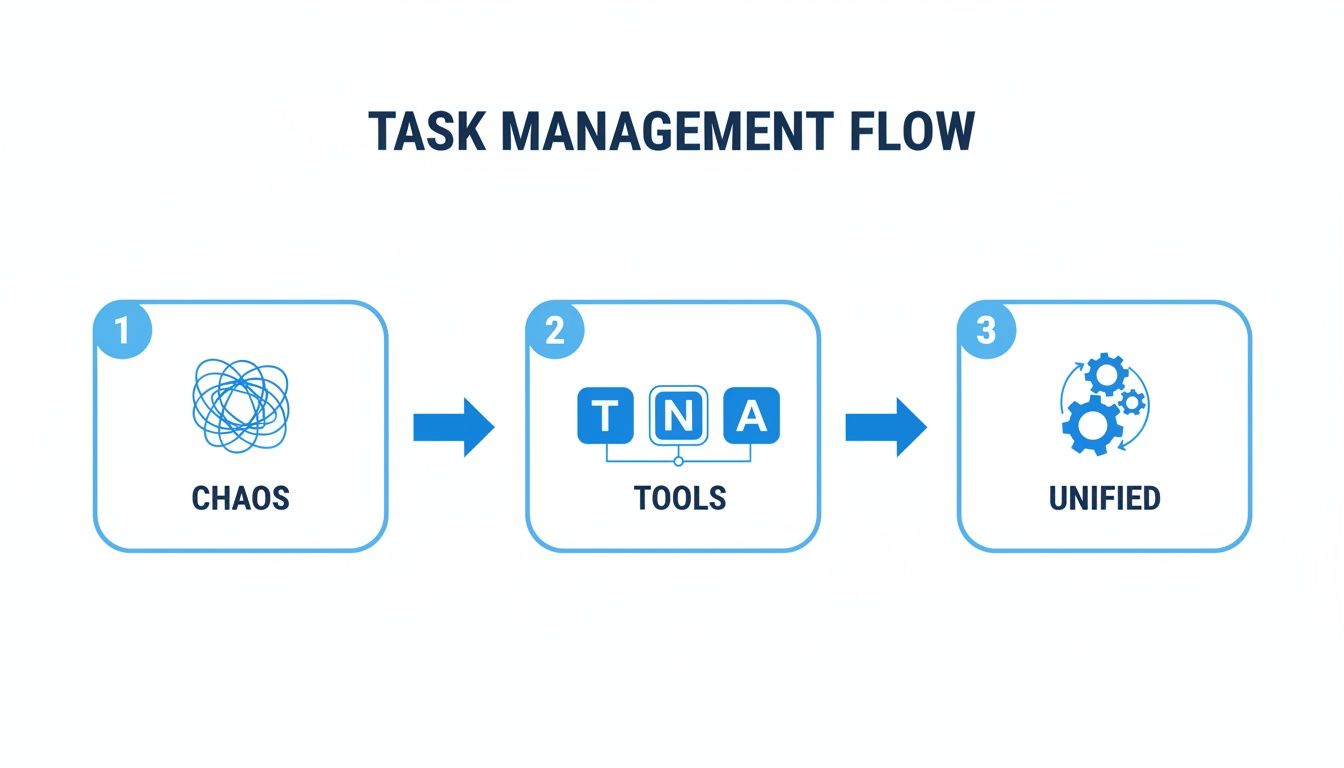
As you can see, the apps aren't just separate tools; they're the bridge that takes you from confusion to clarity. The real takeaway here is how they work together to create a cohesive workflow.
Stage 1: Capturing Tasks from Gmail
Let’s be honest, your inbox is where most of the work begins. An email lands with a request, a question, or a new assignment. Instead of just letting it sit there, where it’s guaranteed to get buried under a pile of other messages—the very first step is to turn it into a concrete task.
This is exactly where Google Tasks shines. It’s built right into the Gmail sidebar, letting you create a task from an email with literally a single click. Just open the email, hit the "Add to Tasks" icon, and bam—a new to-do item pops up in your list, complete with a direct link back to the original email. You've instantly connected the task to its source.
Stage 2: Organizing and Scheduling in Tasks and Calendar
Okay, the task is captured. Now it needs some structure. A task without a deadline is really just a wish. So, the next move is to add the details and, crucially, a due date.
Inside Google Tasks, you can give the task a clearer name, break it down with subtasks for bigger items, and assign that all-important due date. The moment you set a date, something incredible happens in the background.
That task automatically shows up on your Google Calendar. This isn't something you have to do manually; it's an instant, seamless sync. This integration is the heart of a truly unified Google Workspace task management system, giving you one reliable place to see all your commitments.
Just like that, your calendar is no longer just for meetings. It’s a complete roadmap of your day, showing both your scheduled appointments and your critical deadlines.
Stage 3: Brainstorming and Ideation with Google Keep
Of course, not every task arrives in a neat email package. Inspiration can strike during a meeting, or a random great idea might pop into your head while you're working on something else. This is where Google Keep comes in as your digital scratchpad.
Use Keep to snag those fleeting thoughts before they vanish. You can create quick notes, checklists, or even voice memos. Once an idea is fleshed out and ready to become a formal to-do item, you can simply copy it over to Google Tasks to be scheduled and prioritized. This keeps your official task list clean and focused while giving you a dedicated space for messy, unstructured brainstorming.
Let's see how this works with a real-world example, like planning a quarterly marketing campaign.
Capture: The initial request comes in via email. You hit the "Add to Tasks" button in Gmail to create a main task: "Plan Q3 Marketing Campaign."
Brainstorm: You pop open Google Keep to jot down campaign ideas, draft some ad copy, and make a checklist of all the assets you'll need.
Structure: Once the ideas are solid, you move the key items from your Keep note into Google Tasks as subtasks under the main campaign task.
Schedule: You assign due dates to each subtask, like "Finalize Ad Copy by Friday" or "Launch Social Media Ads by next Wednesday." These dates instantly appear on your Google Calendar.
This whole flow, from a single email to a fully planned project on your calendar, happens within one interconnected ecosystem. It’s a simple, yet incredibly powerful way to build a foundational workflow that brings a sense of order to the chaos of your daily work.
Where Native Google Task Management Falls Short
Let's be clear: the native tools inside Google Workspace are a fantastic starting point. They give you a solid foundation for managing your own tasks, helping turn a chaotic inbox into something that feels more like an organized command center.
But as your projects get bigger and your team starts to grow, you'll probably begin to feel the limitations of this basic setup.
Think of it like using a simple hammer and a handsaw. They're perfect for small, straightforward jobs around the house. But if you suddenly decide you're building a full-scale, multi-story treehouse, you’re going to need more specialized equipment. The same thing happens with Google Workspace task management; its built-in features start to feel restrictive once real complexity kicks in.
The Missing Visual Workflow
One of the first walls you'll hit is the complete lack of a visual workflow. At its core, Google Tasks is just a list. And while lists are great for personal to-dos, they offer no way to see the stage a task is in.
For any project that has more than a few steps, this is a huge roadblock. You can't visually track progress as a task moves from 'To Do' to 'In Progress' and finally over to 'Done.' Without a Kanban-style board, it's incredibly difficult to get that quick, at-a-glance overview of a project's health.
A study on workflow efficiency found that visual task management systems can improve team productivity by up to 50%. Seeing bottlenecks and tracking progress in real-time isn't just a nice-to-have; it's essential for effective project management.
Without that visual element, project managers often find themselves resorting to spreadsheets or jumping into other tools just to manually track where everything stands. This completely defeats the purpose of having an integrated system in the first place.
Limited Collaboration and Context
Collaboration is another area where the native tools just don't quite cut it. You can create shared lists in Google Tasks, sure, but the features are pretty bare-bones and weren't built for dynamic teamwork. This ends up creating some key problems for teams trying to stay on the same page.
Here are the most common frustrations we hear about:
No Task Comments: There's no way to discuss a specific task right where it lives. This forces your team back into email threads or chat messages to ask questions or give updates, creating the very communication silos you were trying to eliminate.
No File Attachments: You can't attach documents, images, or mockups directly to a task. The only option is to link to Google Drive files, which adds an extra click and disconnects the asset from its related action item.
No Clear Ownership: Assigning tasks isn't a straightforward, native feature. This makes it tough to set clear accountability without relying on clunky workarounds.
When these features are missing, crucial context ends up scattered everywhere but your task list. If native Google Task Management is falling short for you, exploring a wider array of the best productivity tools can point you toward alternatives that fill these gaps. For teams that need to work together closely, these limitations quickly become a source of friction, pushing them to find a solution that's actually built for collaboration.
Transform Gmail into a Visual Kanban Board
Let's be honest, the native Google Tasks experience can feel a bit... flat. The lack of a clear visual workflow and clumsy collaboration features often pushes people out of the Google ecosystem entirely. But what if you didn't have to jump ship to another project management tool and create yet another information silo?
The real solution isn't to leave, but to upgrade the tools you already live in. A simple enhancement can completely change your google workspace task management experience for the better.
Imagine turning your basic, text-only to-do list into a dynamic, visual Kanban board that lives right inside Gmail. This isn't some clunky workaround. It's about adding a powerful visual layer on top of the Google Tasks foundation you're already familiar with.
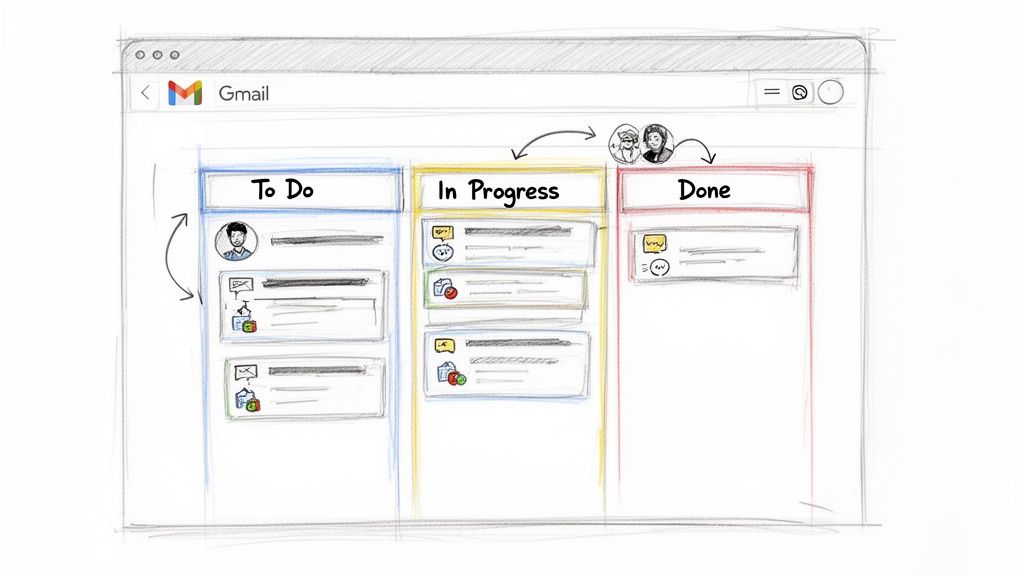
Think of it like the difference between a simple recipe jotted on a notepad and a professional chef's kitchen. The notepad just lists the steps, but the kitchen shows you everything at a glance, what’s prepping, what’s cooking, and what’s ready to serve. That's the kind of clarity a Kanban board brings right into your inbox.
What Is a Kanban Board and Why Does It Work So Well?
At its heart, a Kanban board is just a simple, visual way to see your work move through a process. You organize tasks into columns that represent different stages. A classic setup has three columns:
To Do: A backlog of all the tasks you need to get to.
In Progress: What you and your team are actively working on right now.
Done: All your completed tasks, giving you a clear record of accomplishments.
The magic of Kanban is its drag-and-drop simplicity. As a task moves forward, you physically drag its card into the next column. This one small action gives everyone on the team an immediate, visual update on where things stand. It's an incredibly effective system because it taps into how our brains work—after all, research shows that 65% of people are visual learners, making Kanban far more intuitive than a plain old list.
If you want to go deeper, our guide on creating a Gmail Kanban board breaks down how to turn emails directly into visual, actionable tasks without ever leaving your inbox.
The Power of Staying Inside Gmail
One of the biggest silent productivity killers is context switching. Every time you jump between your inbox and another app to update a task, you shatter your focus. It's not a minor distraction; studies have shown it can take over 23 minutes to fully get back on track after just one interruption.
By integrating a Kanban board directly into Gmail, you eliminate this friction entirely. Your inbox becomes your command center, where you can read an email, create a task from it, and manage its entire lifecycle without ever opening a new tab.
This integrated approach means your google workspace task management system is always visible, always accessible, and always in the context of your communications. It’s a small change to your interface that delivers a massive improvement in your workflow.
Adding the Missing Layers of Collaboration
A proper Kanban integration doesn't just add visualization. It finally solves the collaboration problem that plagues native Google Tasks. With a solution like Tooling Studio’s Kanban Tasks extension, you can unlock the features that are absolutely essential for working as a team.
This is where your task list evolves from a personal to-do list into a shared, interactive workspace for your entire team, all within the Google environment they already know.
Here’s how it fills those critical gaps:
Shared Boards: Create and share specific Kanban boards with team members, clients, or anyone you need to collaborate with. Everyone sees the same board in real-time, ensuring total transparency and alignment.
Comments and Conversations: Forget long, messy email threads. Each task card becomes its own mini-conversation. Ask questions, provide updates, and give feedback right on the task itself to keep all communication organized and in context.
Tags for Organization: Add color-coded tags to categorize tasks by project, priority, client, or type. This lets you filter your board with a single click to see exactly what you need to focus on, like all "High Priority" tasks for the "Q4 Product Launch."
Attachments for Context: Attach design mockups, project briefs, spreadsheets, or any other file directly to a task card. The resources you need are right there, linked to the action item. No more digging through Google Drive folders.
By bringing these features directly into Gmail, you get the best of both worlds: the power of a dedicated project management tool combined with the seamless integration of Google Workspace. It’s the perfect way to build a robust, collaborative, and highly efficient system for google workspace task management.
Practical Use Cases for Your New Workflow
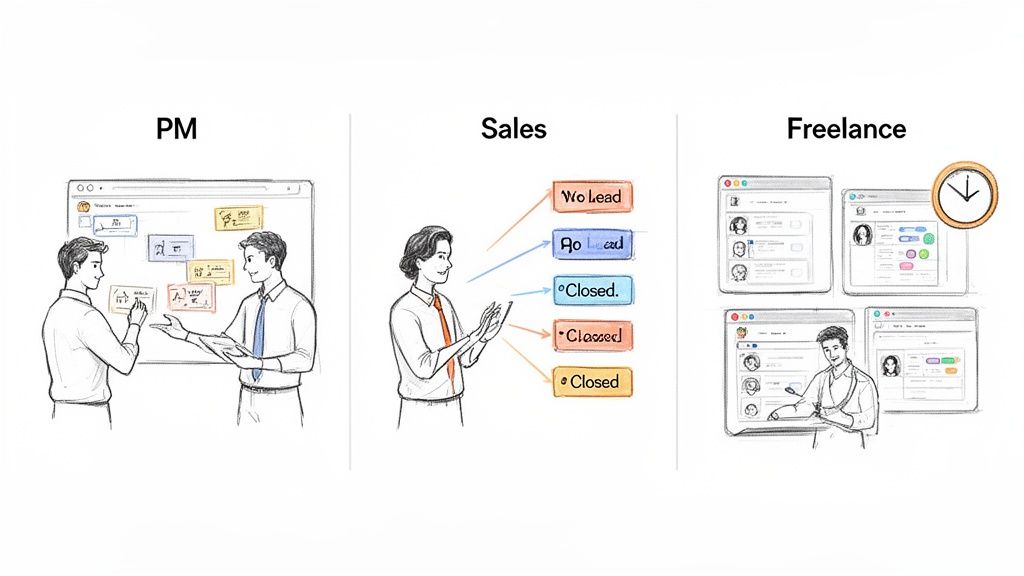
Theory is great, but seeing a system in action is what really makes it all click. To show you how this beefed-up google workspace task management workflow really sings in the real world, we'll walk through three completely different scenarios. Each one shows how professionals can bend this visual system to their will, solving their unique problems without ever having to leave their inbox.
These aren't just abstract ideas; they're blueprints you can steal to bring some much-needed clarity and control to your own day-to-day grind. We’ll see how a shared Kanban board graduates from a simple to-do list to become a living, breathing hub for team projects, sales pipelines, and client work.
The Project Manager Keeping a Team Aligned
First up, meet Alex. She’s a project manager leading a small, scrappy marketing team. Her team's biggest headache? Communication silos. Important updates get buried in endless email chains, and at any given moment, nobody has a clear picture of who’s working on what. It's a classic case of organized chaos.
To fix this, Alex sets up a shared Kanban board right inside Gmail for their "Q4 Campaign Launch" project. She creates columns that perfectly mirror their workflow: Backlog, To Do, In Progress, In Review, and Done. Simple.
Here’s how a typical week unfolds now:
Task Assignment: A new request for ad creative lands in her inbox. Instead of forwarding it with a cryptic "FYI," Alex converts the email into a task card on the shared board and assigns it to Sarah, her designer. Sarah gets an instant heads-up.
Real-Time Progress: As soon as Sarah starts, she drags the card from "To Do" to "In Progress." Alex sees this happen in real-time. No need to ping Sarah for a status update. The board tells the story.
Contextual Feedback: Once the first draft is ready, Sarah attaches the mockup file directly to the task card and moves it to the "In Review" column. She drops a quick comment: "@Alex, first pass is ready for your feedback."
Clear Approvals: Alex opens the card, sees the design, and leaves her feedback right there in the comments. After a minor tweak, the card moves to "Done."
The entire loop happens on one shared, visual space. That constant, nagging "who's doing what?" confusion? Gone. A visual system like this can slash time spent in status update meetings by as much as 40%, giving the team more time to actually do creative work.
The Sales Rep Managing a Personal CRM
Next, let's look at Ben, a sales rep who practically lives in his inbox. He's juggling dozens of leads, all at different stages of the conversation. He used to track everything in a messy spreadsheet, but it was totally disconnected from his emails, leading to missed follow-ups and lost opportunities.
Ben decides to build a personal Kanban board to act as a lightweight sales CRM. His columns are dead simple: New Lead, Contacted, Proposal Sent, Negotiation, and Closed Won/Lost.
By treating his sales pipeline as a visual workflow, Ben gains an immediate understanding of where every single lead stands. This is a powerful shift from a static list to a dynamic, actionable view of his opportunities.
When a new inquiry hits his inbox, he creates a task card for the lead and links the original email for one-click context. As he moves the lead through his sales process—sending that first email, shipping off a proposal—he just drags the card to the next column. It’s a beautifully simple system that ensures no lead ever falls through the cracks. He always knows what his next move should be.
The Freelancer Juggling Multiple Clients
Finally, there’s Maya, a freelance writer with projects for three different clients on the go. Trying to keep deadlines, deliverables, and client communications straight was a constant source of stress. She needed a way to silo her workstreams while keeping everything under one roof.
Maya's solution is genius in its simplicity: she creates a separate Kanban board for each client. This one move brings instant order to her google workspace task management. To take it a step further, she uses color-coded tags on each board to categorize tasks by type, like "Blog Post," "Website Copy," or "Social Media."
This setup gives her a few huge advantages:
Clear Focus: When she's working for Client A, she can view just their board. No distractions from her other projects.
Easy Reporting: At the end of the week, invoicing is a breeze. She just filters the "Done" column to see exactly what she completed and pulls the details for her report.
Client Collaboration: For one of her bigger clients, she actually shares the board with them. This radical transparency builds trust and cuts down on the back-and-forth emails, as the client can see the real-time status of their projects whenever they want.
In all three of these stories, the core benefit is exactly the same: bringing a visual, collaborative, and context-rich layer to the one place where work is already happening—Gmail.
Best Practices for Team Collaboration and Productivity
Having a powerful visual system is one thing, but real productivity comes from the smart habits you build around it. Adopting the right tool is only half the battle; how your team actually uses it day-to-day is what separates chaos from clarity. Think of it like a professional-grade kitchen—you can have the best equipment in the world, but you still need proven recipes and techniques to cook a great meal.
The same goes for your google workspace task management. By setting up a few clear, consistent ground rules, you make sure everyone on the team is on the same page. This turns your Kanban board from a simple task tracker into a powerful engine for collaboration and progress, creating a shared language for how work gets done.
Standardize Your Workflow Columns
The first and most critical step is agreeing on what each column on your Kanban board actually means. Without a shared understanding, a task in the "Review" column might mean one thing to a designer and something totally different to a manager.
Define your stages with absolute clarity. For most teams, a simple, four-stage workflow is a great place to start:
Backlog: This is the holding pen for all upcoming tasks that haven't been prioritized yet.
To Do: These are the tasks that are approved, prioritized, and ready for someone to grab.
In Progress: A team member has picked this up and is actively working on it right now.
Done: The task is complete, approved, and needs no more attention.
This simple act of standardization wipes out ambiguity. It gives anyone an instant, at-a-glance understanding of a project's health. When everyone follows the same process, the board becomes a single, reliable source of truth that the whole team can trust.
Create a Smart Tagging System
As your projects get bigger, your boards can get crowded fast. A smart tagging system is your best defense against this visual clutter, letting you slice and dice your view to focus on what matters most in the moment.
Create a set of clear, color-coded tags to categorize tasks. You could use tags for priority (High, Medium, Low), task type (Bug, Feature, Content), or by project (Project Alpha, Q4 Campaign).
This lets any team member instantly filter the board to see, for example, all "High" priority tasks related to "Project Alpha." It's a ridiculously simple way to bring order to a complex workload. For more ideas on organizing tasks with your team, you can learn more about how to share Google Tasks and keep everyone in sync.
Taking this structured approach ensures your google workspace task management system can grow right alongside your needs, keeping workflows clean and efficient.
Got Questions? We've Got Answers
Jumping into a new way of managing your google workspace task management can bring up a few questions. Let's tackle some of the most common ones to help you see how a visual, integrated system fits right into the Google environment you already know.
Is It Safe to Use a Chrome Extension for Task Management in Gmail?
Absolutely. Any reputable extension is built with security as its number one job. They use Google's own secure sign-in system (OAuth) to get permission, which means you’re granting access without ever handing over your password to the extension's creator.
Think of it this way: the extension is just a layer that works on top of the Google Tasks functionality you already have. Your data never leaves the Google ecosystem, so you keep all the privacy and control you'd expect.
Can I Share My Kanban Boards with People Outside My Organization?
Yes, and this is a huge win for anyone who works with clients, freelancers, or outside partners. With an enhanced Kanban setup, you can share specific boards with anyone who also has the extension installed.
This lets you collaborate on projects together without giving them the keys to your entire internal Google Workspace. It’s a clean, secure way to keep cross-company projects moving forward.
Sharing boards externally is a game-changer compared to what Google Tasks offers on its own. It closes the gap between your internal team and external partners, keeping everyone on the same page.
How Is This Different From Using a Separate Project Management Tool?
It all comes down to integration and staying in your workflow. Tools like Trello or Asana are great, but they force you to leave your inbox and jump into another app every time you need to manage a task. The magic of an integrated solution is that your task manager lives right inside Gmail, which is where most work actually starts.
This completely gets rid of the friction of switching between apps, so tasks are far less likely to get lost in the shuffle. Your google workspace task management stops feeling like a separate chore and just becomes a natural part of how you work.
Ready to turn your inbox into a command center? Our Kanban Tasks extension gives you drag-and-drop boards, shared workflows, and seamless collaboration right inside Gmail. Stop the tab-switching chaos and start organizing work where it happens. Give it a try today and contact us for any help.
 Download our Plugin