
How To Organize Work Tasks for Maximum Productivity
Discover how to organize work tasks visually within Google Workspace. This guide provides actionable strategies to eliminate chaos and boost team productivity.
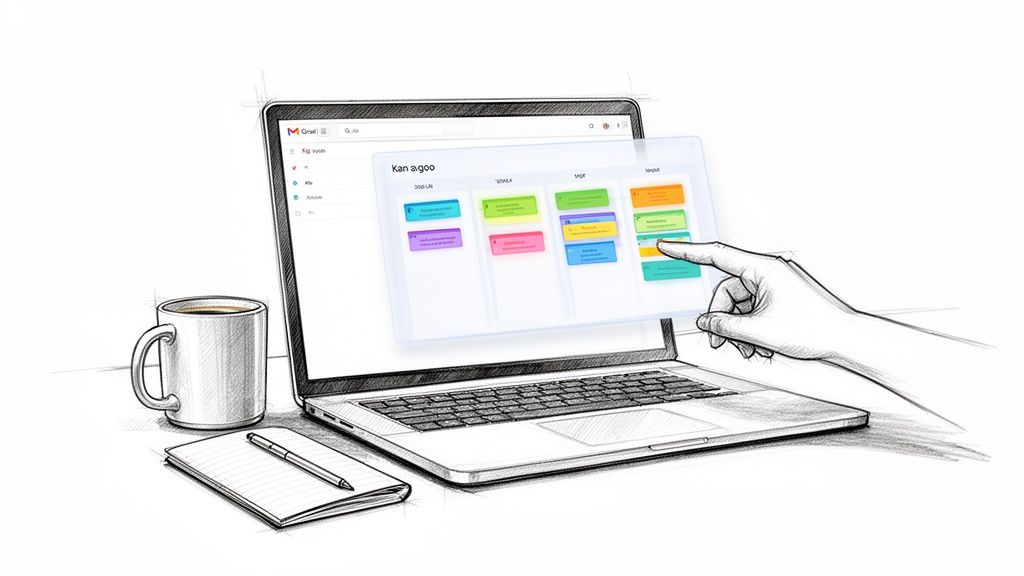
If your team’s workflow feels like a frantic scavenger hunt across emails, spreadsheets, and a half-dozen different apps, you're not just imagining it. That constant shuffle isn't just inefficient; it’s a direct path to burnout. The best way to organize your work is to bring your tasks to where the work actually happens.
This means using an integrated visual system, like a Kanban board, directly inside your primary workspace—for many of us, that's our Gmail inbox. This simple shift stops the endless app-switching and centralizes your entire workflow.
Why Your To-Do List Is Holding Your Team Back
Let's be real: the traditional to-do list is broken. It’s a relic from a simpler time, struggling to keep up with the complexity of modern, collaborative work.
Think about a project manager trying to launch a new feature. Key feedback is buried in a long email thread, the design mockups are in a separate cloud drive, and the actual task list lives in a third-party app. Every small update requires jumping between tabs, losing focus and precious momentum with each click. Sound familiar? This is the painful reality of context-switching.
The True Cost of Digital Disorganization
This scattered approach does more than just waste time; it drains mental energy. Research shows that around 60% of workers feel the sting of burnout from the constant digital pings and the need to switch between apps just to track a single project. The economic impact is huge, with Gallup data suggesting that this disengagement costs the global economy billions in lost productivity every year.
This is exactly where old-school to-do lists fall apart. They are static, isolated, and completely disconnected from the collaborative context where work actually gets done.
A simple list of checkboxes can't capture the flow of a project, show dependencies, or give you a clear, high-level view of what your team is actually working on.
To get a clearer picture, let's compare the old way of doing things with a more integrated approach.
Comparing Traditional vs Integrated Task Management
| Challenge | Traditional Method (The Problem) | Integrated Method (The Solution) |
|---|---|---|
| Lost Context | Tasks are listed in a separate app, disconnected from the original email or document. | Tasks are created directly from emails or docs, preserving all context. |
| High Friction | Requires constant switching between your inbox, chat, and task manager. | The entire workflow lives in one place, minimizing context switching. |
| Poor Visibility | A flat list offers no visual cues about project status or bottlenecks. | A visual Kanban board provides an at-a-glance overview of the entire workflow. |
| Collaboration Hurdles | Difficult to see team capacity or who is working on what without manual check-ins. | Shared boards make it easy to see progress, assign tasks, and balance workloads. |
This table really just scratches the surface. The shift from a fragmented list to a unified system is fundamental.
Embracing a Visual, Integrated Workflow
The solution is to ditch the fragmented lists for a unified, visual system. A Kanban board, especially one that lives inside your Google Workspace, is a powerful alternative. Instead of just listing what needs to be done, you get to see your entire workflow in motion.
This is what it looks like to transform a chaotic inbox into an organized command center.
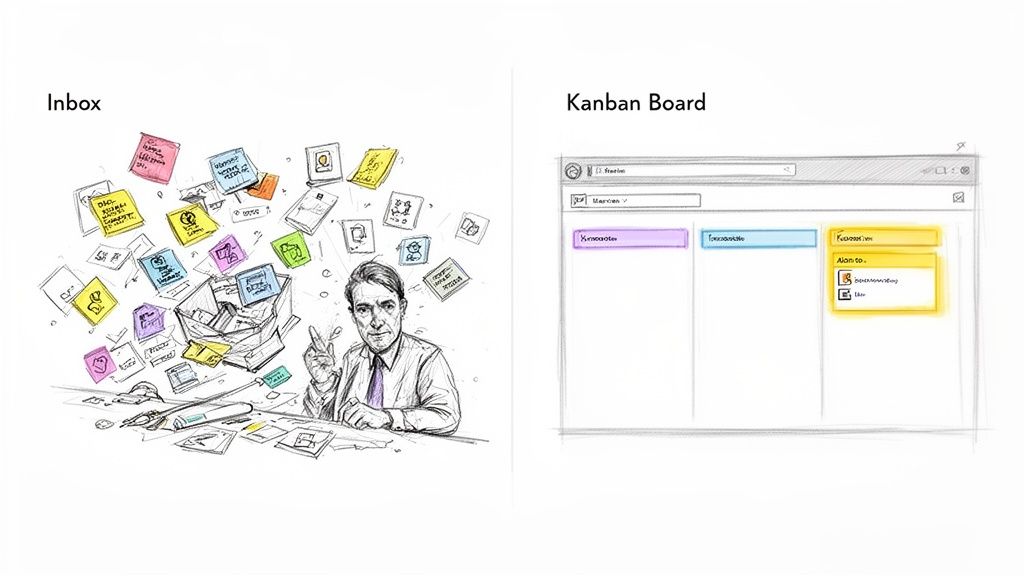
This visual layout gives you instant clarity on project status, bottlenecks, and priorities—all without ever having to leave your primary communication hub. The difference between this and a standard to-do list is night and day. If you're curious about the specifics, you can learn more about the advantages of Kanban vs. to-do lists in our detailed comparison.
Ultimately, it’s about creating a single source of truth that keeps everyone on the same page and focused on what really matters: moving work forward.
Building Your Visual Command Center in Gmail
Okay, let's get down to business. Moving from a scattered to-do list to a visual workflow is where the real magic happens. This isn't about slapping another tool on top of your mess; it's about fundamentally changing how you see and manage your work, building a system that actually reflects how your team gets things done.
We'll be using Tooling Studio’s Kanban Tasks extension to turn your Gmail inbox into a genuine command center.
First thing's first: get the extension set up. Once you install it, it slides right into your Gmail or Google Tasks interface. No new platform to learn, no jarring new UI. This is a bigger deal than it sounds—people adopt tools that fit into their existing habits, not tools that force them to create entirely new ones.
Crafting Your First Project Board
With the extension installed, it's time to build your first board. Think of a board as a dedicated home for a specific project or workflow. This is your chance to bring clarity, so generic names like "To-Do" or "Team Tasks" just won't cut it.
Your board names need to be descriptive and give instant context. For example:
- Q4 Content Calendar: Anyone on the marketing team knows exactly what this is for and its timeframe.
- New Client Onboarding: A clear, repeatable pipeline for your account managers. No more guessing what's next.
- Website Redesign Sprint: Signals a focused, time-sensitive project for developers and designers.
The name you pick sets the tone for the entire workflow. Get it right, and you eliminate confusion before it even starts.
Customizing Columns for Your Unique Workflow
This is where you really start to tailor the system to your needs. It's so tempting to just stick with the default "To Do," "In Progress," and "Done," but don't. A truly powerful Kanban board mirrors the actual stages your work moves through.
For instance, a sales team isn't just "doing" things. Their process has specific steps. Their board might use columns like this:
- New Leads
- Contact Made
- Demo Scheduled
- Proposal Sent
- Closed Won
Meanwhile, a content team has a completely different reality. Their board might look like:
- Idea Backlog
- Drafting
- In Review
- Scheduled for Publish
- Published
See the difference? This level of customization gives anyone on the team an immediate, at-a-glance status update. The board transforms from a simple task list into a dynamic map of your team's progress. If you want to go a bit deeper on this, check out our guide on why using Kanban in Gmail helps stop context switching and keeps everyone focused.
When you tailor your columns, you're not just organizing tasks—you're documenting your team's process. It creates a shared language for how work gets done and makes it painfully obvious where bottlenecks are forming.
Putting this visual system in place is the first real step to mastering how you organize work. It lays the groundwork for a more transparent, collaborative, and honestly, less chaotic environment—all without ever forcing your team to leave their inbox. The goal here is simple: make the right way to work the easiest way to work.
Now that you have your visual command center up and running, it's time to start filling it up. The real magic of an integrated system isn’t just seeing your work laid out; it’s about capturing new tasks from all the places they pop up—your inbox, meeting notes, or even a random spark of inspiration. This is how you make sure nothing ever falls through the cracks again.
Think about a common scenario: a critical email lands in your inbox from a key client. It’s an urgent request for new design mock-ups. In the past, you might have flagged it, forwarded it, or maybe copied and pasted the details into another app. Each step creates a disconnect.
But now, with a single click, you can turn that entire email into a new task card on your "Q4 Marketing Campaign" board. It’s that simple.
This isn't just about moving faster; it's about keeping the context intact. The new card automatically pulls in the email's subject and body, so the original request is perfectly preserved right where the work will happen. You've created a trackable, actionable item without ever leaving Gmail. If you want to see exactly how this works, our guide on how to create a task from an email in Gmail breaks it down.
Adding Detail for Crystal-Clear Action
A task title alone is never enough. For a task to be truly actionable, it needs detail. The moment that card is created, you can flesh it out.
- Assign it to the lead designer on your team.
- Set a firm due date for Friday EOD.
- Attach the brand guidelines document directly to the card.
- Add a quick comment: "@DesignTeam, let's make this a priority for the morning stand-up."
In just a few seconds, a floating request becomes a fully owned, prioritized action item. Everyone involved knows exactly what needs to be done, who’s doing it, and when it's due. No more ambiguity.
This quick visual guide shows just how simple the flow is, from installation to a fully functioning board ready to capture these tasks.
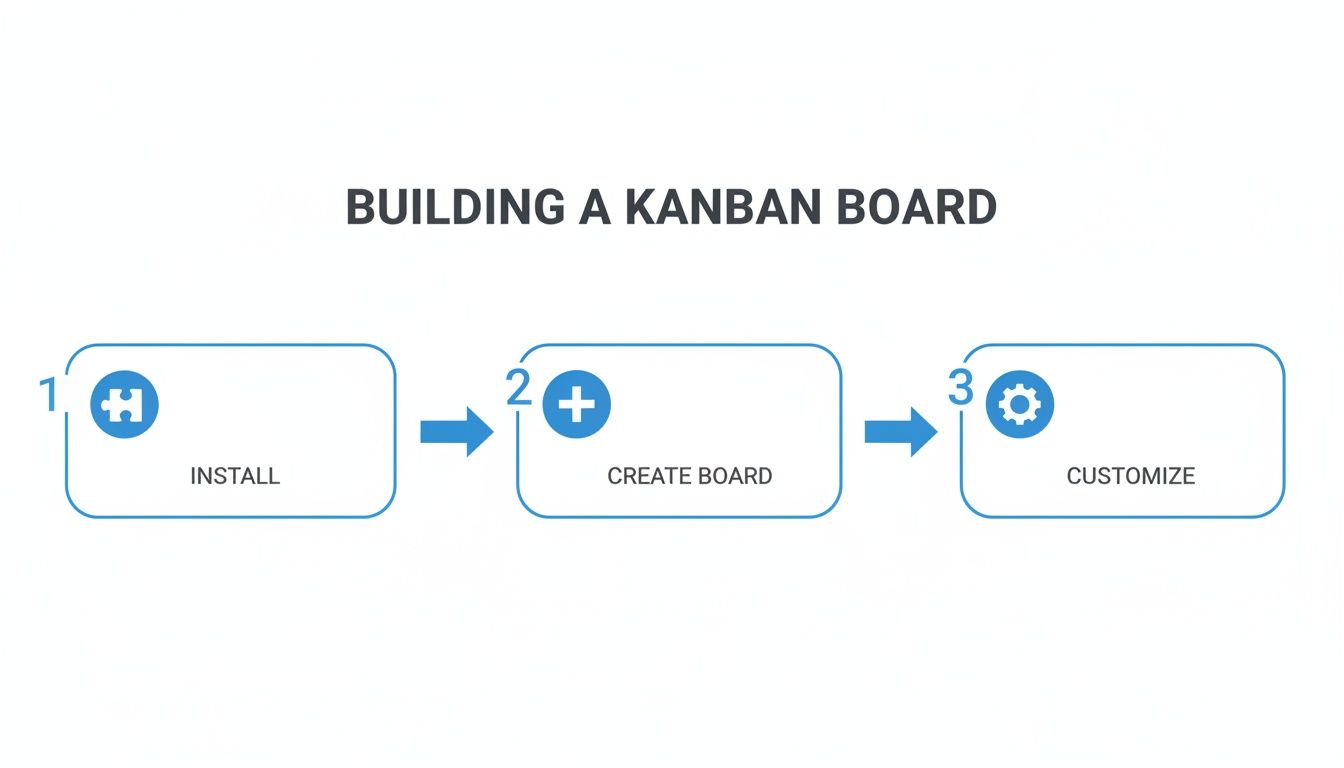
As you can see, you can go from a fresh install to a customized board in minutes.
From Fleeting Ideas to Prioritized Work
Of course, your inbox isn't the only place work comes from. Great ideas can strike during a team meeting, on your commute, or while you're grabbing coffee. Instead of scribbling them on a sticky note that gets lost, you can create a new card directly on your board.
For instance, you could add a card titled "Explore new social media ad concepts" to your "Idea Backlog" column.
The goal is to create a trusted "brain dump" for every potential task. Getting everything out of your head and into a system frees up mental bandwidth so you can focus on actually doing the work.
Once all your tasks are captured, the next challenge is figuring out what to tackle first. To bring some structure to your priorities, you can use a framework like the Time Management Matrix, which helps you sort tasks based on their urgency and importance. This simple technique ensures you’re always dedicating your energy to the things that truly move the needle.
Driving Team Collaboration and Clear Priorities
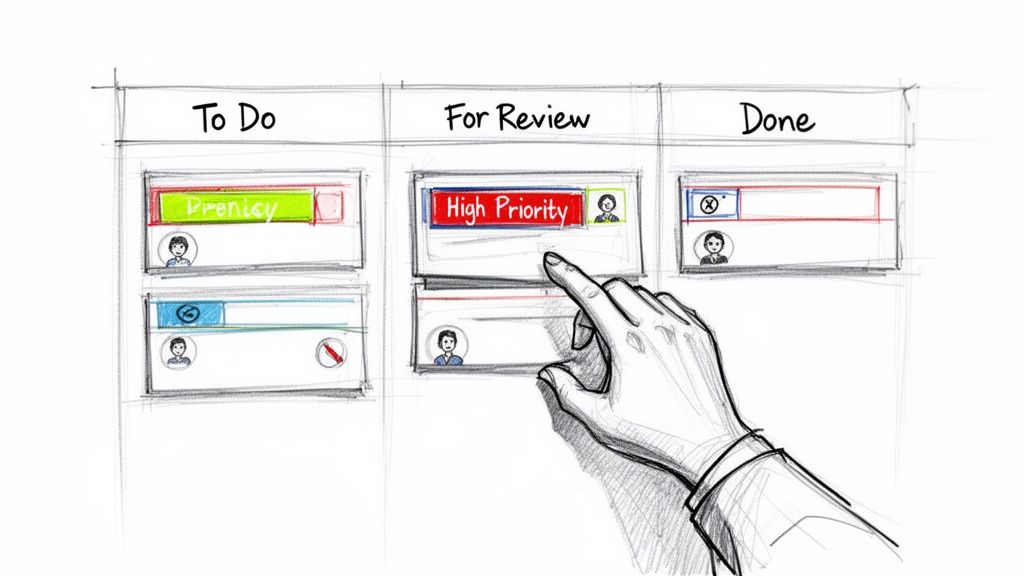
Getting your own tasks in order is a great first step, but the real magic happens when your entire team is operating from that same single source of truth. This is where you graduate from personal organization to collaborative momentum, and it’s where you’ll see the biggest wins.
A shared visual workspace is your team's best friend here. Forget digging through endless email chains or chat threads for updates. When you share a board like "Q4 Content Calendar" with the marketing team, everyone instantly sees the status of every task in real-time. No more guessing games.
Assigning Clear Ownership
Let's be honest: a task without an owner is a task that's going to be forgotten. Vague responsibility is a project killer. On your Kanban board, assigning a task is as simple as dragging a team member's avatar onto the card.
Once the "Finalize Ad Creative" card is assigned to your lead designer, there's zero ambiguity. They get a notification, and everyone looking at the board knows exactly who is driving that piece of work. This one simple action builds accountability and kills the classic "I thought you were doing that" problem before it even starts.
Better yet, all the chatter about the task happens right on the card. Use the comments to ask questions, give feedback, or share quick updates. This pulls vital discussions out of the black hole of an inbox and keeps every conversation tied to its specific context.
Prioritizing What Truly Matters
With so many projects in flight, how do you signal what needs immediate attention? Visual cues are your answer. That drag-and-drop functionality isn't just a neat feature; it’s a powerful way to set priorities. Moving a critical task to the very top of the "In Progress" column sends an instant, clear message to the entire team.
For another layer of clarity, start using tags to categorize and flag work. A few simple tags can make a world of difference:
- High Priority: A bright red tag that practically screams, "Look at me first!"
- Client Feedback: Signals that a task is waiting on external input before it can move forward.
- Blocked: Instantly alerts a manager that an obstacle is preventing progress.
When your team can see priorities at a glance, they can make smarter decisions about where to focus their energy without needing constant direction. It empowers them to manage their own workflows effectively.
This kind of visual organization is a game-changer for flexible work arrangements. In fact, remote workers—who now make up 53% of the workforce—report having 22% more deep-focus time when their work is visually organized. Teams that lean into these integrated tools can see up to 39% higher output from their remote and hybrid setups. You can read more about the findings on remote worker productivity.
Spotting Bottlenecks in Real-Time
Picture this: during a quick daily stand-up, a manager pulls up the team's shared Kanban board on the screen. It's immediately obvious that five different tasks are piling up in the "For Review" column, and they're all assigned to the same person.
That's a classic bottleneck, and the visual board makes it impossible to miss. Instead of waiting for a weekly report to discover the logjam, the manager can act right away. They can reassign a couple of the reviews to another team member, unblocking the workflow and keeping the whole project humming along. This is how you organize work proactively, not reactively.
Advanced Strategies for Power Users and Growing Teams
Once you get a feel for the basics, you'll naturally want to take your organization to the next level. This is where things get really powerful, especially as your team grows. A single, all-purpose board is a fantastic starting point, but it can quickly get crowded as projects and responsibilities pile up.
To keep things clear and manageable, the key is to move beyond a one-size-fits-all setup. The first big leap is creating dedicated boards for each core part of your business. This gives every team a space that's built just for them, speaking their language and matching their unique workflow.
Building Purpose-Driven Boards
Let’s be honest: a marketing team’s process looks nothing like a dev team’s sprint, and a sales team operates on a completely different rhythm. Trying to cram everyone onto one board is a recipe for chaos. Giving each department its own dedicated board is a game-changer for organizing work with real precision.
Here are a few examples I've seen work wonders:
- Sales Pipeline: Imagine columns like "New Leads," "Initial Contact," "Demo," and "Proposal Sent." Suddenly, your entire sales funnel is visible at a glance.
- Content Calendar: For a marketing team, columns like "Idea Backlog," "Drafting," "In Review," and "Published" bring order to the creative process.
- Development Sprint: Devs can map out their work with "Backlog," "In Progress," "Code Review," and "Deployed" for a crystal-clear sprint overview.
These tailored spaces let every team member zero in on what matters to them without getting bogged down by noise from other departments. And if you're really looking to fine-tune your setup, exploring the best Chrome extensions for productivity can unlock even more ways to organize your day.
The real power of a Kanban system emerges when it’s not just a to-do list, but a living model of your organization's actual processes. It turns abstract workflows into tangible, visual maps.
Templating Success for Repeatable Processes
So many of our business processes are rinse-and-repeat. Think about onboarding a new client, hiring an employee, or even generating a monthly report. Instead of starting from scratch every single time, you can create a board template for these common workflows.
Take client onboarding, for example. Your "Client Onboarding Template" could have cards already set up for all the crucial steps:
- Send Welcome Packet
- Schedule Kickoff Call
- Grant System Access
- Conduct Initial Training
Now, whenever you sign a new client, you just duplicate the template board. This isn't just a time-saver—it's a process-saver. It guarantees that no critical steps are ever missed, creating a consistent and professional experience for every client, every time. It’s about building efficiency right into the very structure of how you work.
By creating specialized boards and templating your repeatable tasks, you elevate your system from a simple to-do list into a genuine strategic asset. It’s how you help your team scale effectively, maintain absolute clarity as things get more complex, and consistently knock it out of the park.
Got Questions About Organizing Your Work?
Even the slickest tools can raise a few questions when you’re changing up your workflow. Let's dig into some of the most common ones I hear. Getting these cleared up will make sure your switch to a visual system in Google Workspace is a total win.
How Do I Get My Team to Actually Use This?
This is the big one, isn't it? Getting your team on board with any new system is often the toughest part. The secret is to avoid framing it as yet another tool. Instead, show them how it makes their existing work simpler.
I've found the best approach is to start small. Grab a few enthusiastic folks for a pilot group. Let them be the champions who show everyone else the real-world benefits—like cutting down on those "just checking in" emails and finally having clear priorities.
Once people see it solving real problems and reducing friction, they usually jump on board without much convincing.
Can I Use This for Both Big Projects and Small Daily Tasks?
Absolutely, and you definitely should. The real power of a system like this is its flexibility.
You might have a big, sprawling board for a major project like the "Q3 Product Launch," while keeping a separate, super-simple board for your own daily to-dos. This is crucial because it stops tiny, quick tasks from getting buried under massive project milestones.
For example, your personal board could be as simple as:
- Today's Focus
- Waiting on a Reply
- Done This Week
This way, you can manage both the big picture (major projects) and the small details (daily actions) without either view feeling cluttered or overwhelming.
The most effective way to organize your work is to give different types of tasks their own dedicated space. This approach stops you from feeling overwhelmed and makes sure both long-term goals and immediate to-dos get the attention they need.
What if I'm a Freelancer or a Team of One?
This method is a game-changer for solo professionals. For freelancers juggling multiple clients, a visual system right inside Google Tasks can mean getting work done 29 minutes faster every single day. When you're running your own show, that time adds up fast. It's not just about efficiency; health issues from overwork can cost the economy billions, so staying organized is key. You can find more insights on individual productivity statistics if you want to geek out on the numbers.
Imagine creating a board for each client. Suddenly, your Google Workspace becomes a central command center for all your contracts, emails, and deliverables. It gives a one-person operation the kind of organization that big companies rely on, making it so much easier to scale your business.
At the end of the day, it doesn't matter if you're leading a huge team or you're a one-person powerhouse. The principles are the same: a visual, integrated system brings clarity, cuts down on the mental juggling, and frees you up to focus on the work that actually matters.
Ready to stop juggling tabs and start organizing your work right where it happens? Give Tooling Studio’s Kanban Tasks extension a try today and build your visual command center directly inside Gmail. Get started for free.
 Download our Plugin