Jump to
Before you start
OKR is free on your Personal Board. Shared team goals need an OKR seat for each person.
Pick one goal for this period. You can add more objectives once the first one works.
Decide how you will measure success: a number, a percentage, an amount, or a milestone.
To measure progress from work, you need access to the Kanban Tasks board or the CRM deal pipeline you want to link.
Step 1
Create a cycle
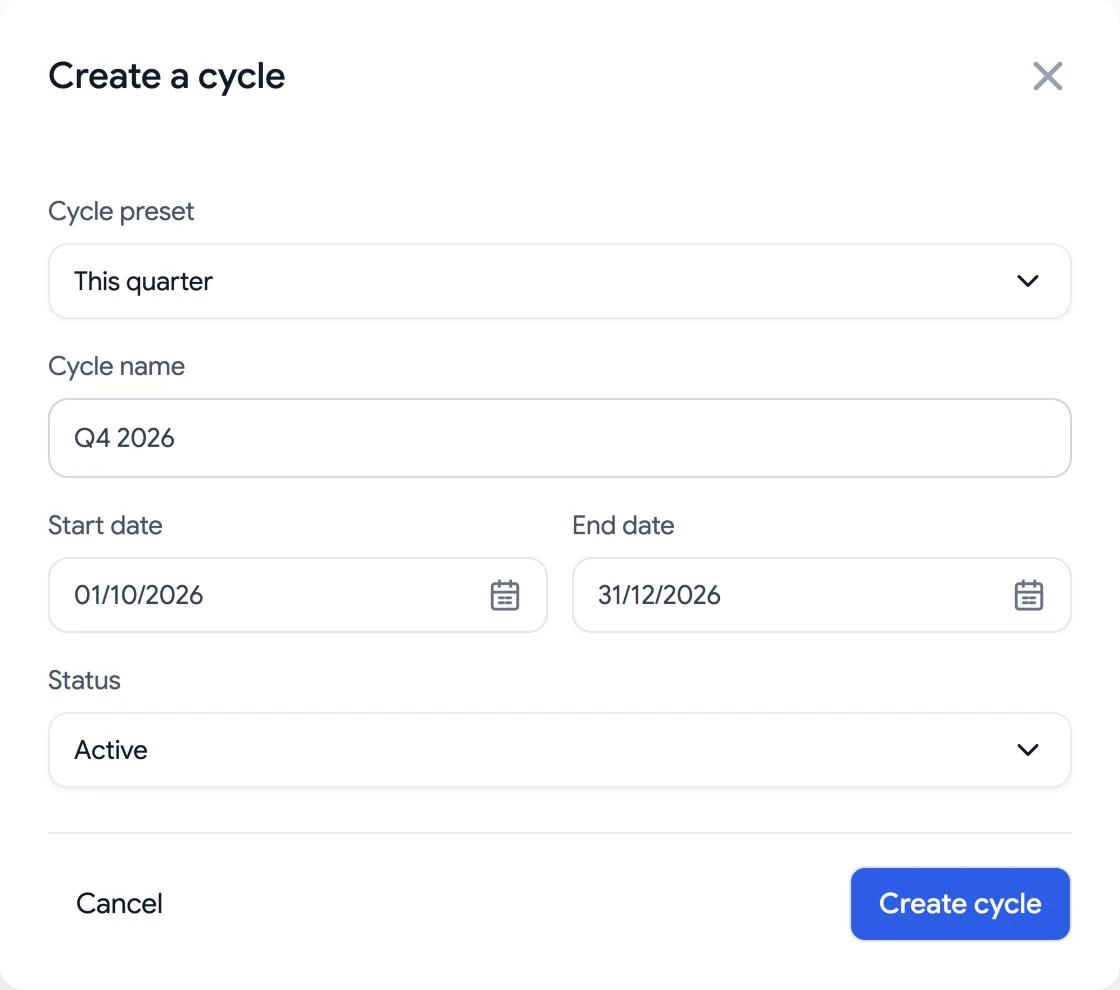
Open OKR and choose the workspace for your goals. Open the cycle actions menu (…) next to the cycle name and select New cycle. Choose a preset such as This quarter, or give the cycle a name such as Q4 2026 and set its start and end dates.
You can also start faster. Use a template to create an example objective with key results you can edit, or use Import CSV to bring in goals you already have. The import dialog lets you download an example CSV first.
Step 2
Add an objective
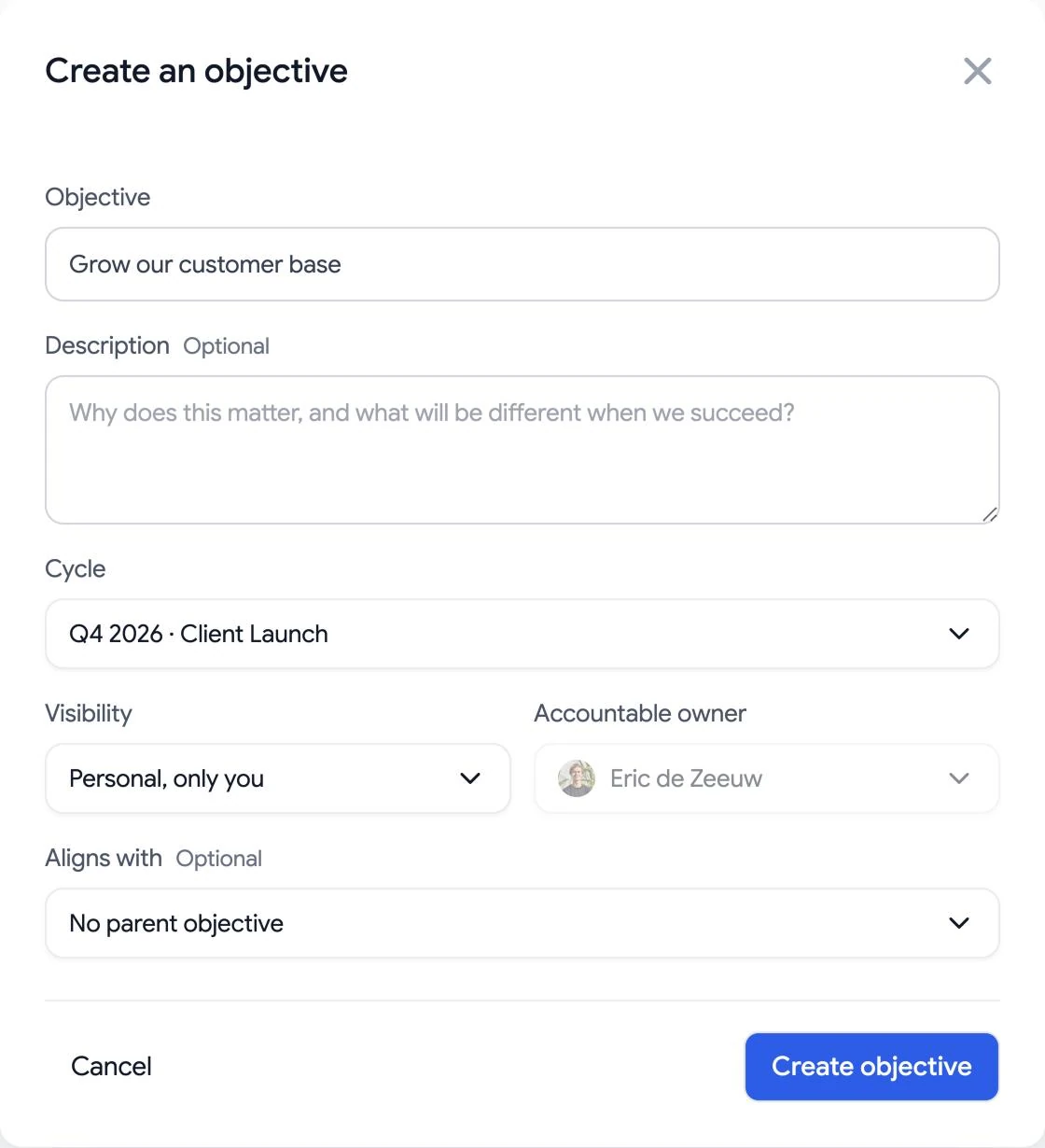
Select New objective. Write the outcome you want in plain words, such as “Grow our customer base”, choose an owner, and save it in the cycle.
Step 3
Add key results
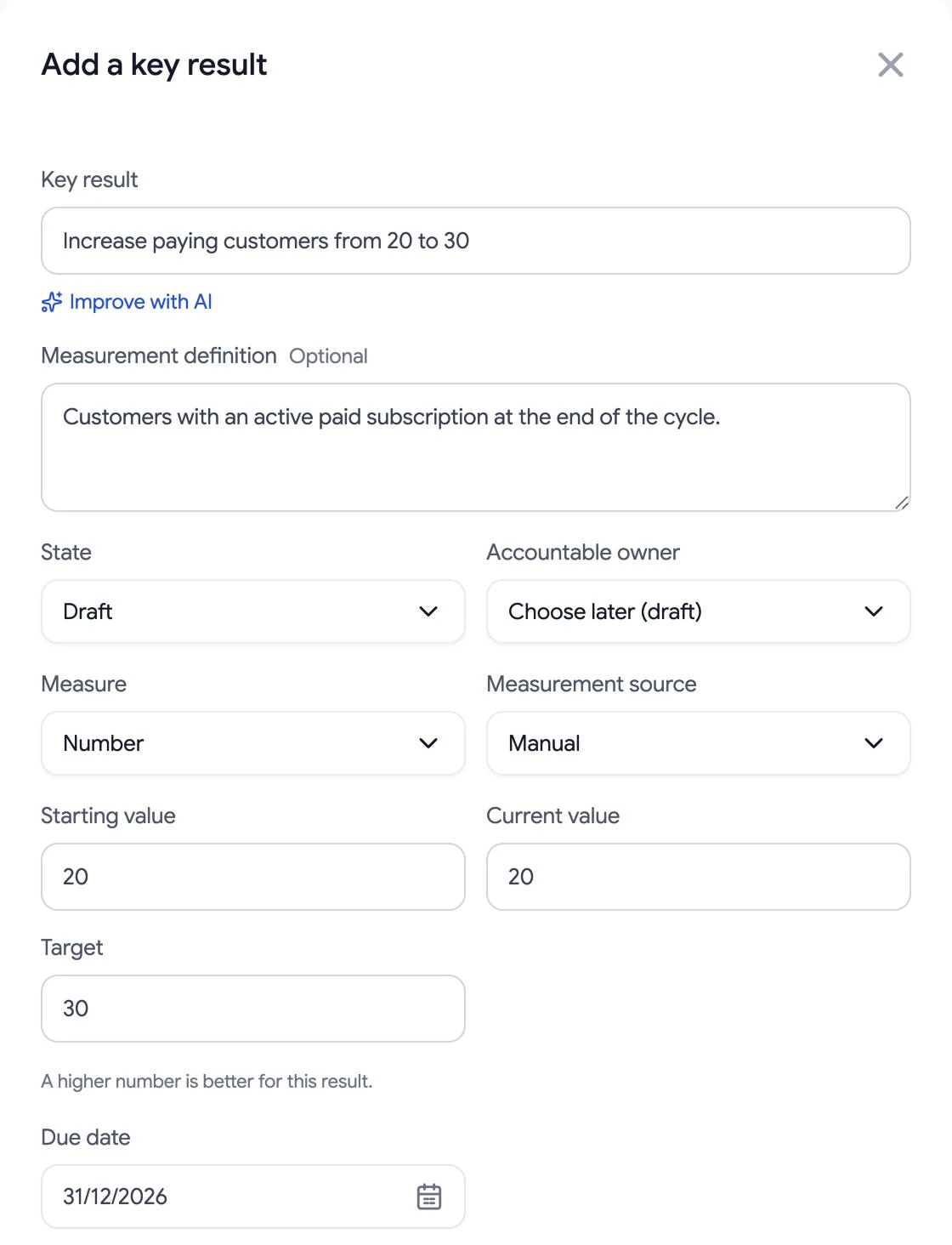
Open the objective and select Add result. Write a result that shows success, such as “Increase paying customers from 20 to 30”. Choose a measurement type, an owner, and a due date.
Number: a count with a starting value and a target.
Percentage: a rate, such as a conversion or retention rate.
Currency: an amount, such as revenue in USD.
Milestone: something that is done or not done, such as publishing a guide.
Step 4
Link key results to tasks or deals
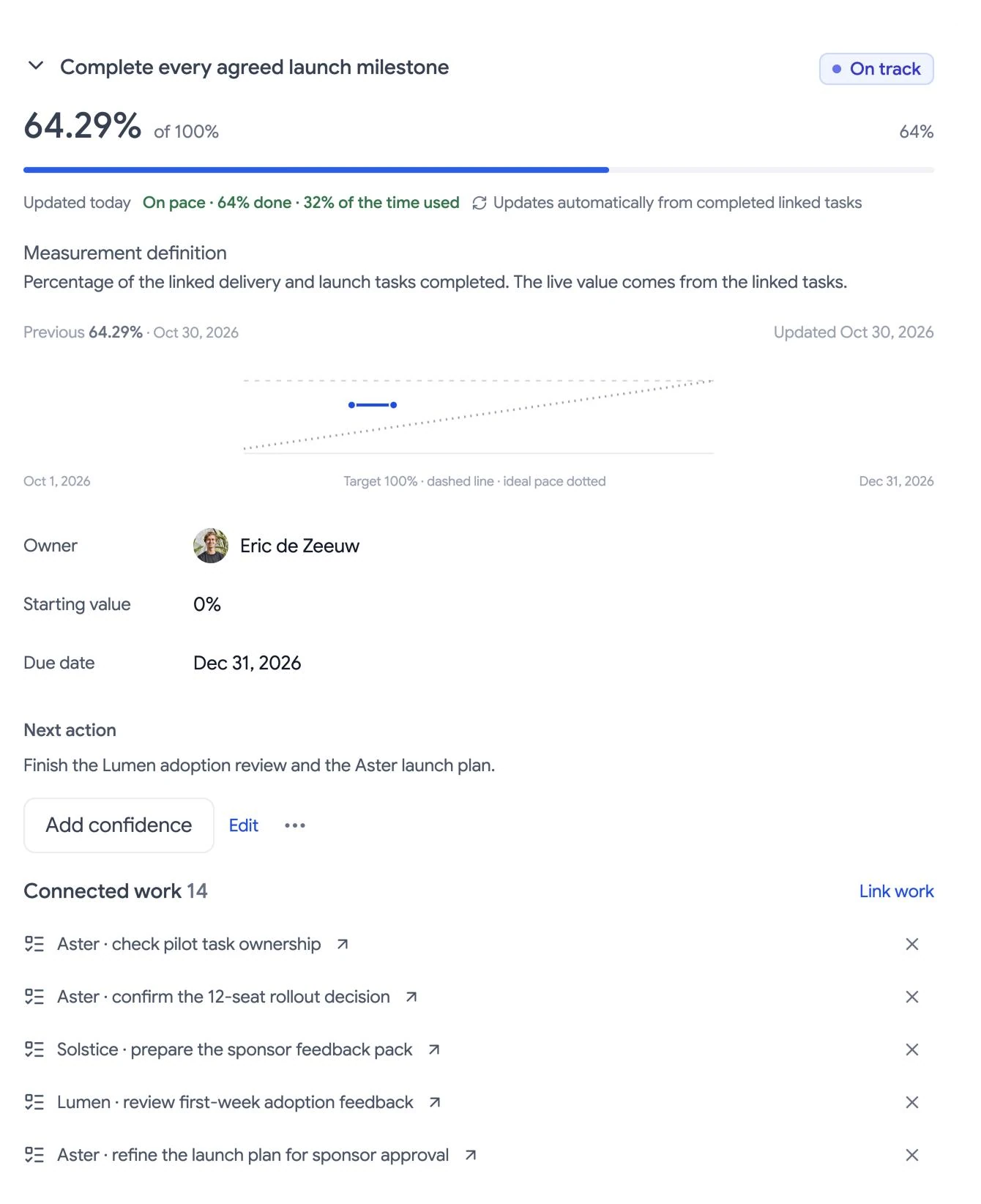
Choose a measurement source for each key result. Manual results are updated at check-in. To let the work move progress, link Kanban tasks and measure completed tasks, or choose a CRM deal pipeline and measure the number or value of won deals.
A task-based result shows the share of linked tasks that are completed. A won-deal result counts every deal won in the chosen pipelines during the cycle. Both update without a manual check-in. Deals you link to a goal are shown with it but do not change its progress.
Step 5
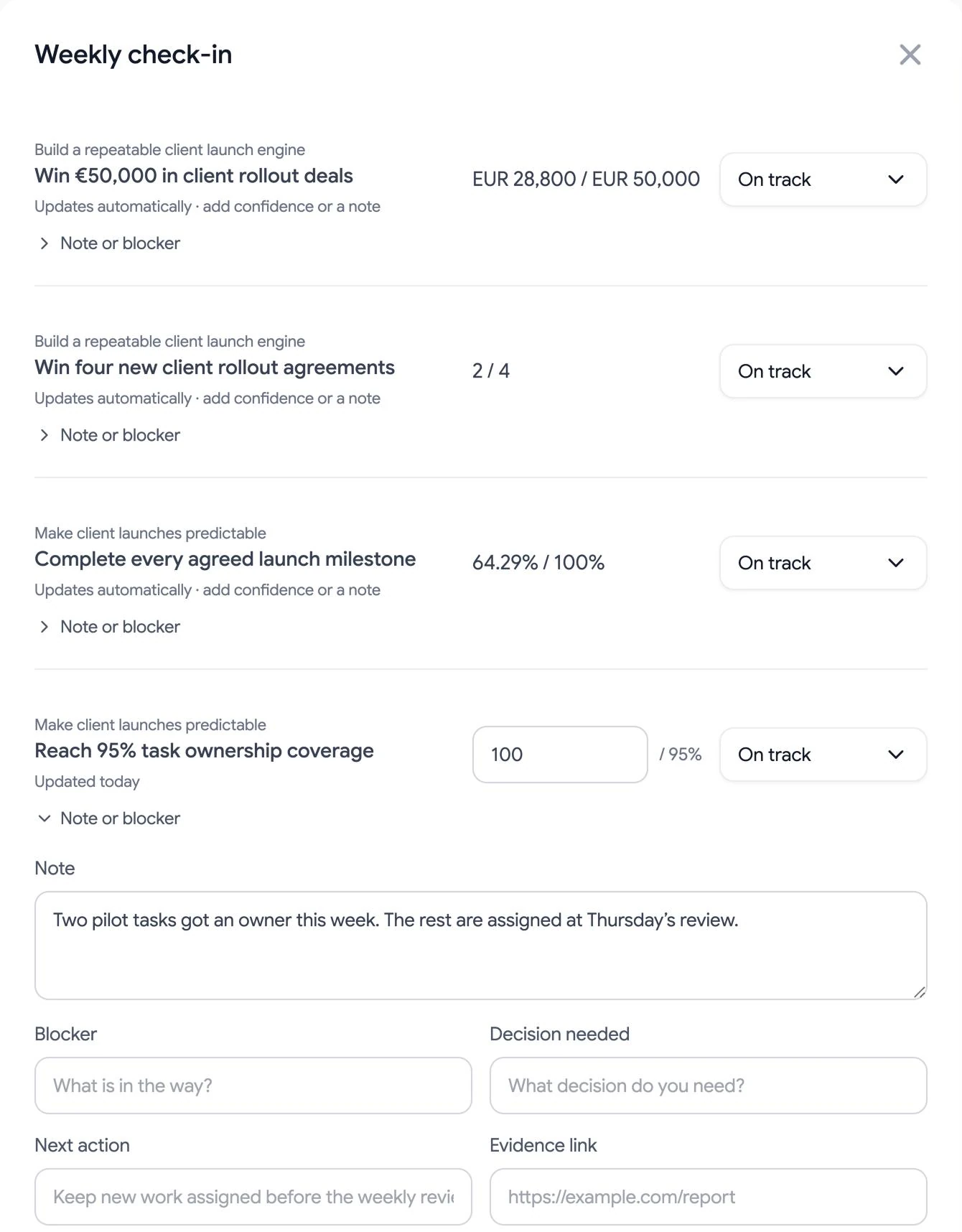
Run a weekly check-in
Once a week, open Weekly check-in. It lists the results you own that are due. Update the current value, choose a confidence (On track, At risk, or Off track), and add a note, a blocker, a decision you need, or your next action.
Set a weekly reminder in the app or by email for the day you choose. In a team, admins set a team check-in day, and admins and objective owners get a weekly team digest by email.
Step 6
See the hours behind a goal in Time
If you also use Time, an objective with linked tasks shows the hours you logged on those tasks, with View Time report to open the full report.
Hours show the effort behind a goal. They do not change progress, which still comes from the value you enter, completed tasks, or won deals.

Step 7
Review as a team and close the cycle
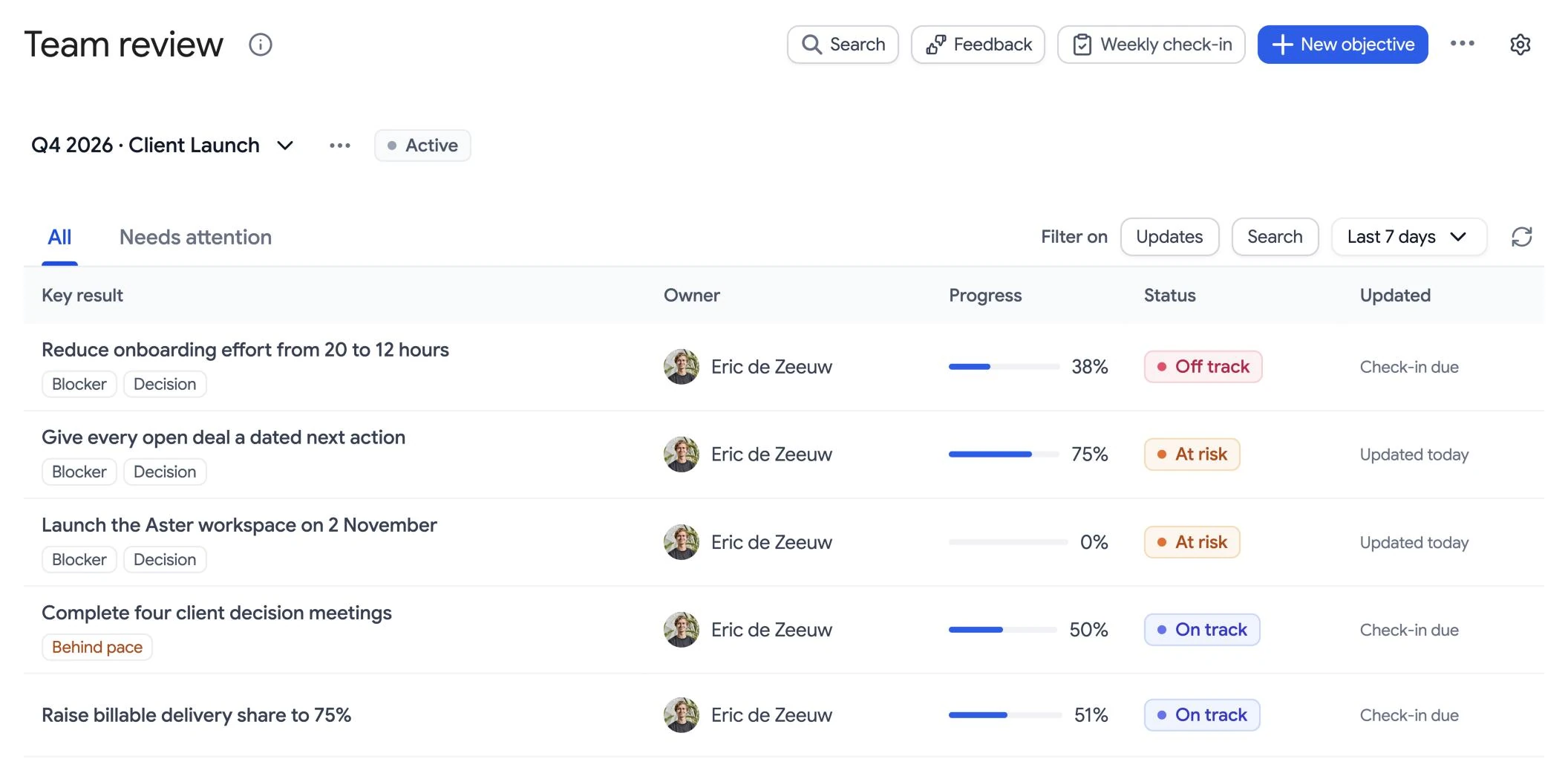
Open Team review to see every shared key result with its owner, progress, and status. Filter for results that need attention, and talk through blockers and decisions. When the period ends, select Close cycle from the cycle actions menu, score the results, and carry unfinished goals into a new cycle if you need to.
Step 8
Optional: use AI suggestions and AI agents
Improve with AI suggests a clearer, measurable version of a key result, and Suggest tasks proposes open tasks to link. Nothing changes until you choose to use a suggestion. With the Tooling Studio MCP server, an AI agent can read your goals and record check-ins with your permissions.
Can't link a task or deal?
Check that you can open the board or deal pipeline in Kanban Tasks or Sales CRM. On a shared goal, everyone who can see the goal must also be able to see that board or pipeline. Only deal pipelines can measure won deals. For more help, contact support .