Jump to
Before you start
Open the task you want to repeat, or create it first.
A task needs a due date before it can repeat.
Decide how often it repeats, and whether the series should stop on a date or after a number of tasks.
Step 1
Open the task’s dates
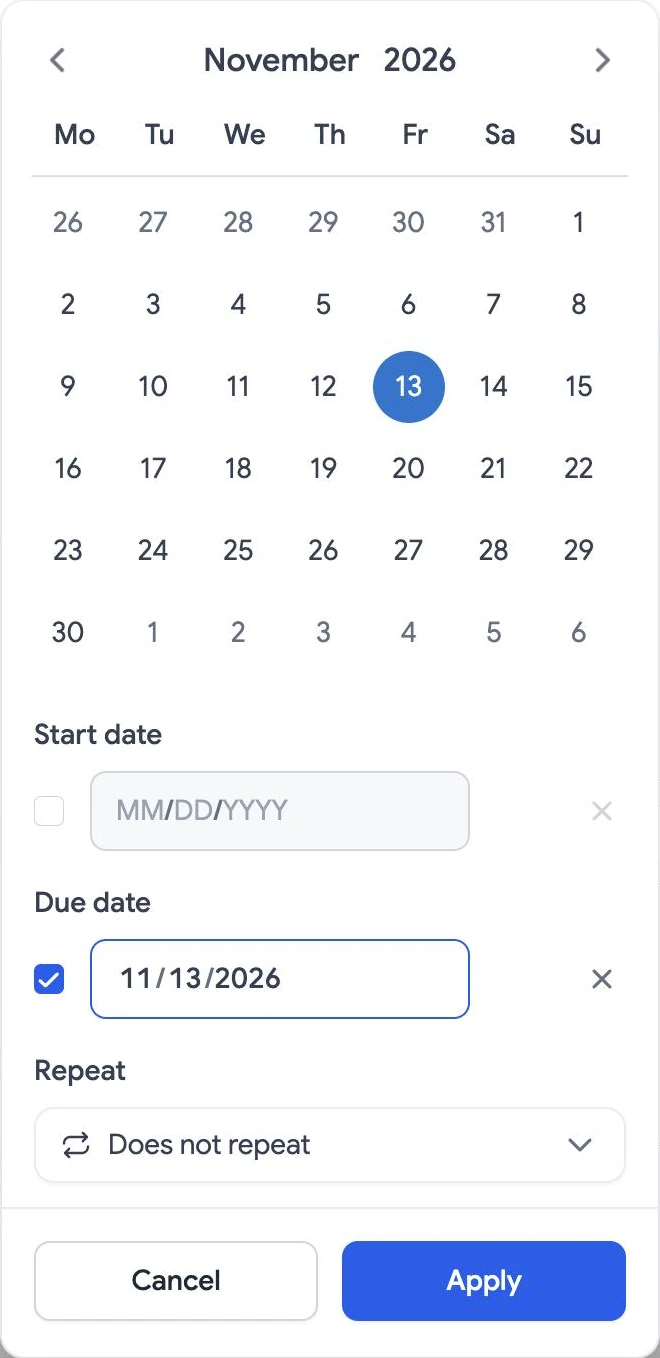
Open the task and select its due date, or Dates if it has none yet. Pick a due date in the calendar.
Step 2
Choose a repeat schedule
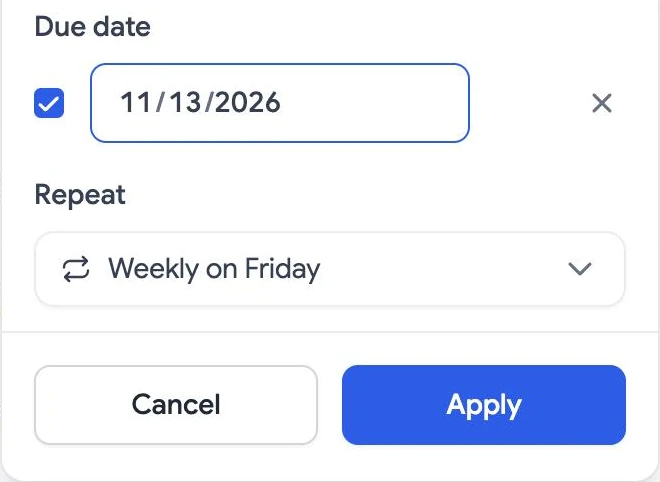
Under Repeat, open Does not repeat and choose a schedule: Daily, Weekly on the due date’s weekday, Monthly on the same day, Every weekday (Monday to Friday), or Custom…. Then select Apply.
Kanban Tasks confirms with Task recurrence created, and the task card shows a repeat icon beside its due date.
Step 3
Set a custom pattern
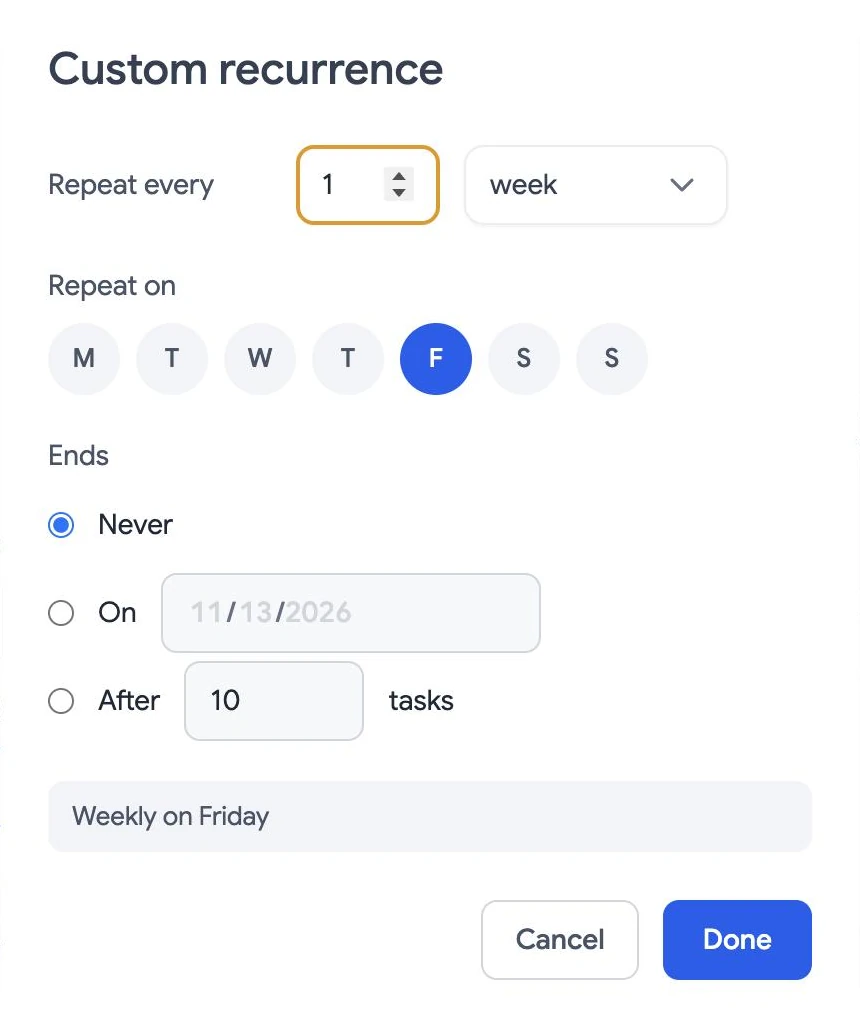
Choose Custom… for any other pattern. Set how often it repeats, pick the days under Repeat on, and choose when it ends: Never, On a date, or After a number of tasks. Select Done, then Apply.
Step 4
Change or stop the series
When you edit, move, or delete a repeating task, Kanban Tasks asks whether the change applies to this task only, to this and the following tasks, or to the whole series. Completed tasks stay in the task history, and upcoming tasks stay out of the way until they are close.
Can’t choose a repeat schedule?
Repeat only works on tasks with a due date. Set the due date in the same date picker first. For more help, contact support .