Jump to
Before you start
Tags belong to a board. Choose the board where you want to use the new tag.
Choose a short name that describes the work, such as Client review. If a suitable tag already exists, select it from the tag menu instead of creating a duplicate.
Make sure the team has active access to Kanban Tasks. If tag access is unavailable, the app opens its subscription dialog when you open the tag menu.
Step 1
Open a task's details
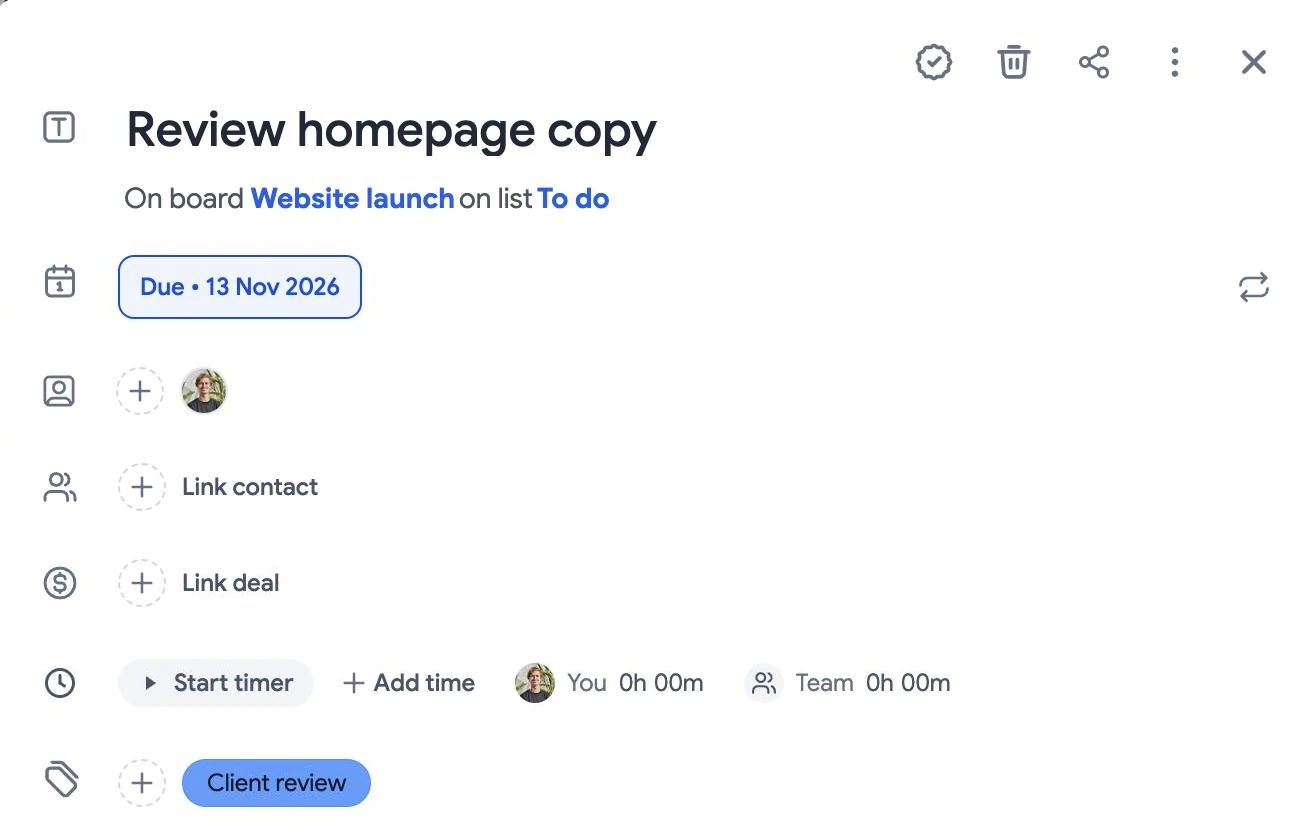
Open Kanban Tasks and select the right board. Click a task title to open its details. In this example, click Review homepage copy in the To do list. Avoid the completion circle beside the title.

Step 2
Open the tag menu
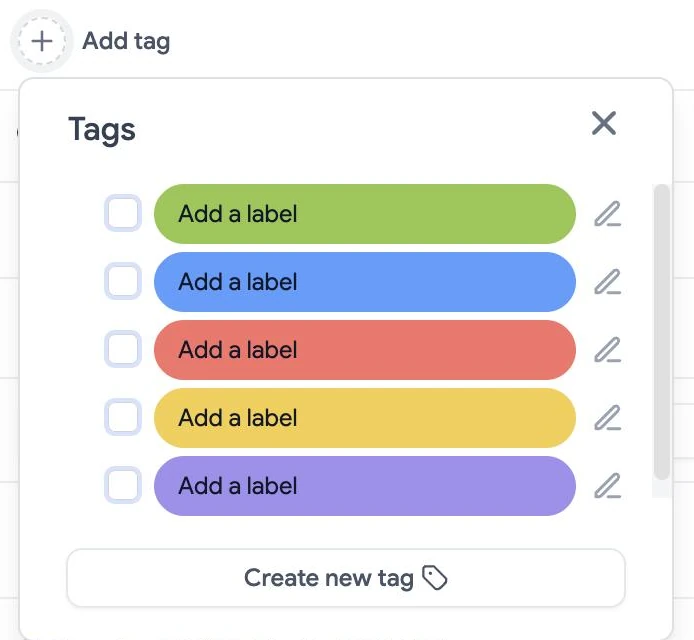
In the task details, select Add tag or the plus icon beside the tags. The Tags menu lists the tags on this board: tick one to apply it, or use the pencil to rename it. To make a new tag, select Create new tag at the bottom of the menu.
Step 3
Name the tag and choose a color
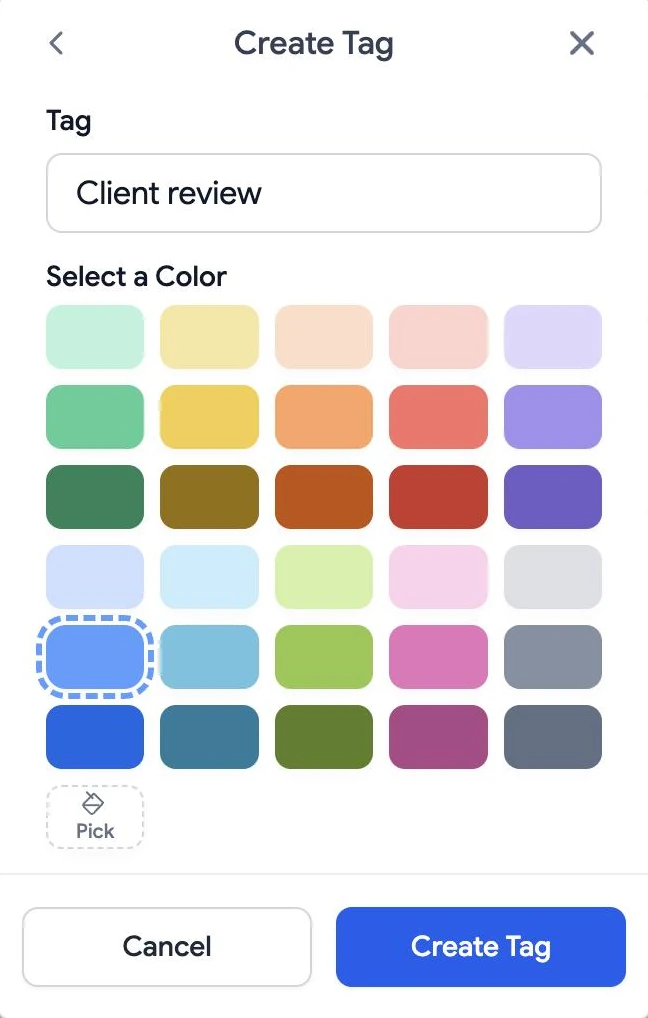
Enter a short label in Tag. Under Select a Color, choose a swatch, or select Pick to choose a custom color. Colors already used by other tags on this board are disabled.
Choose a color before you create the tag. If no color is selected, the form asks you to select one.
Step 4
Confirm the tag on the task
Select Create Tag. The tag appears on the current task and is available to use on other tasks on the same board.
For a recurring task, the Update recurring task dialog shows the available scope options, such as This task, This and following tasks, or All tasks.
Tag access is unavailable?
Check that Kanban Tasks is active for the team you selected. If the subscription dialog still appears, contact support .