Blog Google Tasks Kanban ...
profile of the author - Daniel Roberts
Daniel Roberts 08/09/2026 • Last Updated

Google Tasks Kanban View: How to Enable and Use It

Learn how to enable and use the Google Tasks Kanban view. Step-by-step setup, Chrome extensions like Kanban Tasks, sharing tips, and workflow best practices.

Google Tasks Kanban View: How to Enable and Use It

You've probably got Google Tasks open in Gmail right now, and the list is already longer than it should be. A few items are waiting on someone else, a few are half done, and a few are just reminders you've stopped trusting. A Google Tasks Kanban view fixes that by turning the same work into columns you can scan in seconds.

That shift matters because Google Tasks was built around a linear checklist. In the web version, the new board layout presents task lists as columns instead of a single vertical list, which makes status visible without forcing you to read every card. It also matches how many teams already think about work, with stages like To do, In progress, and Done. Tooling Studio's best practices fit naturally into that same mindset when you're trying to keep work organized inside Google Workspace.

Why Your Task List Needs a Visual Upgrade

A long task list creates mental drag. You have to remember what is active, what is blocked, and what can wait, while still scanning a vertical list inside Gmail. That is a poor fit for work that changes throughout the day.

A board view gives each task a visible place in the workflow. Once tasks are arranged by status, the list reads like a process instead of a pile of reminders. That is the practical value of a Google Tasks Kanban view, especially for people who stay in Gmail all day and do not want to open another project app just to answer one question, what state is this work in?

What changes when work becomes visible

Columns create a shared language. A task in To do is waiting. A task in In progress is active. A task in Done is closed out. That may sound basic, but it cuts down on the back and forth that comes from hunting through a list and guessing where things stand.

Practical rule: If you need to reread a task more than once to know its status, that task belongs on a board, not in a plain checklist.

Visual structure helps individuals and teams alike. Solo users get a cleaner way to prioritize the day. Small teams get a lightweight workflow that does not require onboarding a heavier project platform. The board does not solve every coordination problem, but it does make the current state obvious, which is usually the first thing a shared task system needs.

For a broader setup that fits this style of work, Tooling Studio's best practices are a useful reference when you want to keep work organized inside Google Workspace.

Enabling the Native Google Tasks Kanban View

Screenshot from https://tasks.google.com

Google's native board view lives on the web. You can open it at tasks.google.com or use the Calendar Tasks side panel in Google Calendar, then switch the display from the default list layout into the board layout. Lifehacker reported that the rollout was available on the web and in the Calendar side panel, while mobile support was not yet available at the time of reporting. Lifehacker's coverage of the board launch makes the rollout pattern clear, web first, mobile later.

How to use the board once it's open

Each task list maps to a board, and each task becomes a card. You move cards between columns by dragging them, so a task can start in one stage and move forward as the work changes. A Marketplace listing for TaskBan describes the default stages as Todo, In Progress, and Done, with those column names customizable per board. TaskBan's listing also says edits like due date changes and notes sync back into Google Tasks.

A few details matter in daily use:

  • Use the web version first. The native board is a browser feature for Workspace and personal accounts, so no extension is required for basic board use.
  • Keep an eye on connectivity. Column moves need a live connection and are disabled offline, while list edits can sync later.
  • Use the keyboard when it helps. Reported behavior includes keyboard support for moving tasks, which is useful if you work faster with shortcuts than with drag and drop.

If you already manage work inside Google Workspace, the native board is a clean first step. For a more complete task routine across Gmail and Calendar, manage tasks in Google Workspace with the same discipline you'd use for any other workflow.

Native Board Limitations and When to Add an Extension

The native board is useful, but it stays close to the original Google Tasks model. It gives you visual columns and a better way to move work forward, yet many teams quickly reach the edge of what it can do. That's usually when the question changes from “How do I use the board?” to “What do we need from the board?”

Where native boards are enough

For one person managing personal work, the built-in view can be plenty. It gives you status columns, a cleaner overview, and a better way to think about the day's workload. If your tasks stay inside your own account and you mainly need a visual checkpoint between inbox and calendar, native Google Tasks does the job.

Where teams outgrow it

Small teams usually need more structure than a private board can offer. They need shared visibility, clear ownership, and a way to move work through stages without rewriting task titles or sending update emails. Sales teams often need the same thing, because client follow-up lives in Gmail and changes quickly.

A lightweight Chrome extension fills that gap by adding shared boards and team-friendly workflow features on top of Google Tasks. Tooling Studio's top Google Tasks extensions for 2025 belong in the conversation here because the native board handles visual status, while extensions handle collaboration. That's the key split.

Native Google Tasks board Extension layer
Private task workflow Shared team visibility
Basic drag and drop Team-oriented board management
Local status tracking Board use inside Gmail for collaboration

The decision point is simple, if the board is only for your own planning, native usually works. If other people need to see or touch the same work, a browser extension becomes practical very quickly.

Setting Up Kanban Tasks by Tooling Studio

A comparison chart highlighting the limitations of native boards versus the benefits of adding extensions.

Kanban Tasks is built to stay inside the Google workflow instead of pulling you out of it. Setup begins in the Chrome Web Store, then connects to your Google account and uses the same task data you already rely on in Gmail and Google Tasks. Once the board is open, the most useful part of the setup is matching it to the way your team works, which is where Tooling Studio productivity tips help most.

How the board maps to your work

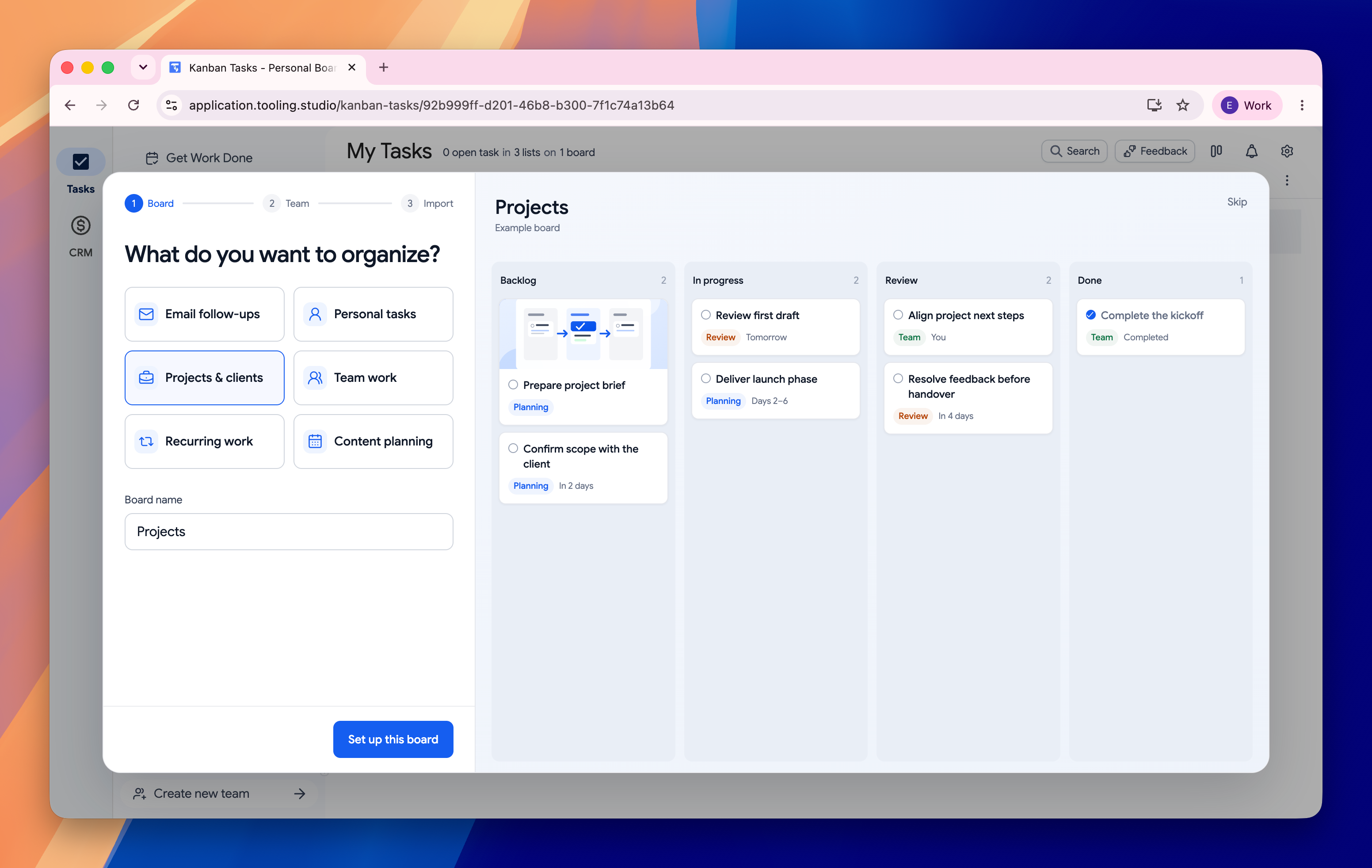
Each Google Tasks list becomes a board, so the structure feels familiar right away. You are not rebuilding your process from scratch, you are shaping the board around the list you already use.

The extension gives you more control than the native view. The default columns can start as Todo, In Progress, and Done, then be renamed to fit the way work moves through your team. A marketing team might prefer draft, review, and published. A client services team might use intake, working, and sent.

What the workflow looks like in Gmail

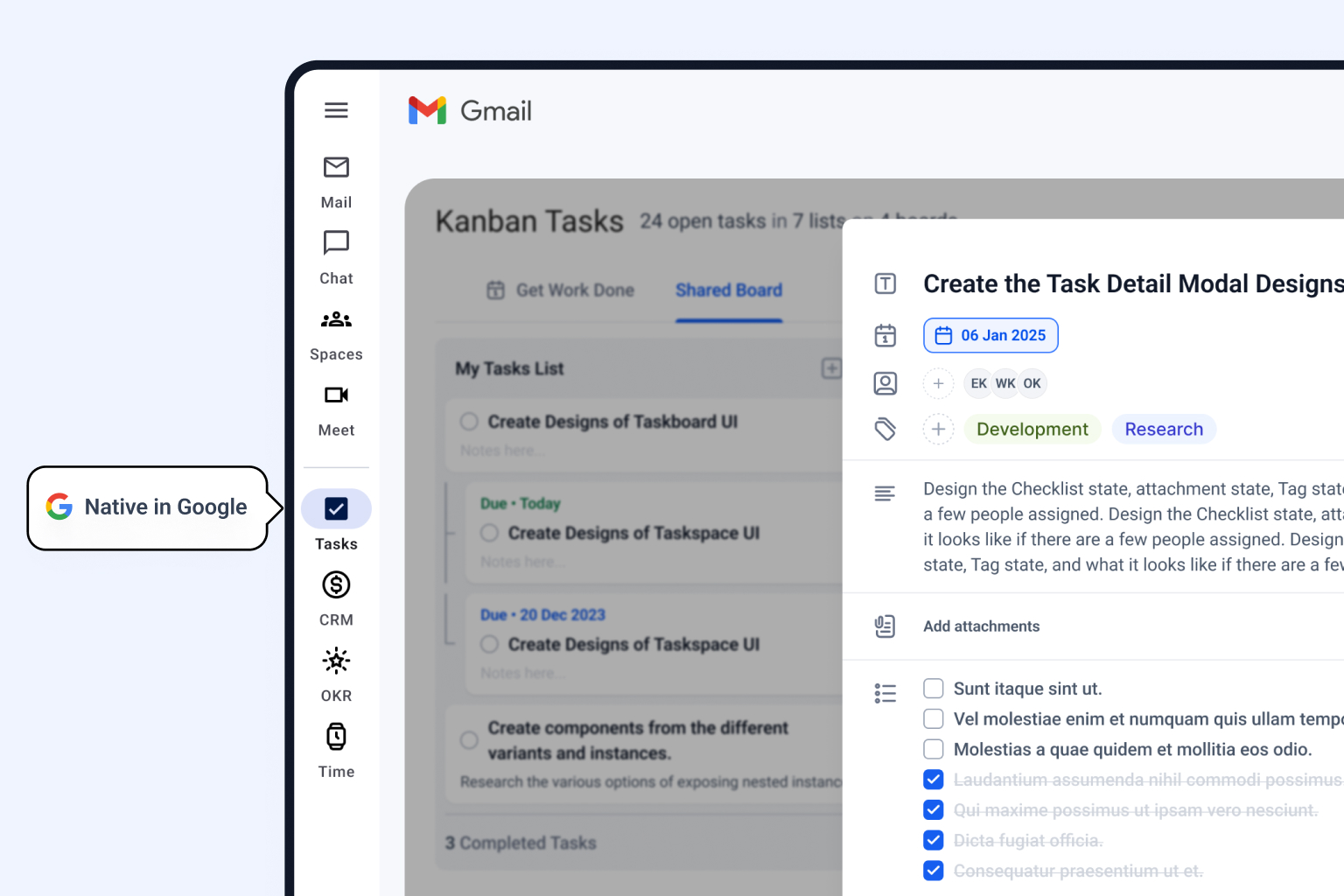
You manage the board without leaving Gmail, which matters when the email, the task, and the follow-up all live in the same thread. Move a task, update a due date, or change the notes, and the Google Tasks data stays in sync.

The product also supports shared boards and assignment patterns that fit team work better than a private list. That lets you treat the board as an active workspace, not just a display. For a direct walkthrough with practical shortcuts, use Tooling Studio productivity tips after installation and adjust the board to match how your inbox gets used.


Workflow Tips for Teams Using Kanban in Gmail

A board only stays useful when the team treats it like a working system instead of a storage bin. The fastest way to lose value is to let every incoming request land in the same column with no clear rules for movement. Once that happens, the board becomes another inbox.

Keep the stages real

Column names should reflect how your team moves work. If the team reviews work before it ships, the board should say so. If items wait for client approval, that stage deserves its own column. Generic labels are acceptable at first, but the board gets easier to trust when the stages mirror handoffs.

Use subtasks for structure

Google Tasks' kanban-style board supports subtasks, which gives one card some internal shape instead of forcing every detail onto the board itself. A task can hold child items, so larger deliverables stay readable without breaking the board into too many cards. That matters when the main card is the work owner and the subtasks are the moving parts.

Build a daily check-in around the board

Teams that use Gmail heavily can fold board review into normal routines, such as standups or inbox zero sessions. The habit doesn't need ceremony. A quick scan of what moved, what stalled, and what still sits in the wrong column is usually enough to keep the board honest.

An infographic titled Admin Security Checklist for Extensions featuring four essential best practices for browser extension management.

A good board is visible, specific, and brief. Once the team starts adding status into task titles or skipping updates, the board has already drifted away from its purpose. Keep the process light and the board stays useful.

Admin and Security Considerations for Workspace Teams

Workspace admins usually want the same things from a Chrome extension, clear permissions, predictable authentication, and a sensible data model. Those concerns are valid. A task tool that lives near Gmail and Calendar should earn trust before it reaches a wider group.

What to check before rollout

Start with permissions. Review what the extension asks for and whether those permissions match the job it's supposed to do. Then check how authentication works and whether task data stays in the Google environment or moves to third-party servers.

A pilot rollout helps too. A small group can test the extension in real work before the admin team approves broader use. That gives you a cleaner view of whether the tool fits your policies and your workflow.

Admin rule: Approve the smallest access set that still lets the tool do its job, then test with a pilot group before you roll it out wider.

Tooling Studio's guide to picking a Gmail extension is a useful way to frame the review, especially if your team already approves browser add-ons selectively. The same standard applies whether the extension is for task boards, sales workflows, or inbox productivity. If it adds value but creates unnecessary risk, it's the wrong fit for a managed Workspace environment.

A checklist infographic titled Admin and Security Considerations for Workspace Teams outlining essential security and compliance tasks.

Troubleshooting Common Kanban View Issues

When a board feels inconsistent, start with the point where the state usually breaks: the browser session, the loaded view, or the underlying Google Tasks list. Common causes include sync timing, connectivity, or the way the board is loaded inside Gmail or Calendar. The fastest fix is usually to isolate which layer is failing.

Start with the symptom

If a task does not appear in the column you expected, refresh the board and confirm the move saved. If the extension and the native Google Tasks list are out of step, open the list in a separate tab and compare what you see there with the board in Gmail. That tells you whether the issue is in the board view, the browser session, or the task record itself.

If the Gmail side panel will not load the board, open Google Tasks directly in the web app first. If that works, the problem is usually the side panel or the way Gmail is rendering the extension. A clean reload often clears minor rendering problems before they turn into a workflow interruption.

Keep the board reliable

A few checks prevent the same issue from coming back:

  • Check the underlying list first. If a task looks wrong on the board, confirm it still exists in Google Tasks itself.
  • Watch for stale tabs. A board left open too long can show outdated state until you refresh it.
  • Use the simplest path first. Open tasks.google.com before assuming the extension is broken.
  • Compare views after a change. If the board and the list disagree, verify the list directly, then reload the board view in Gmail.

When the board and the underlying list disagree, the Google Tasks record is the source of truth. Verify that version before changing your workflow or blaming the add-on. If the task is correct there, focus on the browser session, then the board load in Gmail or Calendar.

Kanban Tasks
Shared Kanban Boards with your Team
Start using Kanban Tasks for free. No credit card required. Just sign up with your Google Account and start managing your tasks in a Kanban Board directly in your Google Workspace.