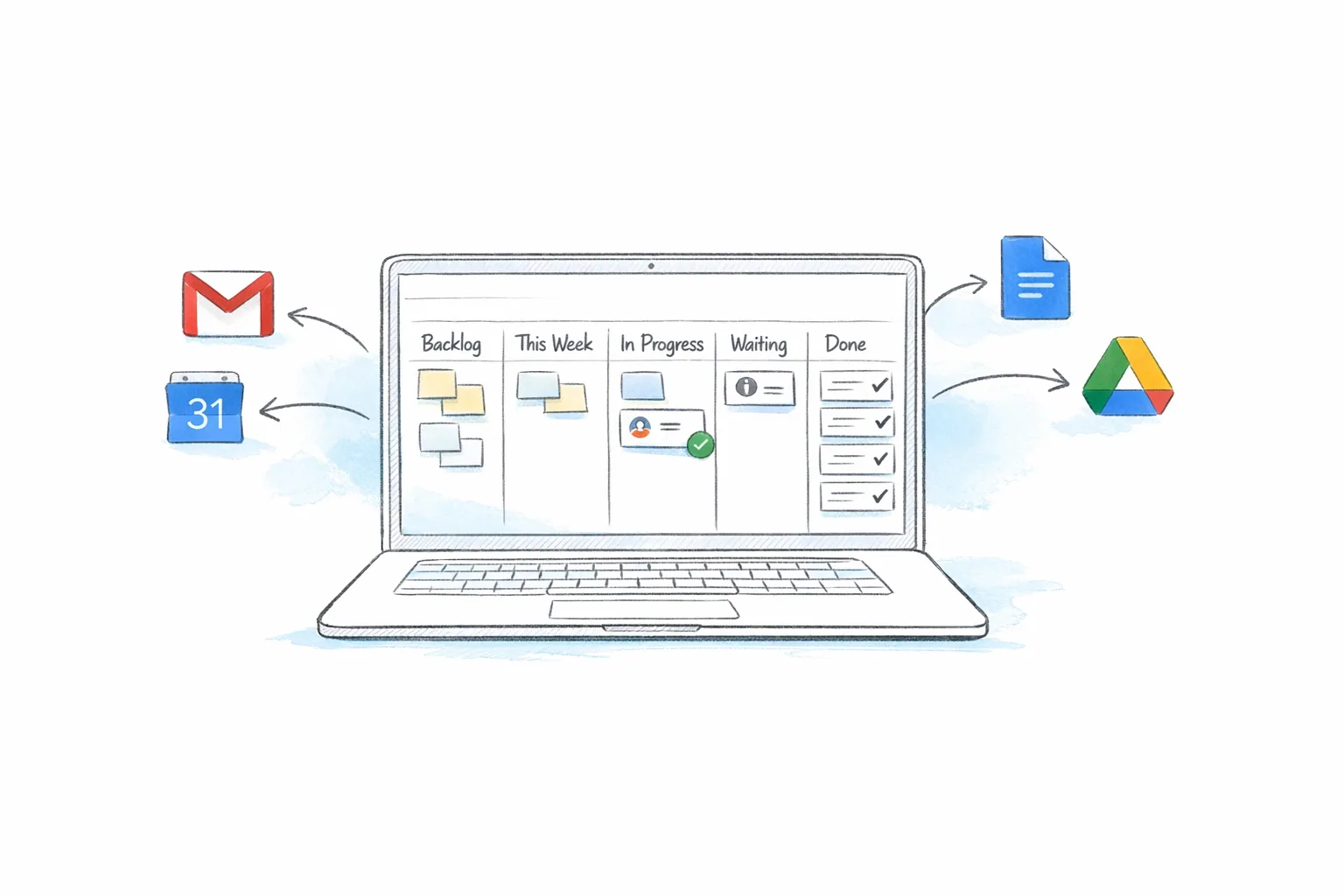
Use Google Workspace for project communication, files, and planning. Add a shared task board to show who owns each action, when it is due, and which stage it has reached.
Kanban Tasks brings that board into Gmail. Turn an email into a task, add the owner and date, and keep comments and files with the work. Your team can see progress without searching through separate inboxes.
Give each tool a clear job
| Tool | Project role | Example |
|---|---|---|
| Gmail | Incoming requests and external communication | A client asks for a revised proposal |
| Drive | Shared files and access | The project folder contains the brief and deliverables |
| Docs | Plans, decisions, and working documents | A short brief records the goal and scope |
| Sheets | Structured planning and reporting | A timeline shows planned dates and dependencies |
| Calendar | Meetings and dated commitments | A review meeting has a fixed time |
| Chat and Meet | Discussion and calls | The team resolves a blocked decision |
| Kanban Tasks | Task status, ownership, and delivery | An assigned task moves from To do to Done |
Google Tasks also provides personal lists, and Google supports assigned tasks through Chat spaces and eligible Docs workflows. A Kanban Tasks board brings work into explicit stages with shared boards, assignees, comments, and attachments. See Google's shared-task documentation for its native assignment options.
Set up a project in seven steps
1. Create a shared project folder
Create a Drive folder for the project. Give the people doing the work the access they need. Use Viewer or Commenter access for stakeholders who only need to review files.
2. Write a one-page brief
In a Google Doc, record the goal, scope, project owner, delivery date, and definition of completion. Link the brief from the project folder and the board.
For a website launch, the completion rule might be: the page is approved, the form works, and the live link is sent to the client.
3. Create one shared board
Open Kanban Tasks and create a board for the project. Start with To do, In progress, Waiting, and Done.
Use the same stage definitions throughout the project. Keep files in Drive and link them from tasks so that everyone uses the current document.
4. Make each deliverable an actionable task
Split the plan into tasks with a clear result. For example: Draft launch copy, Build campaign page, and Approve final page.
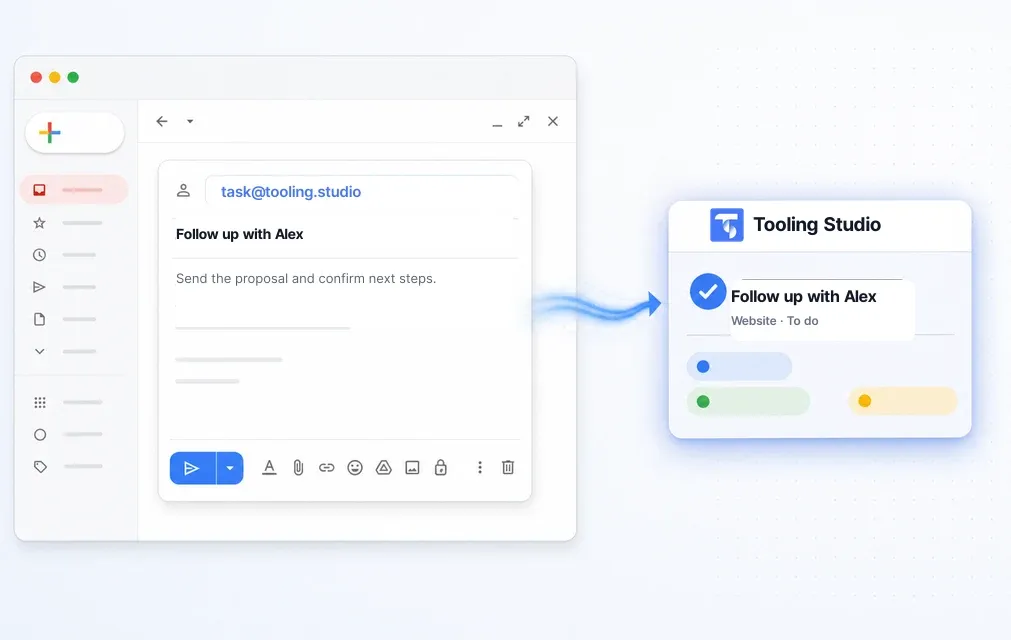
Capture new requests directly from Gmail. A task created from an email keeps the subject and a link to the original message. Put any context that teammates need in the shared task; a private email link does not grant mailbox access.
5. Set the owner and dates
Assign one person to each next action. Add a due date where it represents a real commitment. Use checklists for smaller steps that belong to the same result.
For a plan that needs a timeline, use the free Google Sheets project timeline template. Kanban Tasks also has a Gantt view for dated tasks on the board.
6. Check access from a teammate's account
Make sure a teammate can open the board, the brief, and the linked files. Board membership and Drive permissions are separate. Test access before the first handoff so that work does not stop at a Request access screen.
7. Set a review rhythm
Check due and blocked work each day. Once a week, review the board together: finish completed tasks, confirm the next action for work in Waiting, and assign new requests.
Use task comments to record decisions made in Chat or Meet. This gives the next person enough context to continue.
Worked example: deliver a client campaign
| Task | Owner | Stage | Evidence needed to finish |
|---|---|---|---|
| Confirm campaign brief | Project lead | To do | Client approves scope in the linked Doc |
| Draft campaign copy | Writer | In progress | Copy is ready for review |
| Approve copy | Client lead | Waiting | Approval is recorded on the task |
| Build campaign page | Developer | To do | Page matches the approved copy |
| Check and launch | Project lead | To do | Links and form work on the live page |
The owner updates the task when its state changes. If approval is late, record the blocker and review the delivery dates. The shared board then reflects the current plan.
Keep daily work and deadlines visible
Use Get Work Done to review tasks due today and this week across accessible boards. Use task assignments to make responsibility clear and comments to record progress.
When you enable Google Calendar sync, eligible dated tasks can also appear in Google Tasks and Calendar. For the fields that sync and the connection steps, use the Google Tasks import and sync guide.
Keep meetings in Calendar and task status on the board. This gives each update a clear home.
Reuse the workflow for the next project
Keep a reusable brief and a checklist for repeated work, such as client onboarding, campaign delivery, or an internal release. Start each project with its own files and active tasks, then remove steps that do not apply.
After delivery, check three things: which requests were missed, where work waited, and which tasks had unclear ownership. Improve the stages or checklist from those findings.
Common project setup problems
| Problem | Correction |
|---|---|
| Work stays in one person's inbox | Create a shared task while reading the request |
| The plan has several status trackers | Choose one board for current task status |
| A task has no next action | Add a specific action, owner, and due date if needed |
| A teammate cannot open a file | Correct Drive access for the linked file |
| The board has too many stages | Keep stages that change how work is handled |
| Meetings produce no follow-up | Record decisions and assigned actions on the tasks |
Google Workspace project management questions
Does Google Workspace have a project management tool?
Workspace includes tools for communication, documents, schedules, and tasks. Combine them around a shared board to manage stages, owners, and delivery. This guide gives each tool one role so that project status stays clear.
Can a team manage projects inside Gmail?
Yes. The Kanban Tasks Chrome extension adds boards and email-to-task capture inside Gmail. See the Gmail Kanban setup guide for the full workflow.
What does shared project management cost?
Kanban Tasks is free for personal use. Teams costs $5 per user per month or $50 per user per year and includes shared boards and task assignments. Prices are in US dollars.
Where can I compare the tools for this setup?
See project management Google apps for the role of each app, then open Kanban Tasks to create your board.
Next step
Keep this workflow close to Gmail instead of pushing it into another stack
Tooling Studio is built for teams that already work in Google Workspace and want a lighter execution layer without another bloated platform rollout.