Blog Project Management i...
profile of the author - Daniel Roberts
Daniel Roberts 07/18/2026 • Last Updated

Project Management in Google Workspace: A Practical Guide

A practical guide to project management in Google Workspace. Learn to build a unified system with native apps and lightweight tools, without the overhead.

Project Management in Google Workspace: A Practical Guide

Your inbox already contains the shape of your project system. Requests arrive in Gmail. Files sit in Drive. Deadlines show up in Calendar. Notes live in Docs. Then the work starts slipping because each piece makes sense on its own, but the whole process doesn't.

That's the core challenge with project management in Google Workspace. The tools are familiar, fast, and already widely adopted. What's missing is a structure that turns those tools into one working system.

For startup teams trying to keep things lean, many of the same operating habits show up in broader project management tips for startups. Keep the process light, make ownership obvious, and avoid adding software before you've fixed the flow.

Building a Project System from Google Workspace Parts

Google Workspace doesn't come with a single native project management app. Google relies on a combination of Google Tasks, Google Calendar, Google Docs, and Google Sheets instead, which means teams have to connect those pieces themselves, as noted in this explanation of Google Workspace project management capabilities.

That matters more than is commonly recognized. A scattered setup creates small frictions all day long. Someone captures a request in Gmail, another person tracks progress in Sheets, and a third asks for status in Chat. Each tool works, but the work itself becomes harder to see.

A better setup treats Google Workspace like a set of building blocks with defined roles. Gmail handles intake. Drive stores project assets. Docs hold decisions and briefs. Sheets tracks operational work. Calendar keeps milestones visible. Then a visual layer sits on top so the team can understand flow at a glance.

Practical rule: If your team can't answer “what's active, who owns it, and what's blocked” from one place, you don't have a system yet.

That visual layer is the piece teams often skip. They assume the spreadsheet is enough because the spreadsheet contains the data. It usually isn't enough for day to day coordination. People need a clear view of what's waiting, what's moving, and what needs attention now.

If you want a broader map of what each native app can realistically handle, this guide to Google Workspace project tools is a useful reference point. The important part is deciding that your process will be built as one connected workflow instead of a loose collection of tabs.

Audit Your Workflow and Assemble the Core Toolkit

Before you add labels, boards, or templates, map how work currently moves. Start with one recent project and trace it from the first request to completion. A recurring pattern often emerges: Intake happens in Gmail, decisions are split across messages and chats, files pile up in Drive, and status lives in someone's head.

That audit doesn't need a workshop. It needs a short, honest review of the task lifecycle.

A diagram illustrating the five stages of a project management workflow audit: intake, assignment, execution, review, and completion.

Map the actual task lifecycle

Use these five stages and write down where each one happens today.

  1. Task intake
    Where do requests enter. Client emails, internal forms, meeting notes, or direct messages all count. If intake comes from everywhere, that's your first problem.

  2. Assignment
    Who decides ownership. If work lands in a shared inbox and gets picked up informally, deadlines usually become fuzzy.

  3. Execution
    Where does active work happen. This might be in Docs, Slides, Sheets, or another app entirely.

  4. Review and feedback
    Where do comments and approvals live. If they're split between email and Chat, people miss context.

  5. Completion
    How does the team mark work done. Archive rules matter because finished work often becomes future reference.

A quick workflow review usually reveals duplicate effort, hidden ownership, and too many status updates in too many places. If you need a compact checklist for cleaning up those habits, these 7 tips for better efficiency line up well with this kind of audit.

Give each Google app one job

Once the flow is visible, assign each app a single purpose. This reduces overlap and stops teams from treating every tool like a catch all.

App Primary role in the system
Gmail Intake for requests, approvals, and incoming work
Drive File system for project folders and final assets
Docs Briefs, meeting notes, decision logs, and specs
Sheets Master tracker for tasks, owners, due dates, and status
Calendar Milestones, check ins, and deadline visibility
Chat Spaces Project specific discussion with threads
Tasks Personal follow through tied to assigned work

Google Tasks fits especially well as the personal execution layer because it's already embedded in the Workspace interface. Google Tasks appears in the side panel of Gmail, Calendar, Drive, and Google Docs, and tasks created in one place sync across the Workspace ecosystem, which makes it practical for daily follow through inside the tools people already use, according to Google Workspace task management guidance.

Keep the team tracker and the personal task list separate. The tracker shows shared truth. Tasks helps each person manage what they need to do next.

Set a few operating rules early

Systems break when everyone uses the same tools differently. Write down a short set of rules before the project starts.

  • Naming rule: Decide how projects, folders, and trackers will be named.
  • Ownership rule: Every task needs one owner.
  • Status rule: Every active item needs a current status.
  • Linking rule: Tasks should link to source documents instead of copying content into multiple places.
  • Communication rule: Project status belongs in one Chat space or one recurring update document.

That's enough to make the toolkit behave like a system instead of a pile of apps.

Configure Google Sheets as Your Project Hub

Google Sheets is the closest thing Google Workspace has to a native team project database. It's flexible, searchable, and easy to share. Most notably, it gives your team one operational record for the work.

A good tracker doesn't try to hold everything. It holds the fields your team needs to make decisions quickly and link out to the rest.

A hand-drawn illustration showing a Google Sheets project tracker surrounded by icons for tasks, owners, and deadlines.

Start with a simple sheet structure

Create one sheet per project or one master sheet with filtered tabs for each workstream. Keep the initial columns narrow and useful.

A practical starting structure looks like this:

Column What it holds
Task name Clear action, not a topic
Owner One responsible person
Due date The working deadline
Status Current stage of the task
Priority Optional if your team uses it consistently
File link Link to the supporting Doc, Sheet, or Drive file
Notes Brief context only

Write tasks as actions. “Draft landing page copy” works better than “Landing page.” The second one creates ambiguity. The first one creates motion.

Add controlled statuses and visual cues

Google Sheets supports drop down menus for status tracking and conditional formatting that color codes rows. Green can represent completed work, yellow can represent ongoing work, and red can represent unstarted tasks. Users can also set notification rules to receive alerts for changes, as shown in this Google Sheets workflow demonstration.

That matters because teams lose consistency fast when each person types statuses manually.

Use a small status set such as:

  • Not Started
  • In Progress
  • Completed

You can add a review status later if your process needs it. Early on, fewer states usually produce cleaner tracking.

A project sheet becomes more useful when it answers fewer questions well. Teams often overbuild the tracker before they've learned how they'll use it.

If you want examples of turning spreadsheet data into a more usable task view, this guide to effective project boards with Google Sheets is worth bookmarking.

Keep the sheet clean enough to trust

The tracker only works if people believe it reflects current reality. That means maintenance rules matter as much as setup.

Use a weekly review to clean the sheet:

  • Close stale items: Mark completed work quickly so the list stays readable.
  • Check owners: Remove shared ownership language and assign one person.
  • Confirm dates: If a due date has moved, update it in the sheet rather than discussing it only in chat.
  • Link source files: Add the working doc link instead of rewriting context in notes.
  • Scan status drift: If many tasks stay “In Progress” for too long, the workflow needs tighter review.

A sheet like this isn't glamorous, but it gives the whole system a center. Gmail captures work. Docs and Drive hold context. Sheets keeps the task record stable enough for reporting, handoffs, and planning.

Create Visual Workflows with Kanban Boards

A spreadsheet tells you what exists. A Kanban board tells you what's moving.

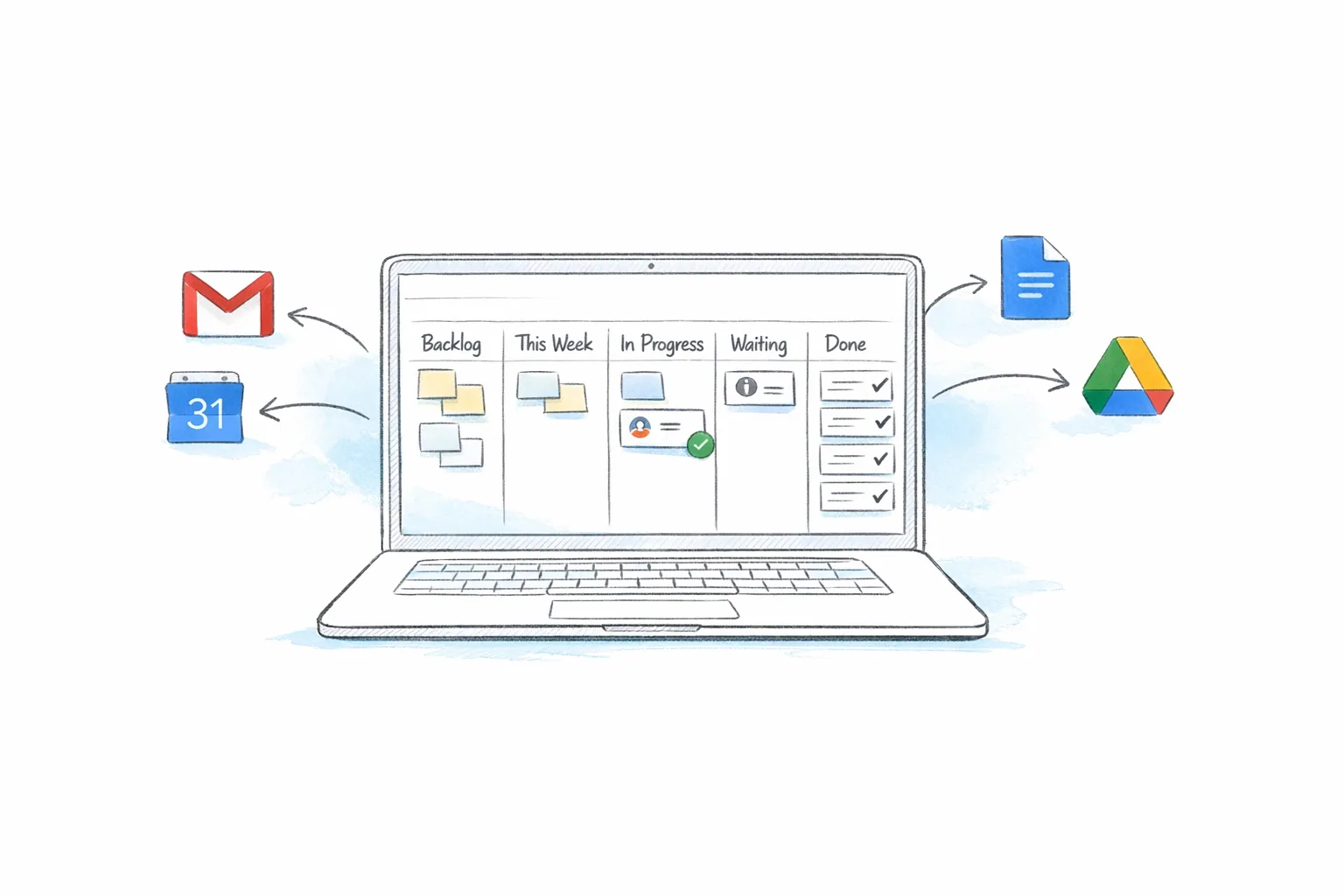
That difference matters in daily operations. Teams can work from a sheet for planning, but execution usually improves when people can see tasks arranged by stage. Work in a visual flow is easier to review in standups, easier to rebalance, and easier to understand without reading every row.

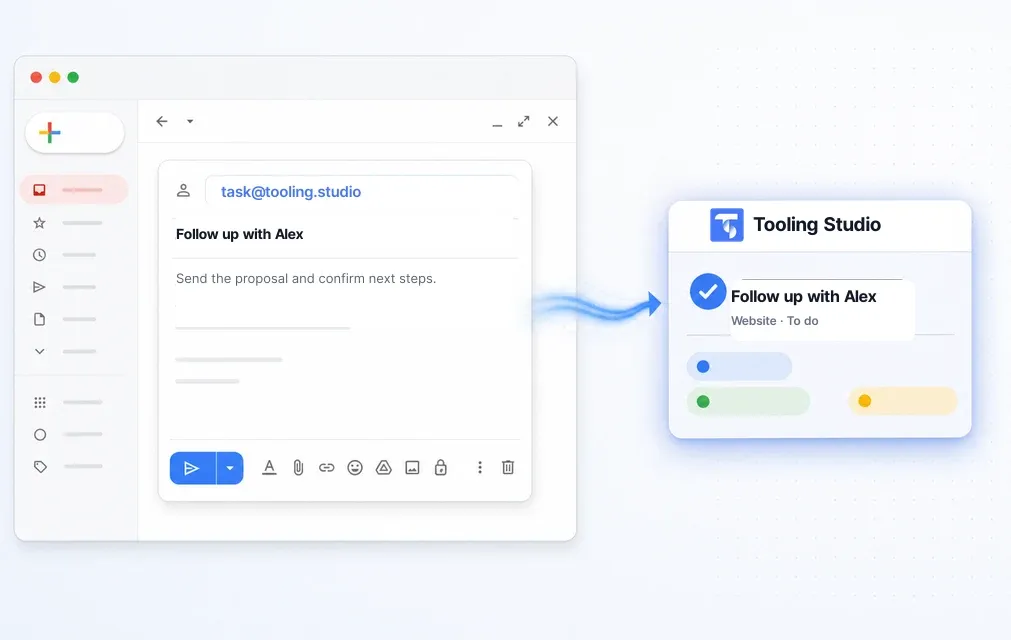
Screenshot from https://tooling.studio

A practical Google Workspace methodology for SMEs combines a master Drive folder, a tracker in Sheets, and a visual layer such as a native Kanban board. That setup reached a 78% on time delivery rate in SMEs according to this Google Workspace project management methodology.

What a Kanban board changes

Kanban is useful because it answers operational questions quickly. What's waiting. What's in progress. What's finished. Where is work getting stuck.

A simple board often uses columns such as:

  • Backlog
  • Ready
  • In Progress
  • Review
  • Done

Those column names can change. The principle doesn't. Each task card should represent one actionable item, not a broad topic or a meeting subject.

Manual board in Sheets versus a native visual layer

You can imitate a board in Google Sheets. Some teams create separate tabs by status. Others sort rows manually or use filters to fake stages. That works for very small workflows, but it gets clumsy once more than a few people need shared visibility.

Here's the practical trade off:

Approach What works What breaks
Manual Kanban in Sheets Easy to start, no new tool, flexible layout Manual updates, weak drag and drop flow, limited board visibility
Visual layer tied to Google workflow Faster review, easier movement of work, clearer shared status Requires a lightweight add on or extension
External full PM platform Broad feature set, advanced reporting More onboarding, more context switching, often heavier than needed

For teams that live in Gmail, the visual layer usually needs to appear where work already starts. That's why lightweight tools that sit inside Google Workspace tend to get used more consistently than separate platforms.

One example is integrating Kanban into Google Workspace, where Kanban Tasks adds a visual board inside Gmail and Google Tasks so teams can manage work without leaving the Google interface. It's one option in the category of native style extensions that fill the visibility gap.

Shared visibility beats perfect categorization. A board people actually update is worth more than a sophisticated system they avoid.

What to put on each card

The board only works if the cards carry enough context to be usable. Keep each card lean but specific.

Include:

  • A clear task name
  • One owner
  • A due date if timing matters
  • A link to the source Doc, Sheet, or Drive folder
  • Short notes for acceptance criteria or next action

Avoid duplicating project briefs inside cards. Link back to the source material instead. That keeps the board lighter and reduces version confusion.

A quick walkthrough helps if your team hasn't worked this way before.

Where boards help most

A Kanban view is especially useful in three common Google Workspace environments.

First, small teams need one shared picture of execution without standing up a heavyweight platform. A board gives that picture quickly.

Second, individual professionals who manage most work from Gmail benefit from a visual view of commitments that doesn't pull them into a separate app all day.

Third, sales teams often need a process view that looks more like pipeline movement than task rows. A board makes next actions and blocked deals more obvious than a spreadsheet does.

If your current system feels busy but still unclear, the missing piece usually isn't more fields. It's a better view of flow.

Improve Your System with Templates and Automation

Once the system works, the next problem appears. People start using it differently. One project gets a clean folder structure, another doesn't. One team writes useful task names, another creates vague placeholders. The process slowly drifts.

Templates and automation keep that drift under control. They make the system repeatable enough to survive busy weeks, new hires, and parallel projects.

A checklist of five essential steps for system optimization in project management and business processes.

Teams using Google native collaboration tools that add project management features directly into Gmail see 34% higher adoption rates than teams using external platforms with Gmail add ons, according to this Google Workspace workflow analysis. That tracks with day to day experience. The easier the system is to use from Gmail, the more likely people are to keep it updated.

Standardize the parts people repeat

Templates reduce decision fatigue at the start of every project. They also make reviews easier because the structure stays familiar.

Create templates for:

  • Project brief Docs with scope, owner, deadlines, and decisions
  • Sheet trackers with your approved status fields and formatting
  • Drive folders with a standard hierarchy for assets and working files
  • Recurring meeting notes that capture blockers, decisions, and next actions
  • Sales or client views if different teams need filtered access to the same core data

The point isn't completeness. It's consistency. Teams move faster when the opening structure is already in place.

Add automation where it removes small frictions

Automation should handle repetitive signals, not replace judgment. In most Google Workspace systems, the useful automations are simple.

Examples include:

  1. Sheet notifications for updated deadlines or changed status.
  2. Recurring tasks for weekly reviews or routine follow ups in Gmail.
  3. Calendar visibility for milestones and check ins.
  4. Permission defaults so the right people can view or edit the right assets.

If you're building these habits out further, mastering Google Workspace automation is a good next read.

Automation should make the next correct action easier. If it creates more alerts than clarity, trim it back.

Treat permissions as part of the workflow

Admins and team leads often think of permissions as an IT concern. In practice, they shape how work gets done.

A few examples matter:

  • Master trackers usually need limited editors and broad viewers.
  • Client facing files may need tighter folder controls than internal notes.
  • Sales pipelines often benefit from role based views instead of unrestricted editing.
  • Templates should be copyable without becoming editable source files.

When permissions are loose, systems become messy. When they're too tight, people create side files and private workarounds. A calm middle ground works better. Protect the shared structure, then make the day to day work easy to access.

Real World Workflows and Maintaining Momentum

A small sales team can run its pipeline almost entirely from Gmail. New opportunities arrive by email, follow up tasks are created in the Gmail side panel, supporting files live in Drive, and the active deal stages appear in a shared board. Reps don't need a full separate workspace just to track next steps. They need a visible queue, clear ownership, and a place to see which conversations still need action.

A marketing team usually looks different. The tracker in Sheets holds article titles, owners, due dates, and file links. Drafts live in Docs, assets stay in Drive, milestone dates sit in Calendar, and a shared visual board shows each item moving from idea to draft to review to publication. The sheet remains the record. The board handles the daily flow.

Keep one communication lane per project

Most systems fail slowly, not suddenly. A team starts with a clear structure, then status updates drift into email replies, private chats, and ad hoc docs. Within a few weeks, nobody is sure which update matters.

Keep each project anchored in one place for working communication. That might be a dedicated Chat space with threads or a recurring update doc linked from the tracker. The format matters less than consistency.

For launch oriented teams, external checklists can help tighten that execution rhythm. This Saaspa.ge's product launch resource is a good example of the kind of operational checklist that fits neatly into a Google Workspace based project system.

Adjust the system in small passes

Maintenance shouldn't feel like a rebuild. A brief weekly review is usually enough to keep the system healthy.

Use that review to ask:

  • Which statuses are overused
  • Which tasks sat too long without an owner
  • Which folders or docs were hard to find
  • Which updates happened outside the agreed channel
  • Which template needs one small improvement

The system should get slightly easier to use each month. If it feels heavier over time, remove steps before adding new ones.

Project management in Google Workspace works well when the structure stays lightweight and visible. The native apps already cover intake, files, documents, deadlines, and personal tasks. The missing piece is usually the operating model you apply to them.


If your team already works in Gmail and wants a cleaner visual layer for tasks and shared execution, Tooling Studio builds lightweight Google Workspace extensions for that exact use case. Kanban Tasks adds a board view inside Gmail and Google Tasks so teams can manage workflows without moving the work into a separate platform.

Kanban Tasks
Shared Kanban Boards with your Team
Start using Kanban Tasks for free. No credit card required. Just sign up with your Google Account and start managing your tasks in a Kanban Board directly in your Google Workspace.