
PARA for Teams: Connect Google Drive to Kanban and CRM Workflows
Use PARA in Google Drive with Kanban boards and a lightweight CRM so project files, tasks, owners, and customer follow-ups stay connected.
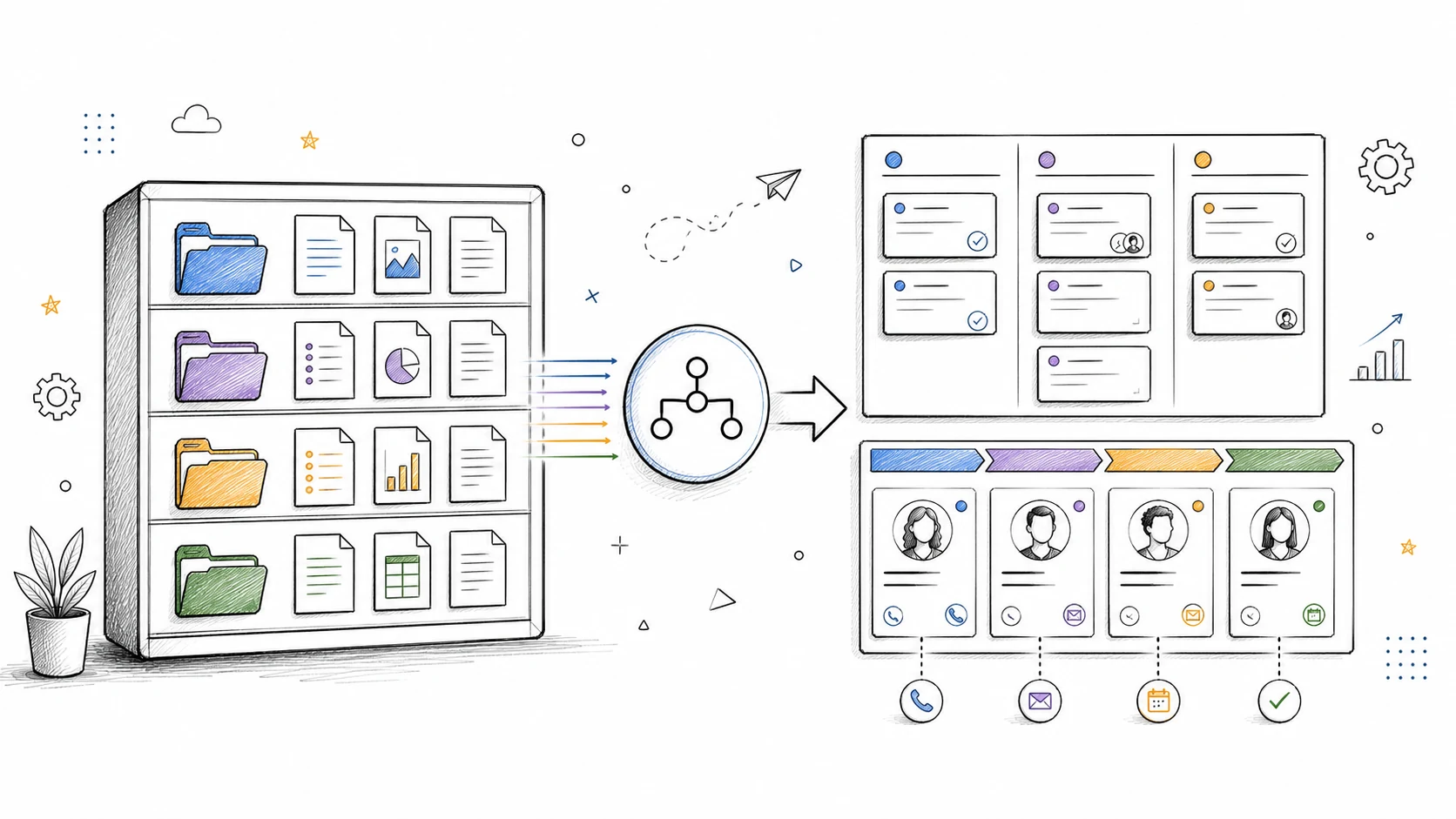
Project folders can look perfectly organized while the work itself is still a mess.
The proposal is in Drive. The customer approved it in Gmail. The next step lives in someone's head. A task board says "In progress," but nobody can tell which file is current or who owes the customer a reply.
The PARA method gives Google Drive a useful structure. Projects hold active work with an outcome. Areas hold ongoing responsibilities. Resources hold reference material. Archives hold inactive work. That solves the filing problem. A team still needs a way to move work, assign owners, and remember customer commitments.
This guide adds that operating layer. Drive holds the material, a Kanban board shows the work, and a CRM records the relationship. Each tool gets one clear job.
The three records your team needs
Start by separating three things that often get mixed together.
| Record | Best home | What belongs there |
|---|---|---|
| Project material | Google Drive | Briefs, contracts, proposals, research, deliverables, meeting notes |
| Work in motion | Kanban board | Next actions, owners, due dates, blockers, review status |
| Customer relationship | CRM | Contacts, organizations, deal stage, conversation history, next follow-up |
Drive answers, "Where is the material?" The board answers, "What is moving now?" The CRM answers, "What is happening with this customer?"
Trying to make one tool answer all three creates predictable problems. A Drive folder is a poor task list because files do not show ownership or work in progress. A task card is a poor document archive because attachments and comments become hard to browse over time. A CRM is a poor project folder because its main subject is the relationship, not every file the team produces.
Keep the boundary simple and connect the records with links.
Set up PARA in Google Drive for a team
Create five top-level folders:
0 Inbox
1 Projects
2 Areas
3 Resources
4 Archives
The extra 0 Inbox gives new or ambiguous files a temporary home. It should be a short queue, not a second archive.
Under 1 Projects, create one folder for each active outcome:
1 Projects/
  Acme onboarding/
  Website relaunch/
  Q3 partner campaign/
Under 2 Areas, keep work that continues without a finish date:
2 Areas/
  Finance/
  Sales operations/
  Customer support/
  Marketing/
Put reusable material in 3 Resources: brand assets, templates, research, playbooks, and reference documents. Move completed or paused project folders to 4 Archives.
If you want a detailed walkthrough of the folder setup, Sophia Falck-Ytter's guide explains how to organize Google Drive with the PARA method and how Filently can name and file incoming documents automatically.
Use Shared Drives when the work belongs to the team
A project folder should not disappear when its creator leaves. For company work, place the PARA structure in a Shared Drive when your Google Workspace plan and admin setup allow it. Keep personal reference material in My Drive.
Google Drive shortcuts are useful when one file belongs in more than one working context. A shortcut points to the original, so the team does not create competing copies. Google notes that shortcuts do not change the original file's permissions, so check access before adding a shortcut to a shared project folder.
Pick a naming convention people can scan
Folder structure helps browsing. File names help search.
Use a pattern that exposes the date, subject, and status when those details matter:
2026-07-16_Acme_Onboarding-Plan_v2.docx
2026-07-18_Acme_Data-Import_Approved.csv
2026-07-22_Acme_Training-Notes.docx
Avoid adding every possible field. A file name that needs a legend will be ignored. Dates work well for meeting notes and signed documents. Status labels help when a project produces several review rounds. The Drive activity history should still be the source for who changed a file and when.
Google has also started adding AI-assisted file organization to Workspace. Its June 2026 feature drop describes an Organize my files feature that suggests folders for loose files. Suggestions can reduce cleanup, but the team still has to decide what counts as an active Project, an ongoing Area, or an Archive. Filently takes the next step: it reads incoming documents, renames them to match your naming convention, and files them into the right Project or Area folder across My Drive and Shared Drives, in any language.
Give every active project a Kanban board
A PARA Project is an outcome with an end point. That maps cleanly to a Kanban board because the board shows the work required to reach that outcome.
For a small project, begin with four columns:
Backlog | Ready | In progress | Done
Add Waiting or Review only when the distinction changes how the team works. A dozen columns usually hide the important fact: too many items have started and too few are finishing.
The current Kanban Guide treats the workflow definition, control of work in progress, and explicit policies as core parts of a Kanban system. You can apply that without turning the board into a process manual.
For example:
- A card may enter
In progressonly when it has one owner. - Review cards must include the Drive link and the decision needed.
- Blocked work moves to
Waitingwith a comment naming the blocker. Donemeans the result has been delivered or accepted, not merely uploaded.
Those rules make a board trustworthy. Put them in the board description or pin them where the team can see them.
Link the project folder from the board
Add the Drive folder URL to the board description. Then add the exact working document to any card that needs it.
Do not upload a fresh copy to the task when a shared Drive file already exists. A link keeps comments and version history on one original. It also makes handoffs easier: the card explains the decision or action, while Drive holds the material.
In Tooling Studio Kanban Tasks, a task can hold a rich description, due date, assignee, checklist, comments, tags, and attachments. Shared boards give teammates the same view of current work inside Gmail and Google Workspace.
Turn email into work when it arrives
Many project tasks start as a message:
- A customer approves the draft but requests two changes.
- A supplier sends a revised quote.
- A teammate forwards a bug report.
- A stakeholder asks for a decision by Friday.
Google Tasks can create a task from an email in Gmail. That is useful for personal follow-up. Teams often need more context: a shared board, an owner, comments, attachments, and a visible stage.
Kanban Tasks lets you turn an email into a card from Gmail. The card keeps a link to the original email for the person who created it. Sharing the task does not grant the rest of the team access to that mailbox, so copy the necessary context into the task when others need to act.
A good email-derived task title describes the work:
Revise onboarding plan after Acme feedback
This is weaker:
Re: Re: Onboarding
The first title survives after the inbox thread fades from memory.
Use the CRM for customer state and follow-up
PARA can tell you that Acme onboarding is an active project. It cannot tell you whether Acme is a prospect, a new customer, an expansion opportunity, or an account at risk.
That belongs in the CRM.
Create or link four records:
| CRM record | Example |
|---|---|
| Contact | Maya Chen, Operations Lead |
| Organization | Acme Ltd. |
| Deal or pipeline item | Acme annual rollout |
| Next follow-up | Confirm training dates by July 22 |
Add the Drive project folder to the organization or deal record. Add the CRM link to the Kanban board description. A teammate can then move from the relationship to the work or the files without searching three systems.
Tooling Studio Sales CRM keeps contacts, organizations, deals, shared pipelines, notes, tags, attachments, custom fields, and owners close to Gmail. Google Contacts can stay the starting point for people data, while the CRM adds the shared context a sales or account team needs.
Keep a next action on every live relationship
A deal stage such as Proposal sent describes a state. It does not tell the team what to do.
Add a dated next action:
Follow up with Maya about security review on July 20
If that action needs several steps or another teammate, create a Kanban task and link it to the CRM record. If it is a simple personal reminder, keep it as a CRM follow-up. The test is ownership: shared work belongs on the board; relationship state belongs in the CRM.
Separate delivery from the commercial pipeline
One customer can appear in all three systems without duplication:
- Drive:
1 Projects/Acme onboarding - Kanban:
Acme onboardingboard - CRM: Acme organization and rollout deal
Each record contains different information. The Drive folder persists after the project ends. The board can be closed when delivery finishes. The CRM relationship continues if the customer renews, expands, or returns later.
When onboarding is complete, move the Drive folder to Archives and close the board. Keep the organization, contact history, and relevant deal in the CRM.
A complete example: customer onboarding
Suppose a customer signs a proposal on Monday.
First, create 1 Projects/Acme onboarding in the team Drive. Save the signed proposal, kickoff notes, data-import template, training material, and final handover there.
Next, create a board with these columns:
Backlog | Ready | In progress | Customer review | Done
Add the first real tasks:
- Confirm customer goals and success criteria.
- Collect the source data.
- Configure the workspace.
- Run the admin training.
- Complete the 14-day check-in.
Assign one owner to each card. Add due dates where the customer expects a result. Link each card to the exact Drive document it uses.
Then update the CRM:
- Move the deal to
Wonor the equivalent stage. - Link the signed proposal and project folder.
- Record the primary contact and internal owner.
- Schedule the 14-day follow-up.
- Add any renewal or expansion date the team has agreed to track.
During delivery, customer emails can create cards on the onboarding board. Commercial changes, new stakeholders, and follow-up commitments go into the CRM. Files remain in the project folder.
No one has to guess where a piece of information belongs.
Run a 20-minute weekly review
The system stays useful when someone reviews its edges. A small team can do this in twenty minutes.
1. Clear the Drive inbox
Move files from 0 Inbox into Projects, Areas, or Resources. Rename anything the team will need to find again. If automated filing handles most documents, review only the exceptions.
2. Check active boards
Look for cards without owners, work sitting in In progress, overdue due dates, and items blocked without explanation. Move completed work to Done. Close boards that no longer represent active outcomes.
3. Check CRM follow-ups
Filter for overdue next actions and live deals without a scheduled follow-up. Confirm that the pipeline stage matches the latest customer conversation.
4. Archive finished projects
Move the Drive folder from 1 Projects to 4 Archives. Close the board. Leave the customer record in the CRM and add a final delivery note if future account work will depend on it.
The review should repair missing links and ownership. It should not become a meeting where everyone narrates work already visible on the board.
Common failure modes
One board for the whole company
A single board starts simply, then turns into a mix of sales, delivery, admin, product, and personal reminders. Use one board per active project or one stable board per repeatable workflow. Keep the rule understandable to the people doing the work.
A folder for every task
Folders group durable material. Tasks describe actions. Creating a Drive folder for every small action makes navigation slower and adds empty structure.
Attachments copied into several tools
Copies drift. Keep the original in Drive and link to it. Use direct attachments only when the file has no durable home or must be preserved with a specific record.
CRM stages used as a task list
Pipeline stages should describe the commercial state. Detailed delivery work belongs on a board. Otherwise the CRM fills with operational steps and stops giving a clear view of the relationship.
Automation allowed to invent structure
Automation works best on repeatable decisions: recognize a document type, follow a naming convention, file into an existing folder, or create a task from a known trigger. New Projects and Archives still require judgment. Route ambiguous files to 0 Inbox and review them.
Start with one live project
Choose a project that already has customer email, a handful of files, and several next actions. Create its Drive folder, board, and CRM links. Move only the current material. Do not migrate years of old work before the team has tested the pattern.
For the first week, watch for two signals. People should find the current file without asking, and every active task or customer follow-up should have an owner. Fix the naming, columns, or link placement when either signal fails.
If your team works from Gmail, start a Kanban board in Tooling Studio and connect it to one active Drive project. Add the CRM record when a customer relationship needs shared history beyond the project itself.
Manage contacts, deals, and follow-ups inside Google Workspace
Tooling Studio Sales CRM gives Gmail and Google Contacts teams a lightweight pipeline: contacts, organizations, deals, notes, tags, custom fields, owners, and shared follow-up work without a heavy CRM rollout.