
How to sync Notion with Google Calendar and Google Tasks without copy-paste
Connect Notion with Google Calendar and Google Tasks so events, tasks, due dates, and statuses stay aligned without manual copy-paste.
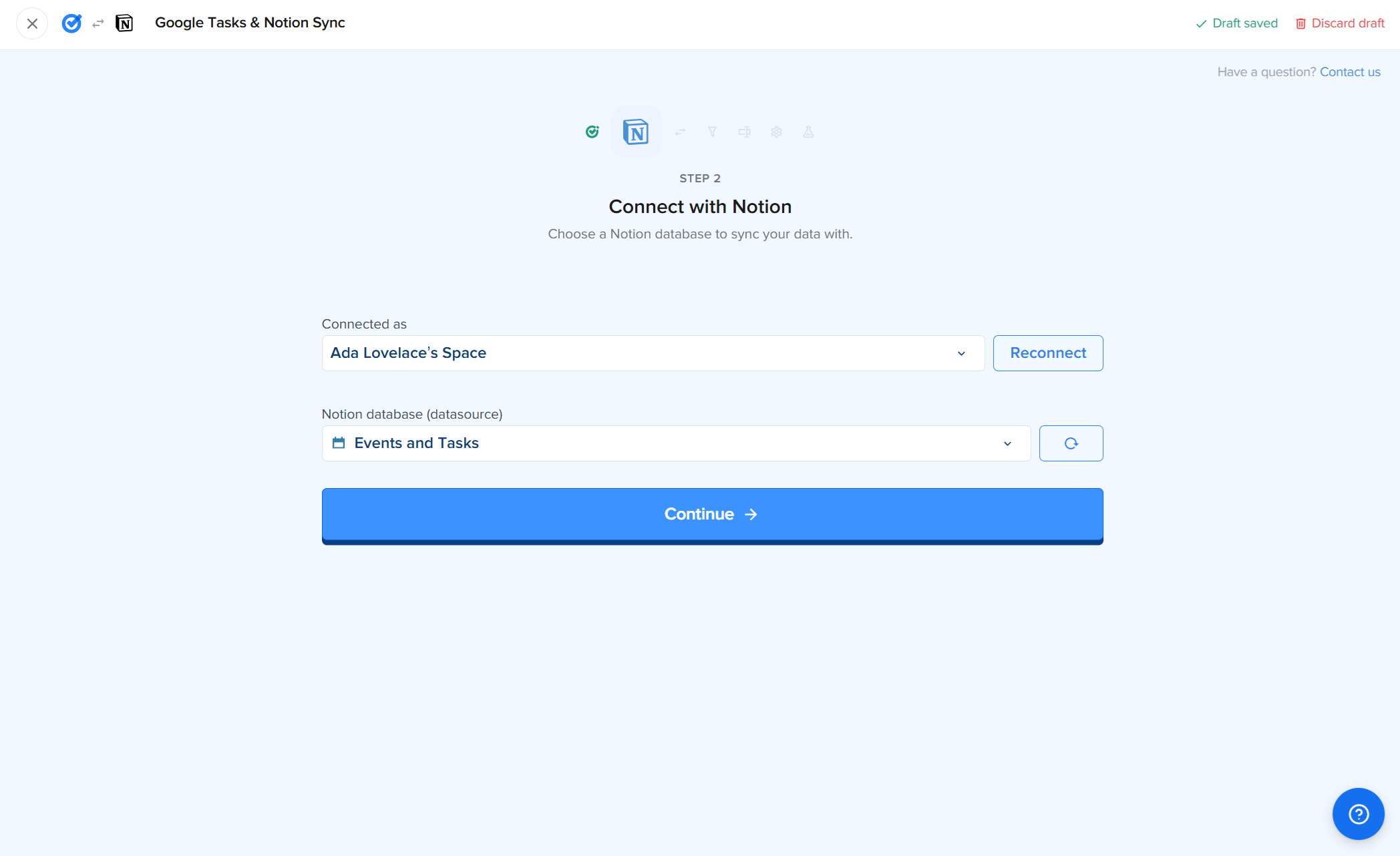
Quick answer: Notion is where many teams plan work. Google Calendar and Google Tasks are where the day actually happens. To keep them aligned, you need more than a one-time import. You need a two-way sync tool like 2sync that moves events, tasks, due dates, statuses, and edits between both sides automatically.
If your team works in Google Workspace, your day probably runs through Gmail, Google Calendar, and Google Tasks. You accept meetings in Gmail, check your calendar between calls, and capture quick tasks from emails or a board like Kanban Tasks.
But the bigger system often lives in Notion.
That is where the project tracker sits. The client database. The content calendar. The meeting notes. The task context. The problem is that Notion and Google Tasks do not stay aligned by themselves, and Notion does not give you a native Google Tasks sync.
So the work starts to split.
A meeting gets added to Google Calendar, then copied into Notion. A task gets completed on a board, then manually checked off in a Notion database. A deadline changes in Notion, but the calendar still shows the old date.
That is not a workflow. It is duplicate admin.
This guide explains what a useful Notion, Google Calendar, and Google Tasks sync should do, where one-way imports fall short, and how to set up a practical two-way system.
Why copy-paste becomes the default
Most teams do not pick one tool for everything. They use the best tool for each job.
Google Calendar is fast, visible, and already part of the workday. Google Tasks is lightweight and close to Gmail. Kanban Tasks adds the board layer for teams that want shared task ownership inside Google Workspace.
Notion is different. It is where work gets structure.
A Notion task can belong to a project, client, sprint, doc, or status view. A calendar item can sit next to notes, deliverables, and related work. Managers can see rollups. Teams can build their own operating system.
The gap is that these tools rarely agree automatically.
You schedule a client call in Google Calendar, then retype it in Notion so the CRM is complete. You close a task in Google Tasks, then update a Notion project view so the dashboard is not wrong. You move a deadline in Notion, then forget to move the calendar event.
Every manual step is small. Together, they create a system nobody fully trusts.
What sync should actually mean
Not every integration is a sync.
A one-way import copies data from one app to another. That can help once, but it breaks the moment you edit either side.
A useful sync does three things.
First, it runs both ways. Create an event in Google Calendar and it appears in Notion. Change the date in Notion and Google Calendar updates. Complete a task in Google Tasks and the Notion item is marked done too.
Second, it keeps running. A snapshot is not enough for daily work. The sync has to check for changes continuously, otherwise your databases start drifting again.
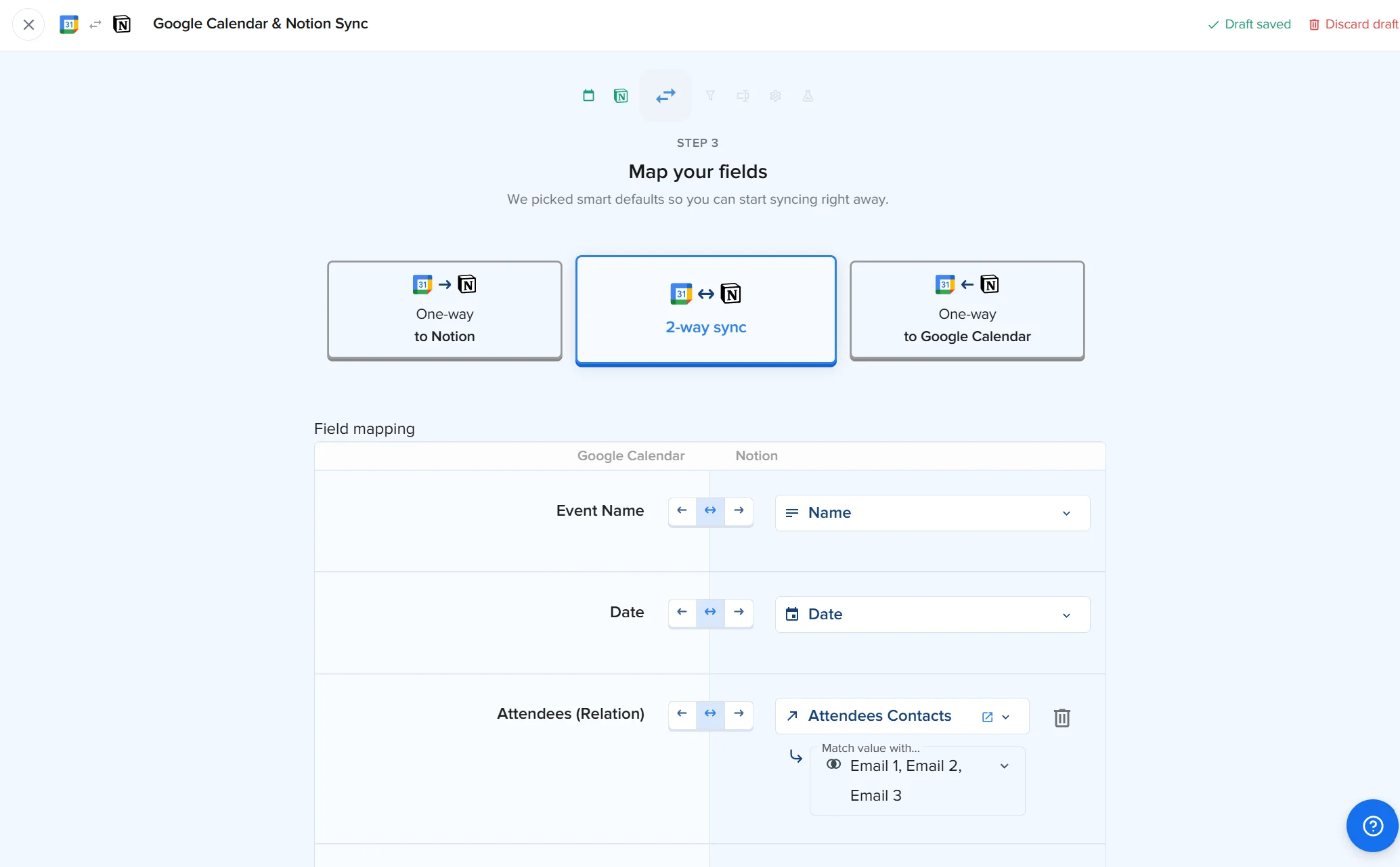
Third, it gives field-level control. A calendar event is more than a title and date. It can include start time, end time, location, attendees, description, and meeting links. A task can include due date, notes, list, status, completion date, and priority.
Good sync lets you decide which fields move, where they land in Notion, and which direction each field should follow.
Google Calendar and Notion
With a Notion and Google Calendar integration, every event can become a Notion database item with its own properties: date, time, attendees, location, description, and other context.
That makes Notion useful for the parts Google Calendar does not try to handle.
You can:
- See meetings next to the tasks they create.
- Log client calls into a Notion CRM.
- Run an editorial calendar in Notion while keeping deadlines visible in Google Calendar.
- Add prep notes in Notion without losing the actual meeting time.
The important part is that both sides stay natural.
You still accept invites in Gmail. You still check Google Calendar during the day. You still use Notion for planning and context. The sync keeps the two aligned in the background.
Google Tasks and Notion
Google Tasks has the same problem, but it shows up faster.
Tasks are often captured where the work appears: inside Gmail, on mobile, or on a shared board. Notion is where the task gets structure: which project it belongs to, who owns it, what client it affects, and what status it has.
Without sync, one side becomes incomplete.
A task completed in Google Tasks still looks open in Notion. A task added in Notion never reaches the place where the team actually works. A due date changes in one system but not the other.
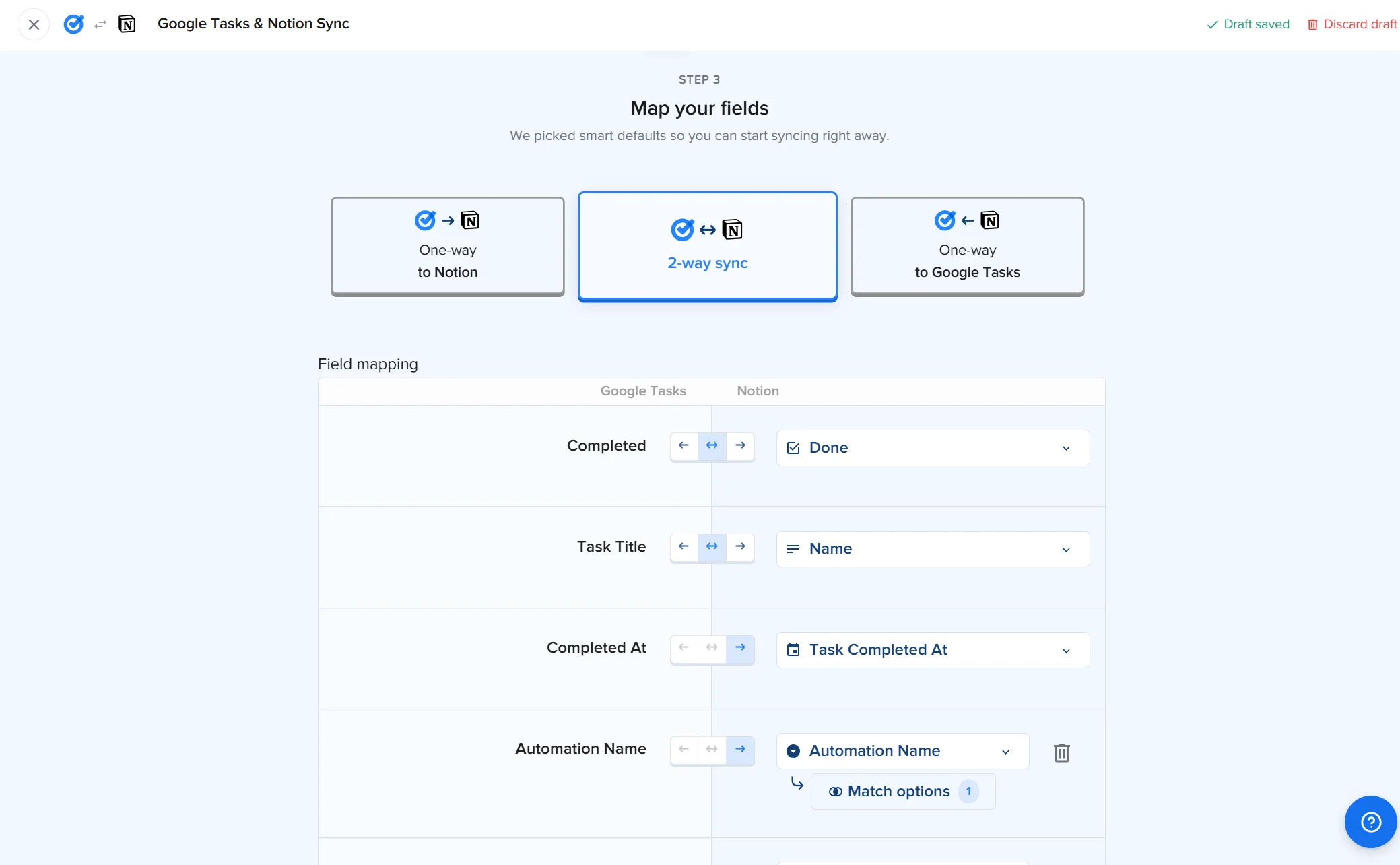
With a proper two-way sync, each Google task can become a Notion item with its due date, title, notes, list, and completion status mapped to the right properties.
For Google Workspace teams, this is the practical setup: keep capturing and moving work in Gmail, Google Tasks, and Kanban Tasks, while Notion holds the broader structure around it.
How to set it up
You do not need a spreadsheet export or a custom script. A sync tool like 2sync connects Notion with Google Calendar and Google Tasks and keeps the data aligned.
The setup is short.
- Connect your Google account and choose the calendars or task lists you want to sync.
- Connect your Notion workspace.
- Pick the Notion database where events or tasks should live.
- Map the fields, such as Google due date to Notion Due.
- Choose the sync direction for each field.
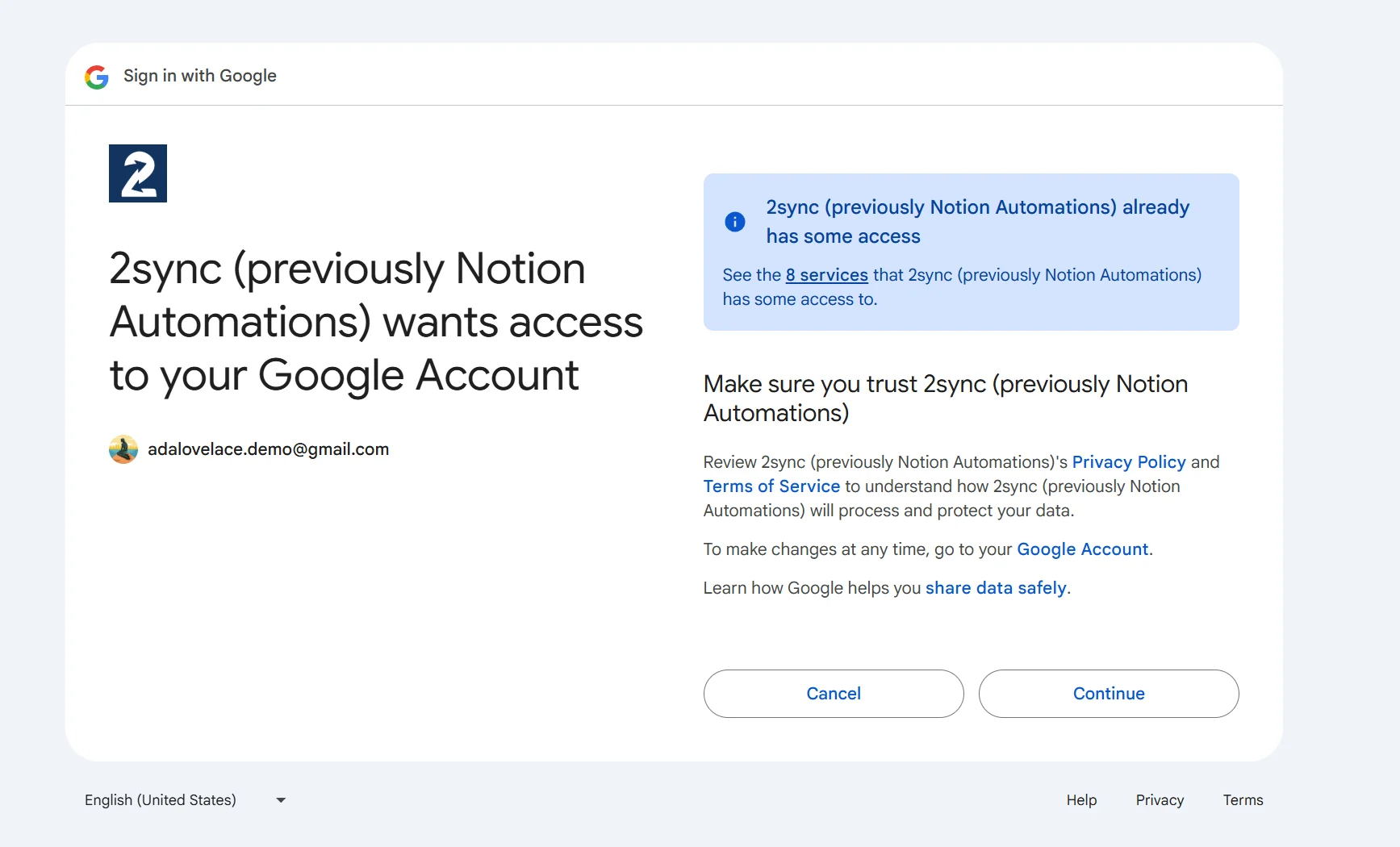
From there, the sync checks for changes automatically. Edits on either side show up in the other app without another manual transfer.
Google Calendar and Google Tasks are separate automations, so you can start with one and add the other later.
What to sync, and what to leave out
More sync is not always better.
The cleanest systems usually start narrow. Pick the calendars, task lists, and Notion databases that matter for daily work. Leave out old events, personal reminders, and anything that would only add noise.
A few rules help:
- Pick one planning hub. If Notion is where projects are reviewed, sync the fields that support that role.
- Filter early. A work calendar or client task list is worth syncing. Every old personal reminder is not.
- Add a source field in Notion so it is clear where each item came from.
- Keep direction intentional. Some fields should be two-way. Others may only need to flow into Notion.
The goal is not to mirror everything. The goal is to remove the manual updates that make the system unreliable.
The honest limit
Sync does not fix a messy workflow by itself.
If a team has three overlapping task databases, unclear ownership, and no agreement on where work should be reviewed, automation will only move the mess faster.
The best setup starts with a simple decision: Google Workspace is where the day happens, and Notion is where the structure lives.
Once that is clear, syncing the right fields makes the system easier to trust.
Bottom line
Notion is strong for planning, databases, and context. Google Calendar and Google Tasks are strong for daily execution. Teams should not have to choose one and abandon the other.
A two-way sync lets each tool keep doing what it does best.
Plan in Notion. Work in Google Calendar, Google Tasks, Gmail, and Kanban Tasks. Let the changes move automatically.
No copy-paste. No stale databases. No guessing which tool is right.
Written by the team at 2sync. 2sync keeps Notion in automatic two-way sync with the tools teams already use, including Google Calendar, Google Tasks, Gmail, Google Contacts, and Outlook.
 Download our Plugin