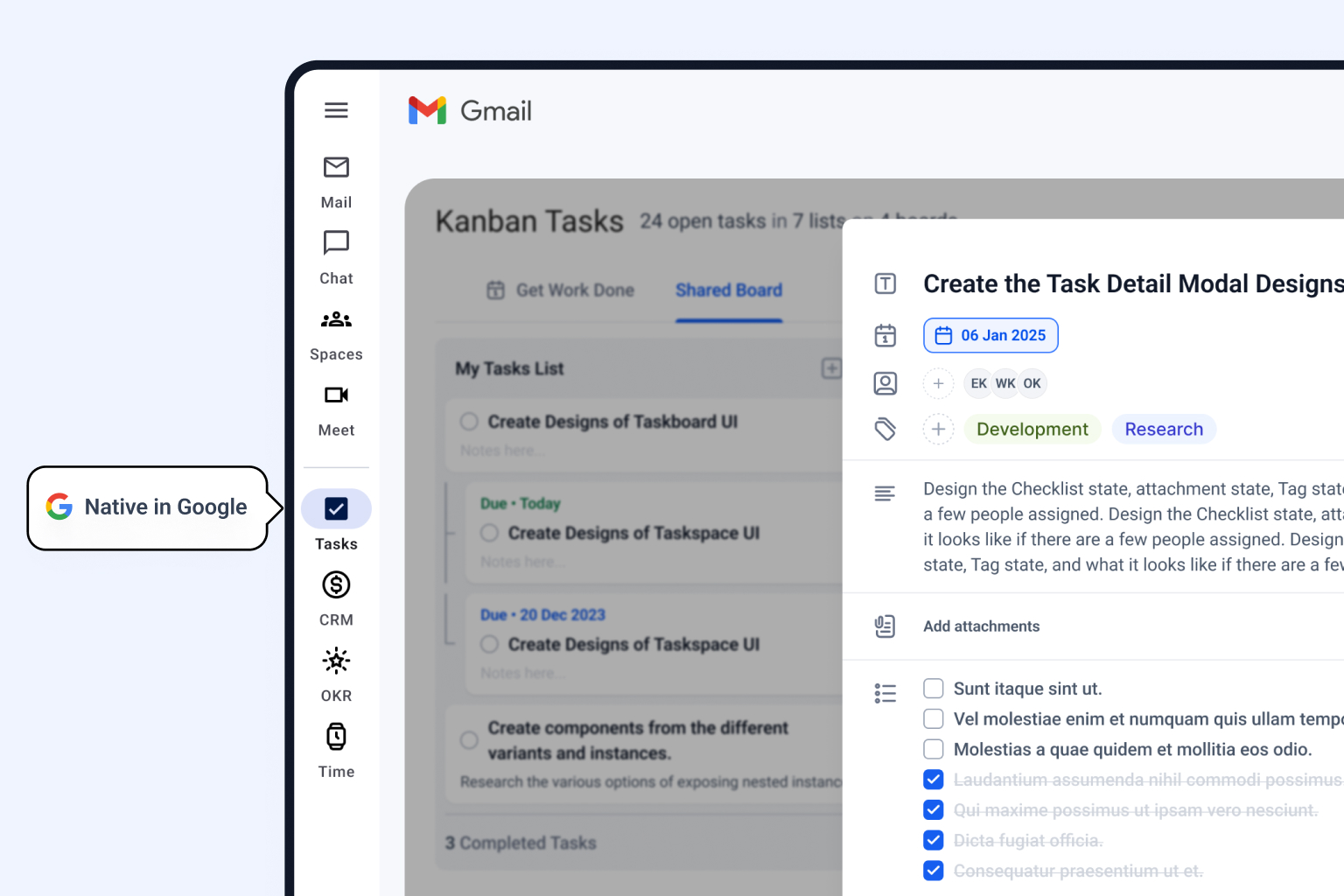
Transform your Gmail into a powerful Google Kanban board. Actionable steps to manage tasks & streamline workflows in Google Workspace.

Here's a hard truth: a native Google Kanban board doesn't actually exist as a standalone app. You can’t just go download one from Google. Instead, you build one by plugging a smart Chrome extension directly into the tools you’re already in all day, namely, Gmail and Google Tasks.
If you manage projects, you know the drill. A client request lands in your Gmail. You jump over to a separate app like Trello or Asana to create a task. Then you pop open Google Calendar to check on deadlines.
This constant app-switching isn’t just a minor annoyance; it’s a productivity sinkhole. It shatters your focus, creates silos where important details get lost, and adds another subscription fee to the pile.
Your team already lives and breathes inside Google Workspace. It’s the command center for communication, collaboration, and documents. So, the most logical step isn’t to bolt on yet another disconnected platform. It’s to bring powerful, visual task management right into the environment where your work is already happening.
When you integrate a Kanban board directly into your Google ecosystem, you’re not just adding a new feature. You’re upgrading your entire workflow. Instead of the tedious copy-paste routine of turning an email into a task, you can convert it into a Kanban card with a single click, right from your inbox.
This approach gives you a few immediate wins:
Less Context Switching: You stay focused on the work itself, not on juggling a dozen different tabs.
Easier Adoption: People are far more likely to use a tool that seamlessly fits into their daily routine than one that forces them to learn an entirely new system.
One Source of Truth: All your project communications, files, and tasks are finally connected in one familiar place.
Google’s whole suite is designed for this kind of integration. It’s the perfect foundation for a native Kanban system.
Just look at how Gmail, Calendar, Drive, and Meet are built to work together. They create a single, cohesive digital office.
The real magic happens when you layer a visual workflow right on top of this. Think about it: by 2026, an incredible 4,480,148 verified companies across the globe will be running their operations on Google Workspace. We’re talking giants like Apple, Walmart, and even Microsoft. This isn't just a set of apps; it's the central operating system for modern business. You can dig into more of this data over at data.landbase.com.
By building your Kanban system directly inside Google, you aren't just adding another tool. You're fundamentally improving how your team interacts with the software they depend on every single day.
Ultimately, the goal is to stop managing your tools and start managing your work. A native Google Kanban board gets you there by putting your project workflow exactly where it belongs: at the heart of your team’s communication hub. This lets you tap into the full power of visual task management to bring clarity to your projects and drive them forward.
Let's be honest, turning your Google Workspace from a collection of separate apps into a unified command center for projects sounds like a huge undertaking. But it's actually much simpler than you think. The real magic happens when you enhance the tools you already live in, like Gmail and Google Tasks, with a smart Chrome extension that brings Kanban functionality right to your screen.
We'll skip the high-level theory and get our hands dirty with a scenario every single one of us has faced: a new client request just landed in your inbox. Before, this email might have kicked off a chaotic scramble across half a dozen different apps, a major source of fatigue for teams trying to keep up.

This is the exact pain point we're solving. By integrating task management directly into your Google ecosystem, you stop the constant context-switching that kills focus and causes project delays.
First things first, you need to add the right tool to your browser. For this walkthrough, we’re going to use Kanban Tasks, an extension specifically designed to build a Google Kanban board that feels like it was always part of the interface. The goal here is to find something that feels native, not like another piece of software you have to learn.
Just head over to the Chrome Web Store and search for "Kanban Tasks for Google Tasks." The installation is a breeze: a couple of clicks and permission approvals, and you're good to go.
Once it's installed, you won't be logging into a separate website. The Kanban view will appear directly inside Gmail or Google Tasks.
Now, pop back over to your Gmail. You should see a new icon or button that opens up your Kanban board. This is where the magic happens: it uses your existing Google Tasks lists as its foundation, creating that seamless connection that makes the whole system work.
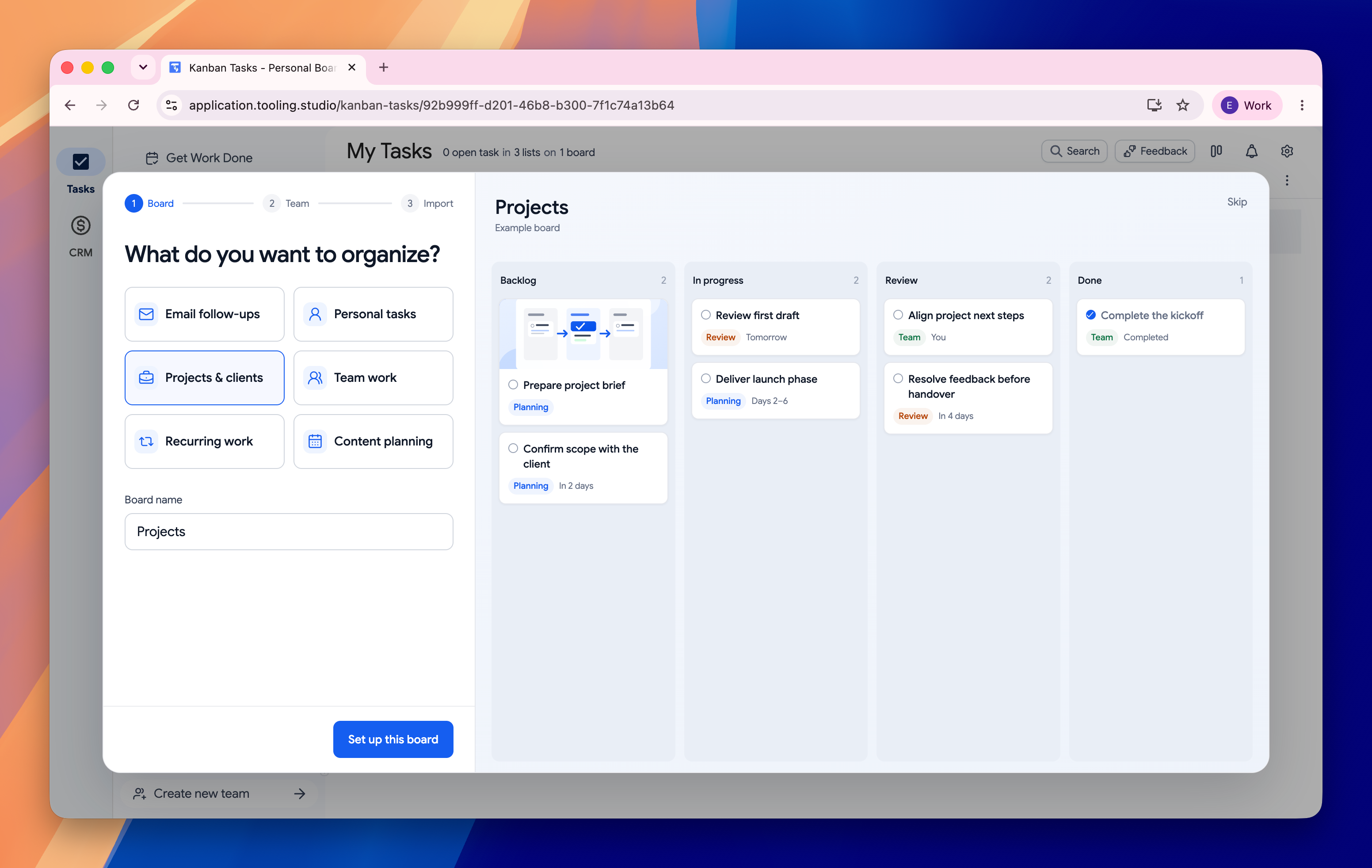
With the extension fired up, it’s time to give your workflow some structure. In this world, a "board" is just a new task list in Google Tasks. You can create one for a specific project, a client, or even a department—whatever fits how you work. Here's a simple guide to using Kanban Tasks in Google Workspace.
For our client request example, let's create a new board called "Client Onboarding." The visual power of Kanban comes from its columns, which represent the stages of your process. To start, keep it simple with three fundamental columns:
To Do: This is your backlog. It's where all new tasks, ideas, and that fresh client request will land first.
In Progress: When you actively start working on something, drag its card here. This column gives everyone an instant snapshot of what's on the front burner.
Done: The finish line. Moving a card here is not only satisfying but also creates a clear record of what your team has accomplished.
Don't overcomplicate things right out of the gate. These three columns are often all you need to bring immediate clarity to your projects. You can always add more specific stages later, like 'For Review' or 'Awaiting Feedback,' as you get a feel for your team's rhythm.
Alright, let's put it all together. Go back to that client request email sitting in your inbox. With the Kanban Tasks extension installed, you’ll now spot a new button that lets you add the email directly to your board as a task.
Give it a click. Instantly, a new card appears in the "To Do" column of your "Client Onboarding" board. The email’s subject line typically becomes the task title, and you can pull the body content into the task details.
Just like that, you've captured a work request and slotted it into your organized workflow without ever leaving your inbox. This single action is the cornerstone of building an integrated Google Kanban board that actually saves time and keeps everyone on the same page.
A personal to-do list is great for keeping yourself on track, but a Kanban board really comes alive when it becomes a shared space for the whole team. This is where you graduate from scattered individual lists to a central, visual command center that keeps everyone on the same page. Think of it as the difference between a solo musician and a full orchestra playing in perfect harmony.

The biggest win with a shared Google Kanban board is radical transparency. At a single glance, anyone can see the entire project workflow - from brainstorming in the backlog to tasks crossing the finish line in the "Done" column. This level of visibility practically eliminates the need for those constant "just checking in" emails and status update meetings, giving you more time to actually get work done.
Let’s walk through how this plays out in the real world. Imagine a marketing team using a shared board called "Content Calendar."
The content manager needs a new blog post. Instead of firing off an email that might get buried, she creates a new card called "Write Q3 SEO Report Blog" and drops it right into the "To Do" column.
She then assigns the card to the team's writer. The writer instantly gets a notification and sees the new task pop up on their board. As soon as they start writing, they drag the card over to the "In Progress" column. That simple move updates the entire team on the task's status—no follow-up needed.
This shift from push-based communication (email) to pull-based visibility (Kanban) is fundamental. Team members can 'pull' the information they need, when they need it, reducing noise and increasing focus.
Once the draft is ready, the writer slides the card into the "For Review" column and assigns it to the editor. The editor can then open the card, click the linked Google Doc, and add their feedback right in the card’s comments. All the conversation stays tied to the task, creating a crystal-clear record of the entire process.
To see just how much this improves on old methods, let's compare the two approaches side-by-side.
Here’s a quick-glance table comparing how a Kanban board stacks up against trying to manage tasks through email.
| Feature | Traditional Email Method | Google Kanban Board Method |
|---|---|---|
| Task Assignment | Forwarding emails, CC'ing multiple people, hoping the right person sees it. | Drag-and-drop assignment to a specific team member with instant notification. |
| Status Updates | Endless reply-all chains; manual "just checking in" messages. | Real-time visibility as cards move between columns (To Do, In Progress, Done). |
| Collaboration | Disconnected feedback across different email threads and documents. | Centralized comments and file attachments directly on the task card. |
| Visibility | No single source of truth; project status is fragmented across inboxes. | A shared, visual overview of the entire workflow for the whole team. |
| Accountability | Unclear who is responsible for what, leading to missed deadlines. | Clear task ownership and due dates visible to everyone. |
As you can see, the Kanban board creates a far more organized and transparent system, which is crucial for keeping projects on track and teams in sync.
A lot of teams fall back on spreadsheets to manage projects. While tools like Google Sheets are amazing for collaboration, expected to have 1.1 billion users worldwide in 2025 with 61% of small businesses in the US relying on it, they just don't offer the dynamic, visual flow of a real Kanban system. You can find more stats on Google Sheets usage at electroiq.com.
Making the jump from a static spreadsheet to a dynamic board inside your Google Workspace will significantly improve team productivity. It creates a much more intuitive and efficient way to work. You can even complement your Kanban workflow by finding new ways to share Google Task lists with your team. This kind of integration keeps everyone aligned and focused, turning scattered efforts into synchronized success.
Once you have your Google Kanban board up and running as the central hub for your projects, it's time to layer in some more advanced techniques. These aren't just minor tweaks; they're the strategies that can turn a simple task list into a high-performance engine for getting work done.
By adopting a few power-user habits, you can bring a new level of clarity to your workflow, prevent team burnout, and get way more insight into how work actually gets done. The real magic happens when you move beyond just tracking what's on your plate.
This is especially true as more companies lean into integrated ecosystems like Google Workspace. With an estimated 4,480,148 companies expected to be using it by 2026, including giants like IBM, it's clear that native tools like a Google Kanban board are becoming essential. Market forecasts show this trend continuing, as businesses of all sizes see the value in seamless collaboration. You can dig into more of this market data at openpr.com.
You don’t have to be a software developer to borrow from the world of agile. Two of the most powerful concepts you can apply right away are Work in Progress (WIP) limits and a well-groomed backlog.
A WIP limit is just a simple rule you set for your "In Progress" column, capping the number of tasks that can live there at any one time. For a team of five, maybe you set the limit at five or six tasks. This forces everyone to focus on finishing what's already started before pulling in new work. It’s the single best way to prevent bottlenecks and keep work flowing smoothly.
Think of your "To Do" column as a living backlog, not a task graveyard. Keep it healthy and relevant by regularly grooming it:
Prioritize ruthlessly. Move the most critical items to the very top.
Archive old ideas. If a task has been sitting there for months, have an honest conversation about whether it's still relevant. If not, get rid of it.
Break down big tasks. A card that just says "Launch New Website" is a recipe for procrastination. Break it down into smaller, concrete steps like "Design Homepage Mockup" or "Write About Us Page Copy."
As your board starts to fill up, you need a way to quickly find and filter information. This is where tags and due dates become your best friends. Tags are just simple labels you can add to task titles to give you extra context at a glance.
Think of them as visual shortcuts. For example:
[Urgent] for things that need immediate attention.
[Client A] to group all the work for a specific client.
[Q3 Goal] to connect day-to-day tasks to bigger company objectives.
Setting due dates is just as important. It adds a timeline to your board, helping you plan your team's capacity and making sure deadlines don’t sneak up on you. When you combine tags and due dates, you can instantly see which high-priority tasks for a specific client are due this week.
A well-organized board does more than just track work—it tells a story about your team's priorities, workload, and accomplishments. Using these advanced features helps make that story clear and actionable for everyone involved.
So much of what we do in business is repetitive. Onboarding a new client, publishing a blog post, preparing a monthly report—the core steps are almost always the same. Instead of manually creating those tasks from scratch every single time, build a template.
Just create a separate board or a list named "Templates." For each recurring process, make a master card with a detailed checklist right in the task description. The next time a new project kicks off, you just duplicate that template card, move it to your active project board, and you're good to go. It saves a ton of time, ensures consistency, and makes it nearly impossible to forget a critical step.
The real magic of building your workflow inside Google Workspace isn't just about having a new place to track tasks. It's about how everything talks to each other. Your Google Kanban board shouldn't be another silo. It should be the central hub that connects all your scattered project pieces, finally breaking down the walls that slow teams down.
This native connection is what elevates a simple task list into a dynamic project dashboard. Instead of just being a reminder of what needs to get done, each card on your board becomes a direct portal to the actual files, meetings, and people involved in that task.

Let's get practical. Imagine a card on your board labeled "Finalize Q3 Marketing Report." Without this integration, your team is probably digging through shared drives, trying to figure out which "Final_Report_v3_Final_USE_THIS_ONE.docx" is the right one. With this setup, you can link the card directly to the Google Doc. One click, and they're in the file. No more confusion, no more wasted time.
This same idea ripples across the entire Google ecosystem. You can easily hook your tasks into the tools you're already using every single day:
Google Drive: Attach the exact document, spreadsheet, or slide deck to a card. This is a lifesaver for review cycles, making sure everyone is commenting on the correct version.
Google Calendar: Link a task to a scheduled meeting. That "Prep for Client Kickoff" card can connect right to the Calendar invite, pulling all the relevant details into one spot.
Google Contacts: If you're running a sales or client management board, you can tie a task card to a specific person in your Google Contacts. Their phone number and email are now just a click away.
By linking assets directly to your Kanban cards, you create a single source of truth for every task. All the context—the files, the deadlines, the people—lives right where the work is managed.
This is exactly what sets a native solution apart. It turns your board from a glorified to-do list into an interactive, context-rich command center for your projects. If you want to get even more streamlined with your scheduling, you can learn more about how to add a task to your Google Calendar. It’s all about making your tools work together, not against each other.
As you start weaving this new Kanban board into your daily routine, you're bound to have a few questions. That's perfectly normal. Getting these sorted out early on will help you move forward with confidence and avoid hitting any snags down the road.
We've gathered some of the most common questions we hear, from security concerns to collaborating with people outside your company. Think of this as the final briefing before you fully commit to your new, integrated workflow in Google.
This is a big one, and for good reason. The short answer is: yes, absolutely. Reputable extensions like Kanban Tasks are built using Google's own secure authentication protocols (OAuth).
What that means in plain English is the extension never actually sees or saves your Google password. It all happens through Google's secure sign-in process, keeping your main credentials completely private.
Your task data stays within your Google account's security bubble. Still, it's always smart to follow good digital habits:
Only grab extensions from the official Chrome Web Store.
Take a quick look at the extension's privacy policy and the permissions it's asking for before you install it.
Make sure you're comfortable with the access it needs to do its job.
While the visual Kanban board itself is designed for the bigger screen of a desktop browser, you can absolutely manage all the tasks from your phone. The magic here is that the extension is powered by Google Tasks.
Any task you add to your board on your computer automatically syncs to the standard Google Tasks mobile app. You can add new to-dos, tick off completed items, or check a due date while you're out and about, and everything will be perfectly updated on your desktop Kanban board next time you open it.
The real power is in that seamless sync. Your task list is always current, whether you're at your desk planning the week or on your phone double-checking a deadline.
Sharing your board with external partners, like freelancers or clients, is surprisingly simple. Professional Kanban extensions are built for this kind of collaboration. As long as they have a Google account, you can share a board with them, even if they aren't part of your Google Workspace organization.
All you have to do is invite them using their Gmail address. They'll just need to install the same Chrome extension on their end to see the shared board in the proper Kanban layout. This creates a single, shared workspace for the entire project team, internal and external members alike.
Ready to finally stop switching between a dozen different apps? Tooling Studio created the Kanban Tasks extension to turn your Gmail into the project command center you actually want to use. You can get started and build your first Google Kanban board in just a few minutes. Download the plugin from the Chrome Web Store. Contact our team for guidance.