
Microsoft Kanban Board: Planner & Azure Boards Explored
Explore the Microsoft Kanban board ecosystem: Planner & Azure Boards. How they work, their pros, cons, and Google Workspace comparison.

Your team probably already has a task system. It’s just hiding in too many places.
A project lives in Google Sheets. Follow-ups sit in Gmail stars. Meeting notes are in Docs. Somebody keeps a “master list” in a tab no one fully trusts. That setup works for a while, until work starts stalling because nobody can quickly see what’s waiting, what’s blocked, and who owns the next step.
That’s usually when teams start looking for a Kanban board. And if you search for options, Microsoft shows up fast. You’ll see Planner for everyday team coordination and Azure Boards for more advanced workflow management. Both are legitimate Microsoft kanban board options. The harder question is whether they make sense for a team that already lives inside Google Workspace.
That’s the decision many managers are making. Not “Is Microsoft good?” but “Do we want a better board badly enough to leave the tools we already use all day?”
Your Team Needs a Kanban Board Should It Be Microsofts
A kanban board solves a very specific problem. It turns a messy list of tasks into a visual flow of work. Instead of reading a long spreadsheet, your team sees cards moving across stages such as To Do, In Progress, and Done.
That sounds simple because it is. The value comes from visibility. A manager can spot stalled work in seconds. A teammate can tell whether a task is waiting for approval or ready to start. A client-facing team can separate urgent requests from routine follow-up without digging through email threads.
For a Google-first team, the appeal of Microsoft can feel mixed. On one hand, Microsoft’s tools are mature, familiar to many companies, and built for structured collaboration. On the other hand, every new platform creates friction when your daily work still happens in Gmail, Drive, Calendar, and Meet.
Here’s the practical fork in the road:
Planner fits teams that want a straightforward board for task coordination.
Azure Boards fits teams that need a more rigorous workflow system, especially around software and engineering work.
A Google-native board often fits teams that want visual task management without shifting their center of gravity away from Workspace.
A kanban tool should reduce switching between apps. If it creates more switching, the board may be solving one problem while creating another.
That’s why the microsoft kanban board question isn’t just about features. It’s about ecosystem fit. The right choice depends less on which product has the longest feature list and more on where your team already communicates, assigns work, and checks status throughout the day.
What Is a Microsoft Kanban Board
Think of a kanban board as a whiteboard with sticky notes. Each sticky note is a task. Each column is a stage of work. As the task moves forward, the note moves right.
That’s the basic idea behind any kanban board, whether it’s on a wall or on a screen. If you want a quick primer on what Kanban is, that guide is a useful companion because it explains the method in plain terms before you get lost in software menus.
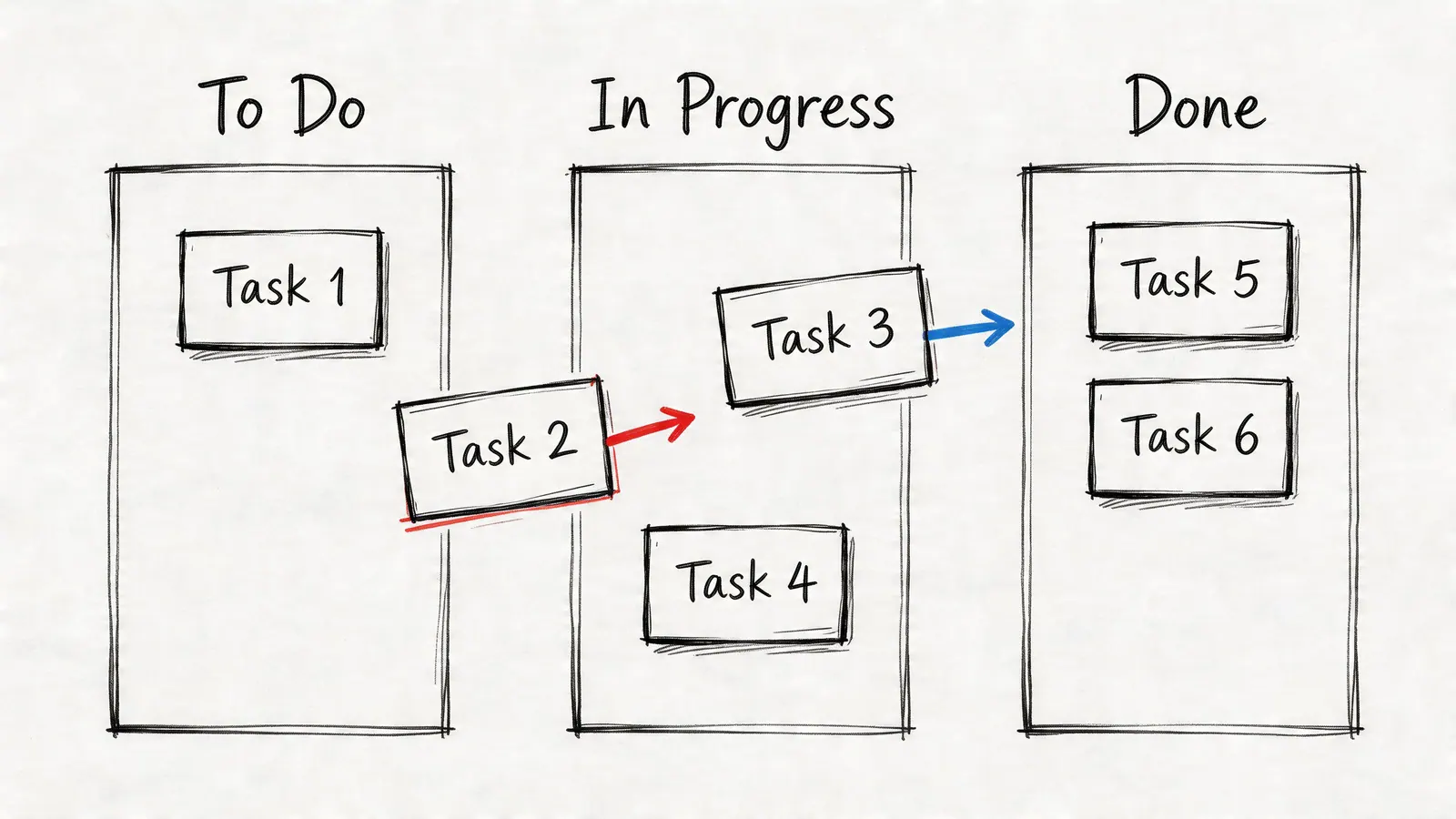
The core idea behind the board
A Microsoft Kanban board is Microsoft’s digital version of that visual workflow. You’ll mainly encounter it in tools like Planner and Azure Boards. The board shows tasks as cards, lets teams assign owners and due dates, and organizes work into columns that reflect the team’s process.
Three ideas matter more than any button or menu:
Visualize work. You can see the whole pipeline at once instead of checking separate lists.
Limit work in progress. Teams try not to start too many things at once.
Manage flow. The board helps people notice where tasks pile up or slow down.
Most confusion starts here. People assume kanban is just a prettier to-do list. It isn’t. A to-do list tracks items. A kanban board tracks movement.
Why Microsoft uses this approach
Kanban didn’t start in software. Microsoft explains that the system began at Toyota in the 1940s as a just-in-time production method, was adapted for knowledge work at Microsoft by David Anderson in 2004, and in digital form through Azure DevOps around 2013 to 2014 now helps over 200,000 organizations optimize workflows, according to Microsoft’s overview of how to use a Kanban solution to manage team tasks.
That history matters because it explains why Microsoft’s tools often feel process-oriented. These boards weren’t designed only to hold tasks. They were designed to make workflow visible so teams can reduce waste, spot bottlenecks, and improve how work moves from request to completion.
Practical rule: If your team can’t agree on what each column means, the board won’t help much. The board only works when the workflow reflects reality.
For a non-technical team, that’s both the promise and the risk. The promise is clarity. The risk is adopting a tool with more process than your team needs.
Comparing Planner and Azure Boards
Planner and Azure Boards both qualify as a microsoft kanban board, but they solve different problems. If you treat them as interchangeable, you’ll either outgrow the simple one or overbuy the advanced one.
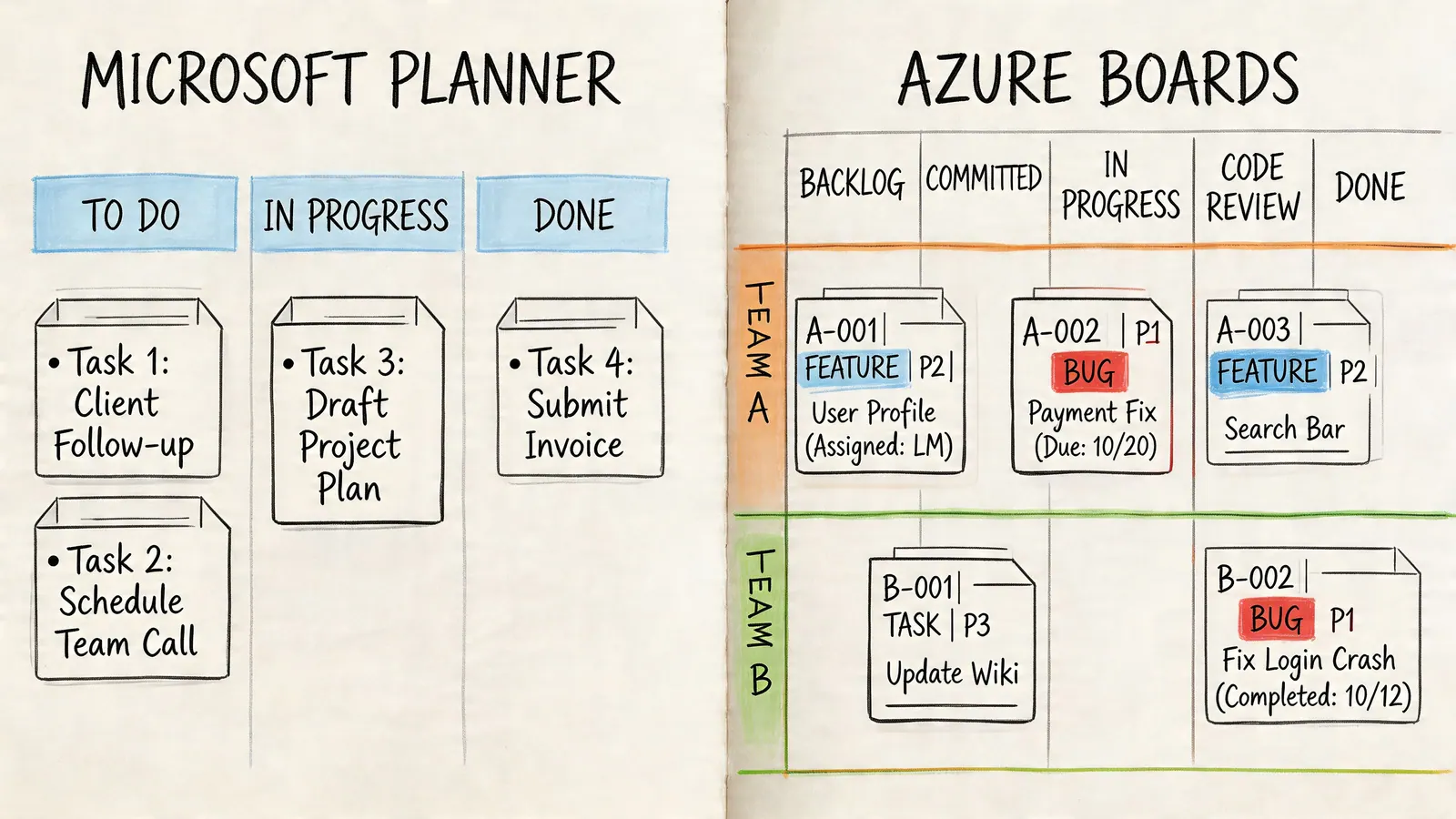
Planner for everyday team coordination
Planner is the easier starting point. It’s built for people who want to organize work visually without needing a full development platform. A marketing team can track campaign assets. An operations manager can organize onboarding tasks. A small project team can use buckets as stages or categories.
The main appeal is familiarity. If a company already uses Microsoft 365, Planner feels like part of the same environment rather than a separate system. For business teams, that lowers the setup burden.
Planner is usually the better fit when your team wants:
Simple visual tracking for recurring work, approvals, or internal projects
Low training overhead so people can start moving cards quickly
Basic collaboration rather than advanced workflow reporting
Planner can still frustrate teams that want deeper process control. If you need more advanced workflows, heavier reporting, or stronger control over how work moves, it may start to feel shallow.
Azure Boards for structured agile workflows
Azure Boards sits in a different category. It’s more at home with engineering, product, and DevOps teams that need detailed tracking and a formal agile workflow. That includes configurable columns, richer work item management, and metrics tied to delivery flow.
One of its standout capabilities is configurable Work-in-Progress limits. Microsoft explains in its Azure Boards kanban overview that WIP limits apply to active intermediate columns, visually flag bottlenecks, and help teams reduce context-switching by preventing too much concurrent work.
That sounds technical, so here’s the plain-language version. If your “In Progress” column already has too many cards, the board tells the team to finish something before starting more. That’s useful discipline for developers. It can also help business teams, but only if they’re willing to work with that level of process structure.
A short video can help if you want to see the board style in action:
Side by side view
| Tool | Best for | Strength | Common drawback |
|---|---|---|---|
| Planner | Business teams, coordinators, department projects | Easy to start and visually clear | Can feel too basic for complex workflows |
| Azure Boards | Engineering, product, DevOps | Strong workflow control and bottleneck management | Often feels heavy for non-technical teams |
If your team is still comparing options beyond Microsoft, this roundup of best agile project management tools is useful because it shows where these products sit in the wider tool context.
Evaluating Microsoft Kanban for Your Business Team
For a business team, Microsoft’s kanban tools are neither obviously right nor obviously wrong. They’re strong in some situations and awkward in others.
The strongest case for Microsoft is organizational fit. If your company already runs on Microsoft 365, uses Teams heavily, and expects centralized governance, a Microsoft kanban board can feel consistent with the rest of your environment. IT teams often like that consistency because user access, security policies, and app rollout all stay under one umbrella.
Where Microsoft fits well
Planner works best when a team wants more order than a spreadsheet but doesn’t want to learn a specialist system. Department leads often appreciate that it looks approachable. People can understand the board quickly, drag tasks between columns, and check progress without training that feels like a software rollout.
Azure Boards makes sense when the work itself is process-heavy. Product and engineering groups often need formal states, detailed work items, and stronger rules around what can move when. In that setting, the structure helps.
Microsoft tends to work best when your workflow already belongs in Microsoft.
Where Google-based teams feel friction
The challenge appears when your workday starts somewhere else. If your team communicates in Gmail, stores active files in Drive, and joins meetings from Google Calendar, a Microsoft board can create a split workspace. The board may be fine. The switching is what wears people down.
That friction usually shows up in ordinary moments:
During email triage. A task arrives in Gmail, but the board lives elsewhere.
During collaboration. Files are in Drive, but the task context sits in another ecosystem.
During status checks. Managers bounce between tools instead of checking one connected workflow.
There’s also a practical mismatch in complexity. Azure Boards can be more system than a sales or marketing team needs. Planner can land on the opposite side and feel too light once teams want richer tagging, comments, or tighter workflow rules. That leaves some teams in the middle, needing a board that feels integrated without becoming an enterprise platform.
The real test
A tool is a good fit when your team uses it without being reminded. That’s the standard worth applying here. If the board requires people to leave their main workspace, remember another login pattern, or rebuild context across apps, adoption gets harder even when the product itself is competent.
For Google-centric teams, the question isn’t whether Microsoft tools can work. They can. The question is whether they match the natural path your team already follows from message to task to completion.
Comparing with Google-Native Kanban Solutions
A lot of teams don’t need a bigger software stack. They need a board that lives where work already starts.
That’s why Google-native kanban tools deserve a serious look. For teams inside Gmail, Drive, and Google Tasks, the advantage isn’t just familiarity. It’s continuity. You can turn incoming work into tracked work without shifting into a different ecosystem every time.

Why ecosystem fit matters more than feature count
Microsoft’s options are strongest when Microsoft is already the center of gravity. But many modern teams are mixed. Microsoft itself notes projected 2025 trends showing 25% adoption growth in hybrid M365-Google setups, and user tests cited there show Planner can have 30% slower real-time collaboration updates than lightweight Google Workspace extensions, as discussed in Microsoft’s Inside Track post on deploying kanban at Microsoft.
For a Google-based team, those numbers matter less as a verdict on Planner and more as a sign of a broader issue. Hybrid environments create drag. Even when both ecosystems are present, one usually remains the place where people work all day.
If your team is still weighing the broader platform decision, this comparison of Microsoft 365 vs Google Workspace gives helpful context around how the two environments differ in day-to-day use.
A simpler decision framework
Google-native boards are often the better fit in a few common cases:
Email-driven work. Sales, support, recruiting, and account teams often live in Gmail.
Lightweight project management. Teams want clear boards without a full agile stack.
Shared document workflows. Tasks constantly reference Docs, Sheets, and Drive files.
Small and mid-sized teams. They need visibility fast, not months of process design.
A specialized Google board doesn’t have to “beat” Azure Boards at engineering depth to be the smarter choice. It only needs to remove enough friction that your team keeps the board current.
The best kanban board is often the one your team updates in the flow of normal work, not the one with the longest settings panel.
For teams exploring that route, this guide to a Google kanban board is useful because it focuses on how kanban fits naturally into Google Workspace rather than asking users to adapt to a different ecosystem.
Microsoft versus Google-native in practice
Here’s the practical tradeoff:
| Choice | Feels strongest when | Watch out for |
|---|---|---|
| Planner | You’re already standardized on Microsoft 365 | Can feel detached from a Gmail-first workflow |
| Azure Boards | Your team runs formal agile or engineering workflows | Complexity can overwhelm business teams |
| Google-native board | Your work starts in Google Workspace | May be too lightweight for deeply technical delivery workflows |
That’s why this isn’t really a contest between brands. It’s a decision about where your team wants its workflow to live.
Practical Tips for Successful Kanban Adoption
A board won’t fix a vague process. It will expose one.
That’s good news if you use it well. Kanban works best when the board reflects how work moves, not how you wish it moved. Before arguing about tools, tighten the workflow itself.
Build columns around real handoffs
Many teams start with To Do, In Progress, and Done. That’s fine for a pilot, but it’s usually too broad after a week or two. Better boards reflect the points where work changes hands or changes meaning.
For example, a content team might use:
Requested
Drafting
Review
Scheduled
Published
A sales team might need New Lead, Contacted, Qualified, and Waiting on Reply. Notice that these stages describe real movement, not generic activity.
Create simple card rules
Every team gets stuck when card movement is subjective. One person thinks “In Progress” means they opened the file. Another thinks it means the first draft is halfway done.
Use short working agreements:
Define entry rules so everyone knows when a card can move into a column
Set ownership clearly because shared responsibility often means no responsibility
Use visual cues like labels, tags, or color signals to show urgency, team, or work type
Archive finished clutter so the board stays readable
If a teammate can’t tell why a card is stuck within a few seconds, the board needs clearer rules.
Start smaller than you want to
Teams often overbuild their first board. They add too many columns, too many labels, and too many exceptions. Then nobody wants to maintain it.
A better rollout looks like this:
Start with one team
Use one recurring workflow
Review the board briefly each week
Adjust only after people have used it in real work
That last point matters. A clean board on launch day proves very little. A board that still makes sense after several weeks of live work is the one worth keeping.
Choosing the Right Kanban Path for Your Team
The right microsoft kanban board depends on where your work already lives and how much structure your team needs.
If your team builds software, works closely with Azure, or needs formal agile tracking, Azure Boards is the logical choice. It’s designed for disciplined workflow management and gives technical teams tools that lighter boards usually don’t.
If your company is committed to Microsoft 365 and your goal is straightforward team coordination, Planner is often the more comfortable fit. It gives non-technical teams a visual board without dropping them into a developer-oriented system.
If your team spends the day in Gmail, Google Drive, and Google Calendar, the strongest option is often a board that stays inside that environment. In that case, simplicity isn’t a compromise. It’s an efficiency gain because less app-switching usually means better follow-through and cleaner adoption.
One useful final check is this: where does work begin for your team? If it begins in email, documents, and shared Google files, your kanban workflow should probably begin there too. If it begins in engineering pipelines and structured development work, a more advanced Microsoft setup may be worth it.
If you want a broader look at what teams evaluate before committing, this guide to kanban board software lays out the main decision criteria clearly.
The best choice is the one your team will keep updated. Start there, map your real workflow, and pick the board that mirrors it with the least friction.
If your team wants a kanban board that feels native inside Google Workspace, take a look at Tooling Studio. Its approach is built for people who manage work in Gmail and Google Tasks and want visual tracking without leaving the Google environment.
 Download our Plugin