
BCC in Gmail: A Guide to Privacy & Workflows
Learn how to use BCC in Gmail for private communication and efficient team workflows. This guide covers web/mobile steps, limits, and best practices.

You’re about to send a project update to several clients, an announcement to partners, or a note to a list of prospects. The message is ready. Then you stop at the recipient line and ask the question that matters more than commonly perceived: who should see everyone else’s address?
That pause is where bcc in gmail becomes useful. BCC is often treated as a small privacy feature tucked beside CC. In practice, it’s a control point for how communication behaves after you click send. It protects recipient privacy, reduces noise, and, when used carefully, supports cleaner workflows for teams that live inside Gmail.
For project managers, sales teams, freelancers, and Workspace admins, BCC isn’t just about hiding addresses. It’s also a way to route communication without cluttering the main thread, create cleaner audit trails, and support inbox-based systems such as shared tracking, CRM logging, and task intake.
The Hidden Power of BCC in Your Gmail
A common example is a stakeholder update. A project lead needs to notify several client contacts across different companies that a milestone moved, a document was approved, or a launch window changed. Putting everyone in To or CC exposes addresses that don’t need to be shared.
BCC solves that fast. It lets the sender distribute one message while keeping recipient identities private from one another. That’s the obvious benefit. The less obvious one is control. A cleaner recipient list usually creates a cleaner thread.
Teams run into this in sales too. A rep sends outreach to a small list, wants a record in a tracking inbox, and doesn’t want the prospect to see internal observers or system addresses. BCC can support that workflow without changing the message itself.
Practical rule: Use BCC when the goal is broad delivery without turning the email into a group conversation.
Gmail built this into its sending model early. Gmail also imposes a strict limit of 500 total recipients per email across To, CC, and BCC combined, which directly shapes how teams batch outreach and notifications according to HubSpot’s explanation of Gmail BCC behavior and recipient limits. That limit matters less for everyday updates than for operational discipline. Once a team starts thinking of BCC as part of workflow design, not just etiquette, Gmail gets much easier to manage.
What Is BCC and How It Differs from To and CC
BCC stands for Blind Carbon Copy. The simplest way to think about it is visibility.
- To is for the main recipient.
- CC is for people who should openly receive a copy.
- BCC is for people who should receive a copy without being visible to the rest of the thread.

Who sees what
A party invitation analogy works well here. If you write everyone’s names on the front page, that’s like To or CC. Everyone can see the guest list. If you send a copy to someone without listing them publicly, that’s BCC.
Here’s the practical comparison:
| Field | Purpose | Visible to other recipients |
|---|---|---|
| To | Primary recipient | Yes |
| CC | Open copy for awareness | Yes |
| BCC | Hidden copy | No |
The distinction matters because email behavior changes based on the field. If you want a collaborative thread, use To and CC. If you want controlled distribution without exposing the list, use BCC.
Why BCC exists at all
BCC isn’t a Gmail invention. It comes from the email protocol layer. BCC originated from the 1982 SMTP protocol, RFC 822, where envelope recipients are included via RCPT TO commands without header visibility. Gmail adopted that mechanism at launch in 2004, making discreet list management part of its core behavior, as summarized in Wikipedia’s background on blind carbon copy.
That technical origin still matters because it explains why BCC functions so smoothly in Gmail. Recipients get the same email body, but Gmail doesn’t expose the hidden list in the visible message headers. For everyday users, the takeaway is simple: BCC changes who receives the email without changing what the visible thread reveals.
How to Add BCC Recipients in Gmail
Using bcc in gmail is easy once you know where Gmail hides the field.
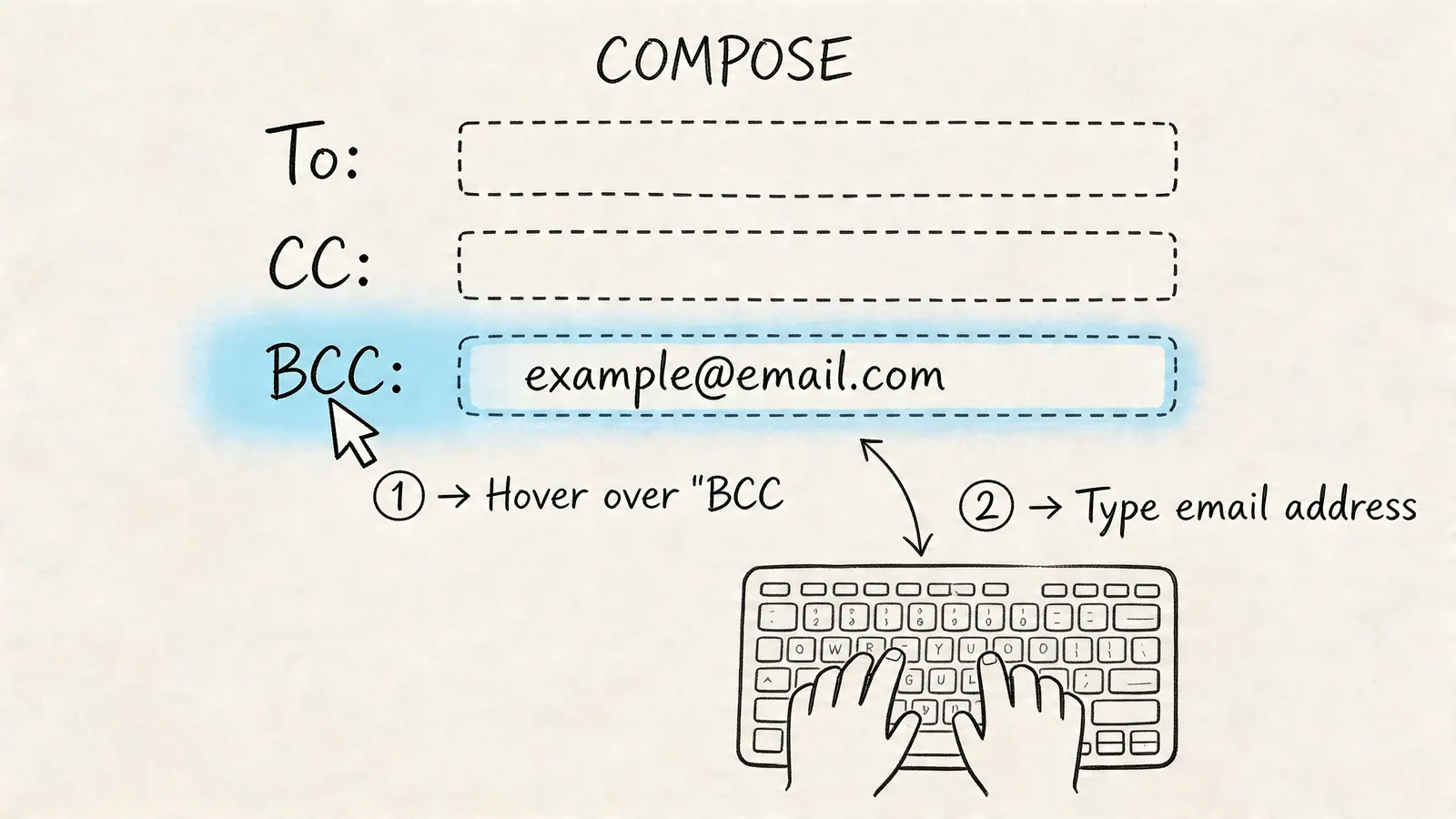
On desktop in Gmail web
Open a new compose window. Click into the recipient area, then click BCC on the right side of the To line. Gmail will open a separate BCC field where you can add hidden recipients.
Then build the message as usual. Put the main recipient in To if there is one. Add public observers in CC only if they should be seen by everyone. Add hidden recipients in BCC.
A few practical habits make this smoother:
- Use your own address in To when needed: If you’re sending a one-to-many note and don’t have a natural primary recipient, many people place themselves in To and the audience in BCC.
- Check autofill carefully: Gmail can suggest old contacts quickly. Double-check before sending.
- Keep the visible thread intentional: If someone doesn’t need to be part of the public conversation, don’t put them in CC out of habit.
On mobile in the Gmail app
On iPhone or Android, compose a new email and tap the recipient area. Gmail exposes additional fields through the small expand control, usually shown as a downward arrow or similar toggle near the address area. Tap that, then add addresses under BCC.
Mobile is where mistakes happen because the screen is smaller and the recipient fields are more compact. Slow down before sending, especially when you’re replying from your phone.
If you want a quick visual walkthrough, this short demo helps:
One limitation worth knowing
Gmail also has a practical interface constraint in the web composer. The To, CC, or BCC field can hit a usable limit at roughly 90 recipients per field, driven by character count rather than a simple hard count, according to the Gmail Help discussion on recipient limits in the BCC field. For normal team communication, that’s rarely a blocker. For larger sends, it’s a reason to batch lists carefully instead of pasting a giant block of addresses into one field.
Understanding BCC Privacy and Reply Behavior
The most misunderstood part of bcc in gmail isn’t how to add it. It’s what happens after the email leaves your outbox.
Gmail handles BCC by changing the delivery envelope rather than exposing hidden recipients in the message header. Gmail’s mail user agent rewrites the envelope during SMTP transmission, injects BCC addresses only into the RCPT TO phase, and omits them from the visible Bcc header, which is why hidden recipients stay hidden in the thread, as described by Amitree’s explanation of CC and BCC behavior in Gmail.
What happens when someone replies
The easiest way to remember it:
- Reply goes back to the sender.
- Reply All goes to the sender and the visible To and CC recipients.
- Other BCC recipients remain hidden.
That means a BCC recipient is isolated from the hidden list. They don’t get visibility into who else was blind copied.
If you use BCC for privacy, it works well. If you use it to secretly supervise a live conversation, it can still blow up when someone replies in an unexpected way.
The real trade-off in business threads
Here’s where professionals get tripped up. A BCC recipient who uses Reply All can reveal their own address to the visible participants. They still won’t expose other hidden recipients, but they may expose the fact that they were included.
That’s why BCC is strongest for announcements, updates, lightweight logging, and one-direction distribution. It’s weaker when the thread is likely to become conversational. If you expect back-and-forth discussion, open CC or a separate forward is often the safer move.
For a broader etiquette-focused take, this guide on blind carbon copy in Gmail to boost your email privacy is useful. If your goal is tracking engagement after the send, pairing BCC habits with a dedicated thread-tracking approach also helps, and Tooling Studio’s write-up on free email tracking in Gmail covers that side of inbox management well.
A simple decision test
Use this quick filter before you add someone to BCC:
| Situation | Better choice |
|---|---|
| Private group announcement | BCC |
| Team discussion where participants should know each other | CC |
| Manager needs visibility without joining the live thread | Often a separate forward |
| CRM or archive address needs a silent copy | BCC |
That small decision keeps threads cleaner and prevents the awkward “Why was this person secretly on the email?” moment.
Practical BCC Use Cases for Teams and Sales
BCC gets more valuable when you stop treating it as a one-off privacy toggle and start using it with intent.

Project updates without exposing the contact list
A project manager often needs to send one update to several stakeholders across vendors, clients, and contractors. They all need the same information. They do not all need each other’s email addresses.
In that case, BCC keeps the distribution professional. The sender can place the main client contact in To, internal partners in CC only if appropriate, and everyone else in BCC. The thread stays readable, and no one accidentally turns a status note into a sprawling group conversation.
This works especially well for:
- Launch notices: Product releases, deployment windows, or migration timing
- Milestone summaries: Weekly status notes to mixed stakeholder groups
- Policy or process updates: Changes that need broad delivery but not open discussion
Sales logging and quiet internal visibility
Sales teams use BCC in a different way. The external email goes to the prospect or customer. A hidden copy goes to a CRM logging address, a shared pipeline inbox, or a manager who needs visibility without appearing in the customer-facing thread.
That’s one reason integrated inbox systems matter. If your team is trying to keep lead history inside Google Workspace, the right setup can reduce manual copy-paste and lost context. Tooling Studio has a helpful overview of Gmail CRM integration for teams that want to keep customer tracking closer to where conversations already happen.
Field note: The best BCC use cases are operational, not political. Logging, privacy, and clean distribution are solid reasons. Secret escalation usually isn’t.
Shared team workflows inside Gmail
Another strong use case is routing communication into a workflow without making the workflow visible to the recipient. A freelancer might BCC a records inbox. A client services team might BCC a shared mailbox that feeds task review. A small business owner might BCC an operations address so customer requests can be triaged later.
The point isn’t secrecy for its own sake. The point is to keep the customer-facing email simple while preserving internal process behind the scenes.
Here’s where BCC works well for teams:
- External message, internal archive: The recipient sees a clean note. Your internal system still captures it.
- One sender, several silent observers: Useful when observers don’t need to participate directly.
- Inbox-to-workflow routing: A hidden copy can support handoff, documentation, or later follow-up.
Used this way, BCC becomes part of how a team runs work in Gmail, not just part of email etiquette.
Common BCC Pitfalls and Best Practices
BCC is easy to misuse because it feels convenient. Convenience isn’t the same as good communication.
The first limit is technical. Gmail imposes a strict limit of 500 total recipients per email across To, CC, and BCC combined, and exceeding that triggers send errors, according to this guide on how to use Gmail BCC and its limits. For operational sends, that means large lists must be segmented instead of dumped into one message.
The second limit is social. The same source notes that 2026 survey data indicates 40% of recipients view frequent, unexpected BCCs in a professional context as shady. Even if the feature works correctly, the recipient’s interpretation still matters.
What doesn’t work well
Some BCC habits create more problems than they solve:
- Secretly copying a boss on a sensitive exchange: This often damages trust if discovered.
- Using BCC when open CC would be normal: Teams usually read that as concealment.
- Treating BCC like a bulk email platform: Gmail supports it, but that doesn’t make it the best tool for campaign-scale sending.
- Forgetting reply behavior: Hidden recipients can still expose themselves if they reply all.
Better habits for professional use
Use BCC deliberately. These practices hold up well:
- Protect recipient privacy: Good for announcements, newsletters, and mixed external lists.
- Use separate forwards for internal context: If someone needs commentary, send it separately.
- Keep visible threads honest: If collaboration is expected, CC is usually better.
- Batch large sends carefully: Gmail’s recipient cap is a hard operational boundary.
Best practice: BCC should protect information, not hide decision-making from people who reasonably expect transparency.
That distinction keeps you out of most trouble. Privacy is a strong reason to use BCC. Stealth management is usually not.
Automating Gmail Workflows with BCC
Bcc in gmail gains greater relevance for modern teams. It can act as a lightweight automation trigger.
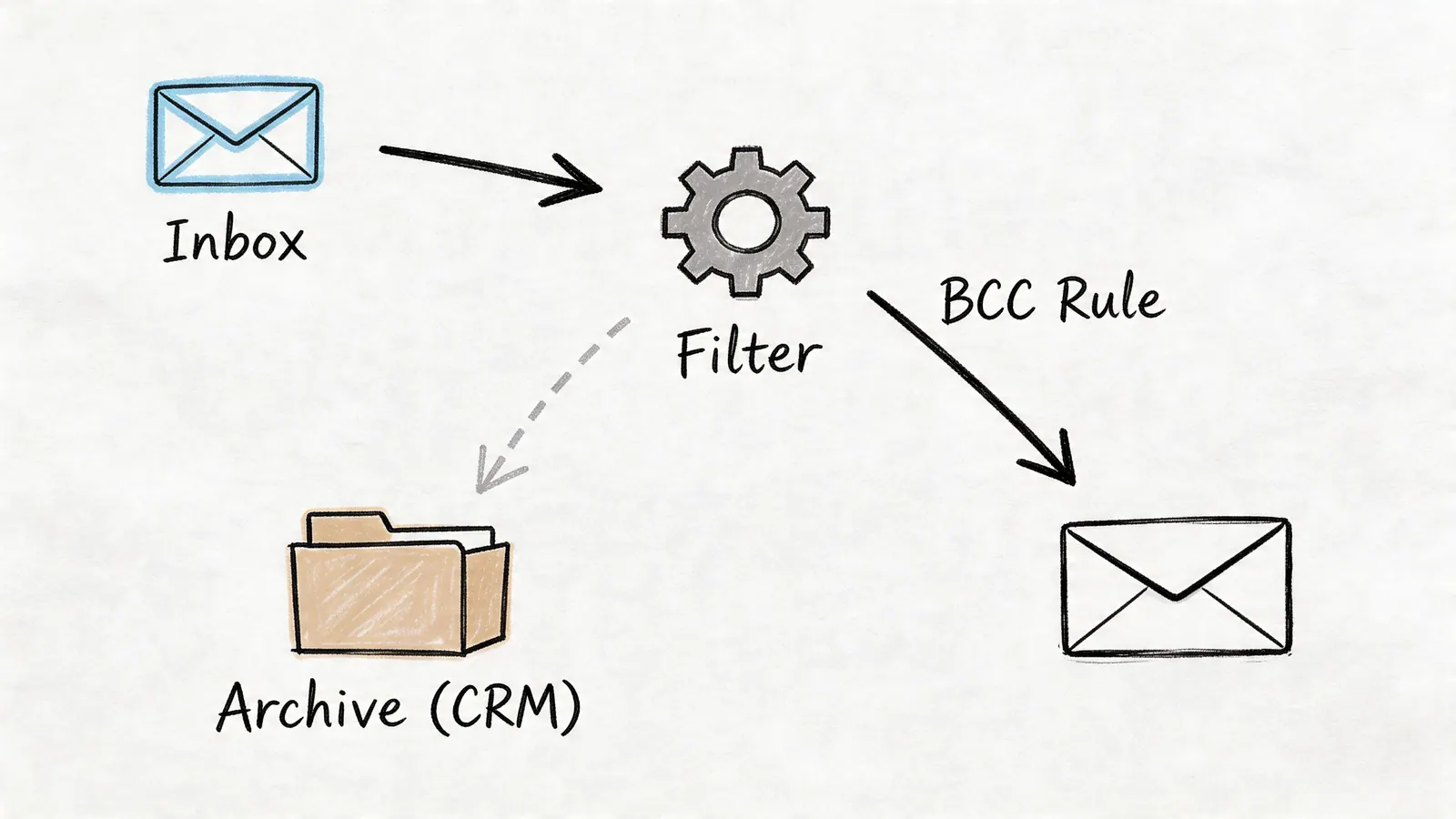
A useful pattern is auto-BCC for sent mail. An underserved but practical workflow is using Gmail filters with a rule like From: your-email [at] gmail.com, then combining that behavior with labels so outgoing messages are easier to track inside team processes, as described in this article on Gmail filters, BCC, and workflow automation.
What this looks like in practice
Instead of manually forwarding sent emails into a project system, a team can use a copy of outgoing messages to support inbox-based operations:
- Sales logging: A hidden copy lands in a CRM capture address.
- Project intake: A sent email copy becomes a task reference.
- Audit trail: Important outbound mail is easier to organize with labels and review later.
For teams sending repeated outreach or updates, this pairs naturally with smarter batching. Tooling Studio’s guide on batch email in Gmail is a useful complement when you need controlled volume as well as cleaner routing.
What works and what doesn’t
What works is simple automation tied to real operations. What doesn’t work is building a fragile maze of hidden recipients no one on the team understands.
If you use BCC for automation, document the rule. Make sure the destination inbox or system is expected, maintained, and part of the team process. The value comes from reducing manual handling, not from making email behavior mysterious.
Conclusion Master BCC for Smarter Communication
BCC looks small in Gmail, but it changes how communication behaves. Used well, it protects recipient privacy, reduces thread noise, and helps teams route email into cleaner workflows. Used poorly, it creates confusion and trust issues.
The strongest way to use bcc in gmail is simple. Keep public threads honest. Use BCC for privacy, logging, and controlled distribution. Then connect it to the way your team already works in Google Workspace so email supports the process instead of interrupting it.
If your team wants to turn Gmail into a more organized work hub, Tooling Studio builds lightweight Google Workspace tools that keep task tracking, inbox workflows, and team coordination inside the Google environment instead of pushing everyone into another app.
 Download our Plugin