
Master Batch Email Gmail in 2026
Master batch email gmail with our 2026 guide. Learn mail merge, BCC, and add-ons. Boost productivity while respecting Gmail's sending limits.

If you need to send the same email to a bunch of people, you've got two main routes in Gmail: the quick-and-dirty BCC and the much more powerful mail merge. For a fast update where you just need to protect everyone's privacy, BCC is fine. But when you want to send personalized messages at scale, mail merge is your best friend.
Before we get into the step-by-step, let's figure out which approach is right for you. This quick table breaks it down.
Choosing the Right Gmail Batching Method
| Method | Best For | Personalization Level | Required Skill |
|---|---|---|---|
| BCC | Quick, simple announcements; protecting recipient privacy. | None. Everyone gets the exact same email. | Beginner. Just add contacts to the BCC field. |
| Mail Merge | Personalized outreach; sending unique info to each contact. | High. Can customize names, details, links, etc. | Intermediate. Requires using Google Sheets. |
Think of this as your starting point. If you see yourself in the "Mail Merge" column, you're in the right place to learn a game-changing skill.
Why You Need a Batch Email Strategy in Gmail
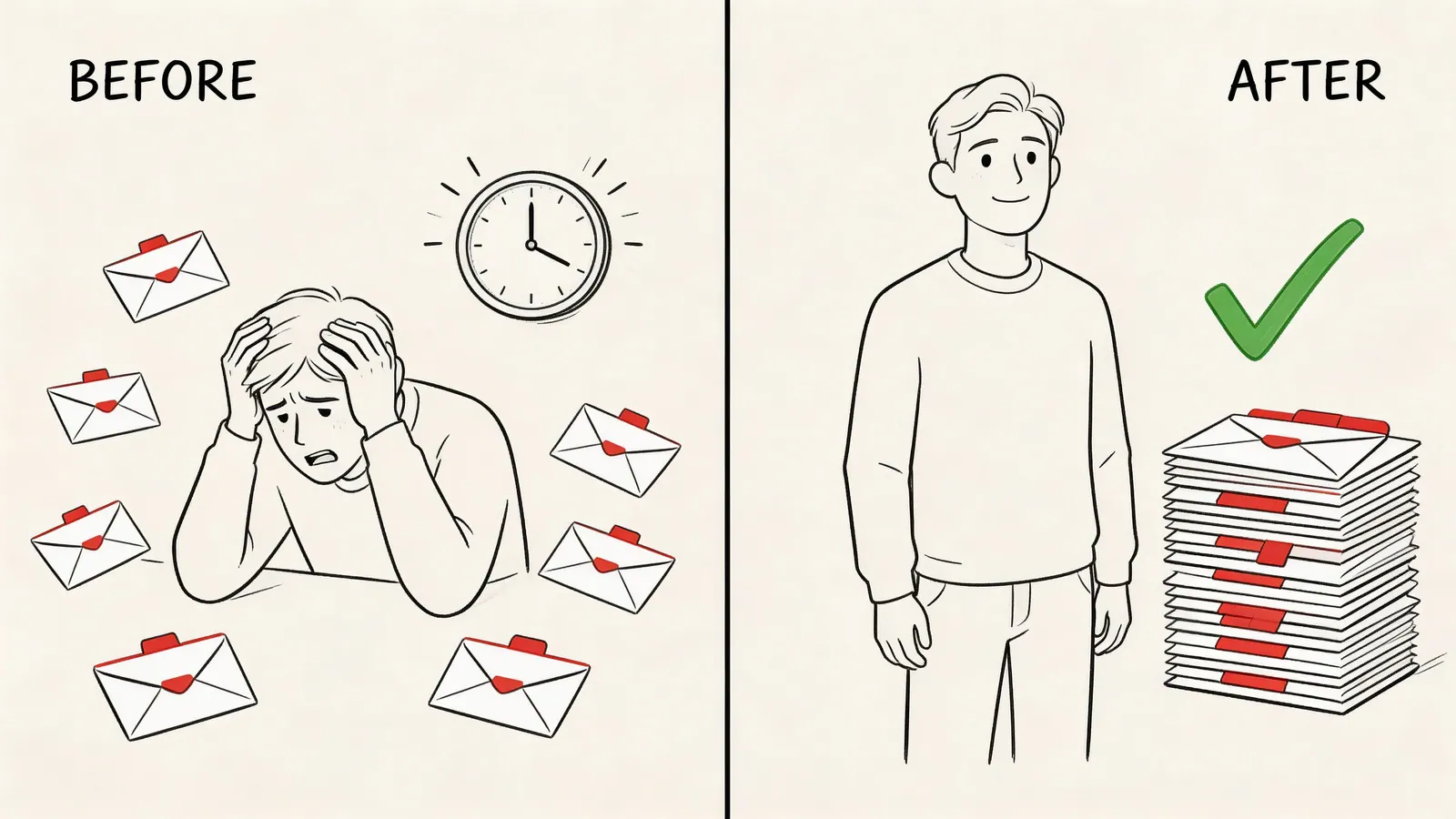
We’ve all been there. You spend an entire afternoon copying and pasting the same email over and over, changing just the name each time. It’s not just boring; it’s a colossal waste of time. A good batch email strategy isn't about spamming people—it's about getting your essential communications out efficiently so you can focus on work that actually matters.
The truth is, sending similar information to multiple people is a daily task for most of us. A project manager sending a weekly update to a dozen stakeholders. A small business owner confirming appointments with ten clients. In these moments, typing out each email by hand is slow, tedious, and a recipe for making mistakes.
When Individual Emails Just Don't Cut It
The real issue with sending emails one-by-one is that it simply doesn't scale. What’s manageable for five people becomes a nightmare for fifty. This manual process creates bottlenecks, delays important messages, and you always run the risk of forgetting someone or sending the wrong info.
Here are a few classic scenarios where batching is a lifesaver:
- Project Managers: You need to send a status report, but you want to tweak the intro for each department head. Doing that individually is a time-sink.
- Sales Teams: Following up with leads after a conference is crucial, but a generic email won't cut it. A batch system lets you personalize greetings and reference specific details without writing every single message from scratch.
- Event Organizers: Sending reminders, updates, and thank-you notes to hundreds of attendees is the perfect job for batch emailing. It guarantees everyone gets the right information, right on time.
The Gmail Productivity Gap
Gmail is the command center for so many businesses. With over 1.8 billion users around the world, it's an absolute giant. An estimated 90% of startups in the US rely on it! You can dig into more of these fascinating Gmail statistics on DragApp.com to see just how massive its user base is.
But for all its popularity, Gmail's built-in features for sending emails at scale are surprisingly limited. This gap pushes smart professionals to find better workflows.
The Core Insight: A batch email strategy isn't about sending more emails. It's about making your necessary communications more efficient. You’re moving from repetitive manual work to a smarter, automated process that frees you up for more important tasks.
This is exactly why learning to send a batch email in Gmail is such a valuable skill. It bridges the gap between what Gmail offers out of the box and what modern professionals actually need. Now, let’s get into the practical methods you can start using today.
When you need to fire off a quick message to a bunch of people without kicking off a chaotic “reply-all” storm, the Blind Carbon Copy (or BCC) field is your most direct route. Think of it as a digital one-way mirror. Everyone you add to the BCC line gets your email, but none of them can see who else is on the list.
This makes BCC a tempting, quick-and-dirty solution for mass communication. It's the simplest way to send a batch email in Gmail with zero setup. Need to send a last-minute meeting cancellation or a quick reminder to your internal team? BCC seems perfect. You just drop in the recipients, write your message, and hit send.
When BCC Is the Right Tool for the Job
The biggest draw of BCC is its simplicity, but it’s a tool that really only works in a few specific situations. Using it correctly means understanding when its limitations aren't a dealbreaker. It’s a solid choice for informal, internal blasts where a personal touch just isn't necessary.
Here are a few scenarios where reaching for BCC makes perfect sense:
- Internal Company Updates: Announcing office maintenance or sending out a company-wide holiday greeting.
- Small, Informal Group News: Letting a small project team know a deadline has been pushed back.
- Protecting Privacy for Unconnected Groups: Sending an update to a list of volunteers or community group members who don't know each other personally.
Key Takeaway: BCC shines when the message is identical for everyone, privacy is key, and you want to avoid a messy reply-all thread. Its main job is to respect privacy in simple broadcast situations.
But be warned: its simplicity comes with some serious trade-offs. Over-relying on BCC for anything beyond these simple use cases is a common mistake I see people make, and it can have some pretty ugly consequences.
The Hidden Dangers of Abusing BCC
While it feels convenient, sending a mass email using BCC can make you look like a spammer to email filters. Service providers like Gmail are constantly on the lookout for spam-like behavior, and a single email sent to dozens of hidden addresses is a massive red flag. This dramatically increases the chances your message will land in the spam folder, completely unseen.
Beyond the technical risks, there’s the human element. We've all received a generic email with no personal greeting—it feels impersonal and, frankly, unimportant. For any kind of client communication or sales outreach, this lack of personalization can come across as lazy and unprofessional, damaging the very relationship you're trying to build.
A BCC'd email screams, "You are just one person on a giant list." It's not a message you want to send to a potential customer or valued partner.
To help you decide on the fly, here’s a quick breakdown of when to use it and when to run in the other direction.
A Quick Decision-Making Guide for Using BCC
| Use BCC When... | Avoid BCC When... |
|---|---|
| Your message is purely informational. | You need to include personalized details. |
| Recipients' privacy is the top priority. | You are communicating with clients or leads. |
| The group is small and internal. | Your sender reputation is at stake. |
| No replies or interaction are needed. | The message requires a professional touch. |
Ultimately, BCC is a handy little feature for quick, private announcements. But for anything that requires personalization, professionalism, or reliable delivery to a larger audience, you need a more powerful tool. This is where Gmail's mail merge feature completely changes the game.
Sending Personalized Emails with Google Mail Merge
While BCC is fine for a quick, all-hands-on-deck announcement, it completely misses the mark when you need a personal touch. For any communication that really matters—like reaching out to clients, following up with event attendees, or sending project updates to stakeholders—personalization isn't just nice to have; it's essential. This is where you graduate from BCC and start using Gmail's built-in mail merge feature.
Think of mail merge as the tool that turns a generic batch email in Gmail into a series of unique, one-on-one messages. It works by linking your Gmail account to a Google Sheet. That sheet becomes your command center, holding all the specific details you want to inject into your emails—first names, company names, project deadlines, you name it.
When you hit send, Gmail grabs the data from each row in your sheet and populates a custom email for that person. The result? Instead of one email blasted to 50 people, you're actually sending 50 individual emails, each one tailored to the recipient. It’s far more professional and dramatically boosts engagement. After all, an email that starts with a person's name is always more likely to get opened.
Setting Up Your Google Sheet Database
The heart of any good mail merge is a clean, organized Google Sheet. Every row in this sheet represents a single recipient, and each column holds a piece of personalized information—what we call a "merge field."
Before you even think about writing your email, get this sheet set up.
- Start a New Sheet: Just head over to sheets.google.com and open a blank spreadsheet.
- Create Your Headers: This first row is everything. These are your merge tags. Use simple, clear headers like
EmailAddress,FirstName,ProjectName, orDueDate. Pro-tip: don't use spaces or special characters in the headers. It can cause errors down the line. - Add Your Contact Data: Fill in the rows with your contact info. Make sure every single row has a valid email address in the column you designated. It's worth a quick double-check for typos here—one wrong character and that email will bounce.
A common pitfall is leaving blank rows between contacts or having inconsistent formatting. Keep your data tidy. An empty row can sometimes stop the whole mail merge process in its tracks.
Composing Your Template in Gmail
Once your sheet is looking good, it's time to hop back over to Gmail and write your template. This is where you'll draft the body of your message and insert placeholders, or "merge tags," that match the column headers from your spreadsheet.
Just open a new compose window in Gmail. The real magic starts when you type the @ symbol. A menu will pop up, letting you pick from the merge tags you defined in your Google Sheet. For instance, if you have a FirstName column, you can start your email with Hi @FirstName,.
Pro Tip: Your merge tags must be an exact match for your Google Sheet column headers, capitalization and all. If your header is
FirstName, a tag like@firstnamewon't work. Precision here is the key to a flawless send.
Here’s what a simple draft might look like:
Subject: Update on the @ProjectName
Hi @FirstName,
Just wanted to give you a quick update. The next milestone for the @ProjectName is due on @DueDate. Please let me know if you have any questions.
Thanks, Alex
When the mail merge runs, Gmail automatically swaps @FirstName, @ProjectName, and @DueDate with the data from each row in your sheet. If you need to do something more complex, like attaching a unique PDF to each email, you'll want to explore more advanced methods. You can learn more in our guide on how to mail merge with PDF attachments.
Activating the Mail Merge Feature
With your Google Sheet populated and your Gmail draft loaded with merge tags, you’re ready to connect them. The best part is you don't need to install anything; this functionality is baked right into Gmail.
Look at the bottom of your compose window for the "Mail Merge" icon. Clicking it will toggle the feature on. Gmail will then ask you to select the Google Sheet with all your recipient data. Once you've linked the sheet, Gmail double-checks that your @ tags in the email actually match the column headers in your spreadsheet.
This graphic really drives home when to use BCC versus when it’s time for a more professional tool like mail merge.

As you can see, for anything requiring personalization or a professional tone, mail merge is the way to go. It protects your reputation as a sender and makes your outreach far more effective.
Before you send it out to the world, Gmail gives you the option to send a test email to yourself. I can't stress this enough: always send the test. It’s your last chance to make sure all your merge fields are pulling the right data and that everything looks perfect.
Navigating Gmail's Sending Limits and Best Practices
Sending a batch email in Gmail can feel like a superpower, but it’s crucial to understand that Gmail isn't a bulk email service like Mailchimp. Its main purpose is one-on-one communication, and its rules are built to shield users from spam. If you ignore these rules, you're looking at a fast track to a temporarily suspended account and a damaged sender reputation.
On the surface, the numbers look straightforward. A standard, free Gmail account lets you send up to 500 emails a day. If you're on a paid Google Workspace plan, that number jumps to a more generous 2,000 emails per day. The devil, as they say, is in the details, and this is where most people get tripped up.
Understanding Gmail's Rolling Quotas
That daily sending limit isn't a simple counter that resets at midnight. Gmail uses a rolling 24-hour period. What does that mean? If you send out 500 emails at 3 PM on a Monday, you're locked out from sending more until after 3 PM on Tuesday. It’s a continuous window, not a fresh start each day.
Here's another critical point: the quota counts recipients, not emails. An email sent to ten people in the To, CC, or BCC field counts as 10 sends against your daily limit. This is especially true for newer accounts, which start with much tougher caps that only loosen up as you build a track record of good sending habits.
This entire system is designed to stop spammers cold, but it often catches well-intentioned users by surprise. Firing off a huge batch email from a brand-new account is almost a surefire way to get a temporary block.
Protecting Your Sender Reputation
Your sender reputation is like a credit score for your email address. It’s an invisible rating that email providers like Gmail use to decide where your messages go. A good score gets you into the inbox. A bad one sends you straight to the spam folder.
Several things feed into this score:
- Bounce Rate: This is the percentage of your emails that don't get delivered because the address is wrong. A high bounce rate tells Gmail you’re using a stale or poor-quality list.
- Complaint Rate: This tracks how often people mark your email as spam. It’s the single most damaging factor. Just a handful of complaints can wreck your deliverability.
- Engagement: Positive signals matter, too. When recipients open, click, and reply to your emails, Gmail takes it as a sign that your content is welcome.
Keeping a healthy domain reputation email deliverability is non-negotiable if you want your emails to actually be seen.
The most important thing to remember is this: Gmail prioritizes user experience above everything else. If your emails bother people, Gmail's algorithms will notice and penalize you. Your number one goal should always be to send useful content that people actually want.
A smart move is to "warm up" a new account. Don't just jump in and send 500 emails on day one. Start small, maybe with 50 sends a day, and slowly increase the volume over a few weeks. This shows Gmail you're a legitimate user, not a spammer trying to game the system. For some related strategies, you might also want to look at our guide on how to send group email in Gmail.
Best Practices for Safe Batch Emailing
Staying in Gmail's good graces is really just about following a few common-sense rules. Think of it like being a good guest in someone's home.
Key Best Practices:
- Space Out Your Sends: Don't blast out all 500 emails at once. Use a mail merge add-on or a script that can add a small delay—even just a few seconds—between each email. This looks more like human behavior and is less likely to set off automated spam filters.
- Clean Your Email List: Before any big send, run your list through a cleaning service. These tools will find and remove old or invalid email addresses, which will drastically cut your bounce rate and protect your reputation.
- Make Unsubscribing Easy: Always, always include an unsubscribe link that’s easy to find. Hiding it just makes frustrated people hit the "Mark as Spam" button, which is far more damaging for your sender score.
- Prioritize Personalization: Use your mail merge tool to add personal touches, like the recipient's first name. Personalized emails feel less like spam, get much better engagement, and are treated more favorably by filters.
By respecting these limits and focusing on sending high-quality, relevant content, you can use the batch email gmail feature effectively without putting your account at risk. It’s all about sending smarter, not just sending more.
Supercharging Your Outreach with Gmail Add-Ons
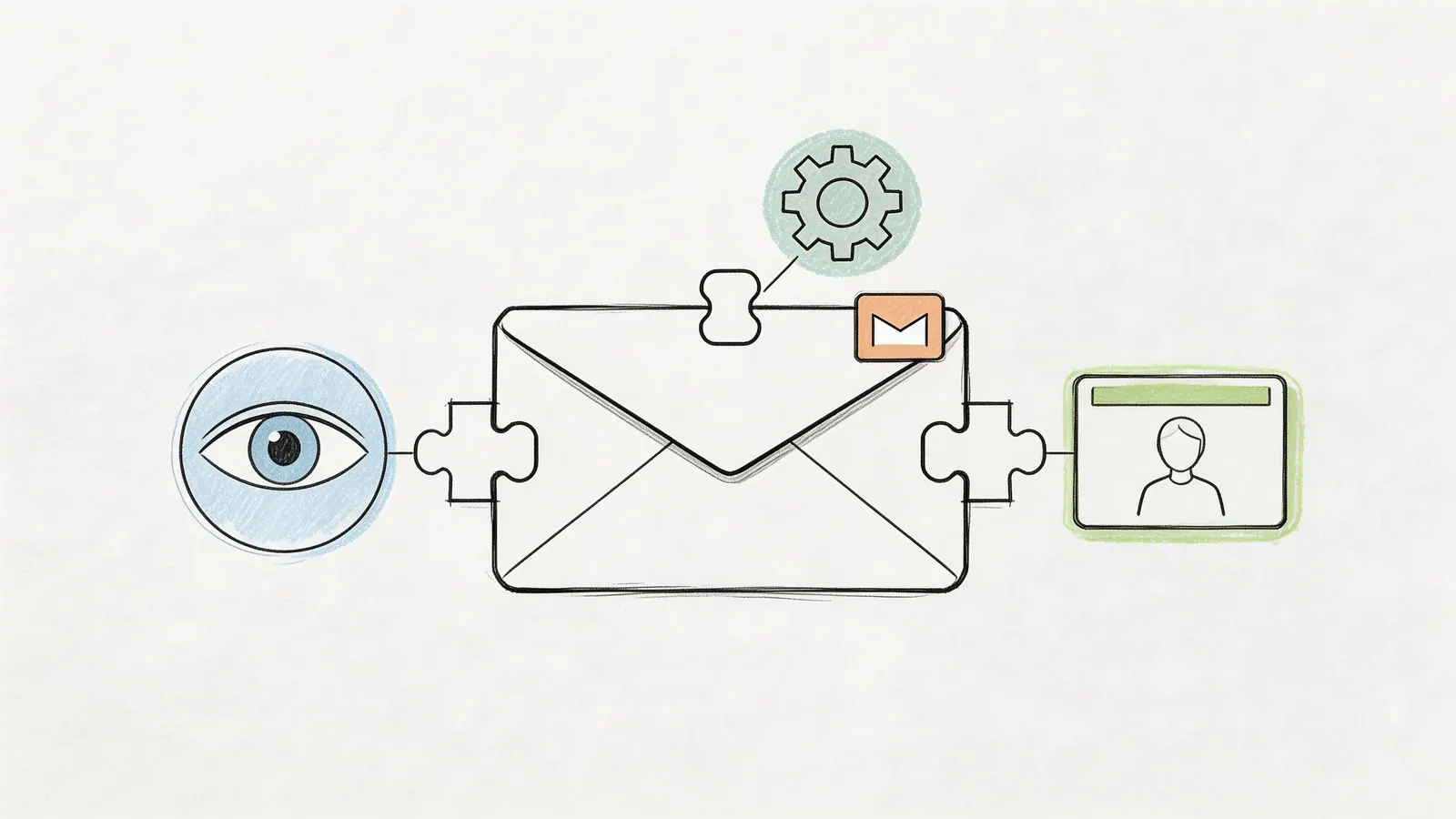
While Gmail’s built-in mail merge is a great way to get your feet wet, you’ll quickly run into its limits. You can’t see who opened your email, you can't automate follow-ups, and there’s no easy way to sync your outreach with a CRM. When you start feeling those growing pains, it’s time to look at third-party Gmail add-ons. These are tools that live right inside your inbox and give your batch email Gmail workflow some serious horsepower.
Think of these extensions as power-ups for your Gmail account. They're built to fill the exact gaps in Gmail's native features, offering tools designed for sales, marketing, and project management. Instead of constantly jumping between your inbox and other apps, you can run your entire outreach process from a single screen. That integration is what keeps you efficient and in the zone.
Imagine sending a batch email and knowing, in real-time, who opened it, who clicked your link, and when. That's one of the first and most powerful benefits you get with a dedicated add-on.
What Advanced Features Do Add-Ons Provide?
The right add-on can completely transform how you see email outreach. You stop sending messages into the void and start using a suite of tools that gives you genuine control and insight. It’s all about working smarter, not just sending more volume.
Here are some of the game-changing features you can unlock:
- Advanced Email Tracking: This is non-negotiable. Get live notifications for email opens and link clicks. This data tells you which leads are engaged and exactly when to follow up for the biggest impact.
- Automated Follow-Up Sequences: This feature alone is a lifesaver. You can build a series of emails that automatically go out to anyone who hasn't replied, saving you countless hours of mind-numbing manual work.
- Seamless CRM Integration: Many add-ons plug directly into popular CRMs. Your emails get logged and your contact data stays in sync automatically. It keeps your records clean without any extra effort on your part.
- Enhanced Templating: Move past basic merge tags. Advanced templates can use conditional logic (e.g., "if this contact is in X industry, show this paragraph"), rich media, and even trackable attachments.
These tools turn Gmail from a simple email client into a legitimate outreach platform. For anyone needing features that go far beyond standard Gmail, platforms like Lemlist for enhanced email campaigns provide really comprehensive solutions for outreach, personalization, and automation.
How to Choose the Right Gmail Add-On
The Google Workspace Marketplace is packed with options, and picking the right one can feel a bit overwhelming. A long list of flashy features isn't everything. You need a tool that’s secure, dependable, and doesn’t disrupt your workflow. When you're looking, focus on three main things to make a solid choice.
Security comes first, period. Any add-on you install will need permission to access your Gmail data. It is absolutely essential to pick tools from well-known developers with clear, transparent privacy policies. Always read the user reviews in the marketplace, and pay close attention to any comments about data security or bugs.
Crucial Insight: A great add-on should feel like it's a native part of Gmail, not some clunky piece of software bolted on. It needs an intuitive interface that doesn't require a week of training, allowing you and your team to get up and running fast.
Finally, think about how deeply it integrates. The best add-ons don't just work in Gmail; they work with Google Workspace. Look for tools that sync with your Google Contacts, Calendar, and Drive. That level of connection creates a truly seamless experience across the entire Google ecosystem. You can check out some of our top picks in our guide to the best Gmail add-ons. By zeroing in on security, usability, and deep integration, you’ll find a tool that genuinely boosts your outreach.
Sticking Points and Quick Fixes for Batch Emailing in Gmail
Once you start sending batch emails from Gmail, a few questions pop up almost every time. It's just part of the process. You'll wonder about tracking, get confused by the different types of tools, and almost certainly have a moment of panic when your emails land in spam.
Getting these details right is what separates a frustrating experience from a smooth, effective workflow. Let's tackle the most common hurdles I see people face, so you can troubleshoot with confidence.
Can I Track Opens and Clicks on My Gmail Batch Emails?
This is easily the number one question, and the answer is simple: not with Gmail's built-in mail merge. When you send a merge directly through Google Sheets, you get the personalization, but you don't get any data back. The emails go out, and you're left guessing who opened them or clicked your links.
This is precisely why third-party Gmail add-ons are so popular. They solve the tracking problem by embedding a tiny, invisible tracking pixel into your email. When your recipient opens the message, their email client loads that pixel, and the tool logs it as an "open." For clicks, the add-on rewrites your links, sending them through a tracking domain first before redirecting to the final URL.
If you're considering a tool for this, scrutinize its privacy policy. You're giving it access to your email data, so stick with reputable developers. For any business, this data is gold—it tells you who's engaged, helps you spot warm leads, and shows you exactly how to focus your follow-up efforts.
What Is the Difference Between a Chrome Extension and a Google Workspace Add-On?
This distinction trips a lot of people up, but it's crucial, especially if you work on a team. At a glance, they seem to do the same thing by adding features to your inbox, but where they "live" is completely different.
A Chrome Extension is a piece of software you install on your Chrome browser. It can change how websites look and act, including Gmail. The catch? It only works on the specific computer and browser where you installed it. Hop on another laptop or open the Gmail app on your phone, and your extension is gone.
A Google Workspace Add-on, however, installs directly into your Google account through the official marketplace. This is the key difference. Because it's tied to your account, it's available everywhere you are.
The Bottom Line: A Google Workspace Add-on works on the web and, in most cases, on the Gmail mobile apps for iOS and Android. This makes it a much more stable and consistent solution, especially for teams who need everyone to have the same toolset, no matter which device they're using.
For team-wide consistency and a truly integrated feel, you should almost always prioritize Google Workspace Add-ons.
My Batch Emails Are Going to Spam. What Am I Doing Wrong?
There's nothing more defeating than a carefully crafted campaign landing in the spam folder. This is rarely a single-issue problem; it's usually a mix of signals that make email filters wary of your message. If your batches are consistently missing the inbox, it's time for a diagnostic.
Run through this checklist—one of these is likely the culprit.
- Review Your Content: Are you using spammy trigger words? Phrases like "act now," "free money," or "limited time offer," especially with a lot of caps and exclamation points, are huge red flags.
- Check Your Sender Reputation: If your email address is new or hasn't sent much volume, it has no history, making it look suspicious. You have to "warm it up" by sending smaller batches and encouraging replies over time.
- Analyze Your Sending Cadence: Blasting out hundreds of emails in a few minutes screams "automation" to spam filters. Spacing your sends out, even by a few seconds per email, looks much more natural.
- Evaluate Your Personalization: Generic, impersonal emails are far more likely to get flagged. Using merge tags like
@FirstNamesignals to filters that you're sending a more personal message, not a mass broadcast.
Ultimately, the best defense is earning positive engagement. If you can, ask recipients to mark your messages as "Not Spam" or add you to their contacts. This feedback is the most powerful signal you can send to Gmail's algorithms that your content is valuable and wanted.
Ready to manage your projects and sales pipelines without ever leaving your inbox? Tooling Studio offers lightweight, powerful extensions that integrate directly into your Google Workspace, eliminating app-switching and centralizing your workflow. Check out our tools and see how a truly unified workspace can boost your team's productivity.
 Download our Plugin