
Master Automated Email Responses in Google Workspace
Master automated email responses in Google Workspace. Discover best practices, risks, & implementation for Gmail filters & integrated apps.
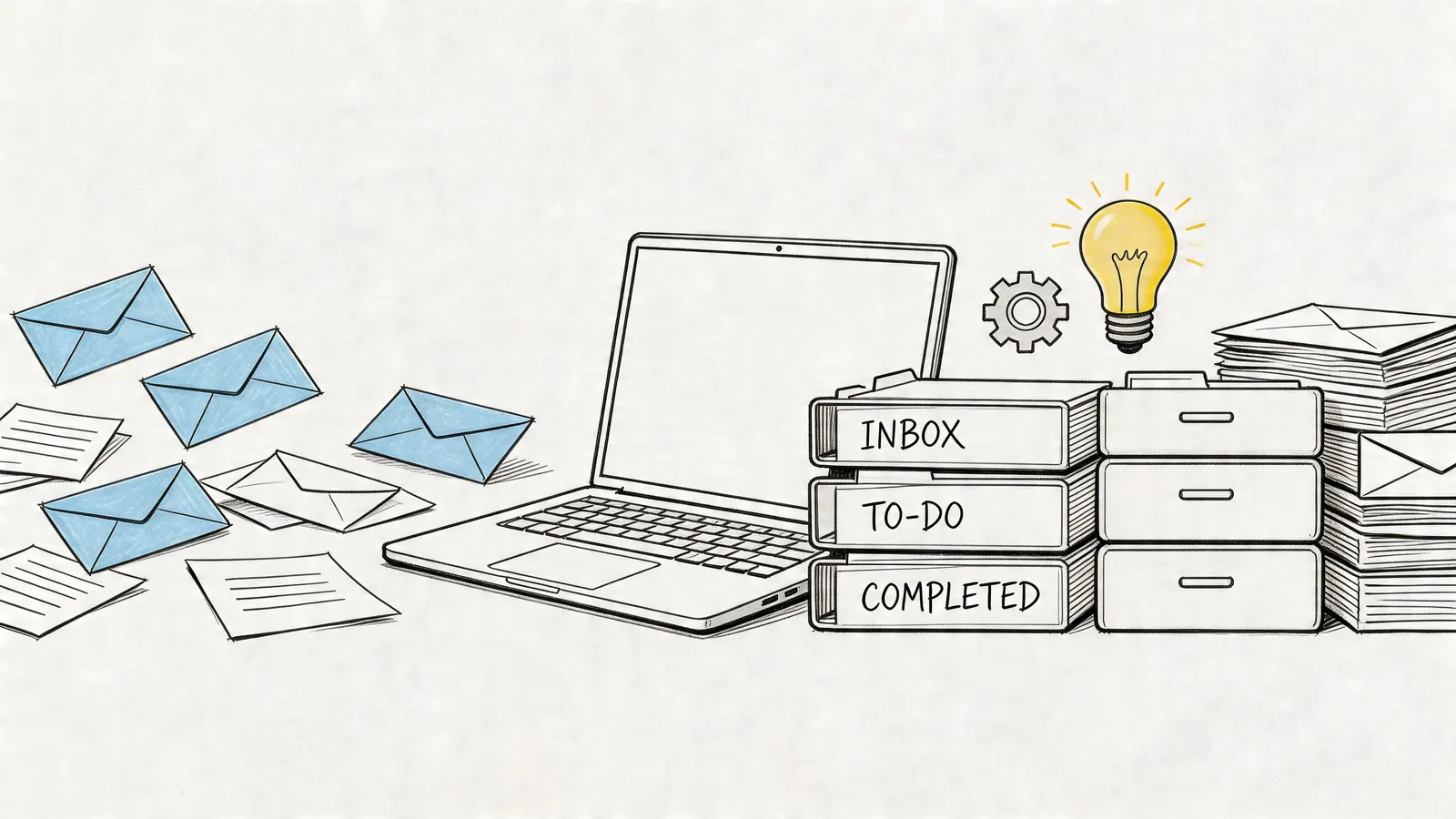
Your inbox probably has a pattern you already recognize. The same meeting request gets the same answer. New leads ask the same first question. Internal requests arrive with too little context, and someone still has to acknowledge them, route them, and remember the follow-up.
That’s where automated email responses help, especially if most of your work already happens in Gmail. You don’t need a heavyweight support platform or a complicated sales automation stack to get useful results. In many cases, you need a cleaner system for deciding what should happen when a certain kind of email arrives, then using Google Workspace and a few lightweight tools to make that happen reliably.
What Are Automated Email Responses
The term automated email responses often brings to mind a vacation responder. That’s the simplest version, but it’s not the full picture.
A better way to think about it is this. An automated response is a trigger plus an action. An email arrives, matches a condition, and Gmail or a connected tool does something next. That action might be sending a reply, applying a label, creating a task, assigning ownership, or starting a follow-up sequence.
If you want a broad primer on the concept, What Is Email Automation And How It Works gives a useful overview. Inside Google Workspace, the practical version is less abstract. You’re building a small decision system around your inbox.
The simple mental model
Think of automation as a quiet assistant working one layer behind Gmail.
It doesn’t replace judgment. It handles the predictable parts. If a customer fills out a form, they get a confirmation. If a teammate sends a request with a specific subject tag, it gets routed to the right place. If a sales inquiry lands in a shared inbox, the sender gets an immediate acknowledgment while the team decides who should own it.
That’s the core difference between basic autoresponders and more useful automation. One is static. The other reacts to context.
Practical rule: If you can describe the pattern in one sentence, you can probably automate part of it.
Three common types
Basic acknowledgments are the easiest place to start. These are short replies that confirm receipt and set expectations. They work well for contact forms, support inboxes, shared team aliases, and intake requests.
Rule-based replies sit one level higher. Gmail filters can detect keywords, senders, labels, or recipient addresses, then trigger a template or route the message into a workflow. This is useful when different emails need different handling.
Triggered sequences are the most structured. These are common in sales and onboarding. A lead responds to an offer, gets a first reply, then receives the next message only if a certain condition is met. In practice, this often depends on CRM data or custom logic rather than Gmail alone.
What automation is not
It isn’t a license to answer every email with a robot.
Good automation removes repeat work while keeping the human parts visible. The best setups handle acknowledgment, triage, and routine follow-up, then hand off the message when context, nuance, or relationship matters. In Gmail, that usually means combining native features with light workflow rules instead of trying to force every conversation into a fully automated system.
Why Automation Matters for Your Business
The business case is straightforward. Email remains one of the few channels that touches support, sales, operations, and internal coordination at the same time. If those messages sit unanswered or get handled inconsistently, the cost shows up everywhere.
Automation fixes the first layer of that problem. It gives senders a prompt response, gives teams a predictable intake process, and reduces the amount of repetitive work that clogs the day.
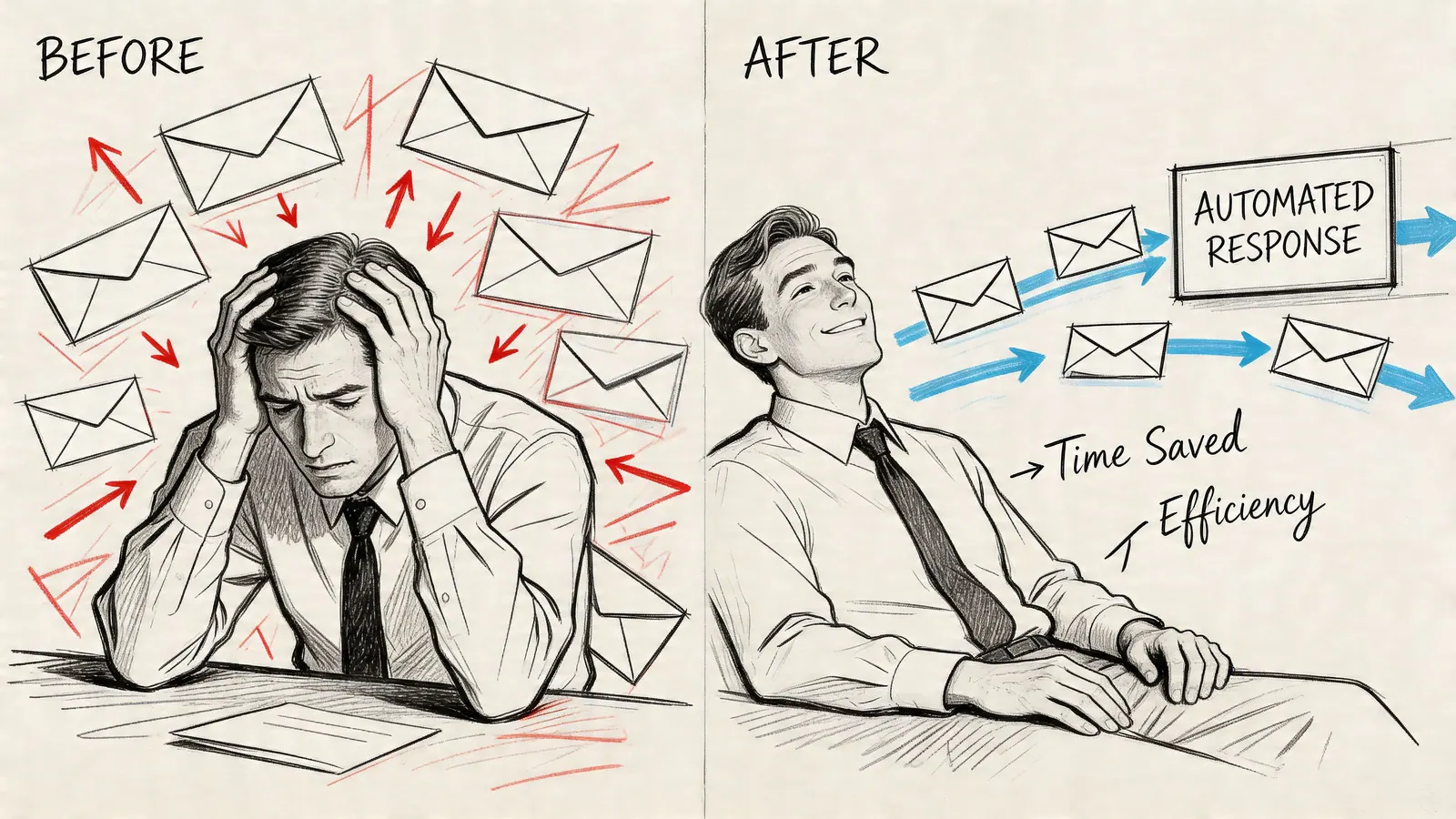
One number matters more than most here. 31% of all email orders stem from automated emails, even though automated emails make up under 2% of total sends, and they deliver 84% higher open rates, 341% higher click rates, and 2,270% higher conversion rates according to these marketing automation benchmarks from Exploding Topics. That gap explains why automation isn’t just administrative convenience. It changes outcomes.
Where the gains show up first
In customer support, the first win is immediate acknowledgment. People don’t like silence. Even a short reply that confirms receipt and explains what happens next reduces uncertainty. It also gives your team time to sort, assign, and prioritize without making the sender feel ignored.
In sales, consistency matters as much as speed. Leads often arrive outside working hours or during busy periods. Automated first responses make sure no inquiry waits in a personal inbox until someone remembers to reply. That alone improves coverage.
For internal operations, automation is often less visible but just as useful. Shared inboxes for finance, hiring, procurement, or project requests work better when incoming emails trigger labels, tasks, or standard replies. Gmail becomes less of a pile and more of a queue.
Why Gmail users feel the difference quickly
Google Workspace teams usually don’t have a process problem in theory. They have an execution problem in the inbox.
A request arrives. Someone means to answer. Another person thinks they already did. The message gets starred, snoozed, or mentally parked. Then it disappears behind new mail. Automation closes those small gaps.
A lightweight workflow can do things like:
- Acknowledge inbound requests so the sender knows the message landed
- Label by intent so support, sales, and internal work don’t mix
- Create follow-up structure so nothing depends on memory alone
- Reduce manual sorting for high-volume but predictable messages
If your team is trying to reduce that kind of friction, Tooling Studio’s guide to workflow automation benefits in day-to-day operations is a useful companion read.
Fast, predictable handling is often more valuable than a clever response.
The practical takeaway is simple. If your business runs through Gmail, email automation is part of your operating system. It affects service quality, team responsiveness, and revenue capture long before you ever think of it as “marketing automation.”
Common Risks of Email Automation and How to Avoid Them
Automation works well right up until it feels careless.
That’s why small teams often hesitate. They know the upside, but they’ve also seen the downside: robotic acknowledgments, wrong replies sent at the wrong time, and generic messages that make customers feel brushed off.
The risk is real. Over-automation can lead to 25-40% customer backlash from generic replies, and starting with acknowledge-and-draft modes can reduce errors by 60%, as noted in Robylon’s review of AI auto-response setup risks.
The most common failure points
Generic language is the first problem. If every sender gets the same flat message, people notice. This is especially damaging when the original email is detailed or urgent and the reply ignores that completely.
Wrong trigger logic is next. Filters that are too broad can fire on edge cases you didn’t intend. A keyword match might catch an internal message, a reply thread, or a forwarded email that shouldn’t receive the same response.
No handoff path causes the most frustration. An automated response should clarify what happens next. If it doesn’t, the sender is left with a receipt but no progress.
What works better in practice
The safest starting point is not full automation. It’s limited automation with review built in.
For many Gmail-based teams, that means using automation to acknowledge, label, and draft rather than trying to complete the whole exchange automatically. The system handles the repetitive opening move. A person handles nuance.
A practical setup often looks like this:
- Start with low-risk scenarios. Use automation first for contact confirmations, internal request intake, and FAQ-style first responses.
- Use narrow triggers. Match on recipient address, label, or a clear form source before you rely on keyword guessing.
- Write for exceptions. Include a line that gives the sender a next step if their case is unusual or urgent.
- Review edge cases weekly. If a rule keeps catching the wrong emails, tighten it fast.
A bad automated reply is usually a rules problem, not a writing problem.
Keep internal automation human too
Internal team workflows can break down in a quieter way. People stop trusting automated messages if they sound detached or arrive without enough context.
That matters in Google Workspace because a lot of internal coordination happens by email even when teams also use chat and meetings. If a task reminder or status notification sounds robotic, people skim it, ignore it, or reply with questions the system should have answered.
The fix is simple. Include the relevant action, the owner, and the next decision in plain language. Don’t make the recipient decode what the automation meant.
When teams treat automated email responses as a routing layer rather than a substitute for communication, the system stays useful. When they try to automate tone, judgment, and ambiguity all at once, it usually starts to drift.
How to Implement Automated Responses in Google Workspace
The best setup depends on how much logic you need. Some teams only need a clean out-of-office reply. Others need intake routing, task creation, and dynamic templates. Google Workspace can cover a surprising amount of this before you add any larger system.

There’s a strong commercial reason to get this right. Automated email sequences generate 320% more revenue than non-automated emails, with 52% higher open rates and 332% higher click rates, according to Landbase’s email sequence statistics roundup. But not every team needs the same implementation path.
Method one with Gmail Vacation Responder
Gmail’s built-in Vacation responder is the simplest option. It’s designed for out-of-office use, but it’s still useful when you need a time-bound auto-reply with minimal setup.
Use it when:
- You’re unavailable and need a standard response
- A solo operator wants basic coverage during leave
- A shared mailbox needs a short temporary notice
Limitations matter here. It isn’t built for conditional logic, workflow routing, or nuanced intake handling. You can’t easily vary the message by sender intent. It’s static, which is both its strength and its weakness.
Method two with Gmail filters and templates
Gmail becomes much more practical when you combine filters, labels, and templates to create rule-based responses for recurring scenarios.
Common uses include:
- Form-driven inquiries sent to a dedicated address
- Internal requests with a subject prefix like invoice, hiring, or access
- Sales intake where a first acknowledgment needs to go out quickly
This setup takes more manual thinking upfront. You need to define the conditions clearly, then write templates that fit those conditions. But for many small teams, this is the best balance between simplicity and usefulness.
A good decision rule is this. If you can identify the message reliably without reading it in full, Gmail filters are often enough.
For teams building broader process structure around Gmail, Tooling Studio’s article on how to automate workflows without adding heavy software is worth keeping nearby.
Method three with Google Apps Script
When native Gmail rules stop short, Google Apps Script is the next step.
Apps Script gives you custom logic. You can inspect messages, look up spreadsheet data, trigger actions based on labels, generate dynamic text, and connect Gmail with other Google Workspace tools. That makes it useful for advanced intake, routing, and status-based replies.
Use it when:
- Rules depend on multiple conditions
- Reply content needs dynamic fields
- An email should also update another Workspace asset, such as a sheet, tracker, or internal process record
The trade-off is obvious. Apps Script is more powerful, but it also needs testing, maintenance, and someone who’s comfortable owning the logic.
This walkthrough shows the concept in action:
Method four with lightweight Gmail extensions
There’s a middle ground between native features and custom code. Lightweight Chrome extensions and Gmail add-ons can fill the gaps without turning Gmail into a separate platform.
This approach is useful when you want:
- Task creation from email
- Shared visibility across a team
- Simple CRM-style tracking inside Gmail
- Less app-switching for routine work
The key is restraint. Add extensions that solve a specific workflow problem inside Gmail, not tools that recreate an entire external workspace in a sidebar.
Google Workspace Automation Methods Compared
| Method | Ease of Use | Flexibility | Best For |
|---|---|---|---|
| Gmail Vacation Responder | Very easy | Low | Out-of-office coverage and temporary notices |
| Gmail Filters with Templates | Moderate | Medium | Rule-based acknowledgments and inbox triage |
| Google Apps Script | Lower | High | Custom logic, dynamic responses, and Workspace integrations |
| Lightweight Gmail Extensions | Moderate | Medium to high | Teams that need tasks, shared visibility, or CRM steps inside Gmail |
Choose the lightest method that reliably handles the job. Complexity has a maintenance cost.
For most readers, the right sequence is simple. Start with native Gmail. Add filters and templates next. Move to Apps Script only when your rules are stable and worth the extra upkeep. Use extensions when the primary problem isn’t email reply text, but what needs to happen after the reply is sent.
Best Practices for Writing Effective Automated Emails
The technical setup matters less than the message the sender receives.
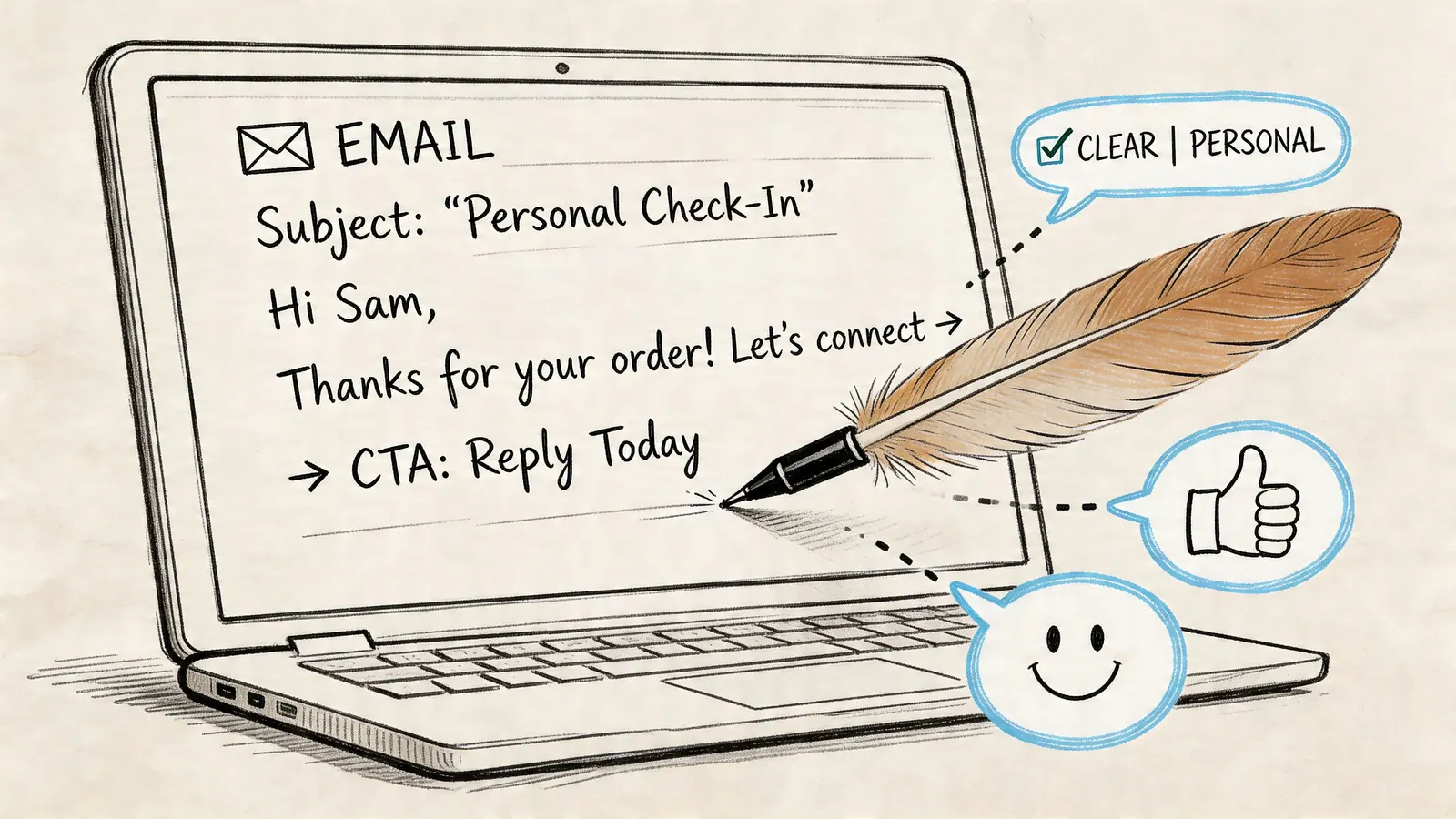
An automated response should feel clear, calm, and useful. If it sounds like a system artifact, people stop trusting it. That problem shows up inside teams too. 52% of teams report collaboration friction from impersonal auto-replies, and AI personality learning can boost relevance by 40%, though it needs an initial human-curated dataset, according to AISDR’s review of AI email responder patterns.
Write for clarity first
The strongest automated emails do three things quickly.
- Confirm receipt so the sender knows the message arrived
- Set expectations about timing or next steps
- Provide one useful action if the sender needs help sooner
That’s enough for most first-touch automations. You don’t need a long explanation. You need orientation.
Keep the tone human
A simple way to avoid robotic phrasing is to write the message as if a capable colleague had sent it manually in a hurry.
Avoid bloated lines such as “Your inquiry has been received and will be processed accordingly.” Use plain language instead. “Thanks for your email. We’ve received it and a team member will review it shortly.”
That change sounds small, but it changes how the message lands.
If the reply would sound awkward read out loud, rewrite it before you automate it.
Use templates that leave room for context
Here are a few formats that work well.
Support acknowledgment
Thanks for your message. This is an automated reply to confirm we’ve received it. If you included screenshots or account details, they came through. A team member will review your request and follow up.
Sales inquiry confirmation
Thanks for reaching out. We’ve received your inquiry and will review the details. If you’ve shared timing, scope, or budget in your message, that helps us route it to the right person faster.
Internal task intake
Your request has been received and added for review. If this is blocked or urgent, reply to this email with the word urgent in the first line so the team can prioritize it.
These work because they don’t pretend to be personal when they aren’t. They’re honest, specific, and useful.
If your inbox is messy before automation even starts, Tooling Studio’s guide to email management habits that reduce clutter in Gmail pairs well with this step.
Know when not to automate
Don’t automate emotionally sensitive issues, conflict-heavy threads, or anything where the sender expects a judgment call. Automation is best at acknowledgment and routing. It’s weak at nuance unless you’ve invested real effort in the rules and message design.
That boundary matters. Good automated email responses create confidence because they know where to stop.
Unify Workflows with Tooling Studio Automation
Most Gmail automation breaks down at the same point. The reply gets sent, but the work behind the email still lives somewhere else.
A request comes in. Gmail acknowledges it. Then someone still has to create a task, update a board, assign an owner, or move a lead to the next stage. Native Workspace tools can cover part of that chain, but not all of it cleanly.
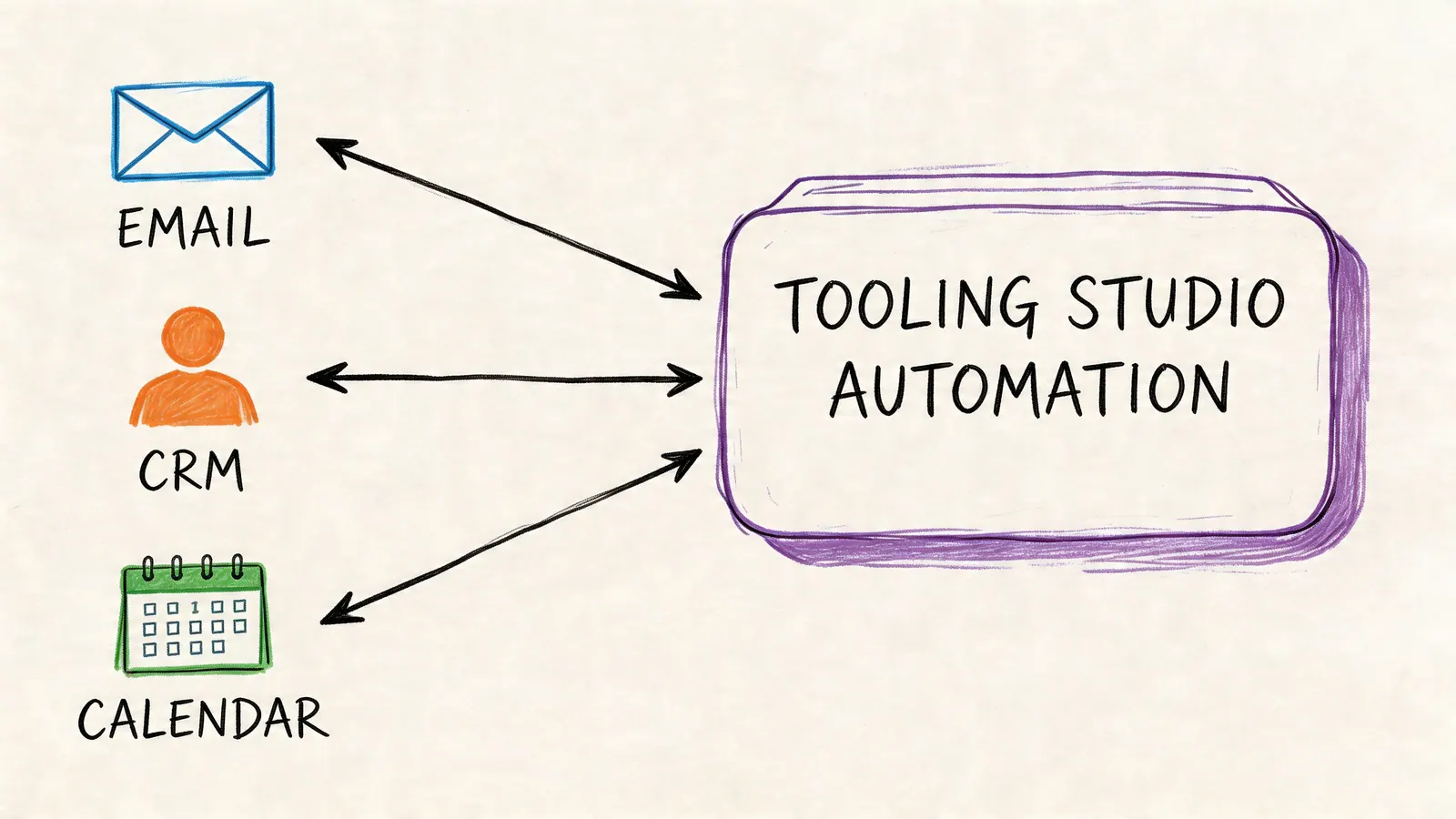
That’s where lightweight Gmail-native tooling makes more sense than another separate platform. The value isn’t just the auto-reply. It’s connecting communication to action without asking the team to leave the environment where the message arrived.
What a unified Gmail workflow looks like
In practice, a stronger setup inside Google Workspace often looks like this:
- An incoming email is acknowledged immediately
- The message becomes a task or deal item
- Ownership is visible to the team
- The next step lives alongside the original thread
That closes the loop. Instead of using Gmail as an entry point and a separate tool as the primary system of record, the workflow stays close to the inbox.
Why this matters for small teams
Small teams usually don’t lose time because they lack software. They lose time because work gets split across too many places.
A Gmail-based CRM workflow illustrates the point well. Automated email response workflows in Gmail-based CRMs use mail merge variables and triggers to achieve open rates of 40-60%, and response times under 5 minutes boost CSAT by 20-35%, while only 40% of inquiries need escalation to humans, based on Streak’s overview of automated response workflows in Gmail. The operational lesson is clear even beyond CRM. Speed and routing matter.
The useful unit of automation isn’t the email. It’s the next action attached to that email.
For project managers, that might mean turning requests into visible work on a board. For sales teams, it means keeping lead status near the conversation. For Workspace admins, it means adopting tooling that fits Gmail instead of dragging users into another system they won’t keep updated.
A good Gmail automation stack stays lightweight. It handles acknowledgment, triage, assignment, and follow-up without turning every email into a process burden. That’s a distinct advantage of keeping the workflow inside Google Workspace. Less friction. Fewer handoffs. Better visibility.
If your team works from Gmail and wants tasks, pipeline updates, and email-driven workflows in one place, Tooling Studio is built for that style of work. Its lightweight Google Workspace extensions help you connect incoming email to action without adding another heavyweight system to manage.
 Download our Plugin