
How to Share Google Calendar on iPhone: A 2026 Guide
Learn how to share Google Calendar on iPhone. Our step-by-step guide covers sharing, permissions, and syncing to the iOS Calendar app. Fix common issues fast.
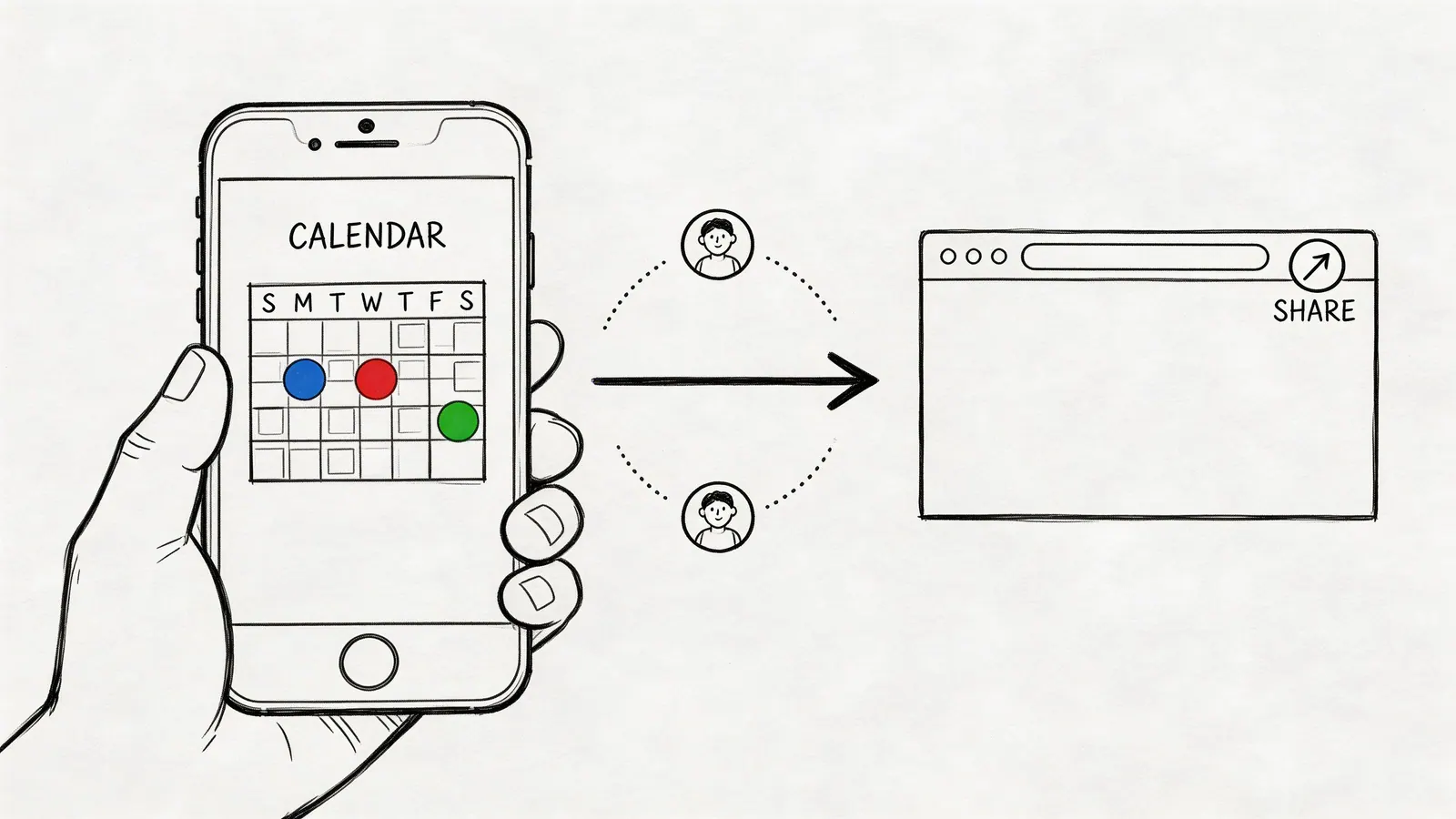
You’re probably here because one of two things just happened.
Someone on your team said, “I shared the calendar,” but nothing showed up on the iPhone. Or you only wanted to let someone see your availability, and now you’re staring at permission options wondering whether you’re about to give away too much access.
A significant challenge in learning how to share google calendar on iphone is selecting the correct sharing method. The button clicks are easy. The hard part is choosing the right sharing method, understanding what the other person will see, and fixing the sync gap between Google Calendar and the native Apple Calendar app when it doesn’t behave.
Many teams hit the same friction points. A manager shares a project calendar from desktop, but a team member expects it to appear instantly in Apple Calendar. A freelancer invites a client to one event when they really needed a shared calendar for ongoing milestones. An assistant needs edit rights, but the calendar owner tries to do everything from the iPhone app and gets stuck with view-only options.
The good news is that this is fixable once you separate the job into the right pieces. Share the right thing. Assign the right permission. Then make sure the iPhone is set up to display it.
The End of Scheduling Chaos
At 8:57 a.m., one person is checking Google Calendar in a browser, another is relying on the iPhone Calendar app, and a third assumes "shared" means they can edit. By 9:05, someone has missed the meeting, and the underlying problem is clear. The calendar was never configured around how each person works.
In client setups for small businesses and project teams, the breakdown usually starts in one of three places. The owner shares a full calendar but the recipient expects it to appear instantly in Apple Calendar. A contractor gets invited to a single event even though they need ongoing visibility into deadlines. An assistant needs permission to add or change events, but the calendar owner is trying to manage sharing from the iPhone app, where those controls are limited.
The result is predictable. Staff forward invite emails by hand, create backup events, or compare two calendars side by side to check which one is current. Once that happens, the calendar stops functioning as the single source of truth.
The fix is simpler than it looks, but only if you make the right choice at the start. Google Calendar gives you two main sharing paths: share one event, or share the whole calendar. Then you choose the right permission level: view only or edit access. That decision matters more than the taps. It determines what the other person can see, what they can change, and whether the setup will hold up once the calendar reaches an iPhone.
Practical rule: Share an event for a one-time commitment. Share a calendar for ongoing coordination.
That choice prevents a lot of avoidable cleanup. It also helps you avoid the sync confusion that happens when Google Calendar and the native iPhone Calendar app do not display shared items the same way or on the same timeline.
Choose Your Sharing Method
Choose the sharing method based on the job, not the app screen in front of you. That decision affects privacy, editing risk, and how much cleanup you create later when the calendar hits an iPhone.
Google Calendar gives you two practical options: share a single event or share an entire calendar. Single-event sharing works well when someone needs one commitment on their schedule. Full-calendar sharing is the better fit when someone needs ongoing visibility into deadlines, availability, or recurring meetings. On iPhone, that distinction matters even more because the Google Calendar app and Apple Calendar do not always present shared items the same way or at the same speed.
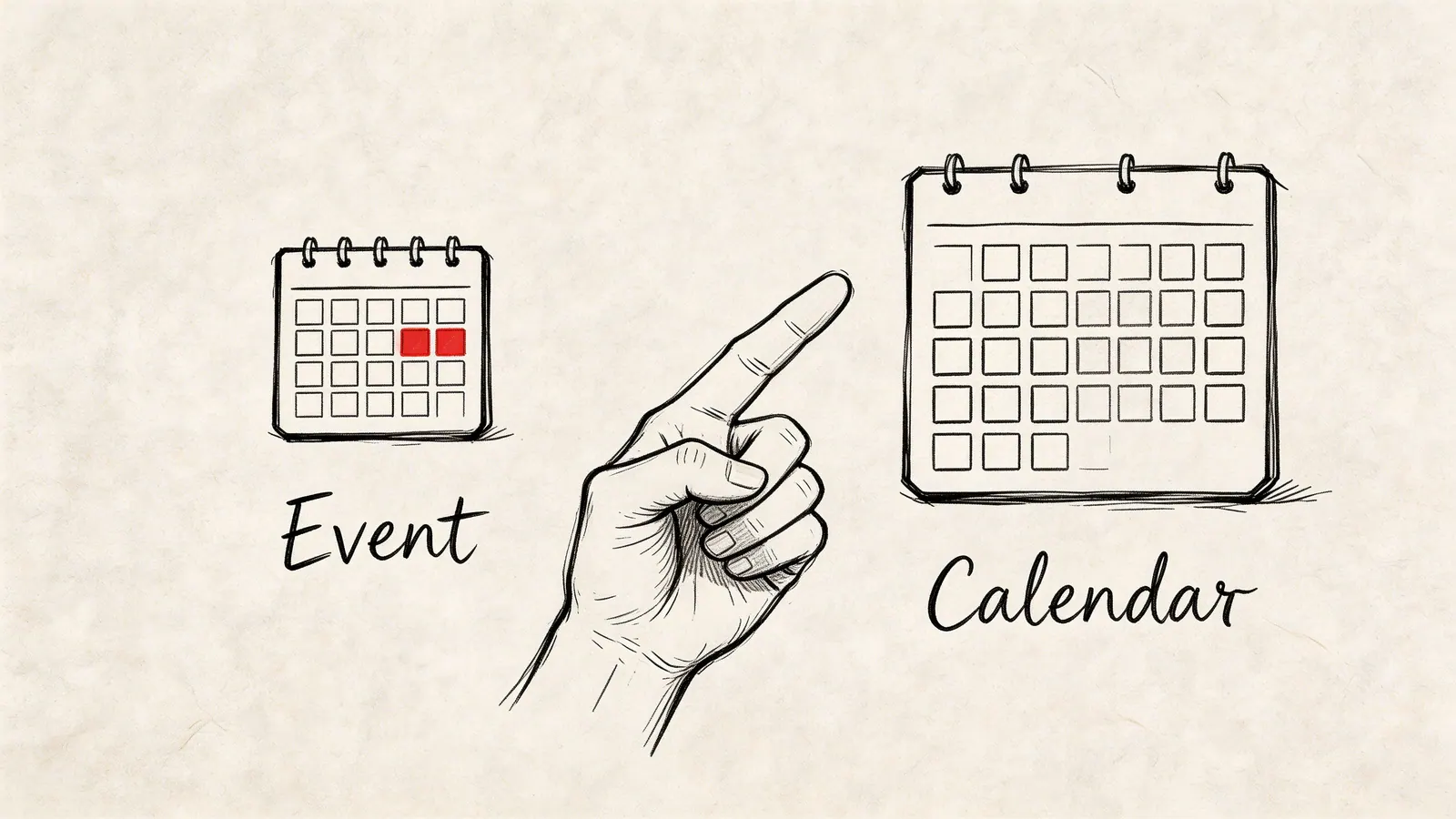
Share an event when the work is isolated
Use event sharing for a sales call, interview, medical appointment, launch review, or one project milestone.
It is the cleaner option when the other person needs to attend, RSVP, or reference one item without seeing the rest of your schedule. You open the event, add guests, save, and Google handles the invitation flow. That keeps access narrow and reduces the chance that someone ends up with visibility they never needed.
Event sharing is a good fit when:
- You are coordinating one meeting: A client call or internal review does not require calendar-level access.
- You need RSVP tracking: Event invites are built for accept, decline, and tentative responses.
- You want tighter privacy: Guests only get the details tied to that event.
Share a full calendar when the relationship is ongoing
Full-calendar sharing is better for repeat collaboration. I recommend it for assistants, project managers, department leads, family scheduling, and any team that works from a shared timeline week after week.
Permission choices matter more here than the act of sharing. A common mistake is giving a new contractor full edit rights when they only need to view the project timeline. I see this often with marketing calendars and production schedules. One accidental drag, one edited title, or one guest list change can create confusion fast.
Use the lowest permission that still lets the work happen.
| Permission | Best use |
|---|---|
| See only free/busy | Share availability without exposing meeting names or notes |
| See all event details | Give teammates context when they need visibility but should not edit |
| Make changes to events | Let assistants, coordinators, or operations staff maintain the schedule |
| Make changes and manage sharing | Reserve for calendar owners or admins who control access |
Under-sharing creates a different problem. If a coordinator has view-only access but is responsible for rescheduling, every small change turns into another message, approval, or handoff. That is inefficient, and it usually leads to duplicate events or side-channel updates in Slack or text.
The practical rule is simple. Share an event for one commitment. Share a calendar for ongoing coordination. Then match the permission level to the person’s role, not their title. That choice prevents a lot of the iPhone sync frustration people blame on the app, when the root issue started with the wrong sharing method or the wrong access level.
How to Share a Google Calendar from Your Computer
If you need to share an entire calendar properly, use a computer or the desktop version of the web interface. This is still the cleanest path for team use because it exposes all permission controls in one place.

The fastest reliable workflow
Open calendar.google.com in a desktop browser.
Then follow this order:
- Find the calendar under My calendars.
- Click the three-dot menu beside the calendar name.
- Choose Settings and sharing.
- Go to Share with specific people or groups.
- Add the recipient’s email.
- Choose the permission level.
- Click Send.
That’s the setup I recommend for almost every team because it gives you the full permission set in one pass.
Using a desktop browser on an iPhone through Request Desktop Website also opens all available permission levels, and that method is reported at 99.9% sharing reliability with a 15% faster setup time than the limited in-app process in the referenced benchmark from this Safari desktop-mode sharing video.
What each permission means in real use
The labels sound simple, but the trade-offs are operational.
- See only free/busy works when privacy matters more than context. Good for cross-functional visibility.
- See all event details is ideal for most peer collaboration. People can understand the schedule without changing it.
- Make changes to events fits assistants, schedulers, and team leads who actively maintain the calendar.
- Make changes and manage sharing should stay limited. This effectively makes someone a co-owner.
What not to do
There are two mistakes worth avoiding.
- Don’t make a personal calendar public when you only need to share with named people.
- Don’t assign admin-level sharing rights just because someone needs to reschedule meetings.
If someone needs to move events but shouldn’t invite outsiders, stop at Make changes to events.
That one boundary avoids a lot of cleanup later.
Adding a Shared Calendar on an iPhone
Once the calendar is shared, the recipient still has to make it visible. This specific step often leads people to believe sharing failed, when the underlying issue is display or sync.
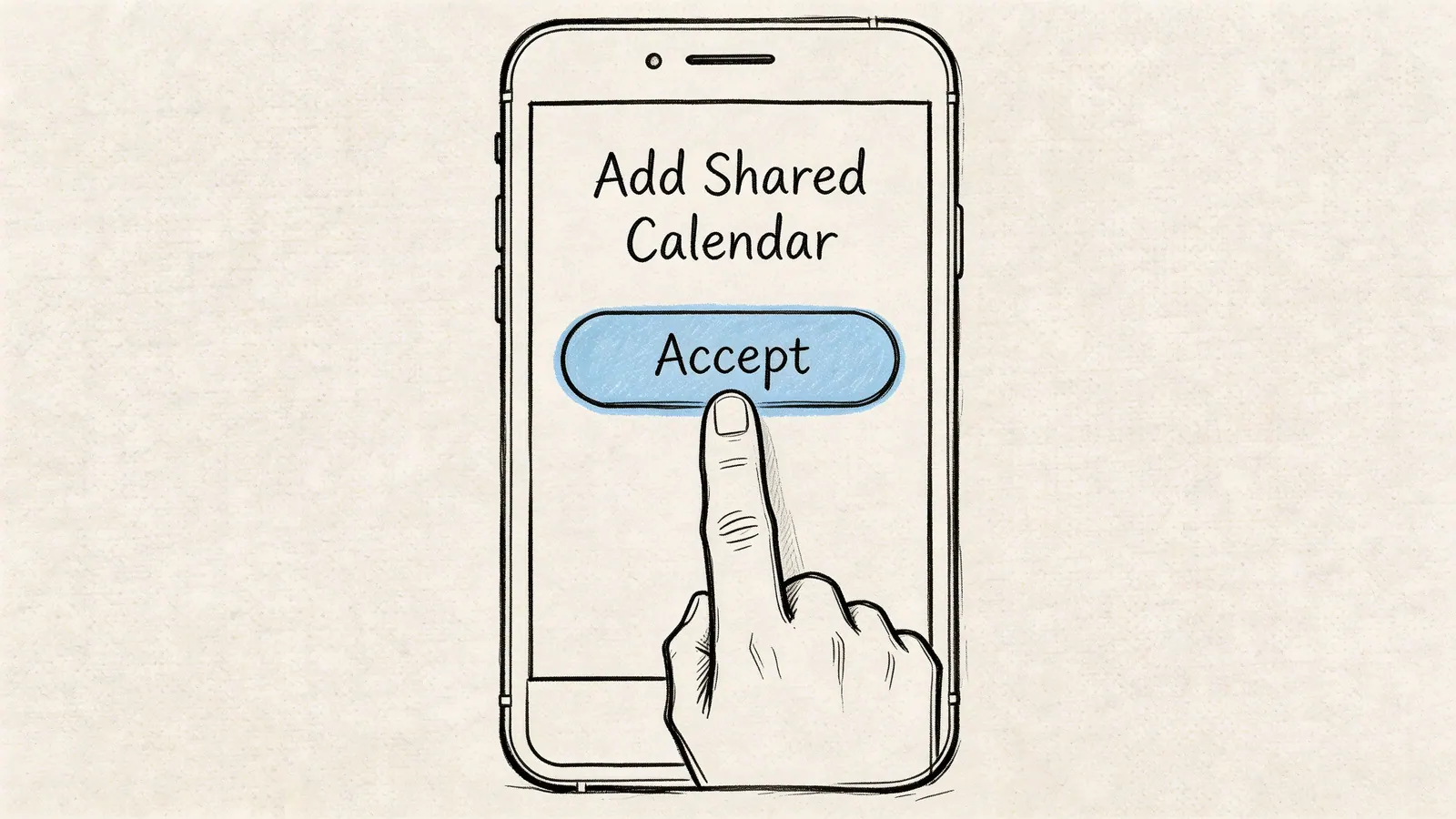
First accept the invitation
If Google emails you a sharing invite, accept it first. Until that happens, the calendar may not appear where you expect.
That sounds obvious, but it’s easy to miss when the invite lands in Promotions, a secondary inbox, or an admin account you don’t check often.
Make it appear in Google Calendar on iPhone
If you use the Google Calendar app, this is usually the easier side of the setup.
Open the app, then check the calendar list from the menu. If the shared calendar is available but hidden, enable it there. In many cases the calendar is already attached to the account and just isn’t toggled on for display.
Make it appear in Apple Calendar on iPhone
Apple Calendar adds another layer because account sync has to be enabled at the iPhone level.
Google account syncing on iPhone has been available since earlier iOS versions, when native Google account syncing standardized the process through Settings > Calendar > Accounts > Add Account. That setup populates Apple Calendar with Google events and respects sharing permissions set on desktop, reaching 99.5% sync reliability by iOS 14, according to Google’s iOS Calendar sync documentation.
If the shared calendar isn’t visible in Apple Calendar, check these in order:
- Account added: Go to Settings > Calendar > Accounts and confirm the Google account is present.
- Calendars enabled: Open that Google account and make sure Calendars is toggled on.
- Visibility inside Calendar app: Open Apple Calendar, tap Calendars, and make sure the shared calendar is selected.
If you want a deeper walkthrough for the Apple side, this guide on syncing iPhone Calendar with Google Calendar is useful when the account is connected but events still don’t show as expected.
A quick visual can help if you’re setting this up for someone less technical:
Troubleshooting Common Sync and Permission Issues
When people say, “Google Calendar sharing doesn’t work on iPhone,” they’re usually describing one of a small set of predictable failures.
The most common one is simple: the calendar was shared correctly, but it never became visible in Apple Calendar. Another is a permission mismatch, where someone can view but not edit and assumes the share is broken.
Over 40% of users with both Apple and Google accounts report sync failures with shared calendars appearing in the native iPhone Calendar app, often because of missed iPhone sync settings or Google Workspace admin restrictions, according to this analysis of Apple and Google calendar sharing issues.

The calendar was shared but doesn’t appear
Start with visibility, not permissions.
Check whether the calendar is hidden inside Google Calendar or Apple Calendar. In both apps, it’s possible for the calendar to exist on the account but remain unchecked in the display list.
Then confirm the Google account is added at the iPhone level and that calendar sync is enabled under that account.
The person can see events but can’t edit
This usually means the wrong permission was assigned at the source.
If someone needs to move, create, or update events, view-only access won’t cut it. Fix this in the calendar owner’s desktop sharing settings, not on the recipient’s phone.
A recipient can’t upgrade their own access. The calendar owner has to change the permission.
Changes made on desktop don’t show up right away
Users often lose confidence in these scenarios. They make a change on one device, refresh another, and assume sync failed.
In practice, the first fixes are basic:
- Reopen the app: Force-close and reopen Google Calendar or Apple Calendar.
- Check the account connection: A signed-out Google session breaks the chain quickly.
- Verify the right account: Shared calendars often get accepted under one Google account and viewed from another.
If the iPhone side keeps misbehaving, this troubleshooting guide for Google Calendar not syncing is a solid next step.
Workspace admin restrictions
On managed company accounts, the problem may not be the iPhone at all.
An admin can restrict external sharing or limit what shared users can do. If one employee can share and another can’t, compare their account type and org policy before you spend time re-adding the app.
Security and Workflow Tips for Teams
The best shared calendar is the one people trust. That usually means tighter permissions and clearer rules, not more openness.
Direct sharing from the Google Calendar iOS app is limited to view-only permissions, and full Make changes to events access requires the desktop or web interface, as described in this Google Calendar iPhone sharing guide. For teams, that limitation is useful. It forces you to think before handing out edit rights.
The rules that keep calendars clean
- Share with named people, not broad links: A public or loosely distributed calendar is harder to control later.
- Assign one owner: Someone should decide naming conventions, color use, and event hygiene.
- Use edit rights sparingly: Operations staff may need them. Most observers don’t.
- Separate team calendars by purpose: Sales meetings, staffing, launches, and leadership availability shouldn’t live in one messy calendar.
If you’re building schedules for field teams or shift-based work, a dedicated planning asset like this staffing schedule template can help before those commitments ever reach the shared calendar.
For task-heavy teams, calendars work better when they aren’t asked to hold every action item. Put deadlines on the calendar, but keep execution in a shared task system. This guide on how to share task list setups is a good complement when your calendar is starting to carry too much project detail.
Frequently Asked Questions
Can I share an entire Google Calendar directly from the iPhone app?
Not reliably for full team permissions. The iPhone app is fine for event invites and limited sharing actions, but full calendar sharing controls are better handled through the web interface.
What’s better on iPhone, Apple Calendar or Google Calendar?
It depends on how you work.
If you live in Google Workspace, the Google Calendar app usually exposes Google-native behavior more clearly. If you want one place to view iCloud and Google events together, Apple Calendar can be more convenient. The trade-off is that Apple Calendar can hide sync issues behind account settings that aren’t obvious.
Why did my shared calendar invitation work in Gmail but not on the iPhone?
Usually one of three things happened: the calendar wasn’t accepted under the correct account, the calendar is hidden in the app, or the iPhone account sync settings aren’t enabled for calendars.
Can I share with someone who doesn’t use Gmail?
Sometimes, but mixed calendar ecosystems tend to create more friction. If editing matters, keeping both sides in Google Calendar usually produces fewer permission and display issues.
How often does the shared calendar sync to iPhone?
It syncs automatically, but real-world timing can vary by app, account state, and device settings. If visibility is mission-critical, test it once after setup instead of assuming everyone sees the same thing immediately.
Tooling Studio helps teams stay organized inside Google Workspace without adding more tab-switching. If your shared calendars are doing too much heavy lifting, take a look at Tooling Studio for lightweight workflow tools that keep tasks, coordination, and collaboration closer to where your team already works.
 Download our Plugin