
How to Share Contact Info in Gmail & Google Workspace
Learn how to share contact details in Google Workspace. This guide covers vCards, CSVs, delegation, and using a CRM extension for seamless team collaboration.
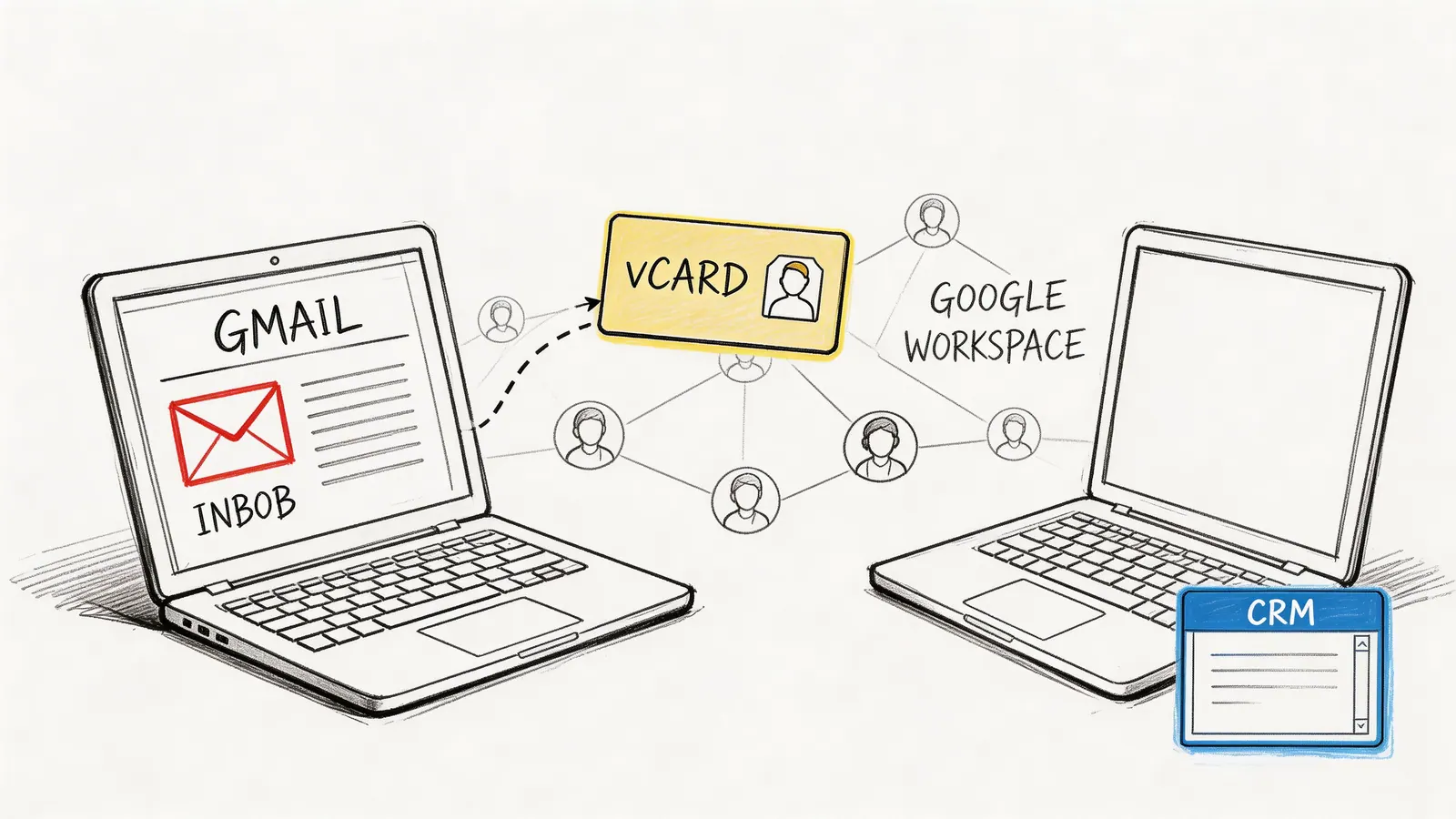
You close a sales call, open Gmail, and realize the hard part is not the conversation. It is getting the new contact to the right person without losing context.
So you copy a name into chat, paste the email into an internal thread, drop the phone number into a task, and hope your teammate rebuilds the record correctly. That works once. It breaks fast when a team does it all day.
Most advice about how to share contact details focuses on consumer tools. That misses the workflow Google Workspace teams operate within. For sales, project delivery, and client handoffs, the issue is not whether a contact can be sent. It is whether the next person can use that contact inside Gmail, Google Contacts, and the rest of the team workflow without app-switching.
Why Is It Still Hard to Share a Contact in 2026
Google Workspace users run into a specific kind of friction. The contact exists, the teammate exists, the inbox is open, yet the handoff still feels manual.
A sales rep captures a lead in Google Contacts. A project manager needs the same record for kickoff. An assistant needs to update the phone number. Instead of one shared workflow, the team often falls back to forwarding details in fragments.
That gap matters. Guidance for Google Workspace users on sharing contacts directly inside Gmail or Google Contacts remains thin, even though teams search for exactly those workflows. One cited summary notes that a 2025 Gartner report found 62% of SMB sales teams report contact sharing friction in Workspace as a top inefficiency (reference).
Where the friction originates
The problem is usually not technical inability. It is choosing the wrong method for the job.
A one-off handoff needs speed. A shared client list needs structure. A team pipeline needs a common record, not a forwarded card. Many teams use the one-off method for all three.
That creates predictable problems:
- Context gets stripped out: The name and phone number move, but notes, ownership, and next steps do not.
- Records drift: One person edits a title or number, someone else keeps the old version.
- People switch tools too often: Gmail, Sheets, chat, and task tools all become temporary contact databases.
Tip: If a contact needs to be touched more than once by more than one person, treat it as a shared record problem, not a sending problem.
Everyday Contact Sharing in Gmail and Google Contacts
For one-off exchanges, Google Workspace already gives you enough. You do not need a full CRM every time someone asks, “Can you send me that contact?”
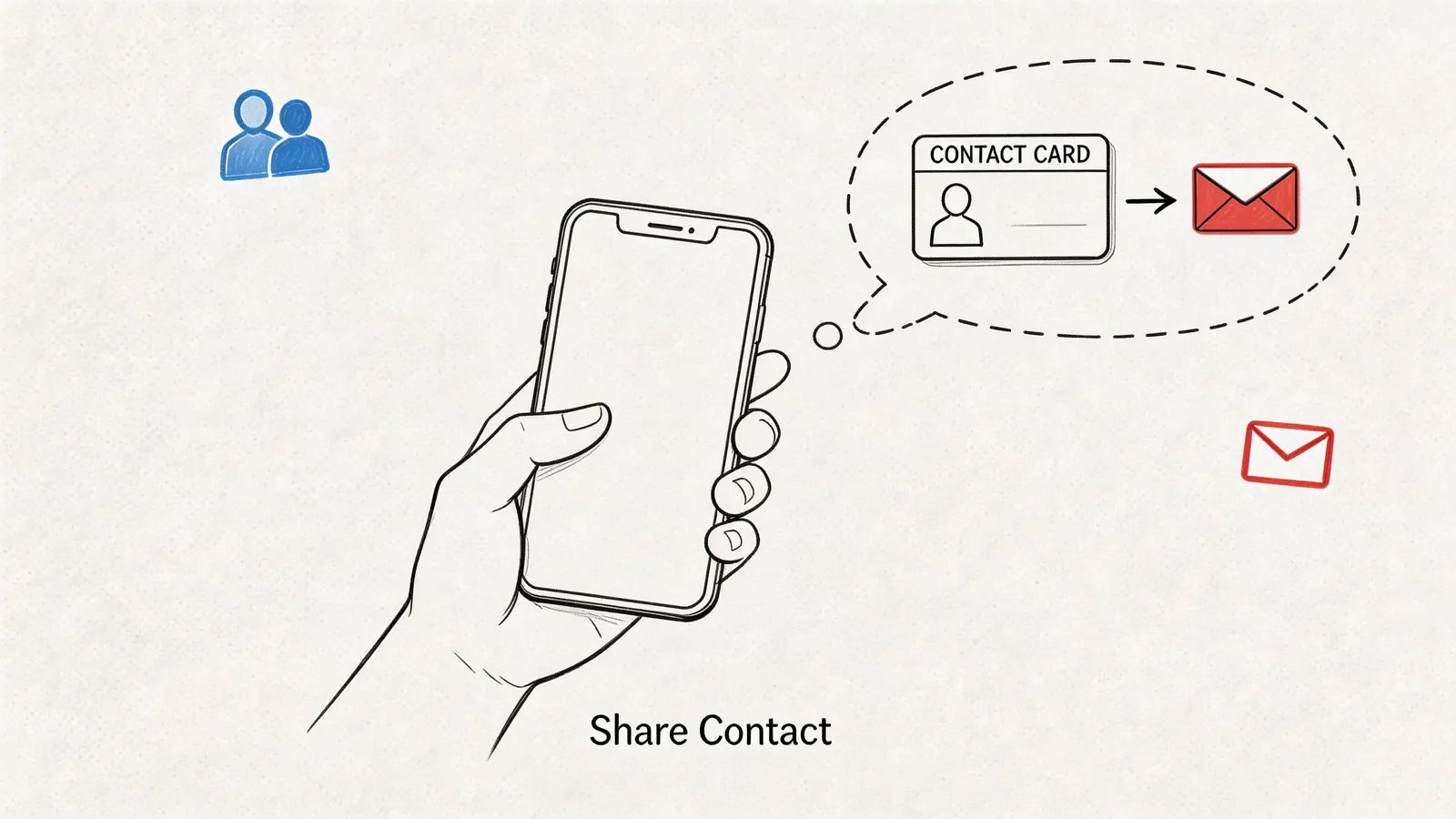
Modern digital sharing removes the retyping problem. It lets professionals exchange complete contact information quickly and avoids the transcription mistakes that came with paper cards or fragmented follow-up (Wave contact sharing overview).
Send a contact as a vCard
This is the cleanest option when one person needs one contact.
Open Google Contacts, find the person, and use the email or share action available from the contact view. The recipient typically gets a .vcf file, also called a vCard, which they can add to their address book.
Use it when:
- A teammate needs a single lead: Fast handoff after a meeting or intro.
- You work cross-platform: vCard is broadly understood across contact apps.
- You do not need ongoing collaboration: The transfer is the task.
Do not use it when the record will keep changing. A vCard is a snapshot. Once sent, it does not stay synced.
If you need a refresher on where records live before sharing them, this guide on where to find contacts in Gmail is a useful starting point.
Use labels for lightweight group sending
Labels in Google Contacts help when the contact-sharing task is really an email-to-a-group task.
Example. You have a label for event vendors, a label for beta users, or a label for steering committee members. You can email that set quickly without selecting each recipient one by one.
That is useful, but limited. You are not sharing a collaborative directory. You are using a contact grouping method to make outreach faster.
A practical rule:
- Labels are good for sending to a group
- Labels are not enough for maintaining a shared group-owned contact list
If your team keeps asking, “Who has the latest version?” you have outgrown labels.
A quick walkthrough can help if you have not used the native flow recently:
What works and what does not
| Method | Good at | Weak at |
|---|---|---|
| vCard email | Fast one-person handoff | No live updates |
| Labels | Quick outreach to a set of contacts | Not true collaboration |
Migrating Contact Lists Using CSV Export and Import
When the job is bigger than a single handoff, CSV becomes the practical tool. This is how teams move contacts from an old spreadsheet, an outdated CRM export, or one Google account into another.
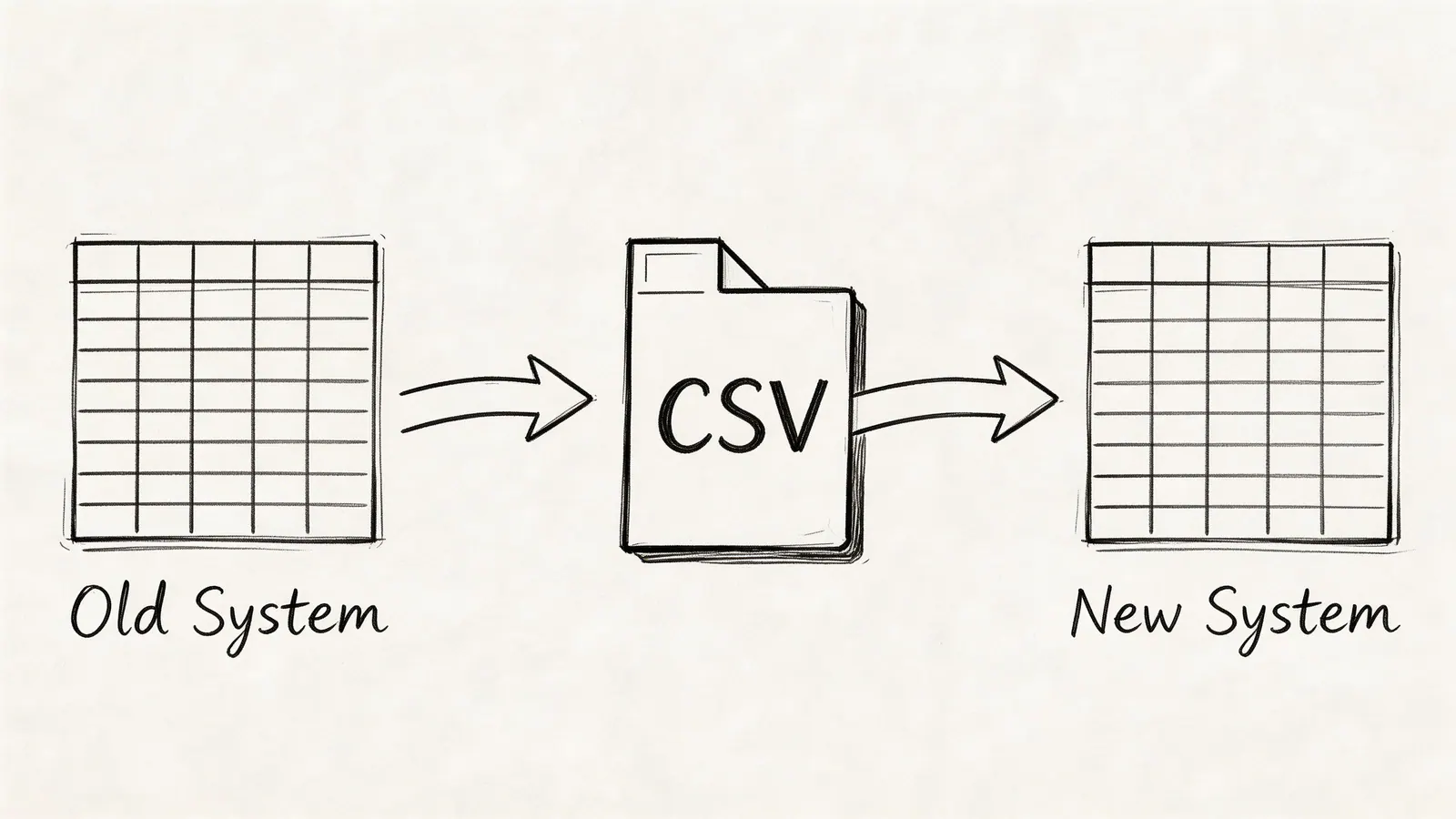
The process is simple. The cleanup is not.
Use CSV for transfer, not for collaboration
Export from Google Contacts or your source system. Review the file. Standardize it. Then import into the destination account or shared workflow.
That part is mechanical. The primary failure point is messy structure.
Research on tidy data practices shows that following tidy data principles can minimize analysis errors by 50 to 70%, and that a clean single-sheet CSV with a codebook can reduce follow-up queries by 80% and enable 2 to 3x faster insights. The same source notes inconsistent formatting can consume up to 60% of time in reformatting (NIH tidy data guidance).
Those findings translate well to contact migration. When a CSV is sloppy, imports create duplicate records, broken fields, and cleanup work nobody planned for.
How to prepare a clean contact CSV
Use a short checklist before import:
- Keep one row per contact: Do not split one person across multiple rows.
- Use one column per field: Name, email, phone, company, title, and notes should each have their own column.
- Standardize values: Do not mix formats for phone numbers, countries, or names inside the same file.
- Add a codebook: A separate document should explain what each column means, especially custom fields.
- Avoid decorative formatting: No color highlights, merged cells, or multiple sheets.
Tip: If a teammate cannot understand a column name without asking you, the file is not ready to import.
For teams that regularly move flat files into shared workflows, auto-import and sync CSV to Google Sheet can be a useful operational layer before final cleanup or handoff.
If the next step is getting records into Google’s ecosystem, this walkthrough on importing contacts into Google helps with the native process.
Common mistakes during migration
The mistakes are familiar:
- Mixing personal and business fields in one column
- Using free-text notes as a substitute for structure
- Sending a spreadsheet without field definitions
- Treating export success as import success
A CSV is excellent for moving data in batches. It is poor at preserving shared ownership once the batch arrives.
Scaling Contact Access with Delegation and Shared Directories
At some point, sending individual contacts stops making sense. Team workflows need access patterns, not repeated forwarding.
Here, Google Workspace admins and team leads usually make a choice between delegation and shared directories.
Delegation for close working pairs
Delegation fits one-to-one support.
An executive can let an assistant manage contacts. A sales rep can let an SDR help maintain the book of business. This is useful when one person needs another to work inside the same contact environment.
It is not a team-wide solution. Delegation solves “help me manage my contacts,” not “give the whole team access to shared client records.”
Shared directories for team-wide visibility
For broader access, use domain groups and shared directory logic in Google Workspace. This is the scalable path.
The documented approach is to create groups in the Google Admin Console, then share contact access through those groups rather than individual users. That method can reduce manual sharing overhead by up to 90% and scales to large organizations with nearly 100% automatic propagation, while manual per-user sharing often fails because people forget to update access when roles change (Google Workspace group sharing method).
That trade-off matters most in organizations with turnover. If access is tied to named individuals, every staff change becomes contact maintenance.
The admin rule that prevents chaos
Do not manage shared access person by person if the list belongs to a function.
Use groups like:
- Sales team
- Client success
- Regional project managers
- Executives and assistants
That way, when someone joins or leaves, the admin updates the group once and the access pattern follows.
Key takeaway: If contact access is owned by a department, configure it at the department level. Individual sharing creates hidden admin debt.
Best fit by scenario
| Need | Better method |
|---|---|
| One assistant managing one executive’s contacts | Delegation |
| Entire sales team needing the same account directory | Shared groups and directory access |
| Temporary one-off handoff | Basic contact send |
The Ultimate Solution A Unified CRM in Gmail
Native Google methods are good at sending or exposing contact information. They are weaker when a team needs to work on the same contact record over time.
That is the shift from sharing to collaboration.
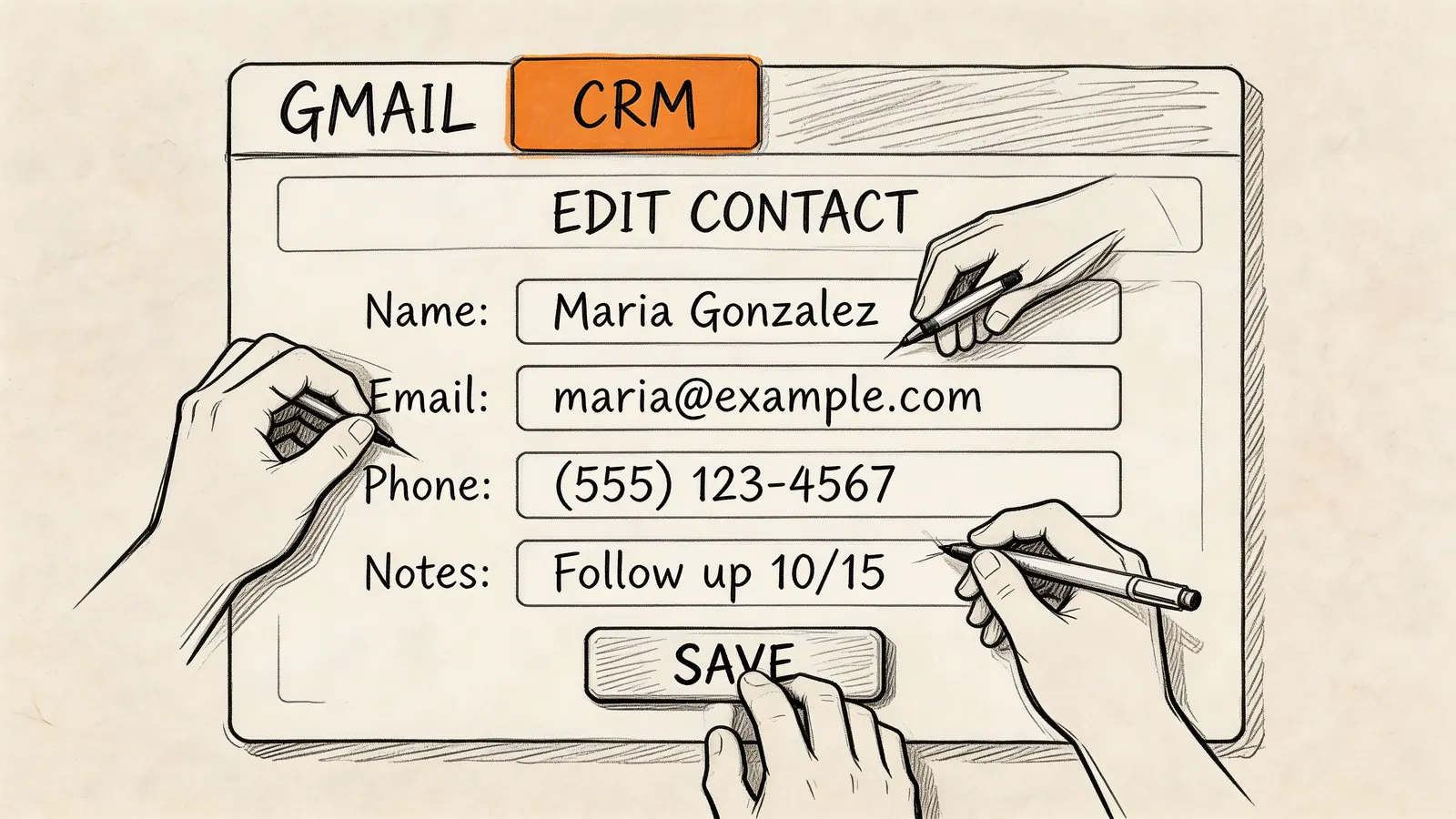
What changes when the contact becomes a shared record
In a collaborative workflow, the team does not pass around static details. They work from one current record attached to the contact.
That means the contact can hold:
- ownership
- notes from calls
- next steps
- deal or project status
- relevant attachments
- internal comments
Contact handoffs frequently fail from context loss, not from inability to send a phone number.
Why this fits Gmail users better
If your team already lives in Gmail, moving contact work into a separate app often creates a second problem. People stop updating the system because it sits outside the inbox.
A Gmail-based CRM extension changes that behavior by putting the record where people already work. That is the core operational advantage.
One option in this category is Tooling Studio’s Sales CRM, which is designed to integrate with Google Contacts and Gmail so teams can track leads, deals, and customer interactions without leaving the Google Workspace environment. If that model is new to you, this overview of a CRM inside Gmail shows how the workflow differs from basic contact passing.
Where native methods still win
A unified CRM is not automatically the answer for everything.
Use native sharing if:
- you only need to send one contact once
- the recipient just needs the record, not ongoing access
- your workflow does not require notes, ownership, or status
Use a shared CRM-style model when:
- multiple people touch the same lead
- the record changes after every call
- follow-up needs accountability
- your team keeps reconstructing the same contact context in chat and email
Choosing Your Contact Sharing Strategy
The right method depends on what the recipient needs to do next. That is a decision point often skipped.

If they only need the contact once, send it. If they need to work it, structure it. If the whole team needs it, centralize it.
Contact Sharing Method Comparison
| Method | Best For | Scalability | Collaboration Features | Key Pitfall |
|---|---|---|---|---|
| Email Contact | One-off shares | Limited | None | Becomes outdated immediately after changes |
| CSV Export/Import | Bulk migrations | High | Batch updates | Dirty data creates import cleanup |
| Unified CRM | Team-wide collaboration | Very High | Real-time, shared | Needs initial setup and process discipline |
Security matters more than speed
Fast sharing sounds attractive until the wrong fields go to the wrong person.
One cited summary notes that 45% of SMBs prefer controlled sharing over raw speed, and 78% of IT professionals cite unintended data leaks in contact sharing as a major risk. It also contrasts uncontrolled proximity sharing with role-based sharing in modern CRMs, which can support collaboration without exposing full profiles (privacy and controlled sharing discussion).
For Google Workspace teams, that translates into a simple principle:
- Use open sending methods when the contact is low-risk and the transfer is intentional.
- Use permissioned systems when the record includes sensitive lead details, internal notes, or account ownership data.
A practical selection rule
Choose based on the smallest system that safely supports the work:
- Need speed for a single person: Send a vCard.
- Need to move a list: Use CSV, but clean it first.
- Need department access: Use groups and shared directory patterns.
- Need ongoing team action on the same contact: Use a collaborative CRM workflow.
Tip: The more often a contact changes hands, the less useful static sharing becomes.
Stop Juggling Contacts and Start Collaborating
Many teams do not have a contact-sharing problem. They have a workflow design problem.
Emailing a contact card works for quick handoffs. CSV works for migration. Admin-level sharing works for access. But none of those automatically gives your team a shared operating record inside the inbox where the work happens.
That is why mature setups shift from passing contacts around to managing them in place. If you are reviewing tools, it helps to look at broader Contact Manager features so you can compare simple storage against collaboration, permissions, and follow-up workflows.
The goal is not to make contact sharing possible. Google Workspace already does that. The goal is to make contact handoffs reliable, current, and usable by the next person without extra reconstruction.
If your team wants a more integrated way to manage contacts, tasks, and pipeline activity inside Google Workspace, Tooling Studio is worth a look. Its Chrome-based tools focus on keeping work inside Gmail instead of pushing teams into another disconnected app.
Manage contacts, deals, and follow-ups inside Google Workspace
Tooling Studio Sales CRM gives Gmail and Google Contacts teams a lightweight pipeline: contacts, organizations, deals, notes, tags, custom fields, owners, and shared follow-up work without a heavy CRM rollout.