
How to Send a Read Receipt in Gmail: A Practical Guide
Learn how to send a read receipt in Gmail for Workspace accounts. We cover admin setup, limitations, and better alternatives like email tracking tools.
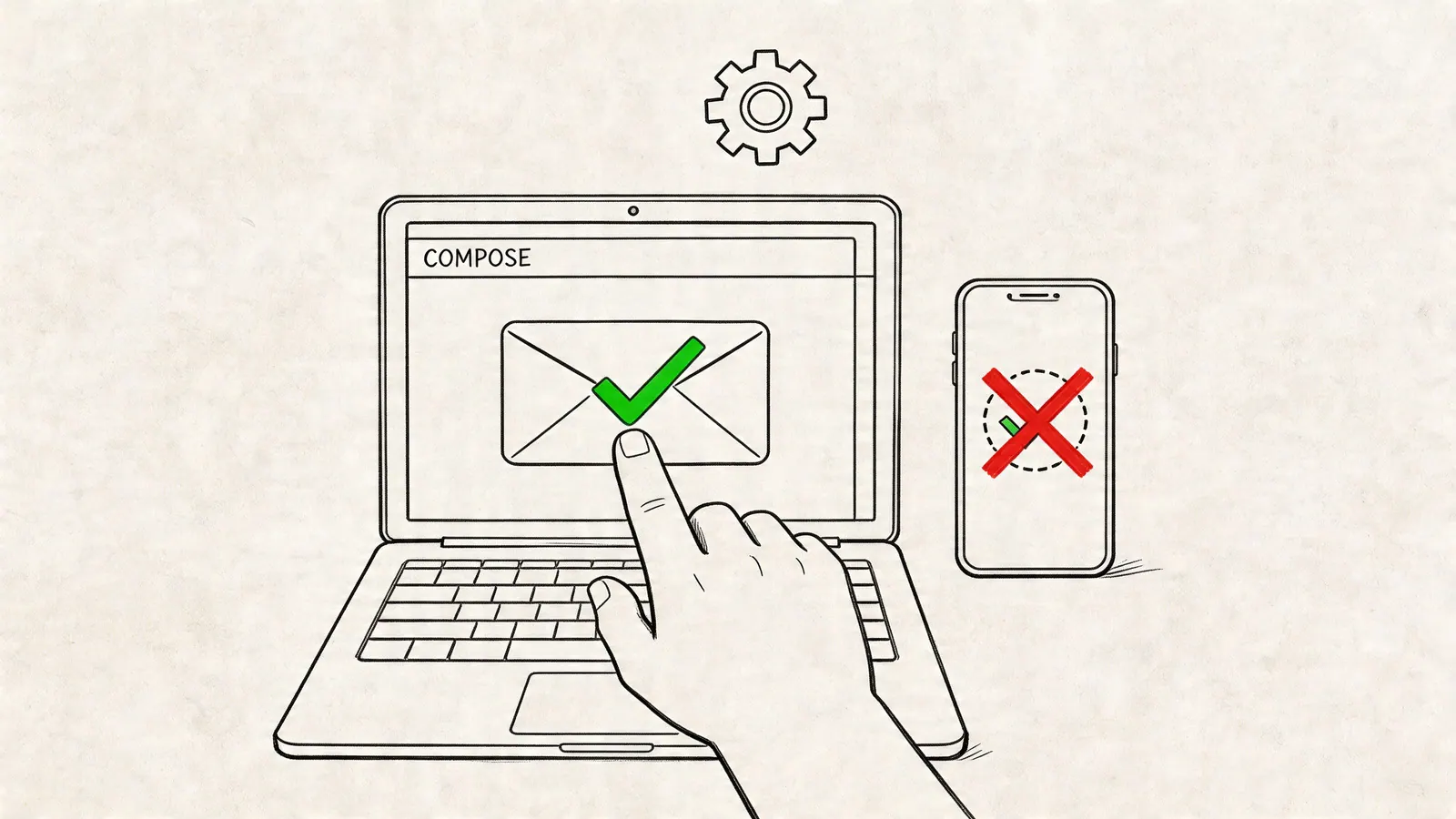
You sent the proposal. The client hasn’t replied. The project update was important enough that silence feels risky, but not important enough to justify a phone call five minutes later.
That’s where read receipts come in. In theory, they answer a simple question: did the person open the email? In practice, Gmail makes that answer more limited than commonly expected.
If you’re searching for how to send a read receipt in Gmail, the short version is this: you can do it natively only in Google Workspace, only if your admin has enabled it, and even then it’s best treated as a selective business tool, not a dependable tracking system.
Why You Need Email Open Confirmation
The need usually isn’t curiosity. It’s timing.
Sales teams want to know whether a proposal has at least been opened before sending a follow-up. Project leads want confirmation that a deadline change didn’t sit unread. Client-facing professionals want to avoid the awkward move of chasing someone who hasn’t seen the message yet.

For a lot of people, Gmail doesn’t help much out of the box. Free Gmail users account for 75% of global Gmail traffic outside enterprise settings, and native read receipts aren’t available to them, which is one reason Chrome extensions such as Mailtrack and Boomerang have passed 5 million downloads since 2015, according to Warmy’s overview of Gmail read receipts.
That gap matters because email is rarely a standalone task. It’s tied to follow-ups, deadlines, handoffs, and decisions. If your inbox already feels heavy, uncertain email status makes it worse. If that sounds familiar, this guide on managing email overload in Gmail is worth reading alongside your tracking setup.
Open confirmation is most useful when it changes your next action. If it doesn’t affect what you’ll do, you probably don’t need it.
Requesting a Read Receipt in Google Workspace
If your company uses Google Workspace, Gmail may already support native read receipts. The catch is simple: your admin has to turn the feature on first.
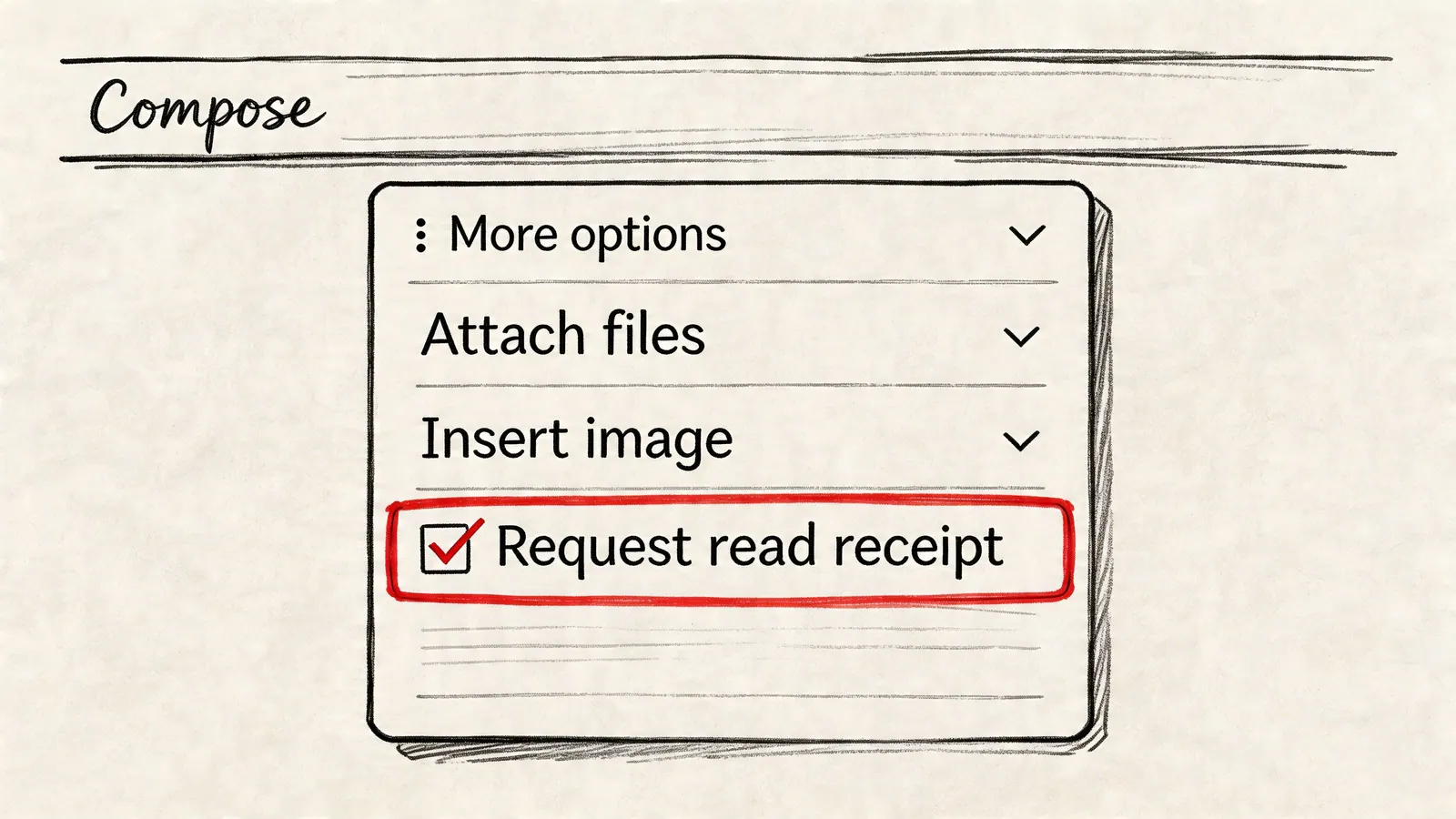
Many teams assume the option should appear automatically in Compose. It won’t. The native feature is limited to Workspace domains and depends on an admin enabling “Allow email read receipts” in Gmail settings. Mailtrack notes that this capability sits inside Workspace, which is widely used across large organizations, including 85% of Fortune 500 companies using Workspace, as described in Mailtrack’s guide to Gmail read receipts.
For admins
In the Google Admin console, the setting path is:
Apps > Google Workspace > Gmail > User Settings
From there, enable email read receipts and choose how broadly to allow them. Depending on your setup, you can keep receipts limited to internal addresses or allow broader use.
A practical admin checklist:
- Confirm eligibility first. This is for Workspace accounts, not personal @gmail.com inboxes.
- Choose scope carefully. Internal-only is usually cleaner for company communication. Broader access makes sense if sales or client teams regularly email outside the domain.
- Save and wait for rollout. Changes may not appear instantly for users.
If you manage a team, it helps to explain what this feature does and what it doesn’t do. People often hear “read receipt” and assume guaranteed confirmation. Gmail’s version doesn’t work that way.
For end users
Once the admin setting is live, sending a read receipt request is straightforward.
Compose email > More options (three dots) > Request read receipt
Then send the email as usual.
Here’s the workflow on desktop Gmail:
- Open Compose and draft your message.
- Click the three-dot menu in the bottom-right corner of the compose window.
- Select “Request read receipt.”
- Send the email.
The request applies to people in the To and CC fields. It doesn’t apply to BCC recipients.
When the recipient opens the message, Gmail can show a prompt asking whether to send the receipt. Depending on settings, they may be able to send it, decline it, or ignore it until later.
A quick walkthrough helps if you want to see the interface before trying it:
Practical rule: Use native read receipts only for messages where confirmation matters enough to justify the friction.
The Realities of Native Gmail Read Receipts
In such cases, expectations usually need adjustment.
Native Gmail read receipts sound useful, but they’re unreliable in day-to-day work. The main reason is simple: the recipient often has to approve the receipt. If they decline, ignore the prompt, or open the email in a context where Gmail doesn’t support the prompt, you get nothing.
Why they fail so often
The reported success rate for native Gmail read receipts is only 20% to 30%, largely because recipients must opt in. The feature also isn’t available in the Gmail mobile app and doesn’t apply to BCC recipients, according to Superhuman’s breakdown of Gmail read receipt behavior.
That creates three common failure points:
- Recipient choice. People decline prompts for privacy reasons, habit, or because they don’t want to signal engagement yet.
- Mobile reading. Plenty of important emails are first opened on phones, where the native feature doesn’t help.
- Mixed email environments. If the other person uses Outlook, Yahoo, Apple Mail, or a company mail system with different behavior, the request may not work consistently.
When native receipts still make sense
Despite the limitations, the native option still has a place.
It works best in controlled environments. Think internal approvals, legal review inside one organization, or a direct manager-to-manager handoff where both sides use Workspace and understand the prompt. In those cases, the friction is acceptable because the communication is formal and the stakes are clear.
A native Gmail read receipt is better treated as a polite request for confirmation, not evidence you can rely on.
Where teams get into trouble is using it for sales outreach, client delivery, or routine follow-ups. The interface says “request,” but users often interpret it as “track.” Those are not the same thing.
Reliable Alternatives for Email Tracking
If native receipts are too inconsistent, the practical alternative is an email tracking extension.
These tools, including products like Boomerang and Mailtrack, usually work by adding a tiny tracking pixel to the email. When the message loads, the tool records an open event and reports it back inside Gmail. The recipient doesn’t have to approve anything, which is why these tools are much more dependable for workflow decisions.

What improves with extensions
Pixel-based tracking tools achieve about 90% to 95% open-rate detection, compared with an estimated 25% success rate for native Gmail read receipts. That’s a 4x improvement, according to Boomerang’s article on using read receipts and tracking.
That difference matters when timing is part of the job:
- Sales follow-up works better when a rep can see that a proposal was opened before calling.
- Project communication gets cleaner when a team lead knows whether a critical update landed.
- Client service improves when account managers stop guessing and start following up based on actual opens.
Native Read Receipts vs. Tracking Extensions
| Feature | Native Gmail Read Receipt | Email Tracking Extension |
|---|---|---|
| Availability | Google Workspace only | Works for free Gmail and Workspace |
| Recipient approval | Usually required | Not required |
| Reliability | Limited | Much stronger |
| Mobile usefulness | Weak for native Gmail workflow | More practical for mixed workflows |
| Best fit | Formal, selective business messages | Ongoing sales, client, and project follow-up |
The trade-off is also clear. Extensions provide better visibility, but they move you from an explicit recipient prompt to background tracking. That’s why tool choice should match the context, not just the feature list.
If you want a deeper look at tracking options for personal and Workspace accounts, this guide to free ways to track email in Gmail is a useful next step.
Who should use which option
Use native Gmail read receipts when:
- Your organization already runs on Workspace and admin support is available.
- The email is high-stakes enough to justify asking for explicit confirmation.
- You value visible, policy-friendly confirmation over broad tracking coverage.
Use an extension when:
- You need dependable open data for follow-up timing.
- Your recipients are outside your company and use mixed email clients.
- Your team works inside Gmail all day and can’t afford to guess what happened after send.
Using Email Tracking with Professional Integrity
Reliable tracking is useful. Overusing it makes people uncomfortable fast.
That tension is visible in adoption. Tracking tool usage for productivity rose 30% between 2025 and 2026, while 60% of free Gmail queries about tracking focus on non-intrusive, “invisible” methods, according to the Google Help reference cited in the verified data. People want certainty, but they also care about privacy and tone.
The cleanest rule is context. Tracking a proposal, contract, or deadline-sensitive client update is usually reasonable. Tracking every routine internal message is not. If you wouldn’t feel comfortable explaining why you tracked the email, don’t track it.
A few working guidelines help:
- Track outcome-driven messages. Proposals, approvals, deliverables, and handoff emails are fair use cases.
- Skip casual internal notes. Team trust matters more than inbox surveillance.
- Don’t weaponize opens. An open isn’t consent, interest, or agreement. It only tells you the message loaded.
- Pair tracking with good communication habits. Tone, timing, and clarity still matter more than the status signal.
If your team needs a shared baseline, this resource on email etiquette at work gives a solid framework for when a communication practice feels professional versus intrusive.
One more practical boundary: if you’re sending to a large hidden list, remember that BCC has its own limitations in Gmail workflows. This guide to using BCC in Gmail is useful if you’re balancing visibility, privacy, and follow-up structure.
Good tracking supports better follow-up. Bad tracking turns email into surveillance.
Frequently Asked Questions About Gmail Read Receipts
Can I request a read receipt from the Gmail mobile app
No. Gmail’s native read receipt feature is a desktop and web workflow, not a mobile-app one. If you’re trying to figure out how to send a read receipt in gmail from your phone, the native option won’t be there.
Do read receipts work for BCC recipients or mailing lists
No for BCC, and mailing-list behavior is unreliable. Native Gmail read receipts apply to To and CC recipients, not hidden recipients. If your workflow depends on hidden copy recipients seeing or triggering confirmation, the native feature isn’t the right tool.
Will Gmail tell me if someone declines the read receipt request
Not in a way that solves the uncertainty. If the recipient declines or ignores the prompt, you generally just don’t receive the confirmation you were hoping for. That’s one reason native receipts work poorly for time-sensitive outreach.
What’s the simplest rule for choosing between native receipts and tracking tools
Use the native feature when you need a formal, explicit request for confirmation inside a Workspace environment. Use a tracking extension when reliability matters more than the prompt and the email is part of a professional workflow such as sales follow-up or client delivery.
If most of your work already happens in Gmail, Tooling Studio helps you keep the next action close to the message. Its lightweight Google Workspace extensions bring task and workflow visibility into the inbox, so follow-ups, handoffs, and team coordination don’t disappear after you hit send.
 Download our Plugin