
How Do I Check My Spam Folder
Wondering how to check my spam folder? Discover steps for Gmail (web & mobile), recover lost emails, and adjust settings to
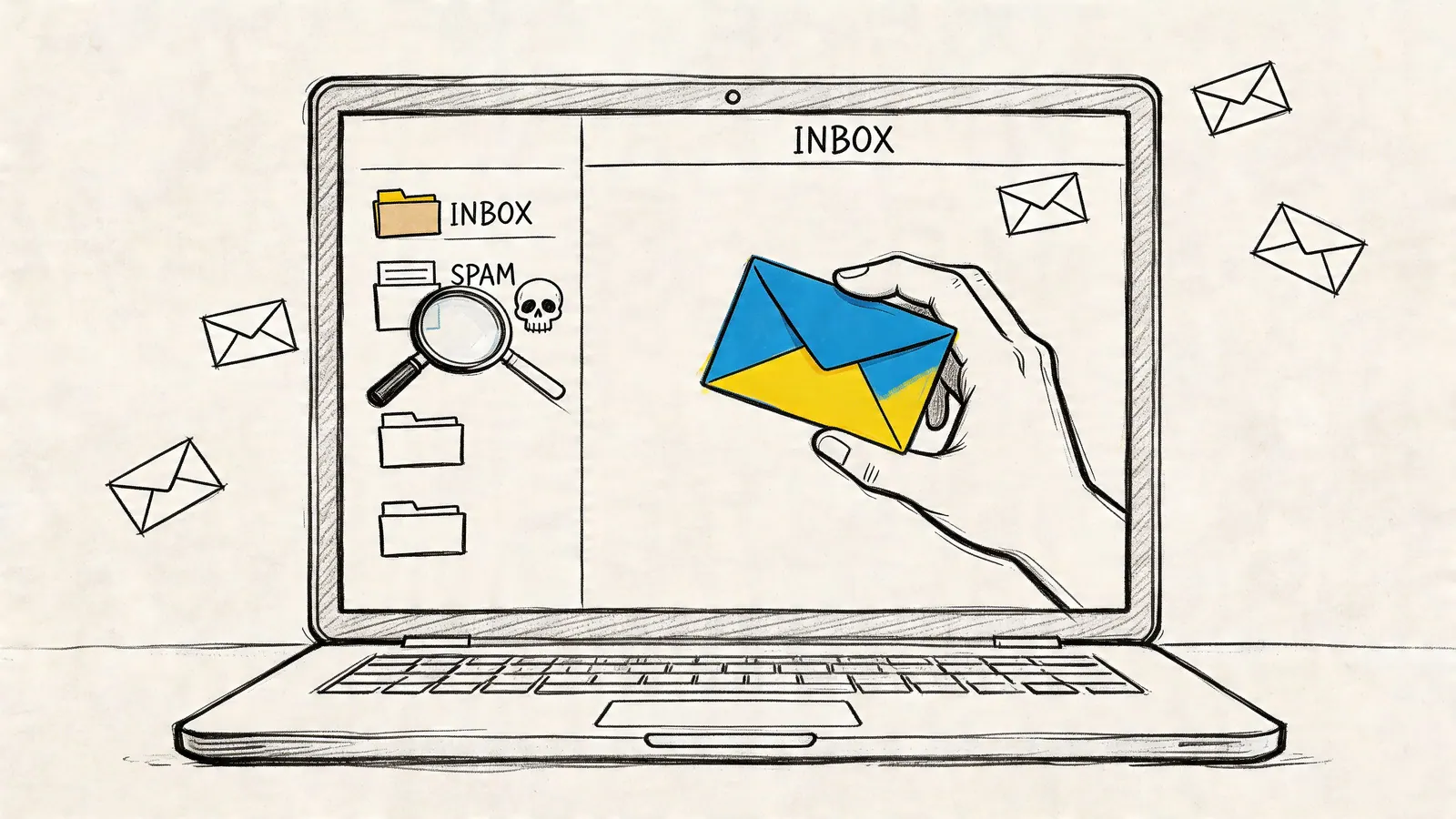
You usually notice a missing email only after it matters. A client says they sent the approval. A teammate asks why you ignored the handoff. A lead never replies, and later you find their message sitting in spam.
If your work runs through Gmail, checking spam isn't housekeeping. It's part of staying reliable. People who manage projects, client conversations, and daily task flow from their inbox need a simple habit for finding false positives quickly and correcting them before they create extra work.
The Hidden Cost of a Misplaced Email
The problem rarely looks dramatic at first. It looks like silence.
A proposal doesn't come back. A vendor never confirms timing. A task update tied to an email thread seems to vanish. Often, the first assumption is delay, not filtering. Someone follows up, someone waits, and by the time the message surfaces, the thread has already gone cold.

That risk isn't hypothetical. In 2023, 45.6% of all emails worldwide were identified as spam, and email volume is projected to reach 376.4 billion per day by 2025, according to Statista's spam traffic data. When nearly half of global email traffic is junk, even good filters will occasionally catch a legitimate message.
Why this becomes a workflow problem
For an individual, a false positive is annoying. For a team, it creates hidden work.
A sales rep misses a reply from a prospect who was ready to book time. A project manager doesn't see a stakeholder note that changes scope. An operations lead misses an automated confirmation that a task is blocked. None of those failures look like "spam issues" in the moment. They look like missed follow-up, unclear ownership, or poor responsiveness.
Practical rule: If an email matters to revenue, delivery, approvals, or handoffs, assume it's worth checking spam before you assume the sender dropped the ball.
What works in practice
The teams that avoid this don't do anything flashy. They build one small discipline into the day.
- Check spam when a message is expected: If someone says "I've just sent it," look there before you ask them to resend.
- Check spam when a thread goes strangely quiet: Silence after an active exchange often points to filtering, not intent.
- Check spam before escalating internally: It saves everyone time when the answer is already sitting in the wrong folder.
If you've ever asked "how do i check my spam folder" only after something slipped, that's normal. This learning often happens reactively. The better approach is to treat spam review as part of inbox maintenance, the same way you scan for urgent replies or clear stale notifications.
Locating Your Spam Folder in Gmail
In Gmail, the spam folder is easy to miss if you don't use it often. Google keeps the main sidebar short, so Spam is often tucked under More rather than visible by default.

On Gmail web
Open Gmail in your browser and look at the left sidebar. If you don't see Spam immediately, scroll down and click More. That expands the full list of folders and labels. You should then see Spam, marked with the familiar exclamation icon.
Click it once and Gmail will load the folder. From there, you can scan by sender, subject line, or date, just like any other mailbox.
A useful shortcut is Gmail search. If you're looking for one missing message, type is:spam into the search bar. You can narrow it further with a sender or keyword, such as from:client [at] example.com is:spam. That saves time when you don't want to browse the whole folder.
On the Gmail mobile app
On iPhone or Android, open the Gmail app and tap the three-line menu in the top corner. Scroll down through the list of folders until you reach Spam.
The mobile view is fine for quick checks, especially when you're waiting on a message during travel or between meetings. For bulk cleanup or filter work, desktop is still easier.
Gmail automatically deletes messages in Spam after 30 days, and Gmail's AI catches 99.9% of spam, though the remaining 0.1% of false positives can still include important transactional email, as noted in this Gmail spam overview video.
One small setup change helps
If you check spam often, don't leave it buried.
You can make Gmail easier to manage by keeping your sidebar organized and your labels visible. If your left panel is cluttered or half-collapsed, this quick guide to setting up folders in Gmail is worth a few minutes. The point isn't cosmetic. Clear organization makes it more likely you'll use the folders that matter.
For a visual walkthrough, this short video covers the basic navigation clearly:
What people usually miss
The common mistake isn't technical. It's assuming the folder isn't there because it isn't visible at first glance.
A few things to check if you still can't find it:
- Expand the sidebar: Gmail can collapse labels when the window is narrow.
- Click More fully: Some users stop scanning after Drafts or Sent.
- Use search first: Typing is:spam often gets you to the answer faster than navigating.
If your day lives in Gmail, this is one of those tiny skills that pays off often. You don't need to live in the spam folder. You just need to know exactly where it is and get there quickly when a message goes missing.
How to Recover Emails and Train the Filter
Finding the message is only half the job. What you do next affects what Gmail learns from your account.
If an email in Spam is legitimate, open it and click Not spam. Gmail moves the message back to your inbox and uses that action as feedback. Over time, this helps the filter make better decisions for your specific patterns, contacts, and recurring threads.
Recover the message properly
For one-off recovery, open the message and use Not spam. If you're scanning a list view, you can also select the checkbox beside the message and apply the same action from the toolbar.
That matters more than forwarding the email to yourself or asking the sender to resend it. Resending may solve today's problem, but it doesn't teach Gmail much. Marking the message correctly does.
Don't just rescue the email. Correct the classification.
If the message was already deleted by mistake after landing in Spam, recovery gets harder. In that case, this guide on recovering deleted mail is a useful next step, especially if you're trying to work out whether the message moved to Trash or disappeared through auto-purge.
Clear junk without losing useful signals
Once you've handled the legitimate items, clear out the junk.
You can delete messages one at a time, but for a busy account it's faster to use Gmail's Delete all spam messages now option. Bulk cleanup keeps the folder readable and makes the next review easier. The trade-off is obvious. If you clear too fast, you can miss something real. That's why a quick sender scan before bulk deletion is worth the extra few seconds.
A simple review rhythm works well:
- Look for real names and known domains: Clients, vendors, and app notifications stand out quickly.
- Recover first, delete second: Handle false positives before cleanup.
- Repeat when you're expecting something important: Contract signatures, login alerts, receipts, and approvals are common false positives.
When the message isn't in Gmail spam
Sometimes the email never reached your visible Gmail spam folder because it was caught elsewhere in the mail path. In hosted environments, admins or security layers may quarantine mail before you ever see it. If you're dealing with that scenario, this walkthrough on how to manually release an email from quarantine gives a practical reference for what that process can look like.
What doesn't work well is passive hope. If the same sender keeps landing in Spam, recover the message, add them to contacts, and create a filter if needed. A clean inbox isn't just about removing noise. It's about teaching the system what belongs.
Checking Spam in Outlook and Yahoo Mail
Even if you work in Gmail all day, clients and partners won't always do the same. Knowing where spam lives in other platforms saves time when someone says, "I never got it."
Outlook
In Outlook on the web, sign in and look to the left folder pane for Junk Email. In the mobile app, open the menu and select Junk Email.
Outlook users should know that Junk Email messages are automatically purged after 10 to 30 days, and marking a message as Not junk updates Outlook's Bayesian filters in real time. In enterprise settings, that action has shown an 88% success rate for false positive recovery, according to this Outlook spam folder guide from GMass.
Yahoo Mail
Yahoo keeps this simpler. In the left sidebar on desktop, click Spam. On mobile, open the menu and look for the same folder name.
The folder name is different across providers, but the habit is the same. If a customer, vendor, or freelancer says they sent something important, asking them to check Spam or Junk Email is often the fastest next step.
| Provider | Folder name | Best action for a real email |
|---|---|---|
| Gmail | Spam | Mark Not spam |
| Outlook | Junk Email | Mark Not junk |
| Yahoo Mail | Spam | Move it back to inbox |
That small bit of cross-platform knowledge helps more than generally expected, especially in mixed environments where conversations move between Google Workspace and Microsoft 365 all week.
Proactive Settings to Keep Your Inbox Clean
Checking spam is reactive. The better system is reducing how often important messages land there in the first place.
This matters beyond convenience. When brand emails land in spam, 52.7% of consumers report frustration, lost trust, or unsubscribing, according to DeBounce's email spam statistics. For sales and project teams, that's not just a deliverability issue. It's a relationship issue.

Filters beat repeated rescue
If the same sender keeps getting flagged, don't keep fishing their messages out manually. Create a Gmail filter.
Open one of their emails, choose the option to filter messages like these, and set a rule for that sender or domain. Depending on the situation, you might send those messages to the inbox, apply a label, or skip the inbox but never send them to spam. The right choice depends on whether the email is urgent, informational, or just something you need archived cleanly.
This is more durable than whitelisting in the abstract because it ties your preference to actual mail flow. It also gives you control over where the message lands once it arrives.
Contacts matter more than people think
Adding important senders to Google Contacts is basic, but useful.
If a client, teammate, accounting tool, e-signature platform, or project notification system matters to your work, save the sender before a problem starts. Gmail uses many signals, and known contacts help create a clearer pattern around what belongs in your account.
A calm inbox comes from prevention, not constant cleanup.
Build a small hygiene routine
A workable routine doesn't need to be elaborate. It needs to be repeatable.
- Add key senders early: Save clients, vendors, and critical app notifications to contacts.
- Create filters for repeat false positives: Especially for approvals, receipts, lead replies, and project alerts.
- Use labels for visibility: Important automated mail shouldn't compete with newsletters.
- Review your organization regularly: If your inbox structure is drifting, these Gmail organization tips are a good reset.
What doesn't help much
Some people try to solve spam issues by checking more often without changing anything. That creates effort without improving future accuracy.
Other people over-filter and end up hiding real work from themselves in labels they never open. That's the trade-off. Filters are powerful, but only if the destination still fits your daily routine. If a message is important enough to protect from Spam, it also needs a destination you'll review.
A cleaner inbox comes from a few small decisions made consistently: trusted contacts, selective filters, and regular review of recurring senders. Done well, spam management stops feeling like maintenance and starts acting like quality control.
Spam Considerations for Google Workspace Admins
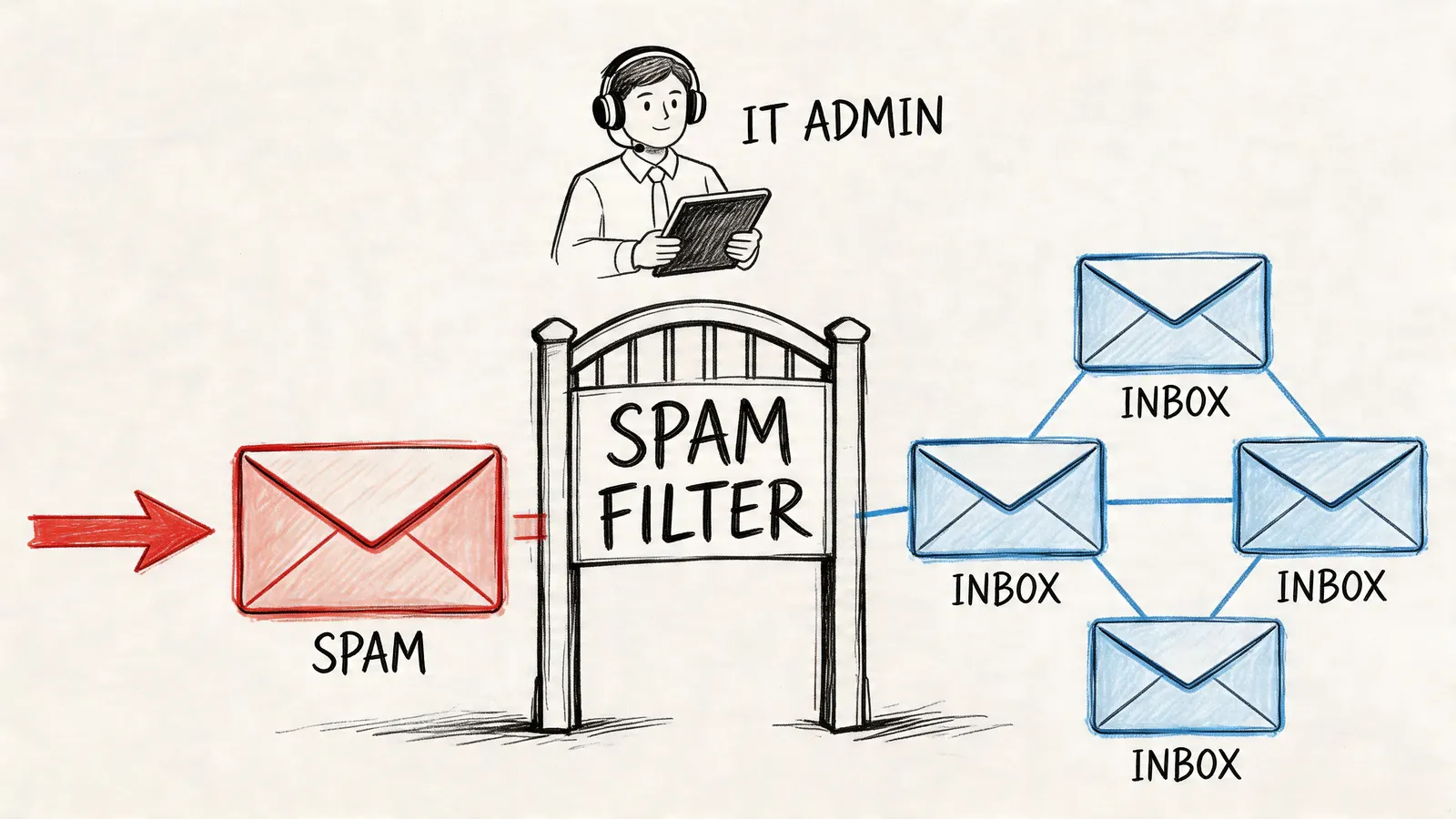
At the admin level, spam management stops being a personal preference and becomes an operational policy. One user's missed email is annoying. A shared inbox, team alias, or department workflow missing messages can stall approvals, support responses, and handoffs across the business.
Retention changes the recovery story
For normal Gmail users, Spam has a hard limit. Messages are purged after 30 days. For Google Workspace admins, the picture can be different if Google Vault is in place.
Google Vault allows admins to retain, search, and export spam-related data even after users delete it, which matters because 23% of professionals report missing critical emails weekly due to spam filters, as discussed in this Google Vault and spam recovery video. If your organization has compliance requirements, legal hold needs, or a habit of handling sensitive approvals by email, Vault isn't optional background infrastructure. It's part of recoverability.
Team workflows need policy, not just habits
Admins should pay attention to a few practical questions:
- Shared mailboxes and aliases: Who checks for false positives, and how often?
- Routing and compliance rules: Are automated rules catching messages too aggressively?
- Escalation path: If a user says a message never arrived, who verifies whether it was filtered, quarantined, deleted, or retained?
These aren't just IT questions. They affect sales operations, client service, finance, and project delivery.
Admin view: The right spam setup protects users without making recovery mysterious.
Security and productivity have to coexist
The mistake some teams make is treating spam filtering as purely defensive. Security matters, but so does controlled access to legitimate mail that was filtered incorrectly.
Admins who document review steps, recovery windows, and shared inbox responsibilities usually create fewer support loops. It also helps to pair spam policy with broader essential email security best practices so users understand the difference between safe recovery and careless clicking.
The best setups are boring in the right way. Users know what to check, admins know what can be recovered, and nobody has to improvise during a client escalation.
Frequently Asked Questions About Spam Management
How do I stop a specific sender from going to spam?
Create a Gmail filter for that sender or domain. Use their address as the condition, then choose the action that fits your workflow. For critical messages, sending them to the inbox makes sense. For lower-priority but legitimate mail, applying a label can be cleaner.
If the sender is important, also add them to Google Contacts and mark any existing spammed message as Not spam. The combination works better than doing only one of those things.
Is spam the same as phishing?
No. Spam is unwanted email. Phishing is deceptive email designed to trick you into giving up access, money, or sensitive information.
Some phishing emails land in Spam, but not all spam is malicious in the same way. If a message looks suspicious, don't recover it just because you were expecting something vaguely similar. Check the sender carefully, and if you're unsure, verify through another channel before clicking links or downloading files.
Why are my own emails landing in someone else's spam folder?
Usually because the receiving system doesn't fully trust the message or sender pattern. It can also happen when recipients haven't interacted with your emails before, or when your messages look promotional even if they're legitimate.
The practical fixes are simple: ask the recipient to mark your message as Not spam or Not junk, add you to contacts, and reply to your message. For ongoing business communication, keep your sending consistent and avoid changing your email style wildly from one message to the next.
If your team manages work inside Gmail, Tooling Studio helps keep tasks, follow-ups, and shared workflow visible without leaving Google Workspace. It's a practical way to reduce app-switching and keep important work from getting lost in the noise.
 Download our Plugin