
How to Create Email List Gmail: 4 Methods
Quickly create email list Gmail for your business. Discover step-by-step methods using contact labels, Google Groups, and mail merge strategies.
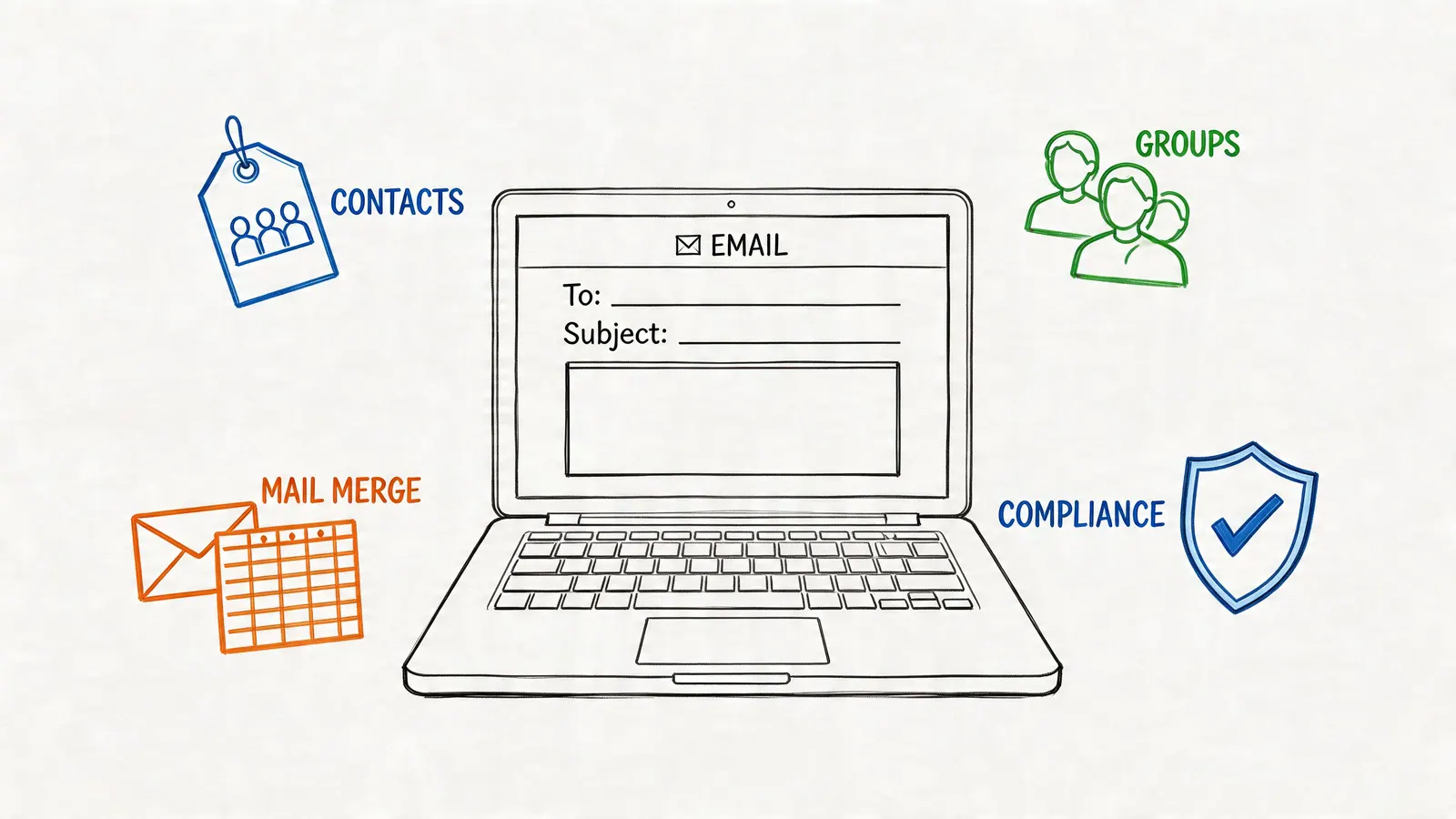
You’re in Gmail, trying to send one update to a project team, one follow-up to a handful of leads, and one announcement to a broader audience. The quick fix is obvious: paste a bunch of addresses into BCC and hit send.
That works once. It breaks down fast.
You forget someone. You include the wrong person. A teammate asks for the same list tomorrow and can’t access it. A sales rep needs personalization, not a blunt group send. An admin needs a method that won’t create compliance headaches later.
That’s why “create email list gmail” isn’t one task. It’s really a decision about which Gmail list method fits the job. Gmail gives you several paths, and they’re not interchangeable.
Beyond the BCC A Smarter Way to Email Groups
Monday morning: product needs a quick note to the launch team, sales wants a follow-up for 40 leads, and HR has to send a policy update to a managed employee list. All three jobs start in Gmail. They should not use the same list method.
BCC handles one-off privacy. It does not give you a reusable audience, shared ownership, approval controls, or personalization. Those gaps matter fast once the email is recurring, more than one sender is involved, or your admin team needs visibility into who can contact whom.
Gmail is still the center of gravity for a huge share of business email. By 2026, Gmail is projected to have about 1.8 billion users globally, which is why list setup inside Google’s ecosystem is often the fastest path for internal communication and lightweight outreach. The catch is that Gmail gives you several ways to group recipients, and each one carries different trade-offs for control, scale, and compliance.
Three methods matter most:
- Contact Labels for sender-owned lists that are quick to build in Google Contacts
- Google Groups for shared addresses, moderated membership, posting permissions, and audit-friendly administration
- Mail Merge for outreach where each recipient should get an individual version of the message
Here’s the rule I use: match the method to the risk.
A small project update sent by one manager can live in Contact Labels. A department alias like all-support@ should usually be a Google Group, especially in Workspace environments where posting rights, external senders, and retention policies matter. A sales campaign or event follow-up belongs in a mail merge flow, where personalization, reply handling, and send pacing are built into the process. If your team needs more control inside Gmail, specialized tools can tighten that workflow without forcing a full platform switch. A good email marketing lead generation playbook also helps teams decide when Gmail-native methods are enough and when they need a more structured outbound setup.
The expensive mistake is choosing the fastest setup for the first email, then inheriting the wrong system for the next six months. I see that pattern with teams that start with BCC, then later need list ownership, removal controls, domain-level permissions, or better tracking. Gmail can support all of that. You just have to choose the right list model before the audience grows.
Choosing Your Gmail List Method
The right list method depends on one question: Are you sending a shared message, managing a shared audience, or personalizing outreach at scale?

Quick decision guide
| Method | Best use | What it does well | Where it falls short |
|---|---|---|---|
| Contact Labels | Small repeat groups | Fast setup inside Google Contacts | Personal ownership can become a team bottleneck |
| Google Groups | Team lists and shared inbox-style communication | Shared address, permissions, moderation, archives | More setup and policy oversight |
| Mail Merge | Sales, outreach, personalized announcements | Sends individual versions of the same message | Needs cleaner data and more care with sending practices |
If you’re a project manager sending standups, launch notes, or stakeholder reminders, Contact Labels are usually enough. They’re easy to make, easy to reuse, and they stay close to your normal Gmail workflow.
If your company needs an address like team@, support@, or announcements@, a Google Group is the better fit. That’s not just a list of people. It’s a managed communication layer.
If you’re emailing leads, event registrants, or customer segments and want each recipient to see their own name, Mail Merge is the right tool. It turns one draft into many individualized emails.
How I’d choose in practice
- Use Contact Labels when one person owns the list and speed matters more than governance.
- Use Google Groups when membership, permissions, and continuity matter more than convenience.
- Use Mail Merge when the message needs variables, segmentation, or follow-up logic.
One useful mindset is to choose based on what must happen after the email is sent.
A project update usually ends with replies, assignments, and follow-ups among known teammates. A sales outreach campaign ends with tracking, list cleanup, and more sends to selected subsets. Those are different operational problems.
If you’re building a broader outreach process, this email marketing lead generation playbook is a useful companion because it helps map list structure to lead flow instead of treating email as a one-off blast.
Setup effort versus control
- Labels: very easy to create, low ceremony
- Groups: more formal, better for continuity
- Mail Merge: strongest for personalization, highest prep requirement
The biggest win comes from picking once and not rebuilding the same audience over and over in your compose window.
Building Quick Lists with Google Contact Labels
If you need the fastest path to create email list gmail, start with Google Contact Labels.
They work well for recurring internal updates, ad hoc project teams, freelancer client lists, and small sales pods. The setup is simple enough that anyone can create and send a reusable list in a few minutes.
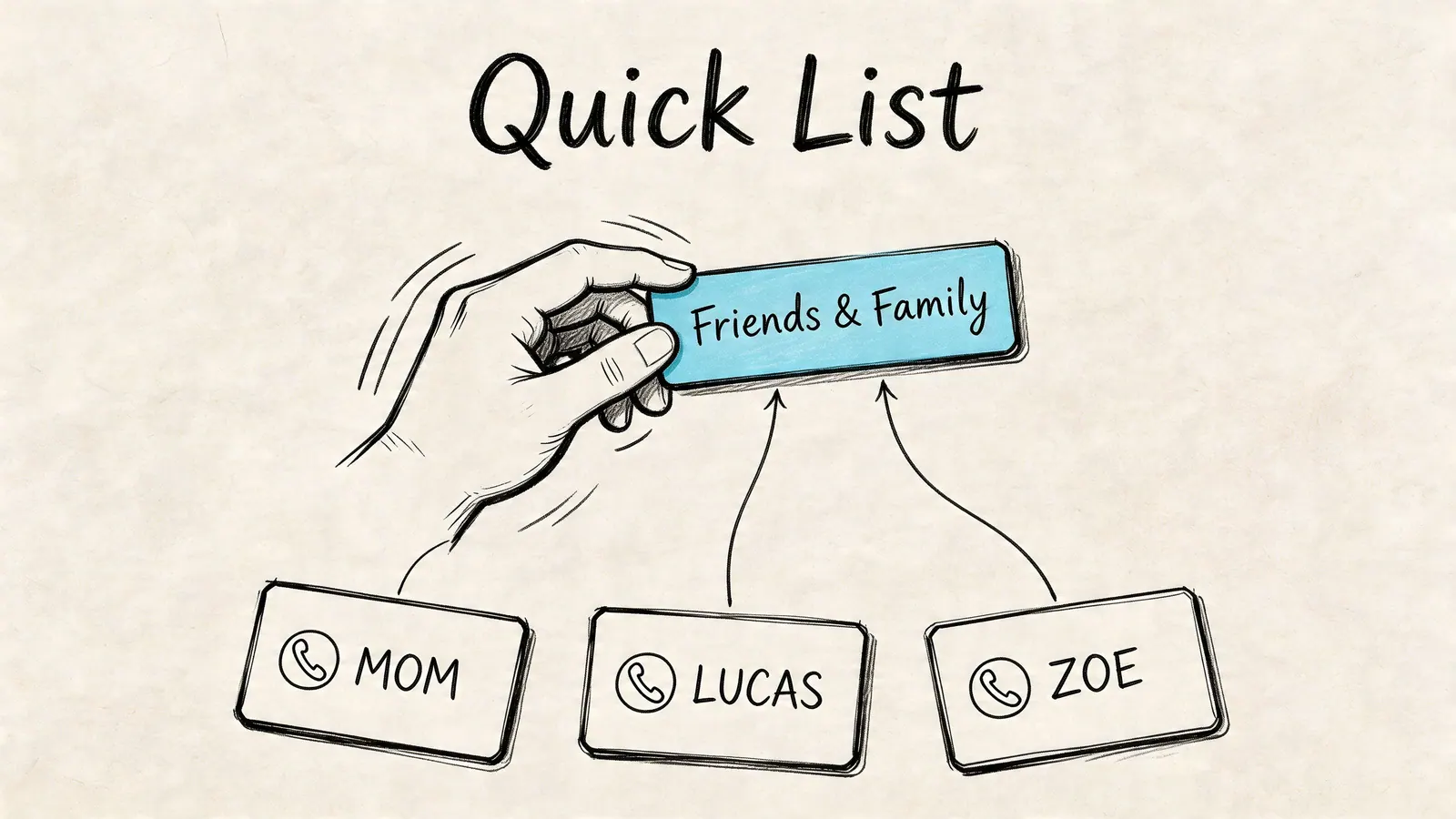
As of 2025, over 60% of Gmail’s 1.8 billion users, or roughly 1.08 billion people, use contact labels for group emailing. For small businesses, this feature has been shown to increase team collaboration efficiency by up to 35% in the Google Contacts workflow video reference.
The fastest setup
A practical example helps. Say a project manager needs to send daily updates to everyone working on Project Phoenix.
Open Google Contacts from the Google app launcher or go directly to contacts.google.com. Then:
Create the label
- Click Create label
- Name it something specific, such as
Project Phoenix Team - Keep names predictable so you can find them quickly in Gmail later
Add contacts
- Pull in people already saved in Contacts
- Add them manually if needed
- Import a CSV if you’re moving a list from a spreadsheet
Use the label in Gmail
- Open a new compose window
- Start typing the label name in the To, Cc, or Bcc field
- Gmail will auto-suggest the label and populate the recipients
That’s the core workflow. It’s fast because you create the group once and reuse it whenever you need it.
Best use cases for labels
Labels are strongest when the group is stable and the message is straightforward.
- Internal updates: standups, status reports, sprint wrap-ups
- Freelancer workflows: recurring client notices, invoicing reminders
- Sales support: small lead pods, handoff lists, follow-up clusters
- Event coordination: speakers, volunteers, local partners
Smart habits that make labels work better
A lot of frustration with labels comes from loose maintenance, not the feature itself.
Name labels like operational assets
Don’t create labels called “Team” or “Clients.” Those names become useless fast.
Use names that answer two questions: who is on it, and why does it exist?
Examples:
Phoenix StakeholdersQ2 Webinar RegistrantsWest Region LeadsWeekly Ops Update
Use Bcc when privacy matters
If the list is informational rather than conversational, use Bcc. That keeps addresses private and avoids messy reply-all chains.
Put collaborative groups in To or Cc only when recipients should see one another and respond openly.
Audit the list before an important send
When you type the label in Gmail, expand the recipients and scan the list. This catches stale contacts before the message goes out.
That matters even more if the label was built from older contacts or imported records.
Where labels start to strain
Labels are personal shortcuts. That’s their strength and their limitation.
They’re great when one person owns the audience. They’re weaker when multiple people need to trust the same audience definition every day. If your workflow depends on shared membership rules, moderation, or a stable public-facing address, move up to Google Groups.
There’s also a practical data issue. Contacts become more useful when they’re maintained like lightweight CRM records instead of random address book entries. If your team is trying to tighten that process, this guide to a Google Contacts CRM workflow is a solid next step.
A short maintenance checklist
- Remove stale entries before recurring campaigns
- Check email fields on recently added contacts
- Keep one owner responsible for list hygiene
- Split mixed-purpose labels instead of stuffing everyone into one master group
Labels work best when they stay small, clear, and intentional.
Creating Formal Mailing Lists with Google Groups
There’s a point where Contact Labels stop being enough. Usually that happens when the list shouldn’t belong to one person.
A department address, an internal announcements list, a committee mailbox, or a customer-facing support alias all need more structure than a private contact label can offer.
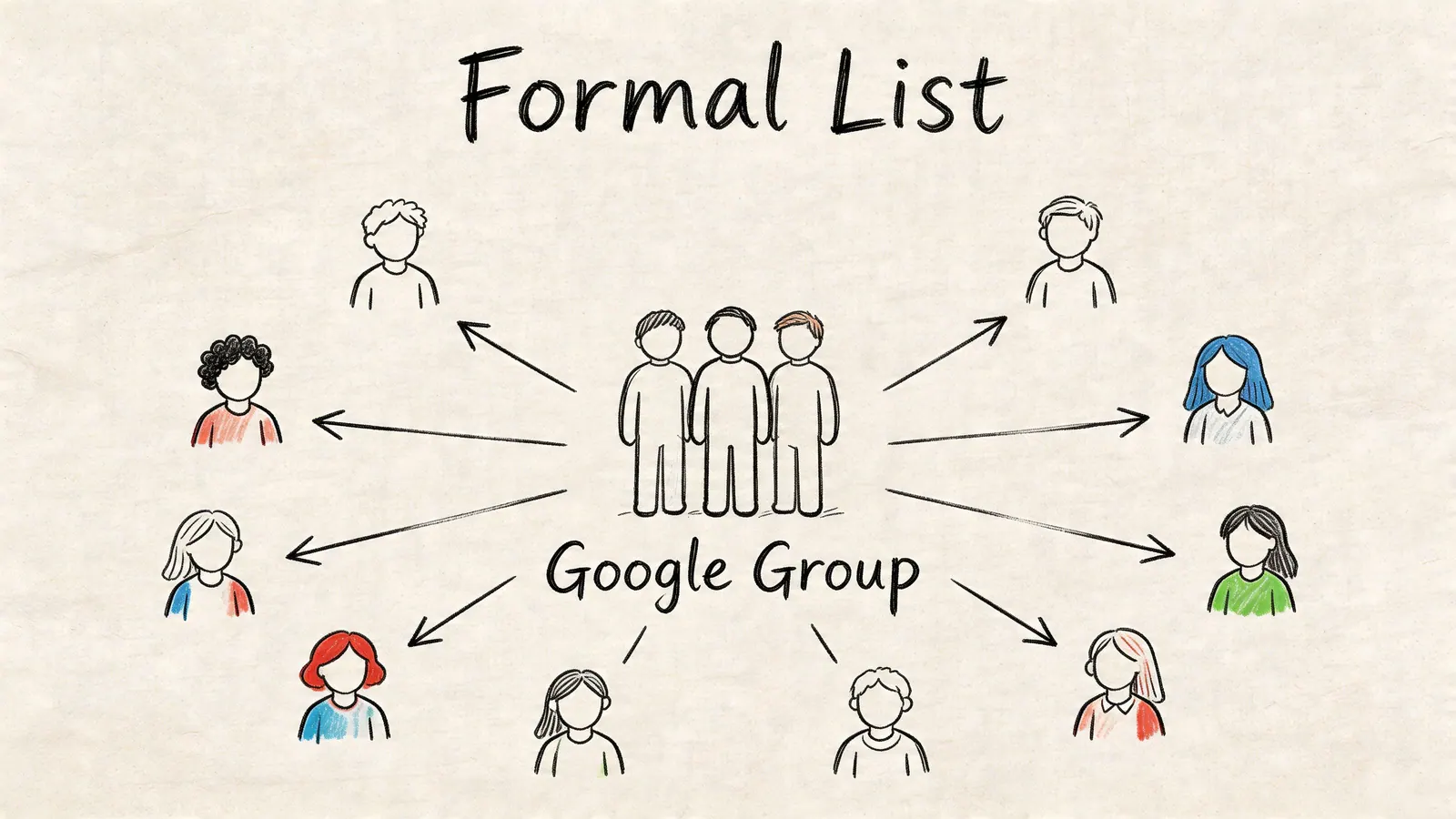
A Google Group is different from a label in one important way. It acts as a managed group identity, not just a personal shortcut in your Contacts.
When a group is the better choice
Use Google Groups when you need one or more of these:
- Shared ownership: multiple people manage the same list
- Permissions: only certain users can post or invite members
- Continuity: the list stays intact even if one employee leaves
- Archives: team communication needs a historical record
- Public or semi-public access: members join, request access, or follow discussions
That makes Google Groups a better fit for formal communication, especially inside Google Workspace.
A practical setup flow
Start in Google Groups and create a new group. During setup, choose a name, a group email address, and a basic purpose.
For example:
[email protected]for one-way internal updates[email protected]for customer requests routed to a team[email protected]for organizing a defined group
Then configure the core settings.
Decide who can post
This is the first setting that changes the whole experience.
For an announcements list, you usually want only a small set of managers or admins to send messages. For a team discussion list, members can post freely.
Decide who can view conversations
Some groups should act like internal channels with searchable history. Others should stay restricted.
If sensitive discussions are involved, keep access tight. If the group is operational and people frequently need context, searchable archives save time.
Decide how people join
Options vary by workspace configuration, but the logic is simple:
- invite-only for controlled internal lists
- managed membership for departments
- broader join access for communities or clubs
Labels versus Groups in real work
A label says, “I often email these people.”
A Google Group says, “This audience exists as an organizational unit.”
That distinction matters. If HR sends updates through a personal label owned by one manager, the process is fragile. If HR uses a group with managed permissions, it survives staffing changes and is easier to audit.
If the list represents a function, not a person, build it as a Group.
Here’s a quick walkthrough resource for the setup flow:
Common patterns that work well
Internal announcements
Keep posting rights narrow. Let everyone in the company receive messages, but don’t turn the list into a discussion thread unless that’s intentional.
Team collaboration lists
Allow members to post and reply if the group exists to coordinate work. This can work well for departments, steering committees, or regional teams.
External contact points
Use Groups when customers or partners need a stable address that routes to multiple people. This removes the single-owner risk that comes with labels.
The trade-off
Google Groups take more setup than labels. That’s the cost of better governance.
For solo professionals or tiny teams, that overhead can feel unnecessary. For companies that need formal ownership, predictable permissions, and fewer single points of failure, it’s the right kind of friction.
Personalizing Emails at Scale with Mail Merge
Sometimes a list isn’t enough. You don’t want one email sent to a visible group. You want many separate emails that share the same structure but feel individual.
That’s where mail merge fits.
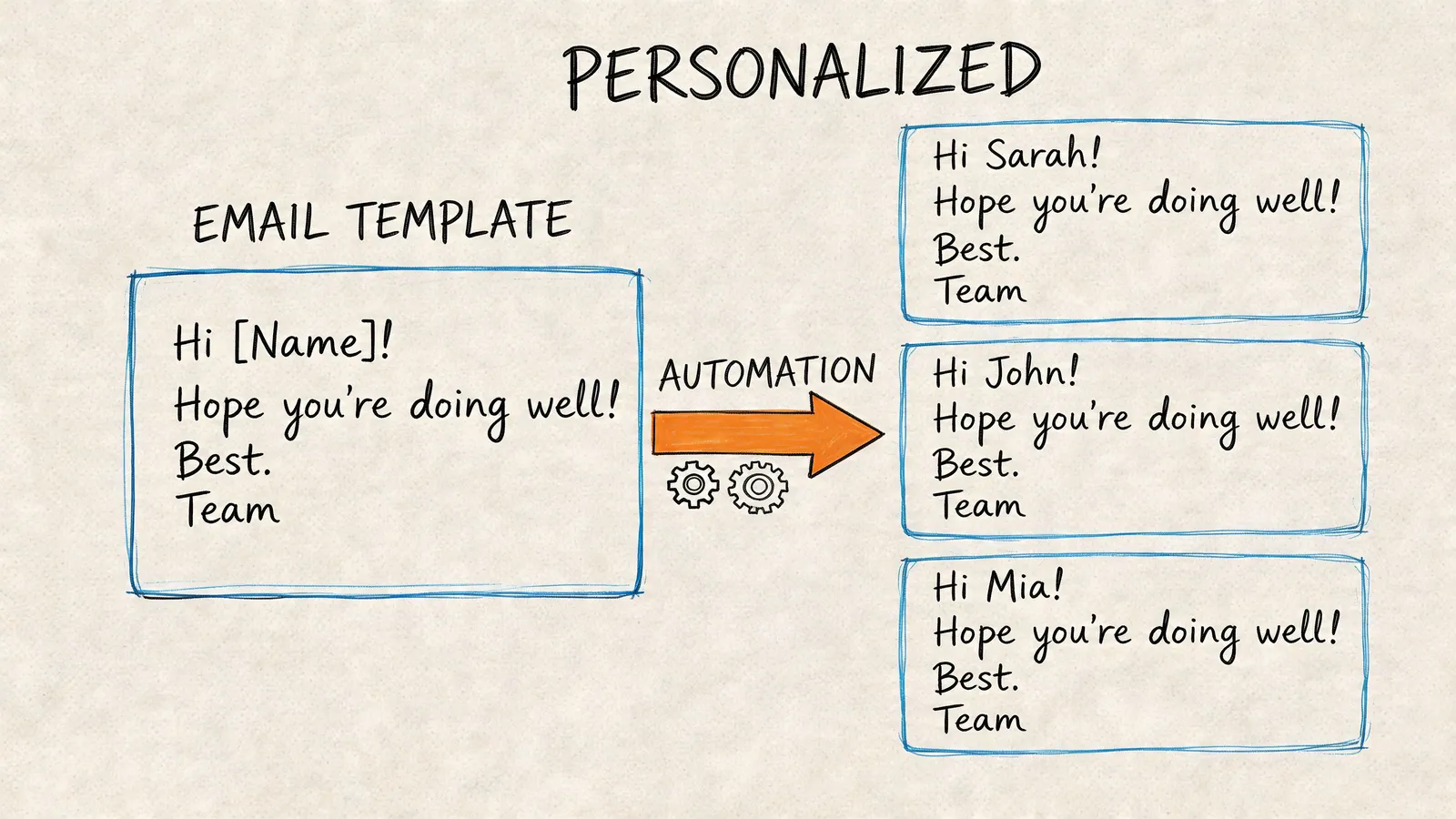
A sales team might send one sequence to fifty leads, but each message should include a first name, company, or event reference. A school might send individualized parent notices. A consultant might send customized follow-ups after discovery calls.
What mail merge actually changes
Instead of composing one message addressed to a group, you prepare a template and connect it to structured contact data.
Typical fields include:
- first name
- company
- role
- event or account context
Each recipient gets a separate email generated from the same template.
A practical workflow
The cleanest starting point is a spreadsheet with one row per contact and one column per field. Then draft your email with merge fields mapped to those columns.
The key is to keep the message mostly consistent while changing the parts that make it relevant. Usually that means the opening line, one context sentence, and the signature details.
Keep the template tight
The best mail merges don’t look like mail merges. They read like a normal email a busy person wrote carefully.
That means:
- short subject line
- one clear reason for contacting them
- one concrete call to action
- no bloated formatting
Segment before you send
Don’t stuff unrelated contacts into one sheet and hope variables will rescue the message. A single list can support multiple sends, but each send should target a coherent audience.
The overlooked shortcut
One of the most useful advanced workflows is building a list from your Gmail search activity instead of relying only on saved contacts.
A major gap in most guides is dynamic list building from Gmail search results. Tools like GMass show a 40% time saving on list creation by auto-pulling recipients from search queries, and that workflow becomes more intuitive alongside Gmail’s AI-powered search rollout in Feb 2026, according to the GMass discussion of undisclosed recipients and related list-building workflows.
That matters for sales and project work because some of your most relevant recipients aren’t neatly saved in Contacts yet. They’re buried in threads, replies, forwarded notes, and old conversations.
Search-driven list building is powerful for follow-ups. It’s risky if you don’t review the results before sending.
This is also where extensions start to earn their keep. Native Gmail can handle a lot, but teams often outgrow basic merge behavior when they need tracking, attachments, or more advanced send logic. If your workflow includes document-driven outreach, this guide on mail merge with PDF in Gmail is worth reviewing.
When not to use mail merge
Don’t use it for internal team coordination. It adds complexity where a label or group would be cleaner.
Mail merge is for individualized one-to-many communication, not ordinary shared updates.
Best Practices for Sending and Compliance
A list that works in Gmail can still create privacy, admin, and deliverability problems if you pick the wrong sending method.
Start with the audience. Internal updates, client notices, and outbound sales emails do not belong in the same workflow. A contact label may be fine for a quick team update. A Google Group fits a managed internal distribution list better. Mail merge is the safer choice when each recipient should get an individual copy and no one should see the rest of the list.
Two rules carry most of the load:
Protect recipient privacy. If recipients should not see each other, use Bcc or individualized sends.
Stay inside Gmail’s sending limits. As noted earlier, large sends should be planned in batches, especially if you are close to your account cap.
The compliance piece gets ignored in basic Gmail tutorials. In Google Workspace, large recipient lists can become an admin issue, not just a sender issue. Groups with broad membership, external recipients, or loose ownership often trigger reviews from IT or legal in companies that care about access control, retention, and audit trails. If you work in a regulated environment, document who owns the list, who can edit it, and what type of messages it is approved to send.
Shared-account timing matters too. Label edits and contact changes may not appear everywhere right away. That is a small annoyance for an internal note, but it is a real risk for customer communication or sales outreach where one stale address can create a bounce, a duplicate send, or an unsubscribe complaint.
A simple operating standard helps:
- use labels for lightweight, low-risk lists
- use Google Groups when membership and permissions need oversight
- use mail merge for personalized one-to-many outreach
- review recipients before every large send
- batch higher-volume sends instead of pushing everything out at once
Teams that send from Gmail regularly should also standardize process, not just tools. A short playbook for batch email in Gmail reduces inconsistent sending habits across reps, recruiters, and project leads. If your team needs broader policy guidance beyond Gmail setup, this roundup of B2B email marketing best practices is a useful reference.
Troubleshooting Common Gmail List Issues
Most Gmail list problems come from three things: stale contact data, sync timing, or using the wrong list type for the job.
A label doesn’t populate correctly
Check the contacts inside the label first. A common pitfall is that contacts without email addresses can cause the send to fail or prevent the group from populating correctly, as explained in the Copper guide to making an email list in Gmail.
Fix:
- open the label in Google Contacts
- remove entries missing email fields
- test by typing the label into a draft before the actual send
The same person appears more than once
Labels don’t automatically deduplicate. Manual cleanup on large lists can carry a 10 to 15% error rate, according to the same Copper reference above.
Fix:
- export and review large lists if needed
- keep one “source of truth” label instead of maintaining overlapping versions
- avoid copying the same audience into multiple near-identical labels unless there’s a clear reason
A new contact isn’t showing up yet
This is often a sync issue, especially in shared Workspace environments.
Fix:
- wait briefly before sending
- reopen the compose window
- verify the contact exists in Google Contacts, not just in an old thread
You hit a sending limit
Stop and reschedule. Don’t keep hammering send.
Fix:
- split the audience into batches
- move recurring outreach to a mail merge workflow
- use Groups or labels only where they match the actual use case
The list feels hard to maintain
That’s usually the sign you picked the wrong method. Labels are good shortcuts. They’re not full audience management systems.
If your team lives in Gmail and wants a cleaner way to manage follow-ups, tasks, and contact-driven workflows without constant app switching, take a look at Tooling Studio. Its Google Workspace-focused extensions are built for people who want practical control inside the tools they already use.
 Download our Plugin