
How to Count Words in Google Docs (Fast & Easy Guide)
Learn how to check word count on desktop and mobile, use shortcuts, count selected text, and see the live count as you type.
You’re polishing a proposal, the deadline is close, and someone on the team says, “Keep it under 500 words.” That’s usually when people stop writing, start guessing, and lose momentum clicking around menus.
Google Docs handles this better than often realized. If you know the right method for the moment, you can check a full document, track a live running total, measure one paragraph, or audit multiple docs without opening them one by one. For project managers, sales teams, and anyone writing in Google Workspace all day, that’s a small skill that saves a surprising amount of friction.
Why Mastering Word Count in Google Docs Matters
You feel the value of word count the moment a document has a limit and the draft keeps growing.
A proposal has to stay under a review threshold. A project brief needs enough context to guide the team without turning into a wall of text. A hiring summary should fit on one page so a manager can scan it fast. In those situations, counting words in Google Docs is part of document control. It helps you decide what stays, what gets cut, and how much detail the reader can realistically absorb.
Teams lose time when they treat word count as a final check instead of a drafting tool. The common pattern is familiar. The draft gets finished first, the count comes in high, and then the writer starts cutting under pressure. That usually produces weak introductions, rushed transitions, and missing details in the sections that carry the decision.
A better rule is simple. Check word count during drafting when the document has a hard cap. Check it near the end when the goal is clarity, not strict length.
The useful skill is choosing the right method for the job. A live running total helps when you are writing to a target. A selection count helps when one section is too long but the full document is fine. Character counts matter for forms, metadata fields, and compliance-driven templates. And if your team manages many files, manual checks stop scaling fast. That is where automation earns its place, especially for operations work inside Google Workspace.
What good word-count habits look like
In practice, the method should match the task:
For proposals: monitor length as you draft so the final edit is about improving the argument, not chopping whole sections.
For editing: count a specific selection to tighten an executive summary, intro, or scope section without guessing.
For compliance-style writing: watch characters as closely as words when limits are defined by fields or submission rules.
For content operations: automate counts across documents when reviewing many files would otherwise turn into repetitive admin work.
This provides the primary benefit. Knowing word count in Google Docs is useful. Knowing when to use the built-in tools, and when to move to Apps Script, saves more time and produces cleaner documents.
Finding the Word Count on Your Computer
You are halfway through a proposal, the client asked for a two-page summary, and the draft is already drifting long. On desktop, Google Docs gives you three practical ways to check length. The right one depends on whether you need a full snapshot, a fast check, or a live count while you write.
Use the menu when you need the full picture
For a careful review, open the built-in panel:
Open your Google Doc.
Click Tools in the top menu.
Select Word count.
Google Docs shows four measurements in one pop-up:
Pages
Words
Characters
Characters excluding spaces
Use this view before sending a document out, handing it to a reviewer, or checking whether a project brief fits a template. It is also the clearest option when you need character counts for forms, titles, or structured fields.
One detail catches people off guard. Google Docs focuses on the document body, so supporting elements may not affect the count the way you expect. If you are building more formatted layouts, including content placed in shapes or visual containers, this guide to working with text boxes in Google Docs helps clarify where text lives and how to manage it cleanly.
Use the shortcut when you need speed
If you check count often, skip the menu.
| Device | Shortcut |
|---|---|
| Windows | Ctrl+Shift+C |
| Mac | Cmd+Shift+C |
The shortcut opens the same word count panel. For day-to-day drafting, that matters. A quick keyboard check is easier than breaking concentration to hunt through menus every few minutes.
I use the shortcut during long writing sessions because it keeps the edit moving. It is especially useful for reports, proposals, and meeting recaps where the document grows in stages and length can get away from you.
Turn on the live counter for target-driven drafts
The live counter is the best desktop option when length is part of the assignment.
Open Tools > Word count, then enable Display word count while typing. Google Docs adds a small counter in the lower-left corner of the document and updates it as you work.
That changes how you pace the draft. Instead of stopping to check progress, you can write toward a target in real time. For a 500-word executive summary or a one-page project update, that is often more useful than reopening the pop-up over and over.
A quick walkthrough can help if you want to see the interface before trying it yourself.
Which desktop method works best
Use each method for a different job:
Menu path: best for a full document check before review or delivery
Shortcut: best for frequent spot-checks during drafting
Live counter: best for writing to a fixed target without interrupting your flow
That distinction matters more than the feature itself. Once you know which method fits the moment, Google Docs stops being just a text editor and starts acting like a better writing tool.
Counting Specific Selections and Understanding the Numbers
The total count is only half the story. In real editing work, you often need to measure one part of a document without touching the rest.
That’s where Google Docs does a nice job. You can highlight text and get a count for the selection relative to the full file.
How to count only part of a document
Select the exact text you want to measure. Then open Tools > Word count.
Google Docs will show the selected text against the total document count. A common example is a format like “43 of 1,394 words”, which makes it easy to see how much space one section is taking inside the full draft, according to Indeed’s guide to checking word count on Google Docs.
That’s useful when you’re:
trimming an overlong intro
checking whether a summary paragraph is short enough
measuring a quote block before moving it elsewhere
editing a document with multiple contributors

If you build structured layouts inside Docs, this becomes even more useful. For example, a callout section or shaped content area can be easier to manage when you also understand how those pieces behave inside the document. This guide to text boxes in Google Docs is a helpful companion if your document layout is part of the editing challenge.
What the numbers actually mean
The pop-up gives you four kinds of information, and each one answers a different question.
| Metric | Best use |
|---|---|
| Pages | rough document length for print-style review |
| Words | article, proposal, or brief limits |
| Characters | strict text limits where spaces count |
| Characters excluding spaces | platform or field limits where only visible characters matter |
The distinction between the two character counts matters more than people expect.
If you’re writing a short ad line, a metadata field, or a cramped internal system note, characters excluding spaces can help you understand the actual text load. If you’re filling a form or working with a platform that counts every keystroke, characters is the safer reference.
A good editor doesn’t just ask, “How long is this?” They ask, “What kind of limit am I trying to satisfy?”
What works and what doesn’t
What works:
checking a single section before rewriting it
comparing one contributor’s block to the whole draft
using character counts for tight interface copy
What doesn’t:
relying on page count alone for digital documents
trimming content without checking whether the problem is one bloated section
assuming “word limit” and “character limit” are interchangeable
Selection-based counting has been available since Google Docs launched in 2006, and the same capability is mirrored on mobile by selecting text and using the menu, according to the Indeed reference above.
Checking Word Count on the Go with Mobile
Mobile word count is good enough for quick checks, but it’s not as comfortable as desktop. That’s fine if you treat it as a review tool rather than a drafting cockpit.
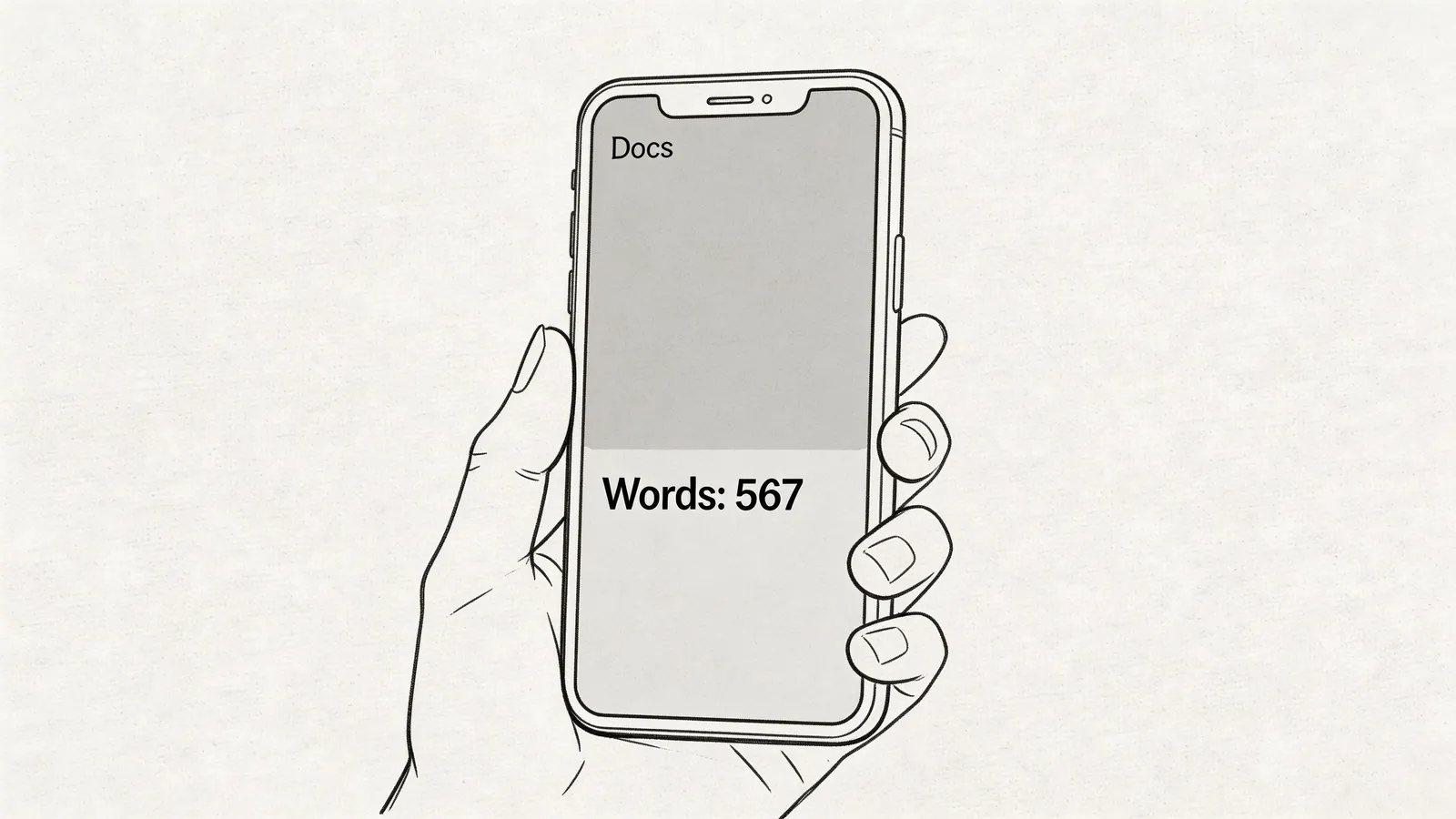
The tap-by-tap process
On the Google Docs mobile app:
Open the document.
Tap the three-dot menu.
Choose Word count.
If you want to count only part of the document, long-press to select the text first, then open the same menu. Google Docs can show the count for that selected portion on mobile as well, as noted earlier in the Indeed reference.
What mobile is best for
Mobile works well when you need to:
sanity-check a draft before sending it
confirm a summary section isn’t too long
review a document while traveling
make quick edits from a phone or tablet
It’s less ideal for length-managed drafting because you don’t get the same pinned, always-visible count experience that desktop offers.
Mobile is for checking and adjusting. Desktop is for pacing a draft.
If you work regularly without a stable connection, it also helps to set up your environment properly before leaving your desk. This guide to Google Drive offline is worth bookmarking if your team edits Docs while traveling or between meetings.
The main limitation
The biggest trade-off is visibility. On desktop, the live counter can sit in the corner while you write. On mobile, word count is more hidden and more interruptive.
That doesn’t make mobile bad. It just means the workflow is different. Use it for spot checks, not sustained quota management.
Automate Word Counts Across Documents with Apps Script
When you manage one document, native word count is enough. When you manage a folder full of documents, manual checking gets tedious fast.
Google Apps Script provides a solution. It lets you run JavaScript inside Google Workspace and push results into a Google Sheet. For content leads, educators, and project managers, that’s a practical way to audit a batch of Docs without opening each file.
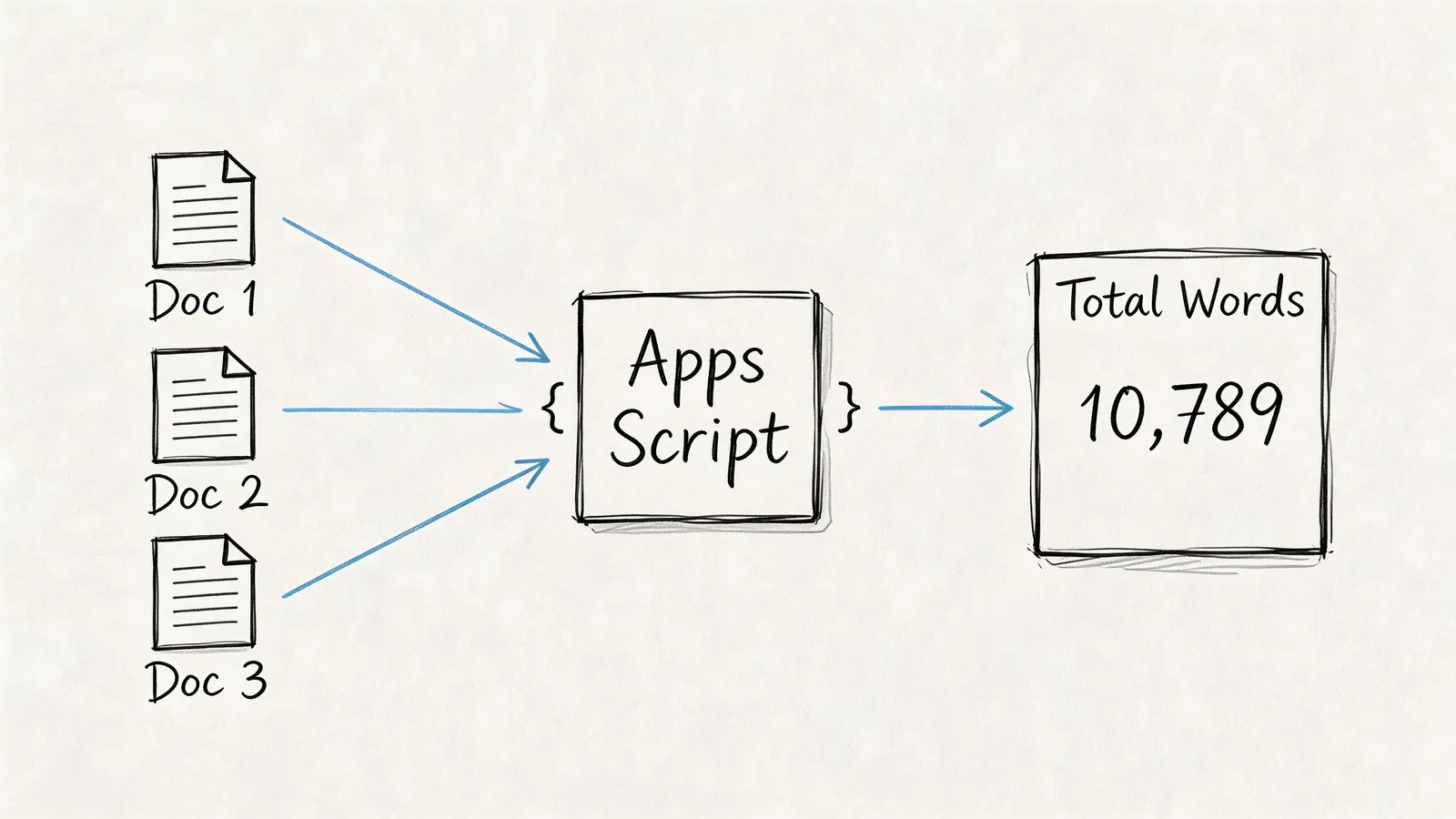
Advanced users can also use Google Apps Script or Chrome extensions with the Google Docs Editor API for automation, and one reference notes this can be five times faster than manual counting (1.2s vs. 6s for 50k words) while reducing app-switching by up to 40% in related productivity benchmarks, according to GeeksforGeeks on checking word count in Google Docs.
A practical script you can use
This script scans every Google Doc in a chosen Drive folder, counts the words, and writes the results to a new Google Sheet.
function countWordsInDocsFromFolder() {
  // Replace with your Google Drive folder ID
  const folderId = 'PASTE_FOLDER_ID_HERE';
  const folder = DriveApp.getFolderById(folderId);
  const files = folder.getFilesByType(MimeType.GOOGLE_DOCS);

  // Create a new sheet for results
  const sheet = SpreadsheetApp.create('Google Docs Word Count Report').getActiveSheet();
  sheet.appendRow(['Document Name', 'Document URL', 'Word Count']);

  while (files.hasNext()) {
    const file = files.next();
    const doc = DocumentApp.openById(file.getId());
    const text = doc.getBody().getText().trim();

    // Basic word count logic
    const wordCount = text ? text.split(/\s+/).length : 0;

    sheet.appendRow([
      file.getName(),
      file.getUrl(),
      wordCount
    ]);
  }
}
How to run it safely
Use this flow:
Open script.google.com
Create a new Apps Script project
Paste the code
Replace the folder ID
Run the function and approve permissions
This method is simple, but it has trade-offs. It counts visible body text well enough for a reporting sheet. It won’t give you the same nuanced interface options as the built-in counter, and if your documents rely heavily on special structures, you may want to expand the logic.
For teams trying to reduce repetitive admin work, broader context helps. This article on workflow automation benefits for authors is useful because it frames automation as a way to protect writing time, not just as a technical exercise.
If you like extending Google Workspace with lightweight tools, this roundup of Google Workspace add-ons is also worth reviewing. It helps clarify when a native script is enough and when an add-on is the better fit.
Quick Answers to Common Word Count Questions
A few edge cases come up again and again.
Do headers, footers, and footnotes count
Not by default in the native desktop word count view. If you need to measure that text, select it directly where possible and inspect it separately, or use a custom workflow such as scripting when the structure matters.
Do words in tables count
In normal practice, Google Docs counts text in the body of the document. If a table is part of the body content, you should verify the count directly in your file rather than assume. For sensitive limits, test the exact section by selecting it.
What about text boxes or drawings
That’s where things can get less predictable. Text placed inside drawings or special layout elements may need a manual check. If the count is critical, select the text itself when possible or move it temporarily into the body to verify.
Why isn’t the live word count updating
Usually one of these is the issue:
The option isn’t enabled: Open the word count pop-up and confirm Display word count while typing is checked.
You’re on mobile: the mobile experience doesn’t provide the same pinned counter.
The document view changed: click back into the body text and continue typing.
If a count looks wrong, test a small selected block first. That usually tells you whether the issue is the document structure or your counting method.
Should you trust page count
Only as a rough reference. Page count depends on formatting choices. Word count is the better operational measure for proposals, briefs, and internal docs.
Tooling Studio builds lightweight Google Workspace tools for teams that want less app-switching and smoother daily work inside Gmail, Google Tasks, and the broader Google environment. If your team cares about practical productivity, explore Tooling Studio for focused tools that fit the way Google Workspace users already work.
 Download our Plugin