
Pin Website to Taskbar: A Guide to Quick Access
Learn how to pin website to taskbar in Windows using Chrome, Edge, and Firefox. Get step-by-step instructions for faster access to your most-used sites.

Your taskbar is probably cleaner than your browser.
That’s the problem.
For many Google Workspace users, their actual workday lives inside a handful of websites: Gmail, Calendar, Docs, Meet, a project board, maybe a client portal. But those tools are usually buried in a row of tabs, mixed with searches, reference pages, and things you meant to close an hour ago. Reaching the right one becomes a small but constant interruption.
A better approach is simple. Pin website to taskbar and give the tools you use all day a permanent place on your desktop. One click, same location, less hunting. It’s a small change, but for inbox-heavy work it can remove more friction than another productivity app ever will.
Why Pin a Website to Your Taskbar
If your day starts in Gmail and branches into Calendar, Google Drive, and a few internal tools, tab overload isn’t an edge case. It’s normal. The issue isn’t only visual clutter. It’s the repeated act of finding the right tab, opening a new one when you lose it, and getting pulled into unrelated pages along the way.
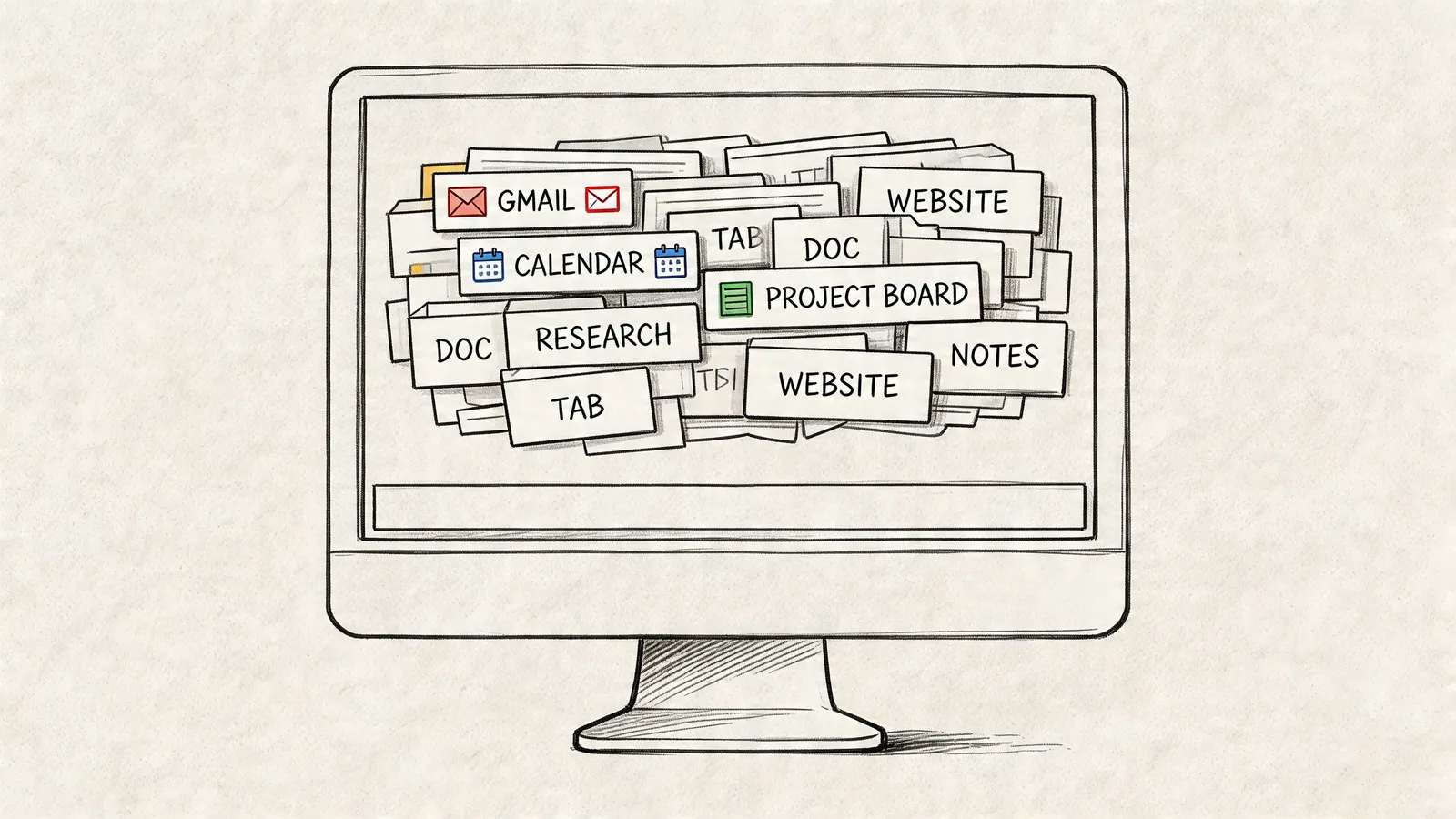
Pinning changes that by turning a website into something that behaves more like an app. Gmail stops being “one of many tabs” and becomes a fixed entry point on the taskbar. The same goes for a team board, a CRM portal, or a shared dashboard.
A useful detail here is that this isn’t just preference. A 2022 Microsoft PowerToys telemetry report summarized by IONOS found that 78% of Windows users reported faster workflow access by pinning 3-7 frequent sites, reducing access from 8-12 mouse clicks to 1 per session and saving an estimated 5-10 minutes daily.
What this changes in practice
- Less tab searching: Gmail, Calendar, and your core work tools always stay in the same place.
- Cleaner mental context: A pinned site feels separate from casual browsing, which helps keep work tools focused.
- Faster entry points: You stop typing URLs, reopening bookmarks, or digging through browser history.
- Better routines for repeat work: If you open the same sites every day, the taskbar becomes your launchpad.
Practical rule: Pin websites you open several times a day, not just sites you like.
For Google Workspace users, this works best when the pinned site is a primary workspace. Gmail is an obvious candidate. So is Calendar, a shared planning board, or a customer portal your sales team checks constantly. If reducing context switching is already on your mind, this piece on reducing switch cost in Google Workspace with Kanban Tasks is a useful companion read.
If you work across different platforms, it’s also worth comparing how desktop workflows differ. This roundup of Mac apps for SaaS founders is a good reference for the Mac side of the same problem.
Pinning Sites from Chrome and Edge
Chrome and Edge provide the simplest method for pinning websites to the taskbar. Both browsers support a cleaner path than older shortcut workarounds, and both can create a more app-like experience when a site is built for it.
The basic idea is straightforward. You either install the site as a web app, or create a shortcut that opens as its own window.

The feature itself has been around for a long time. The ability to pin websites to the taskbar started with Windows 7 in 2009, and for Chrome users it was refined around 2011 with the Create Application Shortcut approach, a precursor to modern PWAs. It remains widely relevant for over 1.3 billion Windows 10/11 users globally as of 2023, as noted in this Windows taskbar pinning overview.
Use Install app when the site offers it
Some websites are built to behave like applications. Gmail is a good example. In Chrome or Edge, these sites may show an Install app option in the browser menu or the address bar.
When that option appears, use it.
Why? Because it usually gives you the cleanest result:
- a dedicated window
- its own taskbar icon
- less browser chrome around the content
- behavior that feels closer to a desktop app
For Google Workspace users, this is the closest thing to turning Gmail into a lightweight desktop app without adding another layer of software.
A quick check helps:
- Open the site you want.
- Look in the browser menu for Install app or a similar install prompt.
- If it appears, choose it.
- Once the app window opens, right-click its taskbar icon and pin it if it isn’t pinned already.
The best pinned experience usually starts with a site that already behaves like an app.
Use Create shortcut for any regular website
Not every site supports installation. That doesn’t mean you’re stuck.
In Chrome, open the site, then go to the menu and find Create shortcut. Depending on your version, the wording may appear under a save or share path in the menu. The important setting is Open as window. Turn that on before creating the shortcut.
In Edge, the path is often more direct. You may see options related to apps, installation, or pinning inside the menu. If the site isn’t installable as an app, create the shortcut or use the available pinning option.
Once the shortcut opens in its own window:
- Launch it once.
- Find its icon on the taskbar.
- Right-click the icon.
- Choose Pin to taskbar.
That one detail, Open as window, matters more than people expect. Without it, the shortcut can just reopen as another tab in your browser. That defeats most of the benefit.
Here’s a video walkthrough if you want to see the flow before doing it yourself:
Chrome and Edge compared
| Browser | Best option | Good for |
|---|---|---|
| Chrome | Install app if available, otherwise Create shortcut with Open as window | Gmail, dashboards, internal tools |
| Edge | Install or pin through built-in app tools | Microsoft-heavy environments, managed Windows setups |
A simple rule helps. If the site offers an install option, use that first. If it doesn’t, create a shortcut and make sure it opens as a window.
For readers tuning Chrome for focused work, this list of Chrome productivity extensions for better daily workflows pairs well with a pinned setup.
Pinning Websites in Firefox
Firefox users can still pin website to taskbar, but the workflow is less polished than in Chrome or Edge. In many setups, the most dependable method is still the manual shortcut route.
That sounds more awkward than it is. You create a desktop shortcut for the site first, then pin that shortcut to the taskbar.

The manual method that works
Open the website in Firefox. Then drag the lock icon from the address bar to your desktop. Windows creates a shortcut to that page.
From there:
- right-click the new desktop shortcut
- confirm it points to the correct site
- rename it to something clean, like Gmail or Team Board
- pin it to the taskbar using Windows
This works because Windows is pinning the shortcut, not Firefox offering a native install-style experience.
Clean up the shortcut before pinning
If you want the result to feel less makeshift, spend a minute on the shortcut itself.
A few small improvements help:
- Rename it clearly: Use the tool name, not the full page title.
- Check the destination behavior: Make sure it opens the expected page and not a generic home page.
- Change the icon if needed: A recognizable icon makes the taskbar easier to scan.
- Test it once before pinning: Open it from the desktop first. Then pin the version that behaves correctly.
If a shortcut opens the wrong page after you pin it, fix the shortcut first. Don’t keep repinning a broken one.
What to expect from Firefox
Firefox can absolutely handle quick-access website shortcuts, but this is still more of a workaround than a built-in app flow. That matters if you want a dedicated app window, cleaner branding, or less maintenance.
Use Firefox pinning when:
- Firefox is your primary browser and you want to stay there
- the site is simple and doesn’t need app-like behavior
- you only need fast access, not a polished standalone experience
Choose Chrome or Edge instead when:
- you want installable web apps
- you care about a cleaner standalone window
- the site is something you use all day, like Gmail
Understanding Progressive Web Apps
Some pinned websites feel like proper apps. Others feel like bookmarks wearing a costume. The difference usually comes down to whether the site is a Progressive Web App, or PWA.
A PWA is a website built to behave more like installed software. It runs in a standalone window, can support notifications, and often feels more stable as a daily workspace than an ordinary tab. That’s why Gmail may offer an install option while many other sites don’t.

Why PWAs matter for real work
The practical benefit isn’t the label. It’s the experience.
A well-built PWA can:
- open in its own window without tab clutter
- keep a more focused interface
- handle notifications more cleanly
- feel closer to a desktop app in daily use
For Google Workspace users, that means Gmail or other app-like tools can become easier to treat as dedicated workspaces instead of browser destinations.
PWA compared with a regular site
| Feature | PWA | Traditional website |
|---|---|---|
| Launch style | Opens like an app | Opens in a browser tab |
| Window behavior | Usually standalone | Shares browser space |
| Install feel | Clearer, cleaner desktop presence | More like a shortcut |
| Work focus | Better for repeated daily use | Better for occasional access |
There’s also a design signal here. When a company builds a proper web app experience, it usually shows care for repeat users. The interface tends to hold up better when it’s open all day.
If you’re evaluating products for your team, that’s worth noticing. Agencies and development shops that build for this app-like experience usually think differently about browser-based software. For example, Bruce and Eddy's web application services are a useful reference point for how custom web tools can be designed to behave more like usable applications than generic sites.
What this means for your shortlist
When deciding which web tools deserve a spot on the taskbar, ask a simpler question than “Can I pin it?”
Ask:
- Does it open cleanly in its own window?
- Does it feel stable enough to keep open during a whole workday?
- Does it support the kind of workflow you’d normally expect from a desktop app?
If the answer is yes, pinning makes sense. If not, the shortcut may still help, but the experience will feel lighter and less native.
For readers trying to make Gmail itself feel more app-like on desktop, this guide to a Gmail app experience on Mac desktop is a useful parallel.
Advanced Tips and Enterprise Management
The most common complaint after someone pins a site is simple: it keeps logging them out.
That usually isn’t user error. It’s how the browser handles the pinned experience. When a site is pinned using Chrome’s Open as window setting, it runs in a dedicated browser context with separate cookie storage. That separation is why automatic logouts happen, and this issue appears in an estimated 40-60% of cases where session persistence wasn’t explicitly configured during login, according to this taskbar pinning troubleshooting explanation.
Fix the auto logout problem first
For SSO-heavy tools, especially Google Workspace-adjacent apps, session behavior matters more than the pin itself.
The first checks are practical:
- Use the site’s own remember option: If the login page offers Keep me logged in or Remember me, enable it.
- Review browser privacy settings: If the browser clears cookies on close, pinned windows won’t stay reliable.
- Check cookie restrictions: Aggressive blocking can interfere with session tokens.
- Test the pinned version separately: Don’t assume it shares the exact same session behavior as your main browser tab.
Many people get tripped up on this point. They expect a pinned site to inherit everything from their regular browser session. Sometimes it does. Sometimes it behaves like a parallel environment.
For SSO-dependent workflows, a pinned site is only as useful as its session persistence.
If you rely on Gmail plus another browser-based tool, test login behavior before rolling the shortcut into your daily routine. A one-click app that asks for credentials every time isn’t saving time.
Decide what deserves enterprise rollout
For teams, not every website belongs on the taskbar. Good candidates are stable, high-frequency destinations:
- Gmail or a webmail portal
- internal dashboards
- ticketing systems
- approved line-of-business web apps
- shared planning boards
Poor candidates are pages that change often, require unusual authentication flows, or only make sense inside a broader browser session.
A small review process helps. Pick the sites people use constantly, test them in the pinned format, then standardize only the ones that behave predictably.
Managed deployment for admins
For Google Workspace admins and IT teams, taskbar pinning can move beyond user-by-user setup.
In managed browser environments, admins can deploy or encourage web apps through browser management tools. In Windows environments, taskbar layouts can also be controlled through Group Policy or other managed settings so teams start with the right pinned tools in place. The exact method depends on how your organization manages devices, but the broad pattern is the same: test on a reference setup first, then roll out a consistent layout.
A sensible enterprise checklist looks like this:
- Choose only core sites: Don’t turn the taskbar into a second bookmarks bar.
- Validate authentication behavior: Especially for SSO and account switching.
- Confirm window behavior: The site should open as a window, not just another tab.
- Document ownership: Someone should be responsible for updating the standard pinned set when tools change.
Keep support load low
Taskbar pinning is lightweight, but it still creates support questions if it’s introduced casually.
The issues tend to be predictable:
- users pinning the wrong shortcut
- sites opening as tabs instead of windows
- login state not persisting
- duplicate icons caused by mixed install and shortcut methods
A short internal guide with approved websites and the preferred browser method usually prevents most of that noise.
Is Pinning Always the Best Workflow
Pinning helps. It doesn’t solve everything.
For launching Gmail, Calendar, or a dashboard you visit all day, it’s a strong setup. But a pinned site is still a separate destination. You click it, open a new window, and shift your attention into another workspace.
That’s fine when the whole job belongs in that site. It’s less efficient when the work starts and ends inside Gmail. If you’re updating tasks, moving a project card, or checking customer context while replying to email, opening another pinned window still adds context switching.
Where pinning falls short
The trade-off is that taskbar pinning isn’t flawless across browsers or setups. As noted in this browser-specific taskbar pinning breakdown, different browsers handle pinning differently, and a common failure point is forgetting to enable Open as window, which causes the shortcut to open as a standard tab instead.
That’s the pattern worth noticing:
- pinning is good for access
- pinning is weaker for embedded workflow
- configuration details can affect whether it feels helpful or clumsy
A pinned site reduces friction at launch. It doesn’t remove the boundary between tools.
A better question to ask
Instead of asking whether you can pin a tool, ask where the work happens.
If your workflow lives inside Gmail, the best setup often isn’t another desktop shortcut. It’s a tool that works inside Gmail so you don’t leave the conversation, task, or lead in the first place.
That doesn’t make taskbar pinning less useful. It just puts it in the right role. Use it for fast access to whole applications. Don’t expect it to replace a workflow that should already be integrated where you work.
If your team does most of its work in Gmail, Tooling Studio is worth a look. It adds lightweight task and workflow tools directly inside Google Workspace, so you spend less time opening separate windows and more time moving work forward where it already lives.
 Download our Plugin