
How to Clear Gmail Cache Safely on All Devices
Learn how to clear Gmail cache on Chrome, Android, and iOS without losing key settings. Our guide helps you fix slow performance and protects your extensions.

Gmail is usually fast until one day it isn’t. The inbox opens, but labels take a beat to respond. Search feels sticky. Attachment previews hesitate. If you live in Gmail all day, that friction adds up fast, especially when your task board, notes, or sales workflow also lives inside the same tab.
The fix is often simple. The risky part is doing it carelessly. When people clear Gmail cache the blunt way, they can solve the slowdown and create a different problem by wiping local data that extensions depend on. The safer approach is to treat cache clearing like maintenance, not demolition.
Why Your Gmail Feels So Slow and How Cache Is Involved
A slow Gmail session usually starts with small annoyances. Dragging an email into a label feels delayed. A thread opens after a pause. You refresh because you think the browser missed something, then the tab gets even heavier. For heavy users, that pattern often points to local browser data piling up over time.
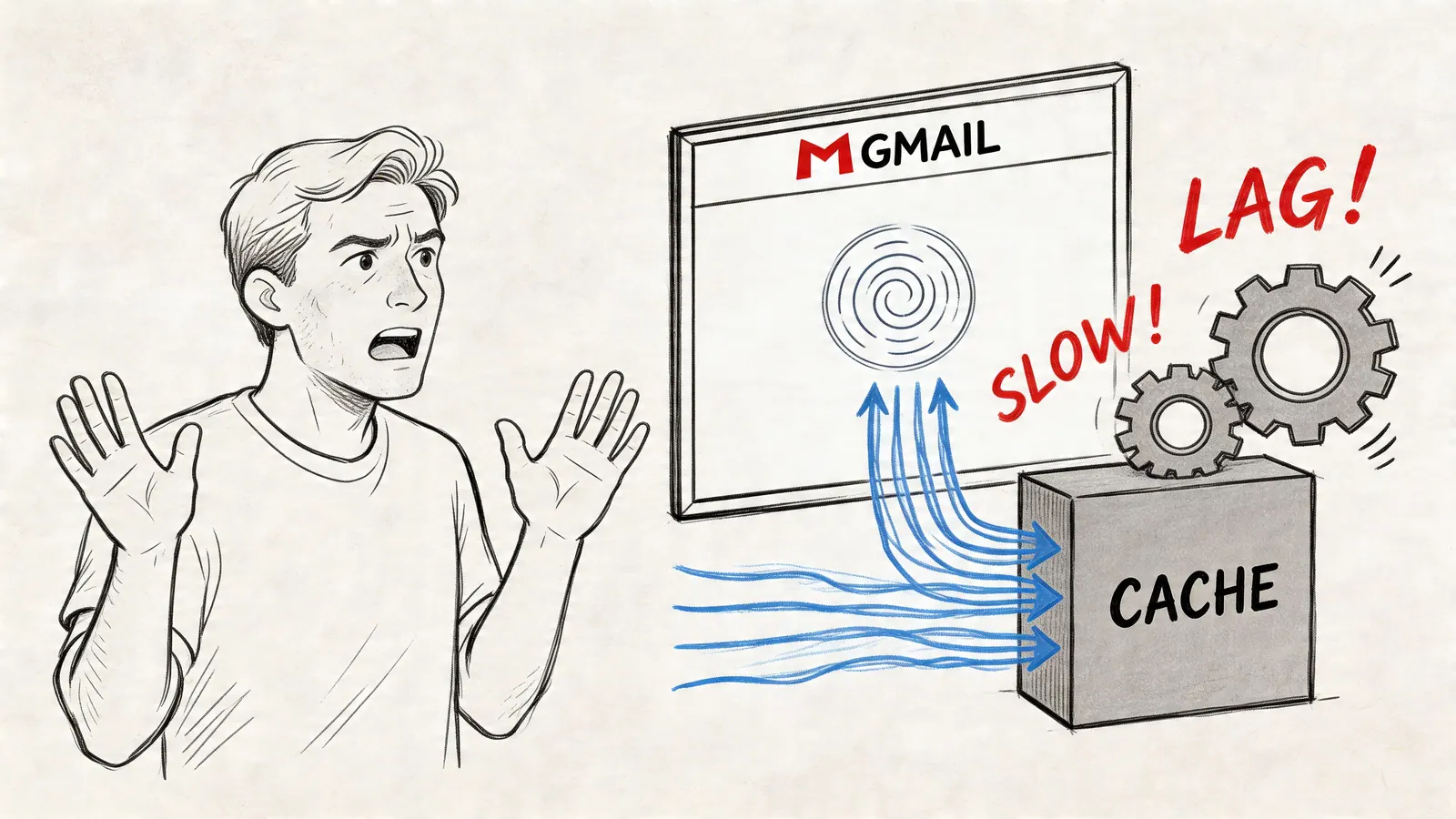
Cache is the set of temporary files your browser or app stores so Gmail can load faster the next time. That includes rendered interface assets, attachment previews, and other saved data that helps avoid downloading everything from scratch. In normal use, that’s helpful. After enough time, it turns into clutter.
Gmail is operating at huge scale. It has over 1.8 billion active users, and Chrome is used by about 65% of people online, so this isn’t some edge-case maintenance task. Heavy users can build up over 500MB of cache, and clearing it can reduce Gmail load times by up to 40% on slower connections, according to this Gmail cache overview.
What cache helps with and when it starts hurting
Cache is good at speeding up repeat actions. Gmail doesn’t need to fetch every visual component every time you click around. That’s why a fresh session often feels sharp.
The problem starts when cached files are outdated, oversized, or conflicting with newer Gmail behavior. Then the thing meant to save time starts causing lag instead.
- Loading delays: Gmail can stall while the browser sorts through old temporary files.
- Preview issues: Attachment previews and rich thread views may feel inconsistent.
- UI friction: Actions like dragging, opening, or switching between views can lag.
- Extension instability: Integrated tools inside Gmail may compete with stale local data.
Practical rule: If Gmail used to feel fast on the same machine and same connection, local browser data is one of the first things worth checking.
Why this matters more for Gmail power users
If you use Gmail casually, a bloated cache might just be annoying. If you manage projects, sales conversations, or shared inbox work from Gmail, the slowdown affects how you move through the day. Search delays slow triage. Sticky thread loads interrupt follow-ups. Lag inside embedded tools makes people think the extension is broken when the browser is really the bottleneck.
That’s why the goal isn’t only to clear gmail cache. It’s to clear the right data with the least possible disruption.
Important Pre-Clear Checks to Protect Your Accounts
Before clearing anything, know what you’re deleting. The term “cache” is often used as shorthand, but browsers separate temporary files, cookies, and site data. Those categories behave differently, and the side effects are different too.
Your emails are safe. Gmail messages live on Google’s servers, not in your browser cache. What’s at risk is local convenience data: signed-in sessions, remembered site settings, offline data, and extension state that hasn’t synced yet.
Know what can change after a clear
A careful reset should be predictable. A rushed one creates needless cleanup.
Here’s the checklist I use before touching browser data:
- Confirm passwords are accessible: Make sure your password manager is accessible, or your account recovery methods are current. If cookies are removed, Gmail and connected services may ask you to sign in again.
- Sync extension work first: If you use a Kanban board, CRM sidebar, or notes extension in Gmail, make sure recent changes have finished syncing.
- Check offline mail settings: Offline Gmail can keep extra local data around. If you use it, decide whether you want to preserve it or purge it.
- Close unnecessary tabs: Don’t keep multiple Gmail windows open while clearing site data. Open tabs can re-create partial files or keep old sessions hanging around.
Cache, cookies, and site data are not the same
Here, people make bad trade-offs.
| Data type | What it usually affects | Common side effect |
|---|---|---|
| Cached images and files | Temporary assets used to speed loading | Usually low risk |
| Cookies | Sign-in sessions and remembered site preferences | You may get logged out |
| Site data | Local storage, offline data, service worker data | Extensions may lose local state |
If your goal is only to fix a sluggish Gmail tab, start narrow. Don’t default to a browser-wide wipe unless the targeted option fails.
If your workflow also depends on contacts inside Gmail, it’s smart to review your export options before broader account maintenance. This guide on how to export Gmail contacts safely is a useful prep step.
The simplest safe mindset
Treat browser cleanup the same way you’d treat clearing app data on a work laptop. Remove what’s likely causing the issue. Preserve everything else until you know you need a bigger reset.
That mindset prevents the classic mistake: fixing Gmail speed while breaking the tools wrapped around it.
How to Clear Gmail Cache on a Desktop Browser
On desktop, there are two ways to clear gmail cache. The first is the one I recommend almost every time: remove data for Gmail specifically. The second is the broader browser-wide clear. Use that only when Gmail is still unstable after the targeted pass.

Start with the targeted Chrome method
If Gmail is your problem, clear Gmail first. Don’t punish every other site in your browser.
For Chrome, the precise path is to open chrome://settings/siteData, search for mail.google.com, and delete that entry. This targeted step can clear up to 500MB of Gmail-specific data and resolves loading issues in 95% of cases, with load times dropping from over 15 seconds to under 5, according to Business Insider’s Chrome walkthrough.
A safe sequence looks like this:
- Turn off Gmail offline first if you use it. In Gmail, open Settings, then the Offline tab, and disable offline mail.
- Open Chrome site data by typing
chrome://settings/siteDatain the address bar. - Search for Gmail data using
mail.google.com. - Delete the matching site entry using the trash icon.
- Restart Chrome before testing Gmail again.
This approach is the closest thing to a surgical reset. It usually logs you out of Gmail, but it avoids clearing unrelated sites.
When a full Chrome clear makes sense
If Gmail is still acting strange after the targeted step, move to a broader cache clear.
Use this path in Chrome:
- Open the menu: Click the three dots.
- Go to browsing data: Select More tools, then Clear browsing data.
- Choose a long time range: Pick All time if the issue has been around for a while.
- Select the right items: Start with Cached images and files. Add Cookies and other site data only if the targeted step didn’t fix the problem.
- Clear, restart, retest: Don’t judge the result until Chrome has been fully restarted.
For anyone who wants a wider browser maintenance reference, this guide on how to clear browser cache is a good companion because it lays out the broader cleanup options clearly.
A targeted Gmail clear fixes more workflows than a browser-wide purge because it removes the problem data without wiping every active session you rely on.
Firefox and Edge users need a practical equivalent
Firefox and Edge don’t mirror Chrome’s Gmail-specific flow exactly the same way, so the safest pattern is to use their privacy settings with a light touch first.
Firefox
Firefox usually responds well to clearing cached web content without immediately removing every stored login.
Use this path:
- Open the main menu.
- Go to Settings.
- Select Privacy & Security.
- Find Cookies and Site Data.
- Click Clear Data.
- Start with Cached Web Content.
If Gmail is still problematic, return and consider clearing site data more broadly, knowing that sign-ins and local settings may be affected.
Edge
Edge’s flow is close to Chrome’s but still worth treating separately.
Use this path:
- Open Settings.
- Choose Privacy, search, and services.
- Find Clear browsing data.
- Click Choose what to clear.
- Select Cached images and files.
- Add cookies or site permissions only if the lighter pass didn’t work.
Which desktop method should you choose
This is a common decision point:
| Situation | Best first move | Why |
|---|---|---|
| Only Gmail is slow | Targeted Gmail site data clear | Lowest disruption |
| Gmail and several Google pages are acting oddly | Cached files clear in the browser | Broader reset without full account fallout |
| Sessions, widgets, and page behavior are corrupted | Full browsing data clear including site data | Highest disruption, but deepest reset |
What usually does not work
People often try small actions that feel productive but don’t address the actual buildup.
- Hard refresh alone: Helpful for a single stale page, not for deep local accumulation.
- Closing one tab: It won’t remove stored site data.
- Logging out and back in: Useful for auth issues, not for bloated cached files.
- Clearing only history: Browsing history is not the same thing as cache.
If Gmail is dragging on desktop, start narrow, restart the browser, then test with one clean tab. That sequence solves most real-world cases without creating avoidable cleanup work.
Clearing the Gmail App Cache on Android and iOS
Mobile Gmail failures feel different from desktop ones. On your phone, the pain usually shows up as delayed refreshes, odd pauses when opening messages, or an app that seems to freeze for no obvious reason. The fix depends entirely on which operating system you’re using.
Android gives you a direct cache reset
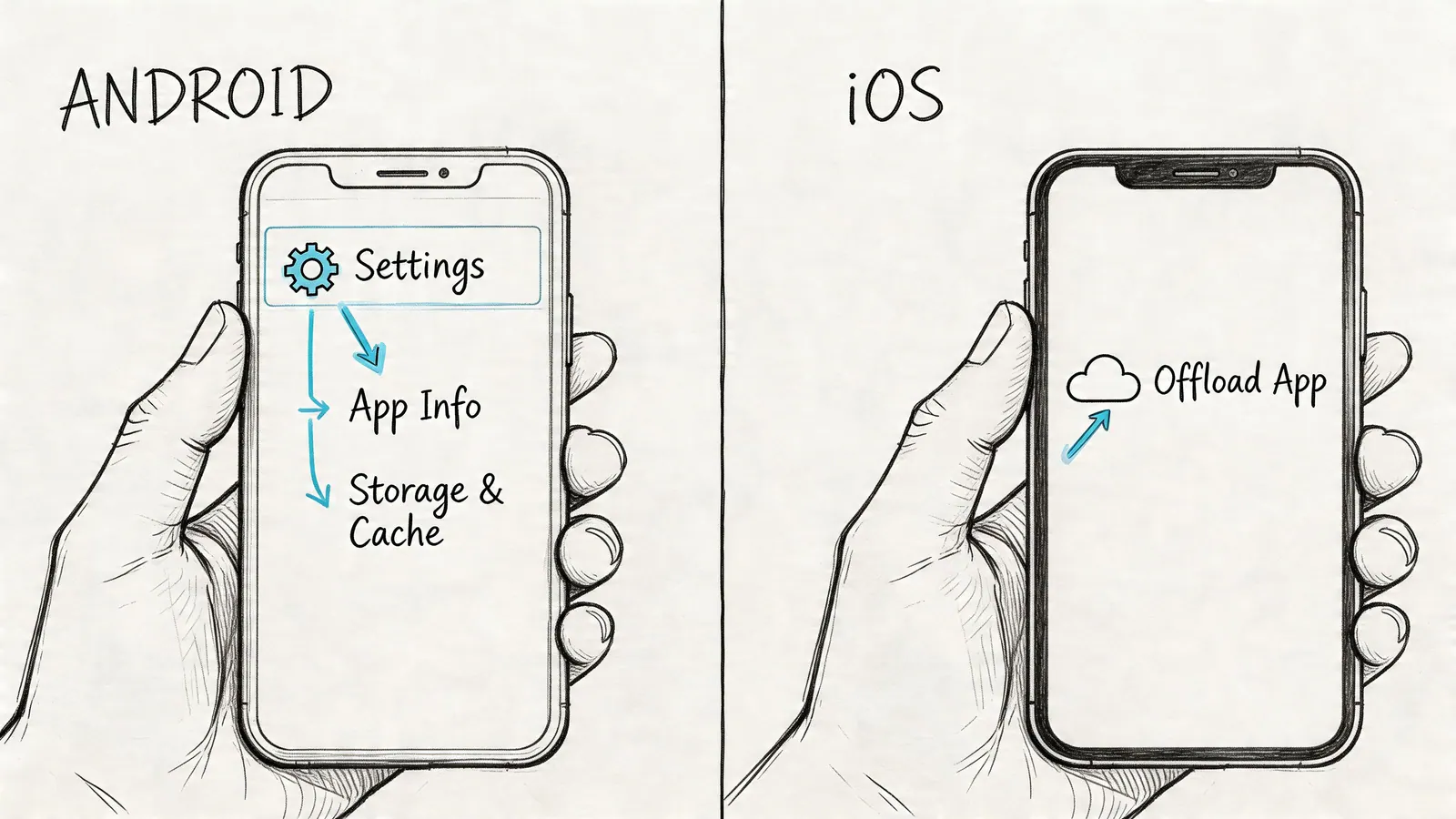
Android is straightforward. You can clear the Gmail app cache from the system settings without deleting your email or removing the account itself.
Use this path:
- Open Settings.
- Tap Apps.
- Select Gmail.
- Open Storage.
- Tap Clear Cache.
According to this Android Gmail cache guide, that process removes an average of 50MB to 200MB of temporary files without deleting emails. It can resolve up to 70% of app crashes and lead to a 50% faster inbox refresh.
That’s the key distinction on Android. Clear Cache is a maintenance action. Clear Storage is a reset. Don’t confuse the two unless you intentionally want to wipe app data and sign back in from scratch.
iOS is less precise
On iPhone and iPad, there isn’t usually a direct “clear cache” button for Gmail in the same way Android provides one. The practical option is to offload or reinstall the app if Gmail seems persistently bloated or unstable.
That sounds heavier, but your mail still lives in your Google account. The main cost is local convenience. You may need to sign back in, restore notification preferences, and confirm any app-level settings after reinstalling.
A cautious iOS sequence looks like this:
- Check whether the problem is temporary: Force close Gmail and reopen it.
- Restart the device: This clears transient issues that aren’t really cache-related.
- Update the app: An outdated app can mimic a cache problem.
- Reinstall if needed: Remove and reinstall Gmail if the app remains slow or inconsistent.
A quick visual walkthrough can help if you’re troubleshooting on mobile:
Android and iOS side by side
| Platform | Direct cache clear available | Typical impact |
|---|---|---|
| Android | Yes | Removes temporary files with minimal disruption |
| iOS | Usually no direct app cache button | Reinstall is often the practical reset path |
On mobile, use the least destructive fix first. App cache clearing on Android is routine. App reinstallation on iOS is closer to a refresh cycle than a true precision clean.
If you switch between desktop Gmail and the mobile app all day, keep the fixes separate in your head. Browser cache and app cache solve different layers of the same problem.
A Crucial Guide for Users of Gmail Productivity Extensions
This is the part most generic tutorials skip. If you use a Kanban board, task pane, CRM sidebar, or another embedded Gmail workspace, cache clearing can fix performance and still disrupt your day if you clear the wrong local data.
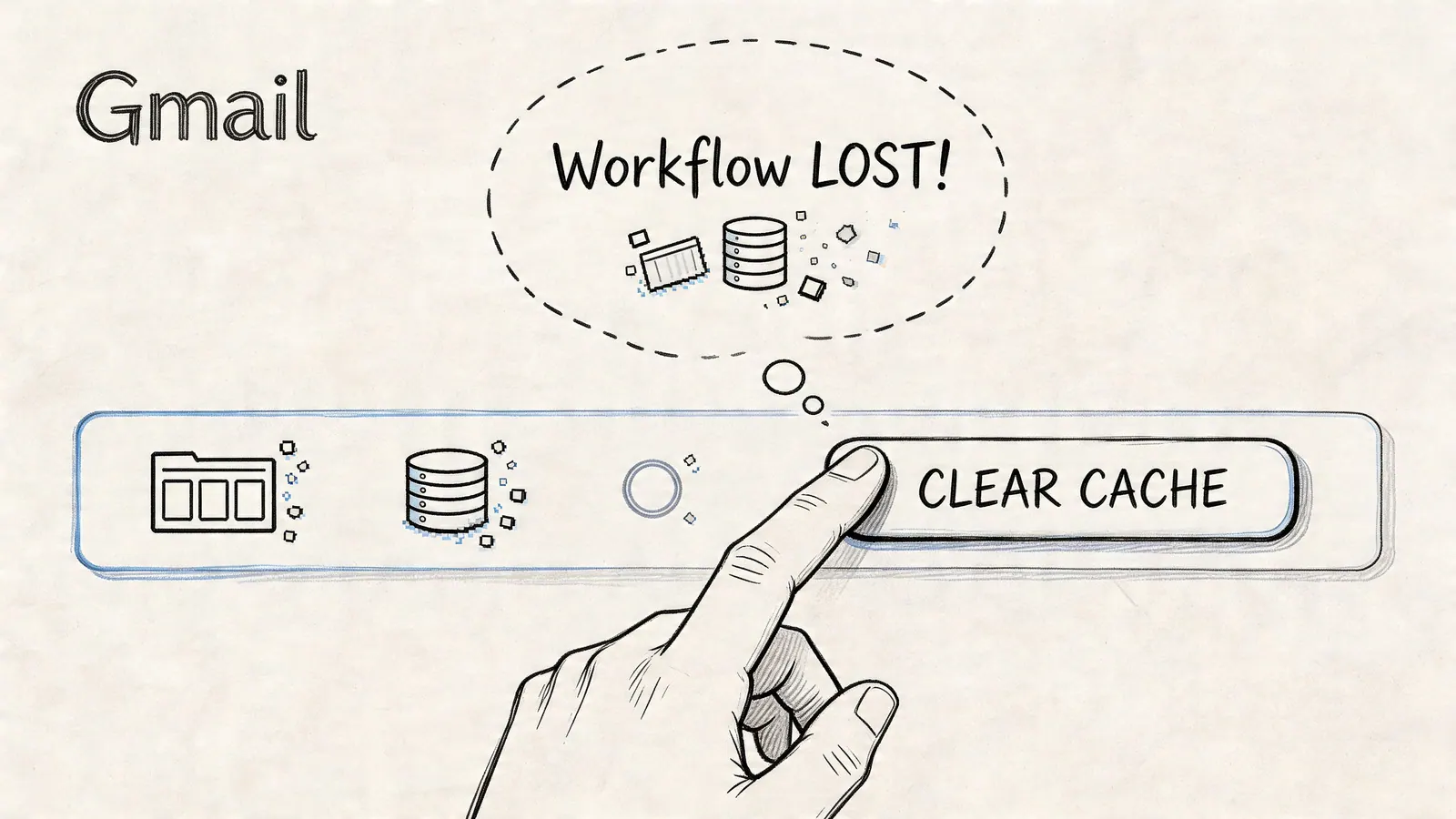
Extensions inside Gmail often rely on a mix of browser storage, local state, cookies, and active authentication tokens. That’s why a user can say “I only cleared cache” and then discover their board layout is gone, their session expired, or a sidebar won’t load until they reconnect it.
For teams using Gmail extensions, the browser can accumulate 1GB to 5GB per user in 30 days, and clearing it can restore Gmail’s Time to Interactive from 12 seconds to 2 seconds. But 35% of teams miss the targeted siteData step, which leaves residual Gmail data behind and causes lingering issues, according to this Workspace-oriented cache management reference.
Why extensions are more fragile than plain Gmail
Plain Gmail can usually tolerate a rough reset. Extensions are less forgiving because they may keep unsynced board preferences, collapsed panel states, temporary form entries, or locally remembered filters in browser storage.
That doesn’t mean you should avoid cleanup. It means you should clear with intent.
The safest pattern is:
- Finish active work first: Don’t clear data in the middle of editing notes, moving cards, or updating deal stages.
- Confirm sync has completed: If the extension has any kind of save indicator, wait for it.
- Prefer Gmail-specific cleanup first: Don’t start with browser-wide deletion.
- Expect re-authentication: If the extension depends on Gmail session state, you may need to sign back in after the clear.
The practical playbook I’d give any team
When a Gmail-based workflow slows down, use this order of operations:
- Disable Gmail offline if it’s enabled. Offline mail can preserve local data you may be trying to flush.
- Clear Gmail site data specifically. Keep the blast radius narrow.
- Restart the browser. Some stale processes don’t fully release until restart.
- Open Gmail alone first. Check base performance before loading every extension.
- Reconnect affected extensions one at a time. If one tool fails, you’ll know where the break is.
Don’t evaluate extension health until Gmail itself is loading normally again. Otherwise you’re debugging two problems at once.
What to protect before you clear
A lot of lost-work complaints come from timing, not from the cache clear itself.
| Risk area | What to do first |
|---|---|
| Unsynced task changes | Wait for the extension to finish syncing |
| Custom board views | Note critical filters or layout choices |
| Session-based CRM access | Be ready to authenticate again |
| Shared workspace context | Confirm recent updates are visible to teammates |
If your team depends on Gmail add-ons daily, it’s worth reviewing strong options for integrated workflows in this roundup of the best Gmail productivity tools.
What works and what doesn’t
What works: targeted deletion, browser restart, and re-authentication in a controlled sequence.
What doesn’t: clearing all browser data during active work, testing six variables at once, or assuming “cache” only means harmless temporary images.
That distinction matters. A careful cleanup restores speed. A careless one creates support tickets.
Troubleshooting When Clearing the Cache Is Not Enough
If Gmail is still slow after a clean reset, stop clearing things randomly. At that point, you need isolation, not more deletion.
Test Gmail without your usual extension loadout
The fastest way to narrow the issue is to open Gmail in an Incognito or Private window. If Gmail behaves normally there, the base browser is probably fine and one of your extensions, permissions, or stored settings is the culprit.
Then disable extensions one by one in your regular browser profile and retest Gmail after each change. Start with anything that modifies the inbox layout, side panels, trackers, or task views. Those are the usual conflict points.
- Use Incognito first: It gives you a cleaner environment quickly.
- Disable one extension at a time: Batch changes hide the cause.
- Retest the same action: Open the same thread, search the same term, or preview the same attachment.
Check whether the issue is really Gmail
Sometimes the symptom looks like a Gmail problem, but the root cause is broader. Network instability, overloaded tabs, and browser profile corruption can all mimic bad cache behavior.
If you’re diagnosing related mail issues beyond cache, this guide on how to fix other email problems is useful because the troubleshooting logic carries over even when the app is different.
You should also watch for workflow-specific errors. If messages are waiting instead of sending, that’s a different problem than cached local data. This write-up on emails queued in Gmail is a better match for that situation.
A successful cache clear should change behavior quickly. If nothing changes, the root cause is usually elsewhere.
Last-resort cleanup steps
If none of the above helps, try the heavier but still structured options:
- Restart the whole browser profile: Fully close the browser, not just the tab.
- Update the browser: Old versions can create odd rendering and storage behavior.
- Flush local networking state: Useful when Gmail loads inconsistently across devices on the same connection.
- Create a fresh browser profile: This is the cleanest way to test whether your main profile has become the problem.
Don’t jump to account-level panic. Most “cache didn’t fix it” cases end up being an extension conflict or profile issue.
Frequently Asked Questions About Managing Gmail Data
Will clearing Gmail cache delete my emails
No. Your emails are stored in your Google account, not in the browser cache or app cache. What you may lose is local convenience data such as signed-in sessions, temporary files, or unsynced extension state.
Will I get logged out
Maybe. If you clear only cached files, you may stay signed in. If you clear cookies or broader site data, Gmail and connected services may ask you to log in again.
Should I clear only cache or also cookies
Start with cache. Add cookies or site data only if the narrower step doesn’t fix the issue. That keeps the reset smaller and lowers the chance of interrupting your workflow.
Why is Gmail still slow after a cache clear
The likely causes are an extension conflict, browser profile issue, or a device-level problem rather than Gmail cache itself. Incognito testing and selective extension disabling usually reveal which one you’re dealing with.
How often should I clear gmail cache
Use it as maintenance when Gmail becomes visibly sluggish, not as a daily ritual. If you rely on offline mail or Gmail-based extensions, unnecessary clears can create more friction than value.
What is the safest option for teams using Gmail add-ons
Use a targeted Gmail site-data clear first, confirm your extension data has synced, and prepare for re-authentication. Avoid broad browser wipes during active work hours.
Is Android safer than iPhone for cache cleanup
For Gmail specifically, Android is more direct because the operating system gives you a true app cache clear option. On iPhone, the practical equivalent is often reinstalling the app, which is more disruptive.
If your team runs work directly inside Gmail, Tooling Studio builds lightweight Google Workspace extensions that keep task management and collaboration close to the inbox. That’s especially useful when you want a fast Gmail experience without bouncing between separate apps all day.
 Download our Plugin